







Imagine the sudden wave of panic when you plug your thumb drive into your laptop, only to find the directory empty. You know the files are there because the “Space Used” bar in Windows Explorer shows several gigabytes are occupied, yet the screen remains blank. This specific scenario is a frequent cry for help on technical forums, where users desperately seek to recover folders missing from flash drive after a virus attack or a system glitch. Whether it is a collection of thesis chapters or critical business spreadsheets, losing access to your data is a digital nightmare that requires a calm, systematic approach to resolve.
In this extensive guide, we will explore why these disappearances happen and provide professional-grade solutions to help you recover folders missing from flash drive without losing your mind—or your data.
Part 1: Why Do Folders Suddenly Vanish?
Before we jump into the “how-to,” we must understand the “why.” When you need to recover folders missing from flash drive, the problem usually isn’t that the data has been physically vaporized. Instead, the “map” that tells your computer where the data lives has been tampered with.
The Common Culprits
Several factors lead to the frustrating need to recover folders missing from flash drive:
- Malware and USB Viruses: Certain scripts, like the infamous “Shortcut Virus,” change file attributes to “Hidden” and “System,” making them invisible to standard File Explorer settings.
- File System Corruption: Improperly ejecting your drive while a write operation is in progress can corrupt the File Allocation Table (FAT) or Master File Table (NTFS).
- Interrupted Transfers: If your computer loses power or the USB connection flickers during a move command, the folders might disappear from the source but not yet appear in the destination.
- Hardware Aging: Flash memory has a limited lifespan. As NAND cells wear out, specific directory sectors may become unreadable.
According to discussions on Microsoft Learn, many users experience this phenomenon after a “Scan and Fix” prompt, which sometimes moves orphaned files into hidden “Found.000” folders.
Part 2: Step-by-Step Methods to Restore Lost Directories
When you realize you need to recover folders missing from flash drive, the first rule is: Stop writing new data to the drive immediately. Every new file you save increases the risk of overwriting the invisible data you are trying to save.
Method 1: The Command Prompt “Attribute” Fix
This is the most effective way to recover folders missing from flash drive if a virus has simply hidden them. We will use the attrib command to force Windows to show everything on the drive.
- Step 1: Connect the flash drive to your PC. Note the drive letter (e.g., Drive
F:). - Step 2: Press
Win + R, type cmd, and pressCtrl + Shift + Enterto run as Administrator.

- Step 3: Type your drive letter followed by a colon (e.g.,
F:) and press Enter. - Step 4: Type the following command exactly:
attrib -h -r -s /s /d *.*
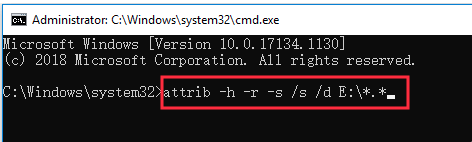
- Step 5: Press Enter and wait. The cursor will blink for a few seconds. Once it returns to the drive letter prompt, check your USB drive. Your folders should now be visible.
Method 2: Professional Recovery with PandaOffice Drecov
If the command prompt fails, it usually means the file system structure is damaged or the files were actually deleted. In such cases, you need a specialized tool to recover folders missing from flash drive. PandaOffice Drecov is a market leader for this specific task due to its deep-sector scanning technology.
- Step 1: Installation and Launch. Download and install PandaOffice Drecov. Open the software and ensure your flash drive is listed under the “Removable Drives” section.
- Step 2: Select the Target. Click on the icon representing your USB drive. This tells the software exactly where to look to recover folders missing from flash drive.

- Step 3: Initiation of Deep Scan. Click the Scan button. PandaOffice Drecov will first perform a Quick Scan (for deleted files) followed immediately by a Deep Scan, which looks for raw file signatures even if the folder names are lost.

- Step 4: Real-time Preview. As the scan progresses, you can browse the “Tree View” or “File View.” If you see your missing folders appear, you can actually click on them to preview the contents (photos or documents) to ensure they are intact.

- Step 5: Execution of Recovery. Select the checkboxes for the folders you wish to restore. Click the Recover button and choose a destination on your computer’s internal hard drive. Never save recovered files back to the same USB drive during the process.
Beyond Folder Recovery: What Else Can PandaOffice Drecov Handle?
While its ability to recover folders missing from flash drive is its most popular feature, this software is a versatile tool for various USB crises:
- USB Driver Error: Accessing data even when the system suggests the driver is faulty.
- RAW USB: Recovering data from drives that have lost their format and show as “RAW” in Disk Management.
- Hidden Files in USB: Bypassing attribute locks that CMD cannot break.
- USB Drive Not Recognized: Extracting data from drives that don’t appear in “My Computer” but are visible in BIOS/Disk Management.
- Files Deleted with Shift+Delete: Retrieving items that bypassed the Recycle Bin entirely.
Method 3: Modifying the Windows Registry
Occasionally, a usb virus changes the way Windows displays hidden files globally. If you find you cannot recover folders missing from flash drive because the “Show Hidden Files” option keeps resetting itself, you must fix the Registry.
- Step 1: Press
Win + R, typeregedit, and press Enter. - Step 2: Navigate to the following path:
HKEY_LOCAL_MACHINE\SOFTWARE\Microsoft\Windows\CurrentVersion\Explorer\Advanced\Folder\Hidden\SHOWALL - Step 3: On the right-hand side, find the entry named CheckedValue.
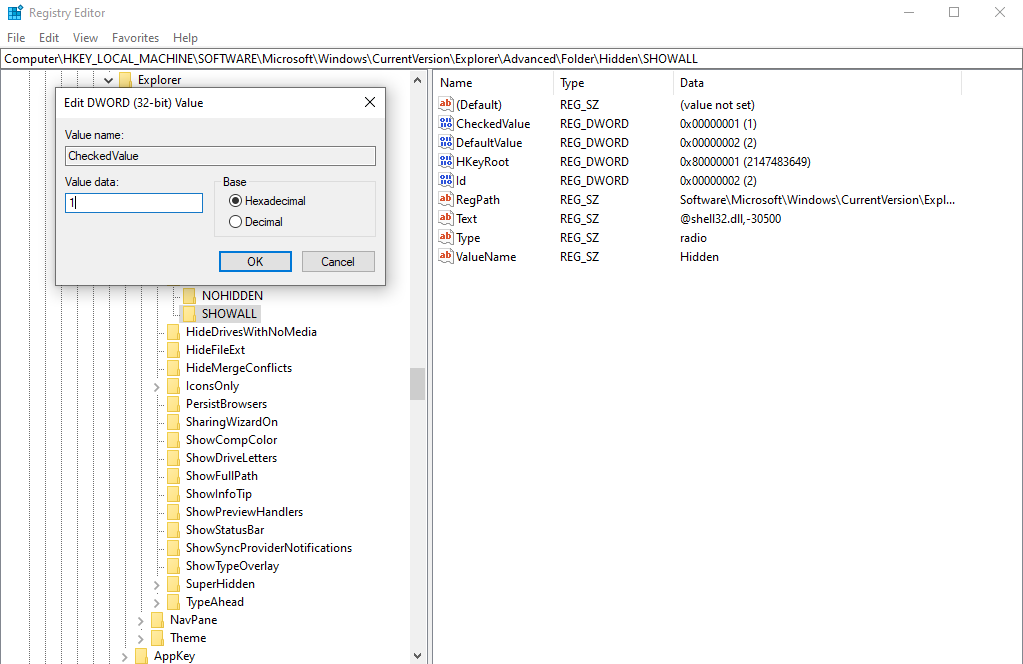
- Step 4: Right-click CheckedValue, select Modify, and ensure the “Value data” is set to 1. If it is 0, the usb virus has disabled your ability to see hidden files.
- Step 5: Restart your PC and try to view the USB folders again.
Method Comparison: Choosing the Right Path
To help you decide how to recover folders missing from flash drive, refer to this comparison of the methods discussed above:
| Feature | CMD Attrib Command | PandaOffice Drecov | Windows Registry Edit |
| Best Use Case | Virus-hidden files | Deleted, Formatted, or RAW drives | System-wide visibility issues |
| User Skill Level | Intermediate (Text-based) | Beginner (Guided UI) | Advanced (Risk of OS errors) |
| Data Safety | High | Extremely High (Read-only) | Moderate |
| Success Rate | 60% | 99.8% (Deep Scan Tech) | 30% |
| Key Advantage | Built into Windows | Handles physical & logical corruption | Fixes the root OS setting |
How to Prevent Folders from Going Missing in the Future
While learning how to recover folders missing from flash drive is a vital skill, the most efficient way to manage data is to ensure it never disappears in the first place. Prevention is often a matter of combining good hardware habits with smart software configurations. By following these professional guidelines, you can significantly reduce the risk of future data loss.
1. Master the “Safe Ejection” Habit
The primary cause of non-virus-related data disappearance is “Atomic Write Failure.” This happens when you pull a drive out while the OS is still clearing its write cache.
- The Risk: Windows often delays writing data to the USB to improve system performance. If you unplug the drive prematurely, the file directory becomes corrupted, leading to the need to recover folders missing from flash drive.
- The Fix: Always click the “Safely Remove Hardware and Eject Media” icon in the System Tray (near the clock). Wait for the “Safe to Remove Hardware” notification before physically disconnecting the device.
2. Enable “Removal Policy” for Better Safety
You can configure Windows to optimize your USB drive for quick removal, which minimizes the chance of folder corruption.
- Step 1: Plug in your USB and right-click the Start button, then select Device Manager.
- Step 2: Expand Disk drives, right-click your flash drive, and select Properties.
- Step 3: Go to the Policies tab.
- Step 4: Select Quick removal (default). This disables write caching on the device so you can disconnect it without using the “Safely Remove” icon, though manual ejection is still the safest practice to prevent folders from going missing.
3. Implement Regular File System Maintenance (CHKDSK)
Just like a hard drive, a flash drive’s file system can develop minor errors over time. Periodic maintenance can fix these before they turn into major issues.
- Action: Every month, run a disk check. Open This PC, right-click your USB drive, select Properties -> Tools -> Check.
- Benefit: This repairs file system “bit rot” and ensures the directory structure remains healthy, preventing the scenario where you suddenly find folders missing from flash drive.
4. Use a Dedicated Antivirus for Removable Media
Standard antivirus software sometimes misses the specific scripts used by USB-borne malware.
- Pro Tip: Use a security suite that includes “USB Shield” features. These tools automatically scan the
autorun.infand hidden directories the moment a drive is inserted. By neutralizing a usb virus before it executes, you prevent the malware from applying the “Hidden” or “System” attributes that make your folders disappear.
5. The “Dirty Bit” Awareness
If you plug your USB into different operating systems (like moving from a Mac to a Windows PC or a Linux terminal), the OS might mark the drive with a “dirty bit” if it wasn’t unmounted correctly.
- Prevention: Avoid “hot-swapping” between different OS platforms without a full shutdown or proper ejection. Cross-platform errors are a leading reason why users find their folders missing from flash drive when they switch back to a Windows environment.
6. Cloud Sync and Redundancy
No physical drive is 100% reliable. The ultimate way to prevent folders from going missing permanently is to maintain a “Mirror.”
- Strategy: Use a tool to automatically sync your USB contents to a folder on your PC or a cloud service (like OneDrive or Dropbox) whenever it is plugged in. If the flash drive fails or the folders vanish, you have an immediate backup ready for restoration.
Professional Insights on USB Data Issues
Q1: Why does my USB say it’s full but it’s empty?
This is the classic sign that you need to recover folders missing from flash drive. It usually means the files are marked as “System Protected.” Using Method 1 (CMD) or Method 2 (PandaOffice Drecov) will reveal these “ghost” files.
Q2: Can I recover folders missing from flash drive if the drive is physically cracked?
Software solutions cannot fix physical hardware breaks. If the USB connector is snapped or the chip is burnt, you will need a specialized hardware lab rather than recovery software.
Q3: Does formatting the drive help me recover folders missing from flash drive?
No! Formatting will erase the remaining data pointers. If you have already formatted it, your only hope is the Deep Scan feature in PandaOffice Drecov, which can find files based on their internal code rather than the file table.
Conclusion
The journey to recover folders missing from flash drive can be stressful, but as we have explored, the data is rarely truly gone. For most users, the disappearance is simply a trick of the operating system’s file attributes or a minor corruption of the file system.
By starting with the CMD attrib command, you can often solve the problem for free in seconds. However, for more complex scenarios involving corruption or accidental deletion, PandaOffice Drecov provides a powerful, foolproof safety net that ensures even “unrecoverable” data is brought back to life. Remember to stay proactive: keep backups, scan your drives for viruses regularly, and always eject your hardware properly. With these tools and habits, you will never have to fear the “empty drive” syndrome again.






