







“Help! My USB drive says it is almost full, but when I open it, the folders are completely empty!” This desperate plea is a common sight on tech support forums like Reddit and Microsoft Community. Many users face the heart-pumping moment where they believe their precious photos or work documents have vanished into thin air. In reality, you are likely dealing with hidden files in usb devices, a common phenomenon where data remains physically present on the storage chips but becomes invisible to the standard Windows File Explorer interface. Understanding why this happens and how to reverse it is essential for anyone who relies on portable storage.
Part 1: The Science of Invisibility – Why Do Files Hide?
When we talk about hidden files in usb storage, we aren’t necessarily talking about a permanent deletion. Instead, the “Attributes” of your files have been modified. Every file on a Windows-based system carries specific metadata tags: Read-only, System, Archive, and Hidden. If the “Hidden” or “System” attribute is toggled on, Windows will ignore these files during a standard browse.
Why Do Your Files Go Into Hiding?
Several factors contribute to the mystery of hidden files in usb drives, ranging from user settings to malicious software:
- Viral “Shortcut” Infections: This is the most frequent cause. A specific type of malware moves your data into a hidden directory and replaces it with look-alike shortcuts. This creates a terrifying hidden files in usb scenario where the user thinks the data is gone.
- Accidental Attribute Changes: Sometimes, while moving folders or using third-party software, the “Hidden” attribute is accidentally applied to the root directory.
- System File Protection: By default, Windows hides critical configuration files to prevent users from accidentally deleting them. If your drive contains bootable software, you will encounter hidden files in usb that are vital for the drive’s function.
- Improper Ejection: Abruptly pulling a drive out can corrupt the File Allocation Table (FAT) or Master File Table (MFT). When the index is broken, the OS may fail to display the contents, effectively creating hidden files in usb entries that are orphaned from the directory tree.
Part 2: Step-by-Step Solutions to Reveal and Recover Your Data
If you are currently staring at an empty drive window, do not panic. We have compiled a logical sequence of methods to find hidden files in usb devices, ranging from simple UI toggles to advanced recovery software.
Method 1: Adjusting Windows File Explorer Settings (The Quick Fix)
Before trying complex tools, check if your system is simply configured to ignore hidden items. This is the most basic way to address hidden files in usb issues.
- Step 1: Plug your USB drive into your PC and open File Explorer (Shortcut: Windows + E).
- Step 2: Navigate to your USB drive letter (e.g., Drive F:).
- Step 3: Click on the View tab in the top menu bar.
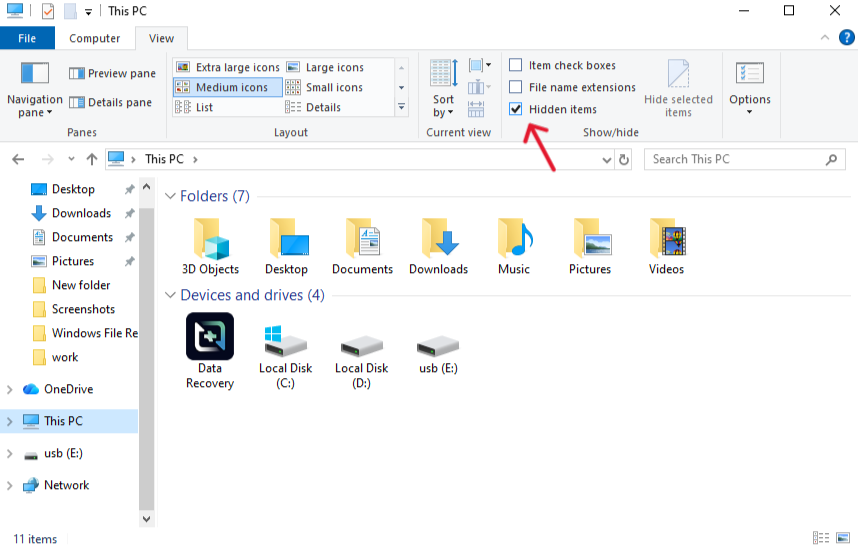
- Step 4: Look for the Show/hide group and check the box labeled Hidden items.
- Step 5: If you still don’t see your data, click Options on the far right of the View tab, then select Change folder and search options.
- Step 6: In the View tab of the new window, find “Hide protected operating system files (Recommended)” and uncheck it. Click Apply.
Method 2: Professional Recovery with PandaOffice Drecov
Sometimes, malware or file system corruption is so severe that Windows settings won’t help. In these cases, you need a tool that ignores file attributes and scans the raw sectors of the drive. PandaOffice Drecovis the gold standard for locating hidden files in usb drives when the OS fails. It excels at finding data that has been “orphaned” by virus attacks.
- Step 1: Launch the software. You will see a list of available drives. Select the USB drive that contains the hidden files in usb.

- Step 2: Click the Scan button. For best results with hidden data, the software automatically initiates a “Deep Scan” to identify file signatures across the entire storage volume.

- Step 3: Use the Filter sidebar to sort by file type (e.g., Photos, Documents). Even if the folder structure is gone, Drecov will find the hidden file in usb based on their internal code.

- Step 4: Select the files you wish to restore, click Recover, and choose a destination on your local C: or D: drive (never recover back to the same USB).
Method 3: How to Show Hidden Files on USB CMD (Command Prompt)
If a virus has used the “attrib” command to lock your folders, you can use the same power to unlock them. This is the classic way to resolve hidden file in usb problems for power users.
- Step 1: Click the Start menu, type
cmd, right-click it, and select Run as Administrator.

- Step 2: Identify your USB drive letter in File Explorer (we will use G: for this example).
- Step 3: In the Command Prompt window, type
G:and press Enter. - Step 4: Type the following command exactly:
attrib -h -r -s /s /d *.*- -h: Clears the Hidden attribute.
- -r: Clears the Read-only attribute.
- -s: Clears the System attribute.
- /s: Processes files in the current folder and all subfolders.
- /d: Processes folders as well.
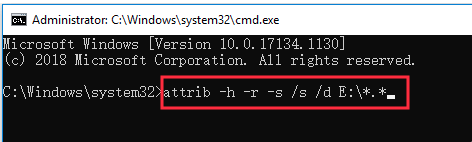
- Step 5: Press Enter. Wait a few seconds, and then check your drive. Your hidden files in usb should now be visible as normal folders.
Method 4: Fixing Errors via the Windows Registry
In rare cases, the “Show Hidden Files” toggle in Windows is broken by a registry-based virus. Even if you click “Show,” it keeps resetting. This prevents you from seeing any hidden files in usb.
- Step 1: Press Windows + R, type
regedit, and hit Enter. - Step 2: Navigate to the following path:
HKEY_LOCAL_MACHINE\SOFTWARE\Microsoft\Windows\CurrentVersion\Explorer\Advanced\Folder\Hidden\SHOWALL
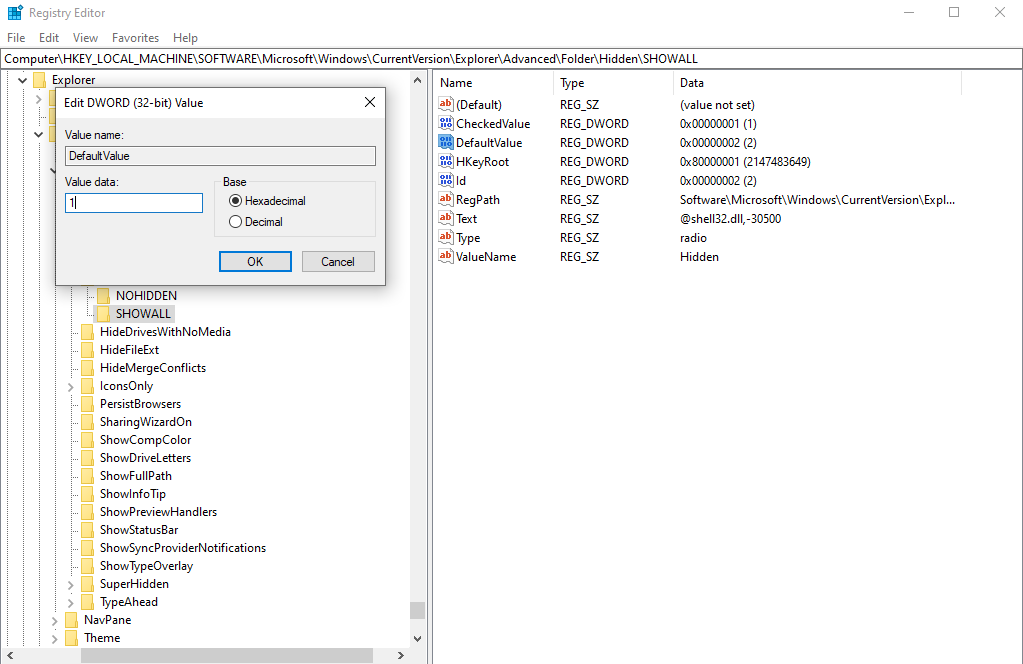
- Step 3: Find the entry named CheckedValue in the right-hand pane.
- Step 4: Double-click it. Ensure the Value data is set to
1. If it is0, the system will never show hidden files in usb. - Step 5: Restart your computer and try Method 1 again.
Understanding Other USB Vulnerabilities
Finding hidden files in usb devices is just one part of digital maintenance. Users often encounter other catastrophic failures that require immediate attention:
- USB Device Not Recognized: This often involves driver corruption or hardware failure in the bridge chip.
- The Disk is Write Protected: A software lock that prevents you from deleting or adding files, often triggered by internal errors.
- USB Drive Needs Formatting: This occurs when the file system becomes “RAW.” In this state, your hidden files in usb are still there, but the “map” to find them is destroyed. This is where PandaOffice Drecov becomes essential, as it doesn’t need a healthy file system to work.
Comparison of Methods to Show Hidden Files
When you encounter hidden files in usb, the “best” method depends on the cause of the invisibility.
| Method | Primary Target | Ease of Use | Success Rate | Why Use It? |
| Explorer Settings | Accidental hiding | Very High | Moderate | Best for simple setting changes. |
| PandaOffice Drecov | Virus/Corruption/RAW | High | Very High | Deepest scan; recovers files even if attributes are broken. |
| CMD (attrib) | Virus/Shortcut errors | Moderate | High | Best for fixing attribute locks without software. |
| Registry Edit | System-wide glitches | Low | Low | Only for when Windows settings are broken. |
Hidden Files in USB FAQs
Q1: Can a virus create hidden files in usb drives without me knowing?
Absolutely. Many “worm” viruses move your legitimate data into a hidden folder (often named “.” or ” “) and create executable shortcuts that look like your folders. Clicking these shortcuts re-infects your PC while opening your hidden files in usb.
Q2: How to show hidden files on usb cmd if the drive letter keeps changing?
You should always verify the drive letter in “This PC” before running CMD. If you use the wrong letter, you might accidentally change the attributes of your system files instead of your hidden files in usb.
Q3: Is PandaOffice Drecov safe to use on an infected USB?
Yes. It reads the data in a “read-only” mode, meaning it won’t execute the virus. It allows you to pick your clean hidden files in usb and move them to a safe, scanned location.
Q4: Why can’t I see my hidden files in usb even after checking the “Hidden Items” box?
This usually means the files are also marked as “System Protected” or the file system is corrupted. You should move to the attrib command or use PandaOffice Drecov to perform a deeper dive.
Conclusion
The mystery of hidden file in usb drives is usually a matter of software attributes rather than physical destruction. By starting with simple File Explorer adjustments, moving to the powerful attrib command, and finally utilizing professional tools like PandaOffice Drecov, you can restore your data with confidence. Always remember that when a drive behaves strangely, the data is usually still there—it’s just waiting for you to find the right key to make it visible again. To prevent future issues, always scan your USB with antivirus software and keep a secondary backup of your most critical files.






