







Before choosing Excel repair software, make a separate copy of the workbook and check whether another version already opens. Excel’s built-in Open and Repair should usually be your first repair test on a stable file. If the workbook is missing rather than damaged, repair tools are the wrong category; look for a backup, version history, or a lost local copy instead. A zero-byte file also needs a different answer from a normal-sized workbook that triggers an error. These distinctions keep an awkward spreadsheet problem from becoming a second loss.
Determine what actually failed
Start with the file in File Explorer. Note its extension, size, and location. Does the workbook exist and have a plausible size? Can another workbook open in Excel? Can this file open on another trusted PC or from a different copy? If only Excel as an application is failing, repairing its installation is a different task from repairing one workbook. If the file is absent, stop trying to open recent-item shortcuts and search the original folder, backup, and cloud history.
A zero-byte file contains no workbook data in that particular copy. Do not expect a repair program to reconstruct formulas from an empty file. Look instead for a prior version, an attachment, an AutoRecover file, or another local copy. A normal-sized file that produces a corruption warning deserves a careful test on a duplicate. Keep the original untouched so that one unsuccessful repair attempt does not become the only remaining state.
If the workbook lives on a USB drive or network share, copy it to a healthy local drive when the source reads normally. Test the local copy. Repeated read errors, disconnects, or a changing device capacity suggest a storage problem rather than a spreadsheet-format problem. Stop repeated direct reads from unstable hardware and consider appropriate imaging or professional recovery. Do not run file-system repair on the original until important files are protected.
Use Excel’s own repair choices on a copy
Microsoft documents an Open and Repair path for a corrupted workbook. In Excel, choose File > Open, browse to the folder containing your duplicate, select the workbook, open the arrow beside Open, and choose Open and Repair. Choose Repair first. If it cannot recover the workbook, try Extract Data, which may retrieve values and formulas. This route can salvage content without promising that formatting, charts, macros, and every feature will survive. Microsoft’s official workbook-repair instructions explain the available choices.
After a repair, save the result under a new name in a healthy folder. Open the worksheets you actually need. Check totals, formulas, hidden sheets, charts, and links that matter to your work. A workbook that opens without a warning is not necessarily complete. Compare it with a trusted older copy or an exported PDF if you have one. If Excel reports that it removed content, read the repair log before treating the output as final.
Sometimes the workbook opens but recalculation causes trouble. Microsoft describes setting Excel’s calculation option to Manual before opening a problematic file. Use that only when the file itself is present and stable. It does not recover a deleted workbook and is not a cure for broken storage. If this test lets you reach the data, save a copy and check formulas carefully before returning calculation to its usual setting.
What an open-source alternative can and cannot tell you
LibreOffice Calc is an open-source spreadsheet application that can open many Excel workbooks. Trying a duplicate there may reveal whether a document’s data remains accessible when Excel itself refuses to open it. Treat this as a diagnostic and salvage option, not a guarantee of identical rendering. Complex formulas, macros, external connections, pivot behavior, or formatting may differ. Keep the original XLSX or XLS file and save any salvaged result under a new name.
For a simple table, open the duplicate in Calc and inspect a few sheets and formulas. If the values appear, export a separate copy and compare totals with earlier records. For a complex financial workbook, do not rely on an apparently successful opening alone. Verify the calculations and any automation in the application where the workbook will ultimately be used. If a feature is unsupported, the safer result may be extracting key values rather than trusting a converted workbook as a drop-in replacement.
This is why a software choice should follow the evidence. Excel’s built-in repair works within the application that created or normally uses the workbook. Another open-source reader can provide a second view of accessible data. Neither should overwrite your only original. Neither can restore a version that was deleted from the disk and no longer exists in the current file. Separate the damaged-file case from the missing-file case before trying more tools.
Check older versions before deeper intervention
Look for a known good version in the backup destination, OneDrive or another synced service’s version history, a mailed attachment, or Excel’s available recovery copies. Compare dates against the last needed edit. Restore or download a candidate to a new folder, then open it. If it contains nearly all the work, it may be safer to redo a small number of changes than to keep modifying a damaged file. Preserve both versions until the decision is clear.
Be careful with automatic synchronization. Replacing a workbook in a live synced folder can propagate the wrong version to other devices. Save your test outside the sync path, inspect it, and only then decide which copy becomes current. If several people edit a shared workbook, ask whether someone else has a working version before attempting repairs. A collaborative environment can hold a clean copy that a local computer no longer has.
When a workbook disappeared during cleanup, the Recycle Bin path is more relevant than workbook repair. For broader deleted-file choices, see Windows file recovery methods. If a USB device supplied the only copy, stop writing to it until its contents are secured. A repair workflow that starts by formatting the device would destroy the very evidence you still need.
Drecov is for a missing workbook copy
Drecov is Windows data-recovery software for locally lost files on stable, recognized storage. It may help locate an earlier XLSX or XLS copy that was deleted from a PC drive or USB device. Quick Scan, Deep Scan, filtering, and preview help assess candidates before saving them elsewhere. Lost Partition Recovery is relevant when the source partition itself disappeared, but it is not a workbook repair method or a partition-table fix. Drecov does not repair formulas inside a damaged file or guarantee recovery of overwritten data.
Use this branch only after checking Recycle Bin, backups, and cloud versions. Stop unnecessary writes to the original drive. Do not install the tool on the partition where the workbook was lost. If the device clicks, repeatedly disconnects, or produces severe read errors, do not keep scanning it directly. A suitable image or professional help may preserve more of an unstable source than repeated attempts.
⚠ Warning: Install it on a drive different from the one where your data was lost to prevent overwriting.
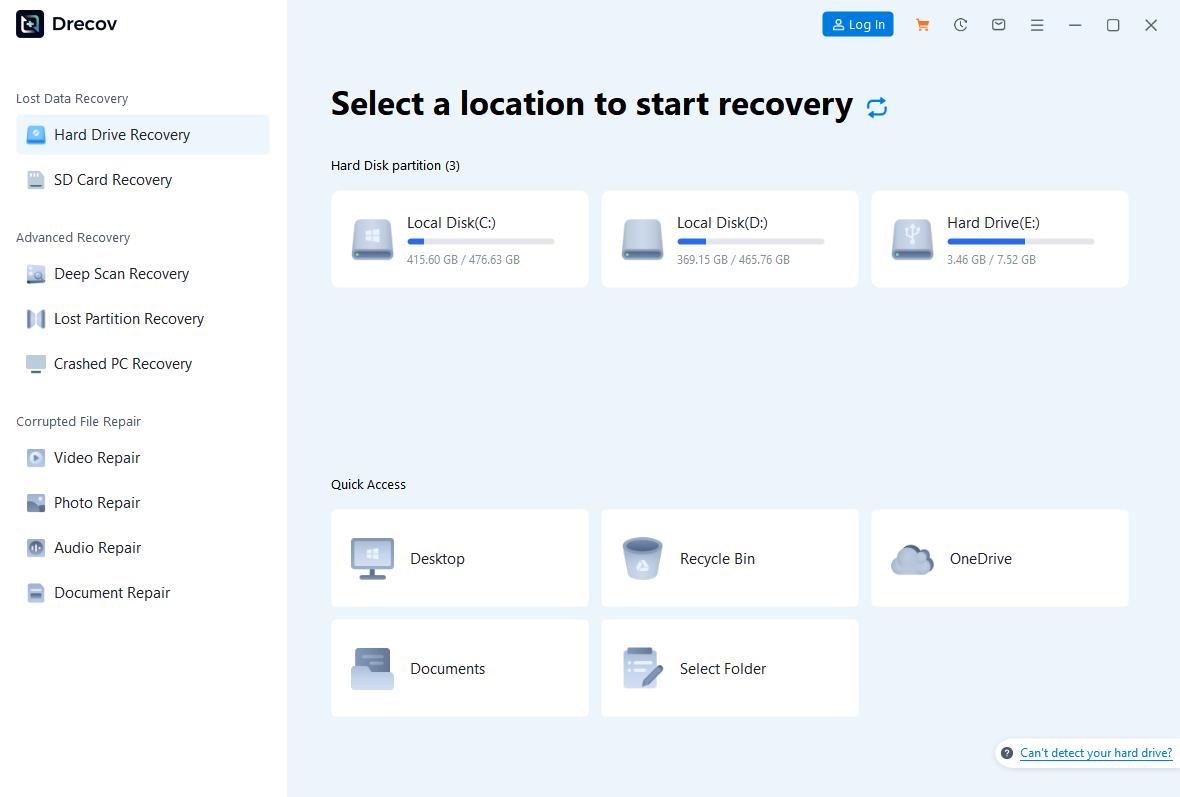
Step 1: choose the workbook’s former location
Open Drecov and select the drive or partition where the missing copy last existed. If it was on a USB device, confirm that Windows detects it consistently and reports a plausible capacity. Prepare another healthy drive for results. Avoid scanning a backup destination simply because it now holds a damaged version; identify the source of the deleted copy instead.
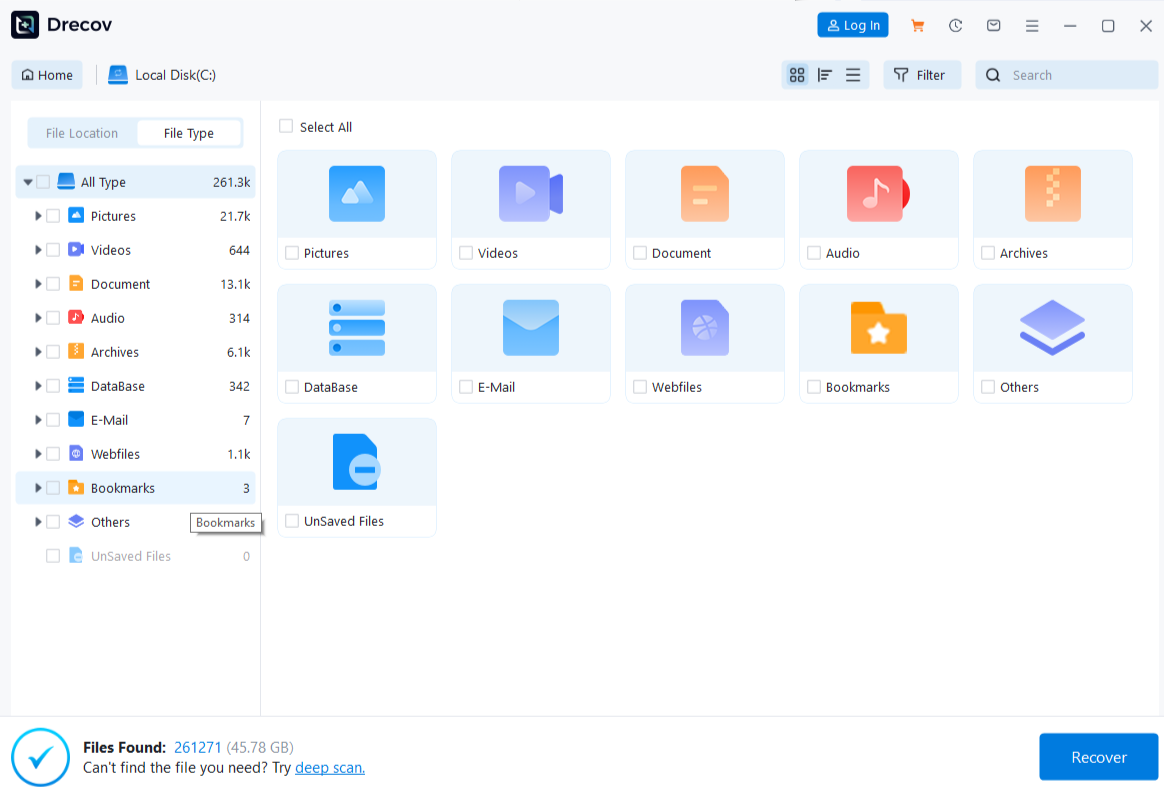
Step 2: look for the right version
Run Quick Scan. If the workbook is absent and the source remains stable, run Deep Scan. Filter by spreadsheet type, filename, or former path when those details are available. Preview representative candidates where supported. A preview does not prove that every formula, embedded object, or sheet is intact. Keep track of dates and approximate sizes to distinguish an old export from the latest project.
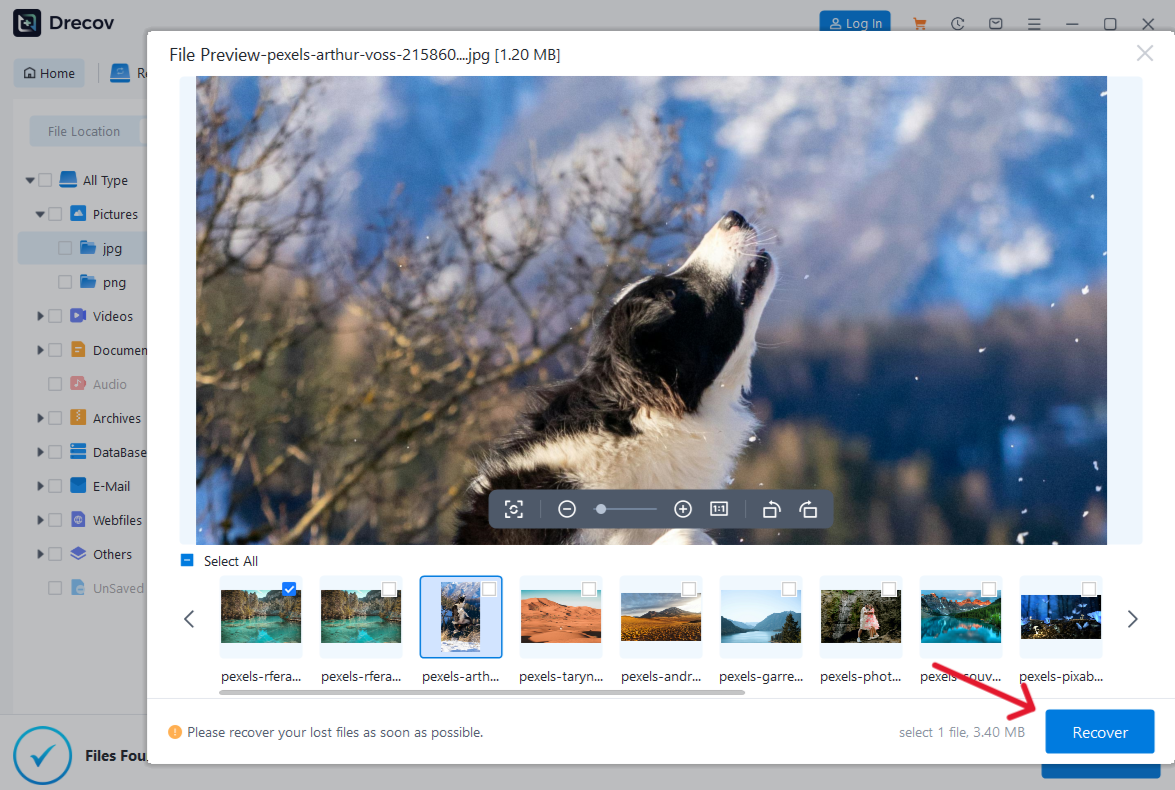
Step 3: save elsewhere, then test in Excel
Recover candidates to the separate healthy drive, never the source. If output is not in the expected folder, check Drecov Folder or Recovery Folder on the destination. Open each plausible workbook in Excel and inspect the sheets and formulas that matter. Only after verification should you consider file-system repair, formatting, or replacing the current workbook. The USB recovery overview covers additional precautions when the original spreadsheet lived on removable storage.
⚠ Warning: Install it on a drive different from the one where your data was lost to prevent overwriting.
Questions to ask before trusting the result
Does the file open in the program you actually use? Are the required worksheets present? Do formulas and totals agree with known records? Does the file contain the newest changes you need? These checks matter more than a message saying that repair completed. Keep a copy of the original until you have confirmed the output. If you must share the repaired workbook, tell collaborators which version was tested and which elements might need review.
If a repair output contains only values but no formulas, it may still be valuable as a record. Label it clearly so no one mistakes it for a working model. A restored older version might preserve formulas but lack the latest inputs. Combine information only after comparing the two on copies, and document the decisions. Do not silently paste uncertain data into the live workbook. Small verification steps protect both the file and the decisions people make from it.
Finally, fix the storage or workflow cause after the data is safe. Do not keep the only critical spreadsheet on a USB drive that repeatedly disconnects. Shared workbooks with conflicting edits need a versioning plan. Persistent PC storage errors call for hardware assessment. Workbook repair addresses a symptom; a separate, tested backup reduces the next incident’s impact.
FAQs
Can Excel repair software rebuild a zero-byte workbook?
Not from that empty copy. Look for an older version, AutoRecover file, attachment, or another local copy. A zero-byte file contains no workbook content for a repair program to parse.
Should I use Open and Repair on the original?
Work on a duplicate whenever possible. Keep the original unchanged, especially if you may need to try another recovery path. Save repaired results under a new name and check key sheets before replacing anything.
Does opening a workbook in Calc prove it is intact?
No. It may expose useful data, but features can behave differently. Check formulas, charts, links, macros, and formatting according to the workbook’s purpose. Preserve the original file separately.
What if the workbook is missing altogether?
Check Recycle Bin, backups, cloud version history, and other devices. If a complete local copy was deleted from stable storage, a data-recovery scan may be relevant. File repair tools cannot process a file that is not present.
When is a USB drive problem more likely than an Excel problem?
If several files on the same USB device fail, copying produces read errors, or the drive repeatedly disconnects, investigate the storage. Protect readable data first and avoid repeated direct scans of unstable hardware.
Conclusion
Excel repair software helps only when there is a damaged workbook to work on. Preserve that file, try Excel’s Open and Repair on a copy, and compare the result with earlier versions. A missing workbook calls for backup and local-file recovery instead. On a stable Windows drive, Drecov can search the former location for a lost copy, preview candidates, and save them elsewhere; it cannot repair the contents of a corrupted spreadsheet. Verify formulas and sheets before treating any output as final.
⚠ Warning: Install it on a drive different from the one where your data was lost to prevent overwriting.