







Accidentally deleting videos from your Blink camera can cause significant stress, especially when they include important security footage or personal moments. These deletions can happen due to user errors, software glitches, or storage issues. Fortunately, there are multiple ways to recover deleted Blink videos, ranging from checking cloud storage and local SD cards to using professional recovery tools like Pandaoffice drecov. This guide provides step-by-step instructions to recover deleted videos from Blink’s camera, helping you restore important footage safely. Following these methods carefully increases the chances of recovery and prevents accidental overwriting that could make restoration impossible.
I deleted a bunch of videos by mistake. I have the unlimited cloud storage subscription and local storage via the Blink USB stick (sync module 2). Is there any way to recover the deleted videos? Thanks!—from Reddit
Common Reasons for Accidental Deletion
User Errors
One of the most frequent causes of video loss is human error. Users may accidentally delete footage while trying to free up storage space, or they might confuse one file with another. Mistakenly pressing delete without confirming can remove critical videos. Understanding that human error is a common factor allows users to act quickly and avoid further mistakes that could jeopardize recovery.
⚠️Warning: Stop recording new videos until you finish recovery, as new files can overwrite recoverable footage.
System and App Glitches
Sometimes videos disappear because of system malfunctions or app errors. Firmware updates, software bugs, or app crashes can prevent recordings from being saved or synced properly. When a video is lost due to these issues, standard cloud retrieval might not be enough. Identifying whether the deletion stems from a technical issue informs the next steps for effective recovery.
Storage and Network Issues
Corrupted SD cards, interrupted uploads, or network errors may also result in missing files. These issues can make videos appear deleted, even if they still exist in temporary caches or synced directories. Knowing the source of deletion allows you to choose the most effective recovery method, whether it’s checking backups, local storage, or using advanced recovery software like Pandaoffice drecov.
Checking Blink Cloud and App
Accessing Cloud Storage
The Blink cloud often retains deleted videos for a short period. Open your Blink app and navigate to the cloud or “Deleted” section to see if your lost videos are available. You can quickly recover deleted Blink videos this way without additional tools.
Restoring Videos
If the video appears in the cloud, select it and click “Restore.” This method is usually the fastest way to retrieve recently deleted footage.
⚠️Warning: Cloud retention is temporary, so act quickly to avoid permanent loss.
Limitations of Cloud Recovery
Cloud recovery only works for recently deleted videos. If a video was permanently removed or the retention period has expired, native methods won’t help. At this stage, professional software such as Pandaoffice drecov can scan local storage and temporary files to recover deleted videos from Blink’s camera reliably.
Recovering from Local Storage and SD Cards
Scanning the SD Card
If your Blink camera uses an SD card, removing it and connecting it to a computer allows you to scan for deleted files. File recovery tools can identify lost videos and restore them safely.
Precautions During Recovery
⚠️Warning: Avoid writing new files to the SD card until recovery is complete. Overwriting can permanently erase recoverable footage. Always scan first before making changes.
Using Pandaoffice drecov
Pandaoffice drecov provides a deeper, more reliable recovery method. By selecting the SD card and running a deep scan, the software identifies recoverable videos and lets you preview them before restoration. This ensures even permanently deleted videos can be recovered without risking data loss.
Recovering Deleted Videos from Backups
Cloud Backups
If you use backup services, previously deleted videos may still exist in the backup storage. Locate your backup, identify the deleted file, and restore it to the Blink cloud or local storage.
Local Backups
Some users sync SD cards or local folders with computers. Checking these directories can reveal copies of deleted videos, which can then be moved back to active storage.
Pandaoffice drecov for Backup Recovery
Even when backups are unavailable, Pandaoffice drecov can scan local folders, caches, and synced directories to recover deleted Blink videos, providing a reliable alternative to cloud or local backups. Using this approach ensures you can retrieve lost videos even in the absence of prior backups.
- Download and install Drecov. Scan the Hard Drive.

- Review the videos you want to recovery and click “Recovery“
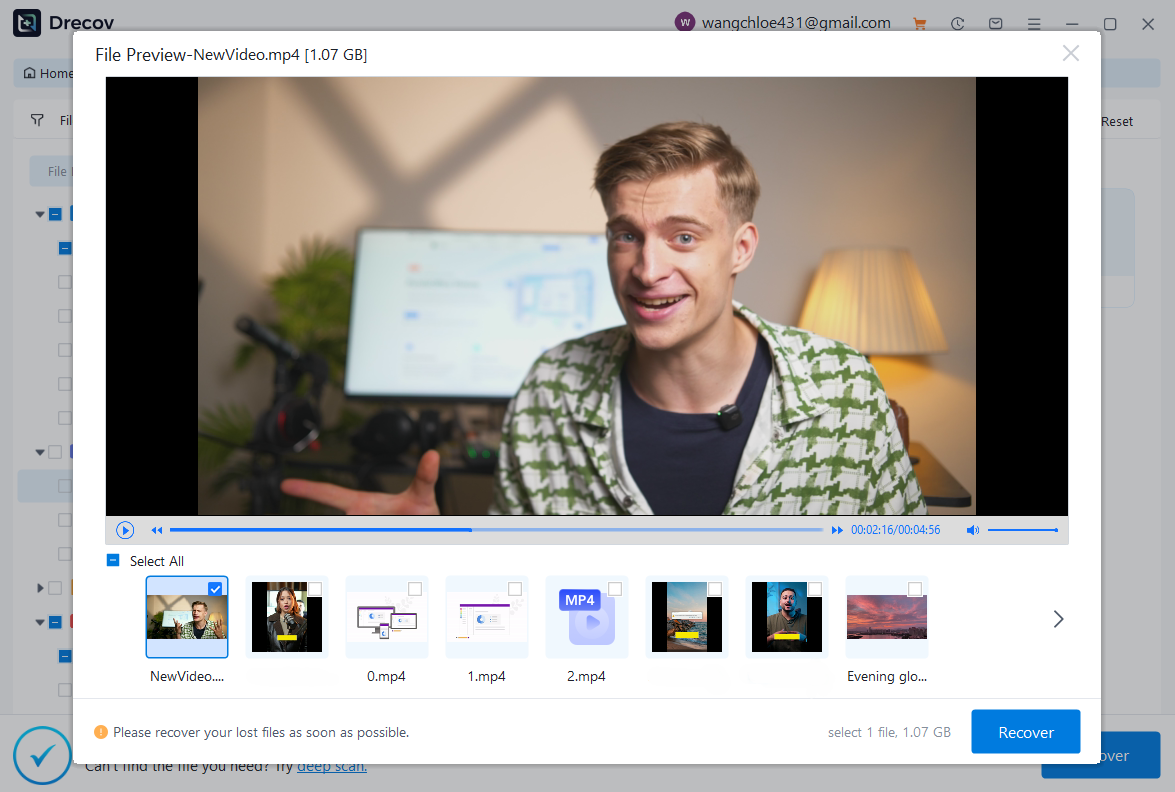
- Your videos are recoveried!

Recovering Deleted Blink Videos via Temporary Files
Accessing App Cache
Blink and connected apps sometimes store temporary video files in cache folders before permanent deletion. These files can include partial or full recordings that were not successfully uploaded to the cloud. Accessing the cache folder on your mobile device or synced computer may allow you to recover deleted Blink videos. Be cautious, as cache data can be overwritten quickly by new recordings.
Using System Temporary Files
On computers with synced Blink storage, operating systems may retain temporary copies of videos in hidden directories. Scanning these temporary folders can reveal deleted files that standard recovery methods might miss.
⚠️Warning: Do not install new apps or move large files into these directories until recovery is complete, as overwriting reduces the chance of successful restoration.
Professional Recovery with Pandaoffice drecov
For reliable recovery from temporary or hidden storage, Pandaoffice drecov can scan system caches, local Blink directories, and connected SD cards. The software identifies recoverable video files, allows you to preview them, and restores them safely. This method is especially useful when native Blink recovery and backups fail, ensuring you can recover deleted videos from Blink’s camera effectively.
Recovering Videos via Email Attachments
If you have shared Blink videos through email, there is a chance that attachments can serve as backup copies. Look through your sent and received emails for any video files that match the lost recordings. This approach can quickly restore videos without specialized software.
Limitations
Email attachments may not reflect the latest edits or full footage and might have been deleted over time.
⚠️Warning: Relying solely on emails can lead to incomplete recovery.
Using Pandaoffice drecov
Even when email copies are outdated or missing, Pandaoffice drecov scans synced devices, cache folders, and connected storage for lost videos. The software allows you to recover deleted Blink videos comprehensively, ensuring that you restore the full content even if email attachments are unavailable.
Advanced Recovery from External Drives
Connecting Blink Storage
Some users back up SD cards or Blink recordings to external hard drives. In cases of accidental deletion, these drives can be a valuable recovery source. Connect the external drive to your computer and scan for deleted videos.
Precautions
⚠️Warning: Avoid adding new files to the external drive until recovery is complete, as this may overwrite recoverable footage.
Pandaoffice drecov Deep Scan
Pandaoffice drecov can perform a deep scan on external drives, identifying deleted Blink videos that standard recovery tools may miss. This ensures even long-deleted or corrupted videos can be restored efficiently. By previewing files before recovery, users maintain full control over the restoration process.
Preventive Measures to Avoid Future Loss
Regular Backups
To reduce the risk of permanently losing Blink videos, maintain regular backups to the cloud or local storage. Scheduled backups allow you to recover deleted videos from Blink’s camera quickly without relying solely on recovery tools.
Monitor Storage Usage
Keeping track of storage space on SD cards and cloud accounts prevents accidental deletion when space runs out. Regularly reviewing saved videos helps users manage files proactively.
⚠️Warning: Avoid deleting videos in haste to free up storage; recovery is not always guaranteed.
Using Pandaoffice drecov for Comprehensive Recovery
When videos are permanently deleted from Blink cameras or local storage, professional tools like Pandaoffice drecov provide the most reliable recovery. The software works not only with Blink videos but also with other devices and formats, such as SD cards used in cameras. For example, users familiar with Canon photo recovery can appreciate how Pandaoffice drecov scans storage media, locates lost or deleted media files, and restores them safely. This capability ensures you can recover deleted Blink videos as effectively as recovering photos from Canon cameras, making it a versatile solution for multiple digital devices.
Tips for Effective Video Recovery
Act Quickly
The sooner you attempt recovery after deletion, the higher the success rate. Overwriting by new files reduces the chance of restoration.
Avoid Writing to Affected Devices
Do not save new videos or transfer large files to the same storage where videos were deleted.
⚠️Warning: Overwriting can make recovery impossible.
Use Professional Software
While native cloud and app recovery methods help with recent deletions, Pandaoffice drecov ensures comprehensive recovery, even from local caches, temporary folders, or external drives.
Check All Potential Locations
Deleted videos can exist in multiple locations: cloud, local SD cards, synced directories, email attachments, or backup drives. Thoroughly checking each increases your recovery success rate.
Conclusion: Comprehensive Blink Video Recovery
Accidentally deleting Blink videos does not mean permanent loss. Start by checking the cloud and app for recently deleted files, then explore local storage, SD cards, and temporary caches. If these methods fail or videos were permanently deleted, professional software like Pandaoffice drecov provides a reliable solution to recover deleted Blink videos from connected devices, cached data, or external drives.
By combining preventive strategies such as regular backups, monitoring storage, and proactive recovery scans with professional tools, users can ensure they safely restore deleted videos from Blink’s camera. Following these comprehensive steps, you minimize data loss, safeguard important recordings, and restore critical footage quickly and efficiently.






