







As a creator specializing in computer data education, I often see users panic when a dozen open research papers or work-critical spreadsheets vanish in a single click. In 2026, our digital lives are lived almost entirely within browser tabs, making them more than just web pages—they are our active brain space.
Imagine this: You are finalizing a major project, and your browser suddenly shuts down due to an unexpected system update or an accidental swipe. You stare at a blank Google homepage, your heart sinking as you realize hours of unsaved research might be gone. Knowing how to restore google chrome tabs is no longer just a “nice-to-have” skill; it is a fundamental part of digital literacy. In this comprehensive guide, we will explore everything from built-in shortcuts to advanced data recovery tools to ensure you never lose your progress again.
Understanding Chrome Tab Mechanics: Why Do They Vanish?
Before we dive into the “how-to,” let’s look at the “why.” Google Chrome is designed to be a resilient environment, but it isn’t invincible. The browser manages tabs through a sophisticated session management system. Think of your browser session like a physical library desk. Every tab you open is a book placed on that desk. If you close the library (the browser), Chrome usually remembers which books were out so it can put them back the next time you arrive.
Common Scenarios for Tab Loss
However, things don’t always go according to plan. You might experience tab loss due to:
- Accidental Closure: A simple slip of the mouse clicking the “X” instead of switching tabs.
- System Crashes: When your OS freezes or the power goes out, Chrome may fail to save the “session state” file.
- Memory Management: Chrome’s “Memory Saver” feature might discard inactive tabs to save RAM, which can sometimes lead to them disappearing if the process is interrupted.
- Faulty Extensions: Occasionally, a poorly coded extension can interfere with the browser’s startup sequence, clearing your previous session.
The Science of Web Data Recovery: A Simple Metaphor
How does a computer “remember” a tab? It’s not magic; it’s a breadcrumb trail. Every time you visit a site, Chrome writes a small entry into a local database file called the “Current Session.” When you close a tab, that entry is moved to “Last Session.”
To understand this, imagine you are writing a diary. Even if you rip out a page (close a tab), the ink might have bled through to the next page, or there might be a draft in your trash can. Digital recovery tools like PandaOffice Drecov work by scanning your hard drive’s “trash can” and “diary margins” to find these hidden breadcrumbs, even when the browser says they are gone.
How to Restore Google Chrome Tabs: A Step-by-Step Recovery Roadmap
If you find yourself staring at an empty browser, don’t click anything else yet! Follow these methods in order, from the simplest to the most advanced.
Method 1: The “Magic” Keyboard Shortcut (Immediate Recovery)
This is the first responder’s tool. It is the fastest way to bring back what you just lost.
- Step 1: Ensure Google Chrome is the active window.
- Step 2: Press Ctrl + Shift + T (on Windows/Linux) or Cmd + Shift + T (on Mac).
- Step 3: Chrome will instantly reopen the last closed tab. If you accidentally closed an entire window with 20 tabs, this shortcut will bring back the entire window and all its contents in one go.
Pro Tip: You can press this shortcut repeatedly to move backward through your history, reopening one tab after another.
Method 2: Using PandaOffice Drecov (Advanced Data Recovery)
Sometimes, a system crash is so severe that Chrome’s internal session files become corrupted or deleted. In these cases, built-in shortcuts won’t work because the “breadcrumb trail” has been erased. This is where a professional data recovery tool like PandaOffice Drecov becomes essential.
PandaOffice Drecov is a high-success-rate recovery software that specializes in finding lost application data. It can scan the hidden directory where Chrome stores its temporary session files and retrieve them even after a crash or accidental deletion.
- Step 1: Launch the application and select the drive where your browser is installed (usually the C: drive).

- Step 2: Click “Scan”. The tool will perform a deep scan of your system, looking for deleted files associated with Google Chrome’s profile data.

- Step 3: Use the filter function to search for “Session” or “Tabs” files.

- Step 4: Crucial Step: Once you locate the session files (often found in the
User Data\Defaultfolder path), select them and click “Recover”. Save these files to a different drive to prevent overwriting. - Step 5: Replace the corrupted session files in your Chrome folder with these recovered ones to bring your tabs back to life.
If the shortcut fails because you’ve opened too many new tabs since the “accident,” the History menu is your next best bet.
- Step 1: Click the three vertical dots (Menu) in the top-right corner of Chrome.
- Step 2: Hover over History.
- Step 3: A sub-menu will appear. Look for a section labeled “Recently Closed.”
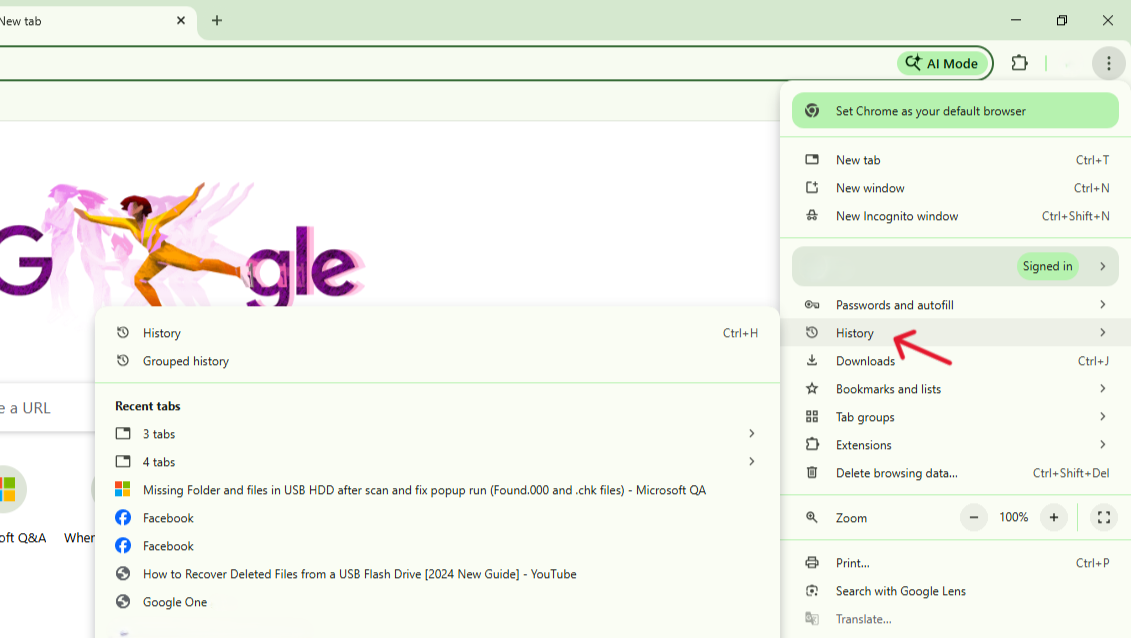
- Step 4: Here, you will often see entries like “8 Tabs” or “Window.” Clicking these will restore the entire group.
- Step 5: If the tab was closed a long time ago, click History again (or press Ctrl + H) to see a full-page list of every site you’ve visited, organized by date.
Method 4: Restoring from Other Devices
In 2026, most of us use Chrome on multiple devices. If your laptop crashed, but you had “Sync” enabled, your phone might still have a record of what was open.
- Step 1: On any device where you are signed into your Google account, open Chrome.
- Step 2: Open the History menu (Ctrl + H).
- Step 3: On the left-hand sidebar, click “Tabs from other devices.”
- Step 4: You will see a list of tabs open on your other synchronized computers or smartphones. You can right-click any link to open it on your current device.
Proactive Habits: How to Never Lose a Tab Again
Learning how to restore google chrome tabs is vital, but prevention is even better. By adjusting a few settings, you can make Chrome virtually “crash-proof.”
- Modify Startup Settings: Go to
Settings > On Startupand select “Continue where you left off.” This ensures that even if you close the browser normally, your tabs will be waiting for you when you return. - Use Tab Groups: Right-click a tab and select “Add tab to new group.” Grouped tabs are more organized and less likely to be accidentally closed one by one.
- Regular Backups: While Chrome is reliable, keeping a dedicated tool for bookmarks is a smart move. Check out this guide on the best tools to recover deleted Chrome bookmarks to ensure your most important links are permanently saved.
- Pin Critical Tabs: Right-click a tab and select “Pin.” This moves the tab to the far left and makes it much smaller, preventing the “X” from being easily clicked.
Common Questions on How to Restore Google Chrome Tabs
Q1: Can I restore tabs if I was using Incognito Mode?
Unfortunately, no. The very purpose of Incognito Mode is to avoid saving any session data. Once an Incognito window is closed, the “breadcrumbs” are immediately destroyed for privacy reasons.
Q2: Will clearing my browser cache delete my open tabs?
Clearing your “Browsing History” will remove entries from the History menu, which can make Method 3 difficult. However, simply clearing the “Cache” or “Cookies” usually won’t close your currently open tabs, though it might log you out of the websites.
Q3: Why did Ctrl+Shift+T stop working?
This shortcut only remembers the current session’s history. If you close Chrome, reopen it, and then close it again without opening any tabs, the “buffer” might be cleared. In this case, you should check the full History page (Ctrl + H).
Q4: Is there a limit to how many tabs Chrome can restore?
Chrome can generally restore dozens, even hundreds of tabs, depending on your computer’s RAM. However, the “Recently Closed” list in the menu usually only shows the last 25-50 entries.
Conclusion
In summary, the frustration of a lost browsing session can be solved quickly if you know the right moves. Always start with the Ctrl + Shift + T shortcut for immediate results. If the loss is more severe—such as a system-wide crash—professional software like PandaOffice Drecov can scan your hardware to recover deep-level session data.
Remember to configure your Chrome settings to “Continue where you left off” and use synchronization across your devices to create a safety net. By combining these built-in features with external recovery tools, you can ensure that your research, work, and digital life remain intact, no matter what technical hiccups come your way.






