







If you’ve ever plugged a USB device into your computer and suddenly seen the frustrating message “Unknown USB Device (Device Descriptor Request Failed)”, you’re definitely not alone. This error pops up for thousands of Windows users every day and can prevent devices like flash drives, keyboards, controllers, webcams, or external drives from working properly.
At first glance, the error looks mysterious. What exactly is a “device descriptor”? Why is Windows asking for it? And why does the request fail? The simple explanation is that your computer is trying to identify a USB device but fails during the first communication handshake. Every USB device must send a descriptor—essentially a small block of information that tells Windows what the device is and which driver it should use. If that descriptor cannot be retrieved, Windows labels the device as unknown, and the connection fails.
This issue often appears in Device Manager with a yellow warning icon and may show Error Code 43. When this happens, Windows cannot load the proper driver for the device because it doesn’t know what the device actually is. The good news? In most cases, the problem isn’t permanent hardware damage. Many users resolve the error with simple fixes like reinstalling drivers, switching USB ports, or adjusting power management settings.
This guide will walk you through everything you need to know about the unknown usb device descriptor request failed error—including what causes it, how to fix it, and how to prevent it from happening again.
What the “Device Descriptor Request Failed” Error Means
What Is a USB Device Descriptor
A USB device descriptor is essentially an identification card for a USB device. When you plug something into your computer—whether it’s a mouse, keyboard, USB flash drive, or gaming controller—the operating system immediately asks the device for its descriptor.
That descriptor contains critical information such as:
- Vendor ID (VID): Identifies the manufacturer.
- Product ID (PID): Identifies the specific model.
- Device class: Tells Windows if it’s storage, audio, or an input device.
- USB protocol version: (e.g., USB 2.0, 3.0, or 3.2).
- Power requirements: How much electricity the device needs from the port.
Think of it like checking someone’s passport at an airport. Before allowing entry, the system needs to verify who the device is and how it should be handled. When everything works normally, the process happens in milliseconds. Windows reads the descriptor, matches it with the correct driver, and the device starts working immediately. But when Windows cannot retrieve that descriptor, the entire process collapses. The system cannot identify the device, so it labels it as “Unknown USB Device.”
How Windows Identifies USB Devices
The process Windows uses to identify USB devices is called USB enumeration. It sounds complicated, but it’s simply the sequence of steps your computer performs when a USB device connects. Here’s what typically happens:
- The USB port supplies power to the device.
- The device signals its presence to the USB controller.
- Windows requests the device descriptor.
- The device sends identification data.
- Windows loads the correct driver based on the VID and PID.
If any of these steps fail, the device cannot be recognized. In many cases, the failure occurs during step three, when Windows attempts to request the descriptor. If the device does not respond correctly—due to cable issues, driver problems, or hardware faults—the request fails and the device remains unidentified. This is why the error usually appears immediately after plugging in the device.
Why the Unknown USB Device Error Happens
Corrupted or Missing USB Drivers
One of the most common causes of this error is corrupted or outdated USB drivers. Drivers act as translators between hardware and the operating system. Without them, the computer cannot understand what a device is trying to communicate. If a driver becomes corrupted—perhaps after a Windows update or system crash—the operating system may fail to properly initialize the USB device. Consequently, the unknown usb device descriptor request failed message appears because the “translator” is effectively speaking gibberish.
Faulty USB Ports or Cables
Another frequent cause is hardware connectivity problems. Even minor cable damage can interrupt USB communication. A USB cable carries both power and data signals. Sometimes a cable can still deliver power but fail to transmit data properly. In that case, the device may light up or appear to be active, yet Windows cannot retrieve the descriptor. Similarly, USB ports can become damaged or worn over time. Dust, debris, bent pins, or loose internal connectors can disrupt the signal needed for device enumeration.
USB Power Management Problems
Modern versions of Windows aggressively manage power consumption, especially on laptops. To save energy, Windows uses a feature called USB selective suspend, which temporarily disables USB ports when they are idle. While this feature is great for battery life, it can occasionally interfere with USB devices. Some peripherals fail to wake up properly when the port is reactivated. When that happens, Windows may attempt to retrieve the descriptor while the device is still powering up, leading to a failure.
Hardware Device Failure
Sometimes the issue is simply a faulty USB device. Hardware components can fail due to age, manufacturing defects, or electrical surges. Common examples include:
- Damaged flash drives with failing NAND chips.
- Faulty wireless dongles.
- Broken controller chips inside peripherals.
If the device fails to respond correctly during enumeration, Windows cannot retrieve the descriptor regardless of how many software fixes you try.
Common Symptoms of This Error
Error Code 43 in Device Manager
When this problem occurs, Device Manager usually displays the device as Unknown USB Device (Device Descriptor Request Failed). In many cases, Windows also reports Error Code 43, which indicates that the device failed to start properly. This error code is Windows’ way of saying: “I tried to communicate with this device, but something went wrong.” You will see a yellow warning triangle next to the entry under the Universal Serial Bus controllers section.
USB Device Not Recognized Pop-Up
Another common symptom is a notification message that appears in the bottom-right corner of your screen: “USB device not recognized.” This pop-up appears immediately after plugging in the device. While the message is generic, the underlying technical reason is usually the descriptor request failure.
Quick Fixes for the Error
Restart Your Computer and USB Device
It sounds simple, but restarting your system often resolves USB errors. A reboot resets the USB controller and forces Windows to reinitialize connected devices. For a more thorough reset, try a “cold boot”:
- Step 1: Shut down your computer completely.
- Step 2: Unplug the power cable (and remove the battery if it’s a laptop with a removable one).
- Step 3: Wait for about 30 seconds to allow all capacitors to discharge.
- Step 4: Plug everything back in and restart.
Try a Different USB Port
If the issue persists, try plugging the device into another USB port. Different ports may use different internal controllers. For instance, your front-panel ports might be connected via a cable to the motherboard, while rear ports are soldered directly. Switching ports can bypass a faulty connector. Always avoid using USB hubs during troubleshooting; plug the device directly into the computer for the most reliable connection.
Advanced Fixes That Actually Work
Reinstall USB Drivers
Reinstalling drivers is one of the most reliable solutions when you encounter the unknown usb device descriptor failed error. This forces Windows to clear out any corrupted registry keys or temporary files associated with the device.
- Step 1: Right-click the Start button and select Device Manager.
- Step 2: Scroll down and expand the Universal Serial Bus controllers section.
- Step 3: Locate the entry labeled Unknown USB Device (Device Descriptor Request Failed).
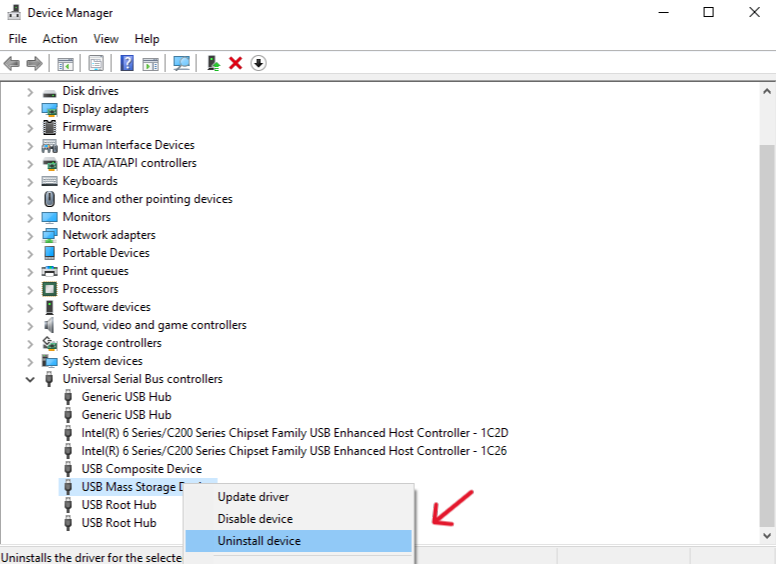
- Step 4: Right-click it and select Uninstall device. Confirm the action if prompted.
- Step 5: From the top menu, click Action > Scan for hardware changes.
- Step 6: If it doesn’t appear automatically, restart your computer. Windows will attempt to reinstall a fresh copy of the driver.
Disable USB Selective Suspend
If your USB device keeps disconnecting or failing after the computer sleeps, this power setting is likely the culprit.
- Step 1: Press Windows + R, type
control, and hit Enter to open the Control Panel. - Step 2: Go to Hardware and Sound > Power Options.
- Step 3: Click on Change plan settings next to your active power plan.
- Step 4: Select Change advanced power settings.
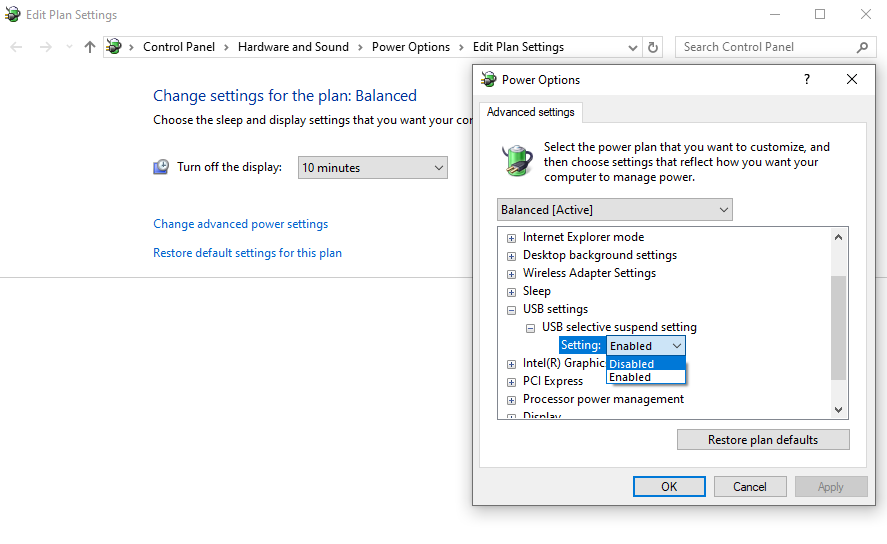
- Step 5: Find and expand USB settings, then expand USB selective suspend setting.
- Step 6: Change the setting to Disabled for both “On battery” and “Plugged in”. Click Apply and OK.
Update USB Root Hub Drivers
Outdated USB root hub drivers can prevent proper device detection. Updating them ensures the USB controller communicates correctly with connected devices.
- Step 1: Open Device Manager.
- Step 2: Expand Universal Serial Bus controllers.
- Step 3: Right-click on USB Root Hub (USB 3.0) or similar and select Update driver.
- Step 4: Choose Search automatically for drivers.
- Step 5: Repeat this for all “Root Hub” entries listed.
Update BIOS or Chipset Drivers
If none of the software fixes work, your motherboard’s firmware (BIOS) or chipset drivers might be out of date, leading to hardware incompatibility. Visit your motherboard or laptop manufacturer’s official website (like Dell Support or HP Support) to download the latest Chipset Drivers. Updating the BIOS should be done with caution, as a power failure during the process can damage the motherboard.
Professional Data Recovery: Using PandaOffice Drecov
If you have tried all the technical fixes and the unknown usb device descriptor request failed error persists, the hardware within the USB drive itself might be failing. In such cases, your priority shifts from “fixing the device” to “saving the data.” This is where a professional tool like PandaOffice Drecov becomes essential.
PandaOffice Drecov is designed to handle “RAW” drives or devices that Windows struggles to recognize. It uses deep-sector scanning technology to bypass logical errors and retrieve files from corrupted storage.
⚠ Warning: Install it on a drive different from the one where your data was lost to prevent overwriting.
How to Recover Data with PandaOffice Drecov
- Step 1: Connect and Launch.Plug your faulty USB device into the computer. On the main interface, you will see a list of available drives. Look for the drive that corresponds to your USB device.

- Step 2: Start the Deep ScanClick the Scan button. The software will perform a “Quick Scan” followed by a “Deep Scan.”
- Warning: Do not unplug the USB device during the scanning process, as this can cause further logical damage to the file system.

- Step 3: Preview Your FilesOnce the scan is complete, you can browse through the found files. PandaOffice Drecov allows you to preview photos, documents, and videos before recovery to ensure the files are intact.

- Step 4: Recover and SaveSelect the files you want to keep and click Recover.
Key Point: Always save your recovered data to a different drive (like your computer’s internal SSD) and never back onto the faulty USB device. This prevents overwriting data during the recovery process.
After you have successfully recovered your precious files, you might want to try reformatting the drive to see if it can be reused. Check out these helpful guides on managing USB storage:
- 4 fast ways to format USB to FAT32
- The ultimate 128GB USB format fix
- Complete guide to recover deleted files from USB
Preventing USB Descriptor Errors in the Future
Maintain Updated Drivers
Regular driver updates keep your system compatible with modern devices. Manufacturers frequently release updates that fix compatibility issues and improve hardware communication. You can use Windows Update or third-party driver management tools to keep things current.
Avoid Low-Quality USB Hubs
Cheap USB hubs often cause power fluctuations and signal degradation. These hubs may not provide enough voltage to the connected devices, causing the unknown usb device descriptor request failed error. Whenever possible, connect important devices—especially external hard drives—directly to the computer.
Safe Removal and Physical Care
Always use the “Safely Remove Hardware” option before unplugging a USB device. This ensures that all data write operations are finished and the electrical state is neutralized. Additionally, keep your USB ports clean. A quick blast of compressed air can remove dust that prevents a solid electrical connection.
Unknown USB Device Descriptor Request Failed FAQs
1. What does “Device Descriptor Request Failed” mean?
It means Windows tried to identify a USB device but failed to retrieve the device’s descriptor information (its “ID card”), preventing the operating system from loading the proper driver.
2. Can a bad USB cable cause this error?
Yes. A damaged or low-quality cable can interrupt the data signal required for USB enumeration, even if the device still receives power.
3. Is this error caused by Windows updates?
Sometimes. A Windows update might install an incompatible driver or change power settings like “USB Selective Suspend,” which can trigger recognition issues.
4. How do I fix the error quickly?
The fastest fixes are restarting your computer, unplugging the power supply for 30 seconds, or trying a different USB port (preferably on the back of the PC).
5. Can a broken USB device cause this error?
Yes. If the internal controller chip of the USB drive or peripheral is physically damaged, it won’t be able to send the descriptor to Windows, resulting in this error message.
Conclusion
The Unknown USB Device (Device Descriptor Request Failed) error can look intimidating, but it usually has straightforward causes. Most problems stem from driver corruption, faulty cables, power management settings, or hardware issues. Understanding how USB devices communicate with your computer makes troubleshooting much easier.
Once you know that the error occurs during the device identification process, you can systematically test cables, ports, drivers, and system settings to find the root cause. In many cases, a simple driver reinstall or port change solves the issue within minutes. However, if the hardware is truly failing, don’t panic. Using professional tools like PandaOffice Drecov ensures that even if the device is unusable, your data remains safe and recoverable.
Decide whether Windows can identify the USB device
A descriptor request failure occurs while Windows is identifying USB hardware. It can affect a keyboard or webcam as well as a storage device, so formatting is not an appropriate general fix. In Device Manager, note the error code and device name. Then disconnect other nonessential USB devices and test the affected device directly in a different port, using a known-good data cable where applicable.
Compare the result on another computer. If only one port or hub fails, investigate that connection and its power supply. If the same device fails everywhere, the cable, enclosure, controller, or device itself becomes more likely. A flash drive must appear as a readable storage device with a sensible capacity before ordinary file-recovery software can inspect it. Do not initialize or format a drive merely to make it visible to a scanner. If an external disk clicks, overheats, repeatedly disconnects, or contains irreplaceable files, stop repeated reconnections and obtain a recovery assessment before any repair writes.
Further guidance: Microsoft USB troubleshooting case study






