







Few things are more frustrating than plugging in a device and realizing your PC simply refuses to recognize it. You expect a quick plug-and-play experience, but instead, nothing happens—or worse, you see the dreaded “USB device not recognized” message. Whether you’re trying to connect a gaming controller, a specialized USB device controller, or an external hardware interface, the issue can feel confusing and random. The truth is that why won’t my usb controller connect to my pc is a question asked by thousands of users daily.
These problems are incredibly common, especially on modern operating systems like Windows 10 and Windows 11. Most of the time, the problem isn’t the controller itself—it’s a communication breakdown between the device and your computer. This breakdown can occur because of hardware faults, outdated drivers, power management settings, or even something as simple as a faulty cable.
Modern PCs rely on layers of hardware and software working together to detect and communicate with USB devices. If even one of those layers fails, your controller might not connect properly. According to troubleshooting guides for Windows systems, driver corruption, chipset incompatibility, and power management settings are among the most frequent causes of USB detection problems. The good news is that most connection issues are fixable without replacing your hardware.
Understanding How USB Controllers Work
What a USB Controller Actually Does
To understand why won’t my usb controller connect to my pc, it helps to know what a USB controller actually does. At its core, a USB controller is a device or an interface that communicates with your computer through the Universal Serial Bus (USB) standard. It sends input signals—such as button presses, coordinate data, or command strings—to the computer so the system or specific software can respond.
When you plug a controller into your PC, several steps happen almost instantly:
- Power Delivery: The USB port provides 5V power to the device.
- Enumeration: The system’s USB host controller identifies the device.
- Driver Assignment: The operating system assigns a specific driver so it knows how to interpret the signals.
Think of this like introducing two people who speak different languages. The USB driver acts as the translator. If the translator is missing or confused, communication breaks down entirely, leading to the question: why won’t my usb controller connect to my pc?
Why PCs Sometimes Fail to Detect Controllers
PCs fail to detect controllers for a wide range of reasons. Sometimes the issue lies in hardware, while other times the problem is purely software-related. One major factor is driver compatibility. Drivers are small software programs that allow the operating system to communicate with hardware. If a driver is outdated or corrupted, the device may not be recognized.
Another common reason involves USB power management. Many computers automatically disable inactive USB ports to save energy. This feature works well for laptops but can prevent controllers from initializing correctly. Furthermore, physical issues like dust inside a USB slot or bent pins can interrupt the connection.
Common Reasons a USB Controller Won’t Connect
Faulty USB Cable or Port
One of the simplest and most overlooked causes is a faulty cable. Many people assume that if a cable powers a device (e.g., the controller lights up), it must be working. In reality, some cables are “charge-only” and do not have the internal wiring for data transfer. Consequently, you might wonder why won’t my usb controller connect to my pc even when it seems to have power.
Missing or Corrupted Drivers
Drivers are the backbone of hardware communication. When drivers become corrupted, Windows might show errors such as “Unknown USB device” or “Device descriptor request failed.” This often happens after a sudden power loss or a failed system update.
Outdated Operating System
If your system is running an old build of Windows, it may lack the library files needed to support newer controller protocols (like XInput or specialized HID profiles). Keeping your OS updated ensures that the latest “handshake” protocols are available for your hardware.
Power Management Issues
Windows includes a feature called USB selective suspend. While intended to save battery, it often puts USB ports into a “deep sleep” from which they fail to wake up when a controller is plugged in. This is a prime suspect when a controller works initially but stops after the PC goes to sleep.
Hardware Problems That Prevent Connection
Damaged USB Ports
USB ports endure constant physical stress. Over time, the internal plastic tab or the copper pins can break. If you notice the controller connects only when you hold the cable at a specific angle, the port is likely physically damaged. You can learn more about physical port issues at the Official Microsoft Support Page.
Controller Hardware Failure
Internal components, such as the USB interface chip, can fail due to static electricity or manufacturing defects. If the controller doesn’t work on any computer, it’s likely a hardware failure within the device itself.
Software Problems That Block USB Controllers
Driver Conflicts
If you have multiple controller drivers installed (for example, using both DS4Windows and Steam Input simultaneously), they may “fight” over which one gets to control the device. This conflict results in the system disabling the device to prevent errors.
Background Software Interference
Antivirus programs or specialized gaming overlays can sometimes block the initialization of USB devices if they perceive the sudden data stream as a security threat or an unauthorized input.
Step-by-Step Fixes for USB Controller Connection Issues
If you are currently asking why won’t my usb controller connect to my pc, follow these steps in order of increasing complexity.
1. Check the USB Cable and Port
Before diving into software settings, eliminate physical variables.
- Action: Unplug the controller and plug it into a different port, preferably one on the back of the PC (motherboard ports) rather than the front case ports.
- Action: Swap the cable for a known “data-sync” cable.
- Warning: Avoid using unpowered USB hubs, as they often fail to provide enough current for gaming controllers with vibration motors.
2. Update or Reinstall Drivers
This is the most common fix for software-related detection issues.
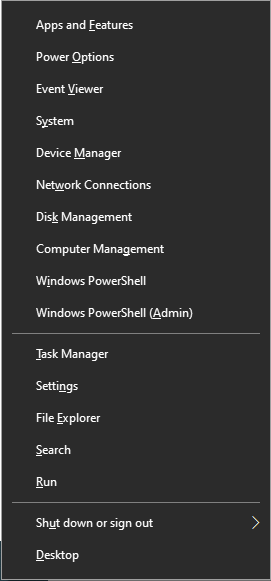
- Step 1: Press
Windows Key + Xand select Device Manager.
- Step 2: Expand the Universal Serial Bus controllers section.
- Step 3: Right-click your controller (or “Unknown Device”) and select Uninstall device.
- Step 4: Restart your PC. Windows will automatically attempt to reinstall the correct driver upon reboot.
3. Disable USB Power Saving Settings
Stop Windows from “turning off” your ports.
- Step 1: In Device Manager, right-click on USB Root Hub and select Properties.
- Step 2: Go to the Power Management tab.
- Step 3: Uncheck Allow the computer to turn off this device to save power.
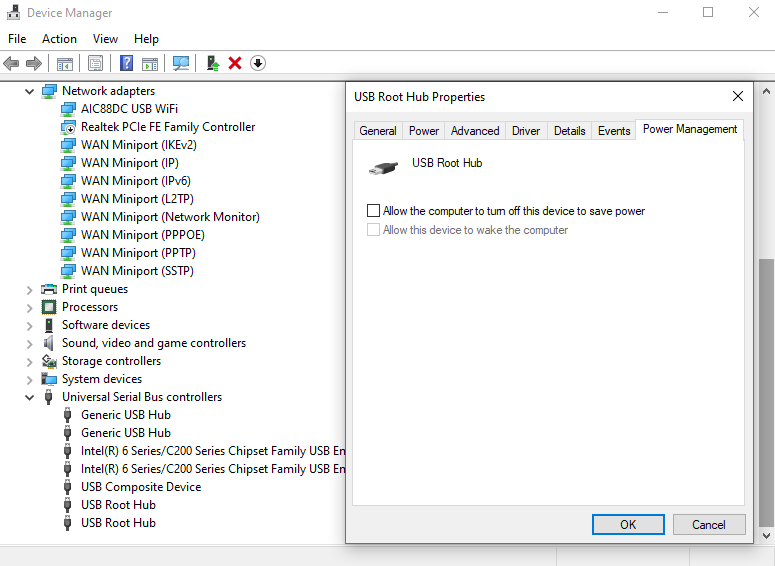
- Step 4: Repeat this for all USB Root Hub entries.
4. Update BIOS or Chipset Drivers
If the motherboard cannot talk to the USB bus, no amount of Windows settings will help.
- Action: Visit your motherboard manufacturer’s website (e.g., ASUS, MSI, Gigabyte).
- Action: Download the latest Chipset Drivers and install them.
- Warning: Updating BIOS is a sensitive process. Ensure your computer does not lose power during the update, as this can “brick” your motherboard.
Emergency Data Recovery: Using PandaOffice Drecov
Sometimes, a USB controller failure is linked to a USB drive or an external storage controller that has crashed. If your PC won’t connect to your USB controller and you have important files trapped on the associated drive, you need a professional recovery solution. PandaOffice Drecov is a premier data recovery product designed to handle such scenarios.
⚠ Warning: Install it on a drive different from the one where your data was lost to prevent overwriting.
How to Recover Data with PandaOffice Drecov
Step 1: Connect and Launch
Connect your USB device to the PC. Even if the controller is acting up, Drecov can often “see” the raw data sectors. Launch the PandaOffice Drecov application.

Step 2: Select the Target Location
On the main interface, you will see a list of drives. Select the USB drive associated with the malfunctioning controller.
- Key Point: If the drive doesn’t appear, try a different port before clicking “Refresh.”

Step 3: Perform a Deep Scan
Click the Scan button. PandaOffice Drecov will perform a two-stage scan: a Quick Scan for recently deleted files and a Deep Scan to reconstruct data from a failing controller.
- Warning: Do not close the program during the Deep Scan, as this could lead to incomplete file structures.

Step 4: Preview and Recover
Once the scan is complete, browse the files. Drecov allows you to preview images and documents before recovery. Select the files you need and click Recover.
- Key Point: Always save the recovered files to your local hard drive, never back onto the faulty USB device.
More Data Recovery and Troubleshooting Insights
Resolving why your USB controller won’t connect is often just the beginning. If your troubleshooting leads to more complex issues, such as needing to fix ports or recover lost files, the following resources are essential:
- If your ports are completely unresponsive, consult the USB Ports Not Working: Ultimate Troubleshooting Guide.
- In extreme cases where system corruption prevents USB detection, you might need to Reinstall Windows 10 from USB to Fix Errors.
- If the connection issues caused data loss, follow this guide on How to Recover Deleted Files from USB Drive.
Preventing USB Controller Problems in the Future
Maintain Updated Drivers
Regularly check for optional updates in the Windows Update menu. Often, driver fixes for USB controllers are tucked away in the “Optional Updates” section rather than being installed automatically.
Proper USB Port Usage
Avoid “hot-swapping” devices too aggressively. While USB is designed for it, rapidly plugging and unplugging can cause a static discharge that resets the controller’s logic gate. Use high-quality, shielded cables to prevent electromagnetic interference (EMI) from dropping the connection.
Why won’t my USB controller connect to my PC FAQs
1. Why does my USB controller light up but not connect?
This usually indicates that the 5V power pins are making contact, but the data pins (D+ and D-) are not. This is often caused by a “charge-only” cable or a dirty USB port.
2. How do I know if my USB controller driver is broken?
In Device Manager, look for a yellow exclamation mark (!). If you see “Unknown USB Device (Device Descriptor Request Failed),” the driver is definitely malfunctioning.
3. Can a Windows update break my controller connection?
Yes, updates can sometimes overwrite specialized drivers with generic Microsoft ones. If your controller stops working after an update, use the “Roll Back Driver” feature in Device Manager.
4. Should I use USB 2.0 or 3.0 for controllers?
While USB 3.0 (blue ports) is faster, some older controllers are specifically designed for USB 2.0 and may experience “jitter” or connection drops on USB 3.0 ports due to frequency interference.
Conclusion
When you find yourself asking why won’t my usb controller connect to my pc, remember that the solution is usually systematic. Start by verifying the physical hardware—the cables and ports—before moving into the digital realm of drivers and power settings. By following the steps outlined above, you can resolve the vast majority of connection issues and ensure your hardware remains responsive. If the failure has led to data loss on a connected drive, tools like PandaOffice Drecov provide a reliable safety net to get your files back.






