







When Windows 10 says it is undoing changes made to your computer and the screen later turns black, the order matters. The update may still be rolling back, the display may have stopped showing an otherwise running system, or Windows may have reached a startup failure. Record the last message you saw and whether the screen now has a pointer, backlight, or sign-in sound. Avoid repeated forced shutdowns just because the percentage stopped changing. If your files have no verified backup, do not jump from this screen to Reset this PC or a clean installation.
Reconstruct the last visible stage
Write down three details: whether “Undoing changes made to your computer” is still visible, whether the screen went black during a restart, and whether a sign-in screen ever appeared. Also note if the PC is a laptop with an external monitor or a desktop with more than one display output. These observations distinguish a stuck rollback from a picture being sent somewhere you cannot see.
A black screen with a mouse pointer suggests Windows may have loaded farther than a screen with no pointer and no response. A cursor is not proof that your files are safe, but it changes the first checks. Microsoft separates black screens after updates, at sign-in, and during startup in its blank-screen troubleshooting guidance. Use the symptom you can observe rather than a generic list of repair commands.
There is no reliable universal number of minutes after which an update is “stuck.” Large updates, slow storage, and a rollback can pause visibly while work continues. If the screen still shows a percentage or activity indicator, give it a reasonable uninterrupted chance to finish and keep the machine connected to power. Document the time of the last change so a later decision is based on evidence, not anxiety.
Check whether the display is hiding a working session
Look for a response without changing files
On a laptop, check whether brightness has been reduced and whether the external display is showing the picture. Disconnect only a nonessential external display after noting how it was connected. On a desktop, confirm the monitor input and cable connection. If you hear a sign-in sound or can move a visible pointer, give Windows a moment before restarting. A display-routing problem can resemble a failed update even when the computer itself continues running.
You can try the Windows display-driver reset shortcut, Windows+Ctrl+Shift+B, once if the system appears responsive. A brief screen blink or sound can show that the input registered. This does not repair a failed update or lost files. If the screen remains black, record that result instead of pressing the shortcut repeatedly.
If the sign-in screen returns
Sign in and check Update history for the failed item. Open several important documents and confirm that their newest versions exist. Then inspect the update error and free space before retrying. Do not immediately rerun the same update if the drive reports errors or files have disappeared. The broader slow-update decision guide covers a progress screen that never reached this black-screen stage.
When Windows cannot reach the desktop
If the screen never recovers and the machine cannot reach sign-in, use Windows Recovery Environment only after allowing an active rollback to complete. Depending on the PC, WinRE may appear after failed starts, or you may start from an official Windows recovery or installation USB and choose Repair your computer. Do not choose Install merely to reach recovery tools. If the internal drive is absent from firmware, stop software troubleshooting and investigate detection or physical stability first.
Inside WinRE, Startup Repair and uninstalling a recent update are different actions. Startup Repair looks for certain boot problems; removing an update targets the change that may have triggered the failure. Neither is a substitute for safeguarding files when the only local copy matters. System Restore may change installed software and settings. A reset or reinstall can alter far more. Keep your BitLocker recovery key available before trying access to an encrypted volume.
Do not blindly follow commands that rename system folders, clear update caches, or rewrite boot entries. Those steps require the right Windows volume and an understood failure mode. A repair that changes the wrong partition can make the data-protection task harder. If the drive clicks, disappears, or produces severe read errors, stop repeated boots and scans; controlled imaging or professional recovery is the safer branch.
Protect local files before a reset or reinstall
First check a recent cloud or external backup on another device. Open a sample rather than relying on a “backup completed” notification. If the latest files were created after that backup and the Windows storage is stable, arrange a way to access the original drive without installing recovery software on it. This may be a supported crashed-PC recovery route or a qualified technician connecting the drive to another working Windows computer. Do not dismantle a sealed laptop simply because a generic tutorial assumes a removable disk.
Drecov is Windows data recovery software for files that are deleted, missing, or inaccessible on a readable source. It offers Quick Scan, Deep Scan, filtering, preview, and recovery to another healthy location. Its Lost Partition Recovery and Crashed PC Recovery modes address applicable storage-access situations. Drecov is not an update uninstaller or a fix for a display driver; it cannot repair a physically failing device or guarantee overwritten data. The file-recovery overview helps separate that role from Windows repair.
⚠ Warning: Install it on a drive different from the one where your data was lost to prevent overwriting.
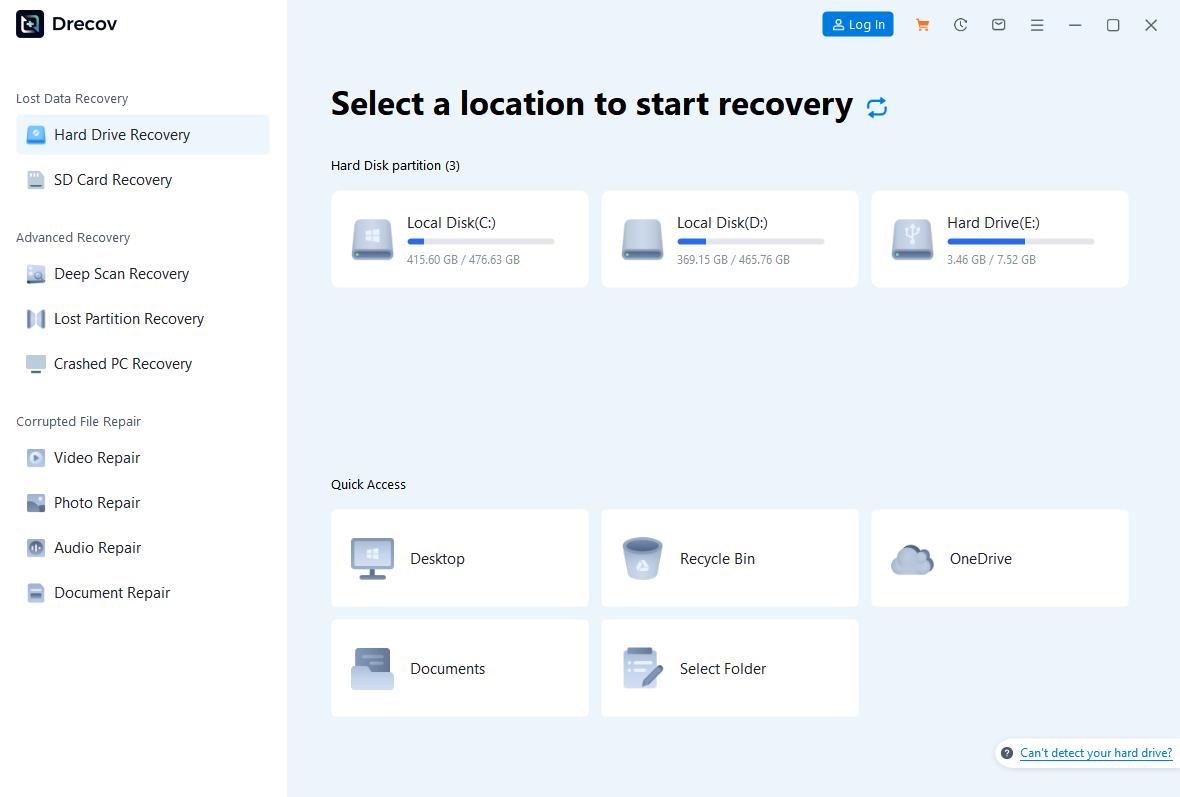
Step 1: Select the files’ original location
Stop writing to the affected Windows volume and prepare a different healthy destination. Open Drecov through a working Windows setup or its applicable supported crashed-PC route. Select the original partition or device that contained the missing user files, not the recovery USB and not the destination drive. If the source repeatedly disconnects or reports serious read errors, stop direct scanning.
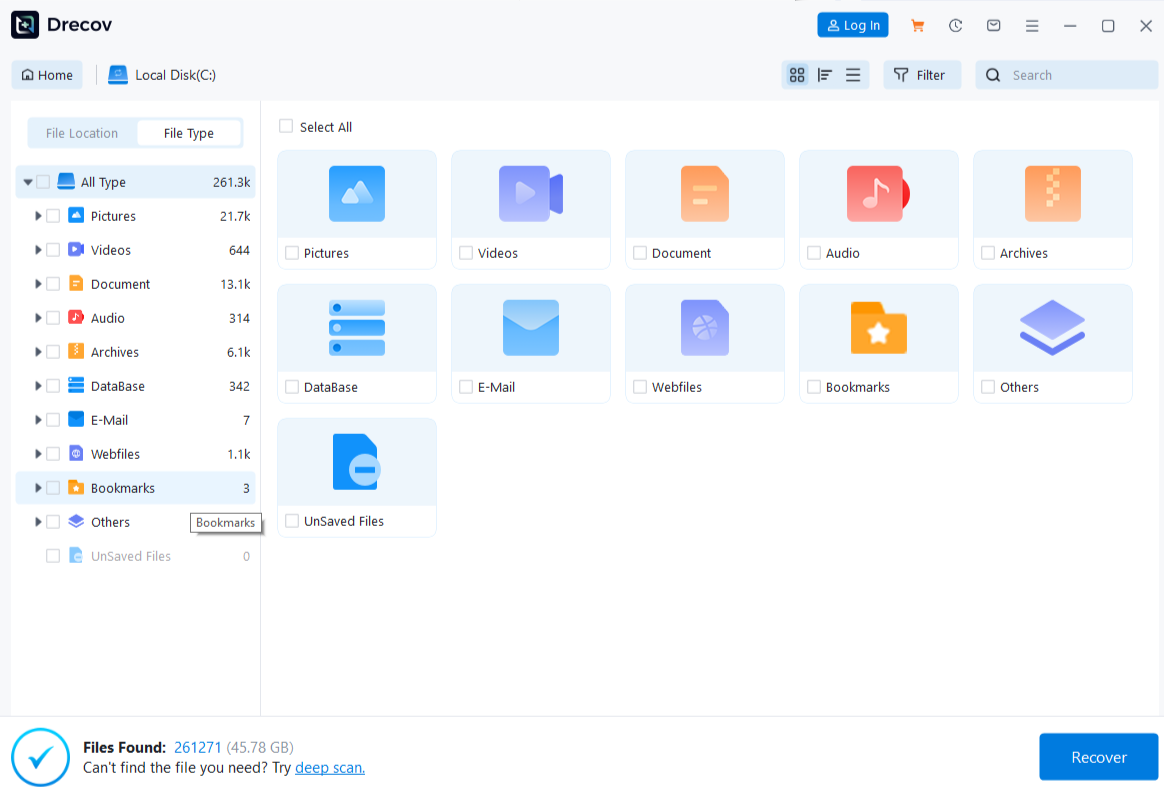
Step 2: Scan, narrow, and preview
Run Quick Scan first and look for the former Documents, Desktop, Pictures, or project folders. If needed and the drive remains stable, run Deep Scan. Use the available file-type, name, or location filters to find representative candidates. Preview files where supported. A preview helps confirm a candidate opens, but it cannot certify that every page, attachment, or video frame survived.
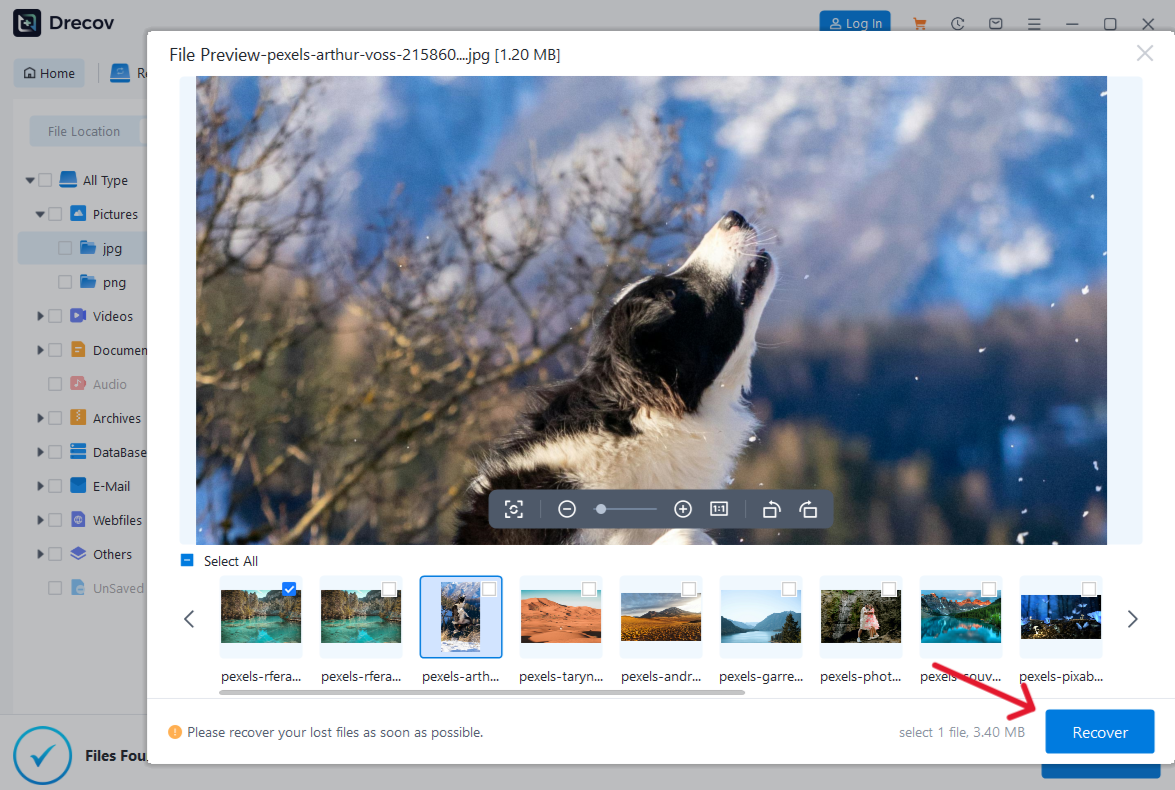
Step 3: Recover elsewhere and verify
Save selected files to the healthy destination, never back onto the original Windows drive. If results are not where you expected, check the Drecov folder or Recovery folder. Open several recovered files and compare contents with your backup. Only after confirming what you have should you return to update removal, System Restore, reset, or reinstall.
⚠ Warning: Install it on a drive different from the one where your data was lost to prevent overwriting.
Choose the next Windows repair from the result
If WinRE can identify Windows and the drive is stable, try the least disruptive action that matches the evidence. A failed update points toward uninstalling that update. Startup errors unrelated to the update may justify Startup Repair. When the display alone fails but you can sign in, check its driver and output path rather than rebuilding the boot loader. Note the exact outcome of each attempt and stop stacking changes if the symptom shifts.
After Windows starts again, confirm the update state and check several recent files. A successful desktop is not enough if a profile loaded temporarily or a project folder disappeared. If the screen stays dark after one controlled repair, the separate black-screen-with-cursor article covers that visible-cursor branch. Keep the rollback message and any later error codes with your notes when seeking help.
FAQs
Does “undoing changes” mean Windows deleted my files?
No. It indicates an update rollback, not automatic deletion of personal documents. Still verify important files after the PC starts. A missing file has its own recovery path.
Not immediately if a rollback may still be active. Observe power, screen response, and elapsed time first. A forced shutdown is a last resort after reasonable evidence that the machine is no longer progressing.
What if the black screen shows a pointer?
That can mean Windows loaded far enough to draw a cursor. Check display routing and responsiveness before treating it as a boot-record failure. Record whether the pointer moves and whether sign-in appears.
Can I reset Windows and keep my files?
Reset options differ, and “keep my files” is not a verified backup of every project or application setting. Protect irreplaceable local data first, particularly if the disk is unstable or the profile is already missing files.
Will Drecov remove the failed update?
No. Its job is to retrieve recoverable local files from an accessible, stable source. Use Windows recovery tools for the update itself after your data decision is settled.
Conclusion
The message “Undoing changes made to your computer” followed by a black screen is a sequence to diagnose, not a command to reinstall. Work out whether the rollback is active, the display is hiding Windows, or startup failed after the update. Protect files before any reset or major repair. Drecov can help recover missing local files from stable storage to another drive; Windows repair tools address the failed update and display path. Verify both the files and the next successful boot.
⚠ Warning: Install it on a drive different from the one where your data was lost to prevent overwriting.