







If Word crashes on launch, freezes before showing a document, or opens only after an error prompt, try starting the application in Safe Mode. Press Windows+R, type winword /safe, and select OK. The space before /safe matters. A successful launch does not repair Word; it gives you a controlled comparison with normal startup. Save any open work elsewhere before testing add-ins or templates. If a document has disappeared from the computer, protect its original storage location first, because changing Office settings will not bring back a deleted file.
What Word Safe Mode changes—and what it does not
Office Safe Mode starts Word with some customizations and extensions disabled. That makes it useful when Word itself opens unreliably. It is a diagnostic environment, not a second installation and not a special way to recover every damaged document. You can generally read and edit documents while testing, but some commands, templates, and add-ins may be unavailable. Avoid judging your usual workflow by what the stripped-down session can do.
The key question is comparative: does Word launch in Safe Mode but fail during an ordinary launch? A different result points toward something loaded during normal startup, such as an add-in or template. That result does not prove which component is responsible. When both modes fail, look more broadly at the Office installation, the Windows account, or the specific file you tried to open. Microsoft’s Office Safe Mode instructions document the Run command and explain its diagnostic purpose.
Safe Mode is also different from Windows Safe Mode. You do not need to restart the entire PC in a reduced Windows environment to perform this Word test. That distinction saves time and prevents a reader from changing system startup settings unnecessarily.
Open Word in Safe Mode using the Run dialog
Start with Word closed
Close Word normally if a window still responds. If a frozen Word process remains, first look for unsaved text in the visible window and copy it to a separate plain-text file if possible. Only then open Task Manager and end the unresponsive Word process. Ending it may discard changes that were never saved. Do not repeatedly force-close a document while hoping the next attempt will restore a newer copy.
Press Windows+R to open Run. Type winword /safe exactly, including one space, then press Enter. You can also right-click Start and choose Run. If Windows asks which application should open a document, cancel that prompt; the test is to launch Word itself first, without a document attached.
Confirm the result before opening a file
Look at Word’s title bar for a Safe Mode indication. Depending on your Office interface, the wording or placement may vary. Create a blank document and type one short line. Save this test file to an unrelated healthy folder, not over an important original. Then close Word and launch it normally from the Start menu. You now have a simple before-and-after result: Safe Mode launch, blank-document behavior, and normal launch.
If Run reports that it cannot find winword, do not interpret that as evidence that your documents are gone. Check whether Word is installed and can be found from Start. An installation or registration problem is different from a missing document. If Word opens normally from Start but the Run command fails, recheck the spelling and the space before the switch.
Word opens in Safe Mode but not normally
Test add-ins one at a time
Open Word in Safe Mode, then go to File > Options > Add-ins. At the bottom of the window, use the Manage list to choose COM Add-ins and select Go. Record which boxes are selected before changing anything. Clear one suspect add-in, restart Word normally, and test again. If the problem persists, return to the same list and continue methodically. When Word starts normally after a particular add-in is disabled, leave it off temporarily and look for an update from its publisher.
Disabling everything at once may make Word work, but it will not tell you which extension caused the failure. For a user who depends on citation tools, document-management software, or a company template, that distinction matters. A one-at-a-time test also makes it easier to reverse each change.
Check the template without destroying it
If add-ins do not explain the difference, a damaged or heavily customized template may be involved. Close Word and locate the active Normal template for your Windows account. Its usual filename is Normal.dotm, but do not search an entire drive and delete every matching file. First make a copy of the specific template you identify. Rename that copy or the original only after recording the path; then try a normal Word launch. Word can create a fresh default template when the old one is unavailable. If the test changes nothing, restore your original template so custom styles and macros are not lost.
Company-managed Office installations may use shared templates or policies. If your Word setup is administered by work or school, ask your administrator before changing those files. A template test should be reversible and limited to the account showing the problem.
Word fails in both modes, or only one document fails
A Safe Mode failure shifts the investigation. Start Word from the Start menu without clicking a document. If Word cannot open a blank window in either mode, check whether other Office apps launch, whether the account shows an Office sign-in or licensing prompt, and whether a recent update coincided with the failure. Office repair can become reasonable after your documents are safely copied, but it is not the first move when the storage device itself is unstable.
If Word opens a blank document yet fails on one particular file, the application launch is probably not the central issue. Make a copy of that file before using Open and Repair, changing its extension, or testing a converter. Check its size in File Explorer and compare it with an earlier version or cloud copy. A zero-byte file cannot yield text simply because Word starts in Safe Mode. For a file-specific opening error, the separate Word opening-error guide addresses the document rather than the application’s startup.
Another useful comparison is a new Windows account, but do not move or delete the original profile merely to run that test. If Word opens in the new account, account-specific settings deserve attention. If it fails everywhere, the Office installation or system environment becomes more plausible. The broader Word startup troubleshooting page covers that wider branch. Keep the results written down so each change answers one question.
If the Word document is actually missing
Before discussing recovery software, make sure the file has not simply moved. Check Word’s recent-file list, the expected folder in File Explorer, Recycle Bin, and the version history of any cloud service that held the document. Search for the document’s name and extension, but avoid saving new files to the same drive while you investigate. A missing file and a Word launch failure can happen on the same day without sharing a cause.
When a local document was deleted or became inaccessible and the Windows drive remains stable, Drecov offers a different job from Safe Mode: finding recoverable file copies. Its Windows recovery workflow includes Quick Scan, a deeper scan when needed, locating and previewing results, and saving selected files to another healthy location. The file-recovery overview explains that role. Drecov does not remove a faulty Word add-in, rebuild Office, or repair a physically failing drive. It also cannot promise to restore data that has already been overwritten.
⚠ Warning: Install it on a drive different from the one where your data was lost to prevent overwriting.
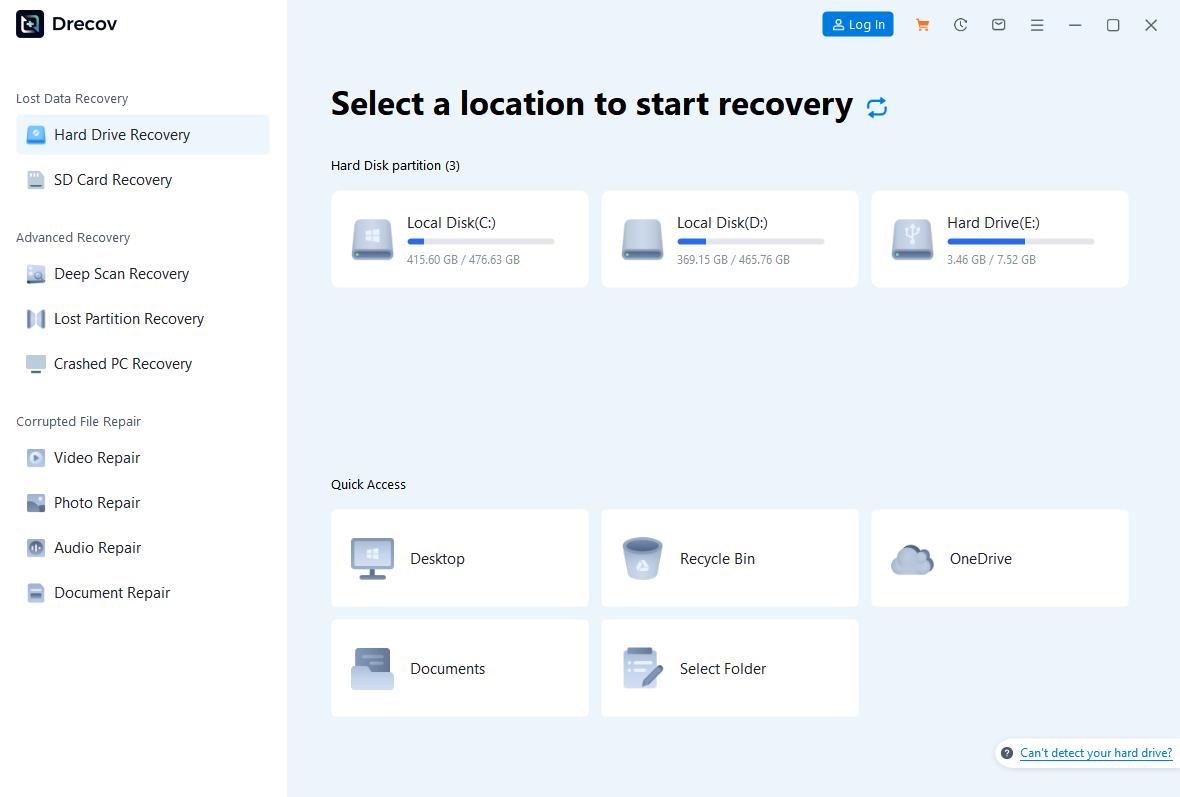
Step 1: Select the document’s original location
Stop writing to the partition where the document last existed. Prepare another healthy drive for recovered files and, if installation is needed, do not install Drecov on the source partition. Open Drecov and select the original Windows volume or external device that held the file. If the source repeatedly disconnects, clicks, or reports severe read errors, stop direct scans and consider imaging or professional recovery instead.
Step 2: Search, narrow, and preview
Run Quick Scan first. Look for the former folder, document name, and Word file types. If the target is absent and the device remains stable, use Deep Scan. Filter or browse the results, then preview a few likely documents. A preview is helpful evidence that a candidate can be read, but it cannot guarantee that every page, embedded object, or tracked change is intact.

Step 3: Recover to a different drive and verify
Recover the selected candidates to the prepared healthy destination, never back to the original drive. If the output is not where you expected, check the Drecov folder or Recovery folder. Open several recovered files, confirm their text and layout, and compare timestamps or contents with your last known version. Only after that validation should you consider Office repair, template changes, or other work that might affect the original source.

⚠ Warning: Install it on a drive different from the one where your data was lost to prevent overwriting.
FAQs
Is Word Safe Mode the same as opening a damaged document?
No. Safe Mode changes how Word starts. A damaged document may still fail to open. Test a blank document first so you can separate application startup from a file-specific problem.
Will Safe Mode delete my Word files?
Launching Word with /safe does not delete documents. Ending a frozen process can discard unsaved edits, so copy visible text or check recovery options before force-closing Word.
Why does Word work in Safe Mode but crash normally?
An add-in, template, or other normal-startup customization may be involved. Disable one add-in at a time and restart normally after each change. Do not assume the first add-in you notice is the cause.
Can I keep using Word in Safe Mode every day?
You can use it temporarily to access work, but missing features and extensions make it a diagnostic workaround. Find the normal-startup cause so your regular workflow works again.
When should I try file recovery?
Try it when a local document is genuinely deleted or missing after you have checked Recycle Bin, the expected folder, and available backups. Safe Mode alone cannot restore a file that is no longer present.
Conclusion
To open Word in Safe Mode, launch winword /safe from Run and compare it with a normal launch. The difference helps you decide whether to investigate add-ins and templates or a broader Office problem. Keep file-specific errors separate from startup faults. If a local document has actually disappeared, protect its original drive and use Drecov only for the recoverable-file branch; save any findings elsewhere and verify them before repairing Word.
⚠ Warning: Install it on a drive different from the one where your data was lost to prevent overwriting.