






The answer to “what video format does PS4 use?” is not just MP4. A PS4 can play supported files from a USB drive, including certain MP4, MKV, and AVI combinations, but the video and audio inside the file must also match supported codecs. The USB drive needs a compatible file system and the videos must sit in a folder at its root. Before converting an entire collection, test one known-good file. Keep your original videos untouched until you know what the console actually rejects.
An extension is only the outside label
A filename ending in .mp4 tells you the container, not the exact way its picture and sound were encoded. Two MP4 files can behave differently on the same console. One may hold H.264 video and a supported audio track; another can use a different encoding or profile. Renaming the second file from .mkv to .mp4 does not transcode it. The name changes, but the internal data does not.
Sony’s official PS4 media support page lists combinations rather than a promise that every file with a familiar extension will play. It includes MKV with H.264/MPEG-4 AVC video and supported MP3, AAC LC, or AC-3 audio; AVI with MPEG4 ASP or H.264/MPEG-4 AVC video and supported audio; and MP4 with H.264/MPEG-4 AVC video plus AAC LC, AC-3, or LPCM audio. It also lists MPEG-2 PS, MPEG-2 TS, AVCHD, and XAVC S cases. Check the exact combination for your file instead of guessing from its icon.
Profile levels matter too. The support page lists H.264 High Profile Level 4.2 for standard PS4 MP4 playback and notes a higher listed level for PS4 Pro. A file can report “H.264” yet still exceed what your model accepts. If you have a PS4 Pro and another person has an original PS4, do not assume one successful test proves universal compatibility. Content restrictions can also prevent playback even when the file format looks correct.
Separate a file problem from a USB problem
First ask whether the PS4 sees the USB drive. If the console does not list it, video conversion is unlikely to solve the immediate issue. Sony specifies exFAT or FAT32 for USB video playback. Confirm the drive is recognized and has one clearly named folder in its root with a small test video inside. The PS4 path is Media Player in the content area, then USB. If the drive is visible but a particular file is absent, focus on folder layout and the file’s properties.
Do not format a drive merely because the console fails to list it. Formatting changes the file system and can erase the only copy of your videos. First inspect the drive on a Windows PC, copy important files to another healthy device, and verify a few of those copies. Only then decide whether a dedicated test drive should be prepared as exFAT or FAT32. A separate test drive is often easier to reason about than changing a storage device that also holds irreplaceable footage.
Suppose the PS4 sees other videos in the same folder but not one recent download. The USB file system and folder structure are probably functioning. The missing file may use an unsupported track, a restricted format, or a damaged container. If no videos appear, check the root folder and USB format before examining each movie individually. This order saves time and avoids needless conversion of healthy files.
Check the picture and sound tracks before converting
On the computer, inspect the video’s media information with a trustworthy local file-properties or media-information tool. Record container, video codec, profile or level where shown, audio codec, and whether the file contains multiple tracks. Compare those details with Sony’s list for PS4, not PS5; the two lists are not identical. If a tool cannot display a property, say that it is unknown rather than assuming the file meets the requirement.
Try the video in a computer player, but interpret that test carefully. Playing on Windows proves only that the PC can decode it. The PS4 may support a narrower set. Conversely, a file that fails in more than one reputable player might be incomplete or damaged rather than merely incompatible with the console. Check its size against the source and try downloading it again if a clean original remains available. Avoid running a conversion on the only copy of a suspiciously small file.
An audio mismatch can also appear as a playback failure or silent picture. A file can contain supported H.264 video but an unsupported sound track. Converting only the audio may be less disruptive than re-encoding the picture, provided you work from a separate copy. If the video itself exceeds the PS4’s documented profile or level, a full conversion may be needed. Keep the original and compare the output’s image and audio quality before deleting anything.
Make one controlled PS4 test file
Choose a short video you are allowed to copy and whose original plays normally on the PC. Place one copy in a plainly named folder at the root of a healthy exFAT or FAT32 USB drive. Connect it to the PS4 and open Media Player, then USB. If it plays with sound, the basic drive and folder setup works. Now try a copy of the troublesome file in the same folder. This one-at-a-time comparison isolates the video from the USB setup.
If the troublesome file fails, compare its track details with the successful test. Convert a copy using settings that match the official PS4 support list. A common target is MP4 with supported H.264 video and AAC LC audio, but the correct settings depend on the original file and your PS4 model. Do not treat “MP4” alone as a complete export setting. Retest the converted copy, including a scene near the end and a section with speech, before processing the rest of a collection.
If both files fail, revisit the USB drive, folder structure, and console path. Try another known-good drive if available, without modifying the first. If only one video fails after conversion, look for corruption, copy errors, restrictions, or an overlooked track. A fresh source download may be better than repeated encodes of a damaged file. This test does not measure quality scientifically; it simply gives you a useful next decision.
Protect originals when a video really went missing
Playback incompatibility is not data loss. Do not run recovery software to fix an unsupported codec. A different branch begins if the original Windows video vanished while you prepared the USB drive, converted files, or formatted a device. Check the PC’s Recycle Bin and existing backups first. If the only original was on a USB drive that was formatted, stop writing to that drive. Further copies and conversions can reuse the storage where the old file remained.
The video recovery options concern missing files, not playback conversion. If Windows still recognizes the original device consistently, a local search may be reasonable. A drive that clicks, repeatedly disconnects, or reports the wrong capacity should not undergo repeated direct scans. Consider a suitable image or professional help instead. The same caution applies if the video is especially important and the device has severe read errors.
Drecov is Windows data-recovery software for stable, recognizable sources such as a PC drive or USB device. Quick Scan and, when needed, Deep Scan can locate missing video candidates; filters and preview help narrow the results before saving them elsewhere. Lost Partition Recovery is available if a source partition disappears, but it does not repair the partition table. Drecov cannot make an unsupported PS4 codec playable or repair physical damage. Use it only when the original file is genuinely lost.
⚠ Warning: Install it on a drive different from the one where your data was lost to prevent overwriting.
Step 1: select where the original video lived
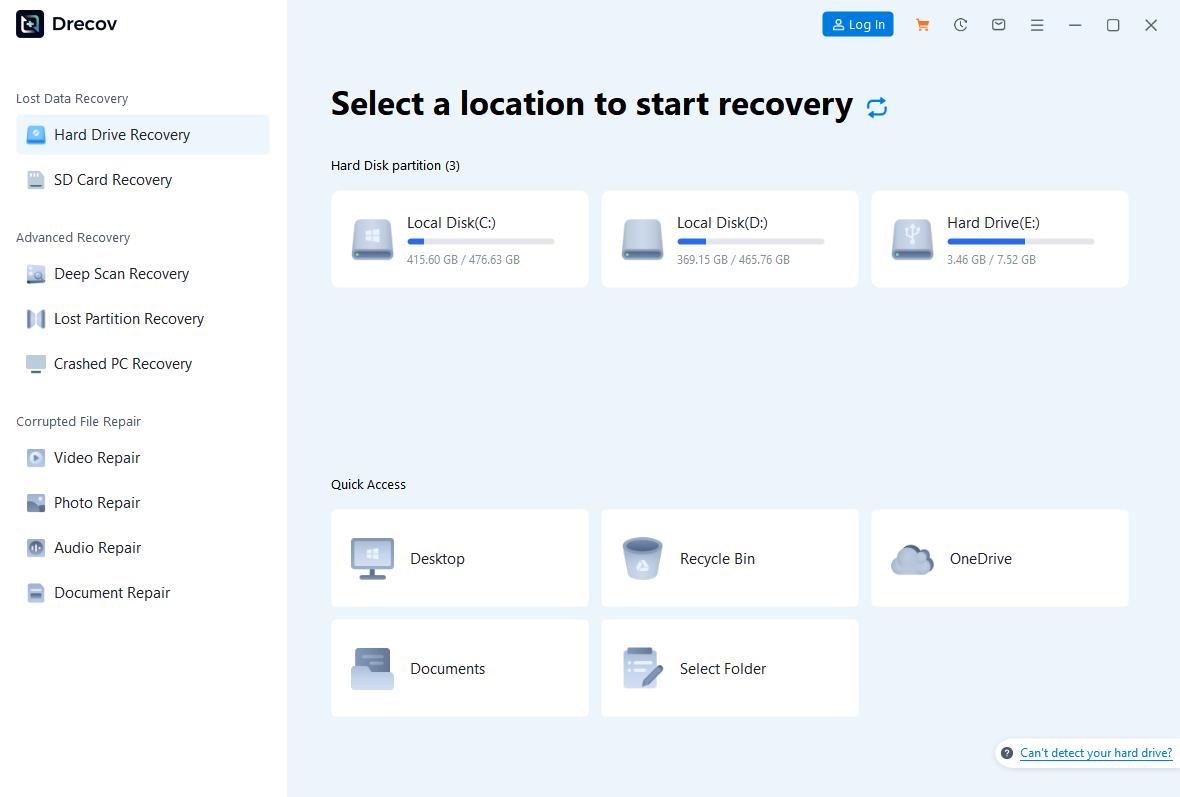
Open Drecov and choose the original Windows drive or USB device, not the new PS4 test drive unless that was truly the source. Check capacity and former folder before scanning. Prepare another healthy device for recovery output. Do not install the program on the partition containing the lost video. If the source is unstable, stop the routine and protect it through an appropriate imaging or specialist route.
Step 2: find a candidate worth saving
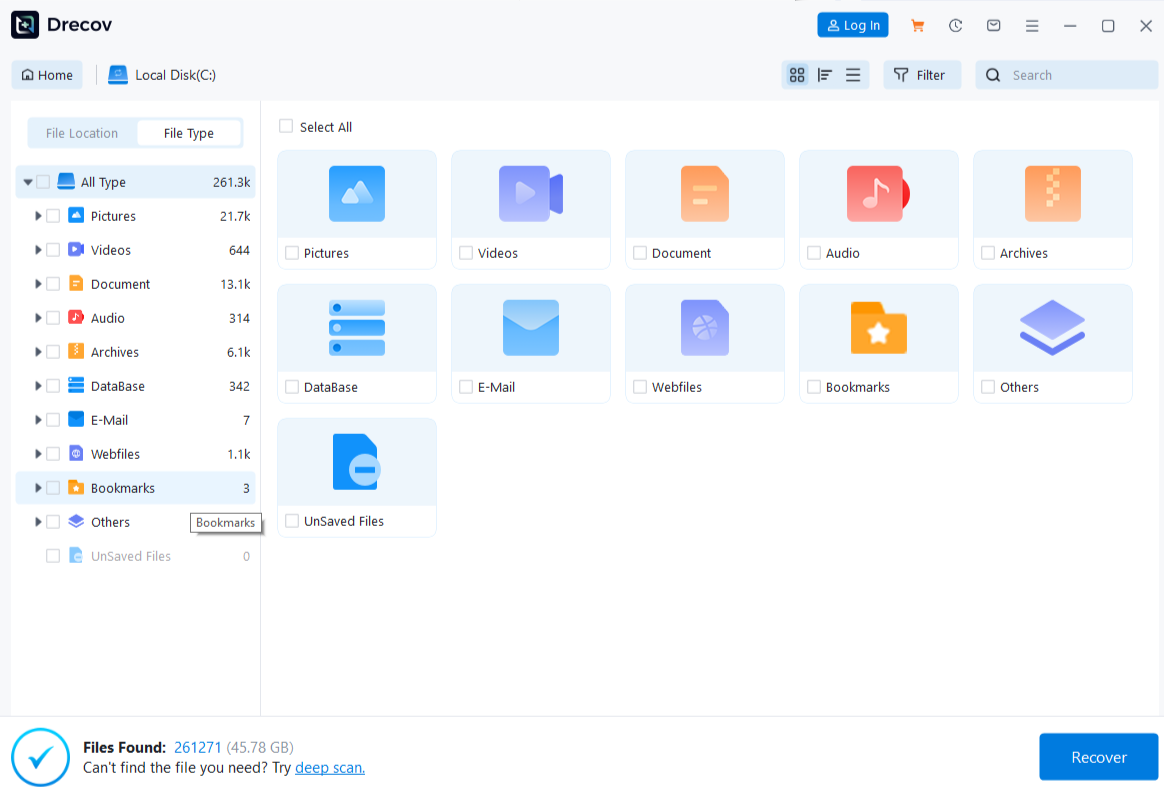
Run Quick Scan first. If the needed clip is absent and the source stays stable, run Deep Scan. Filter by video type, filename, or old folder. Preview samples where supported, but remember that a short preview cannot establish that the whole movie survived. Pay special attention to the original recording date and approximate size, because multiple conversions may share nearly identical names.
Step 3: restore and test outside the source
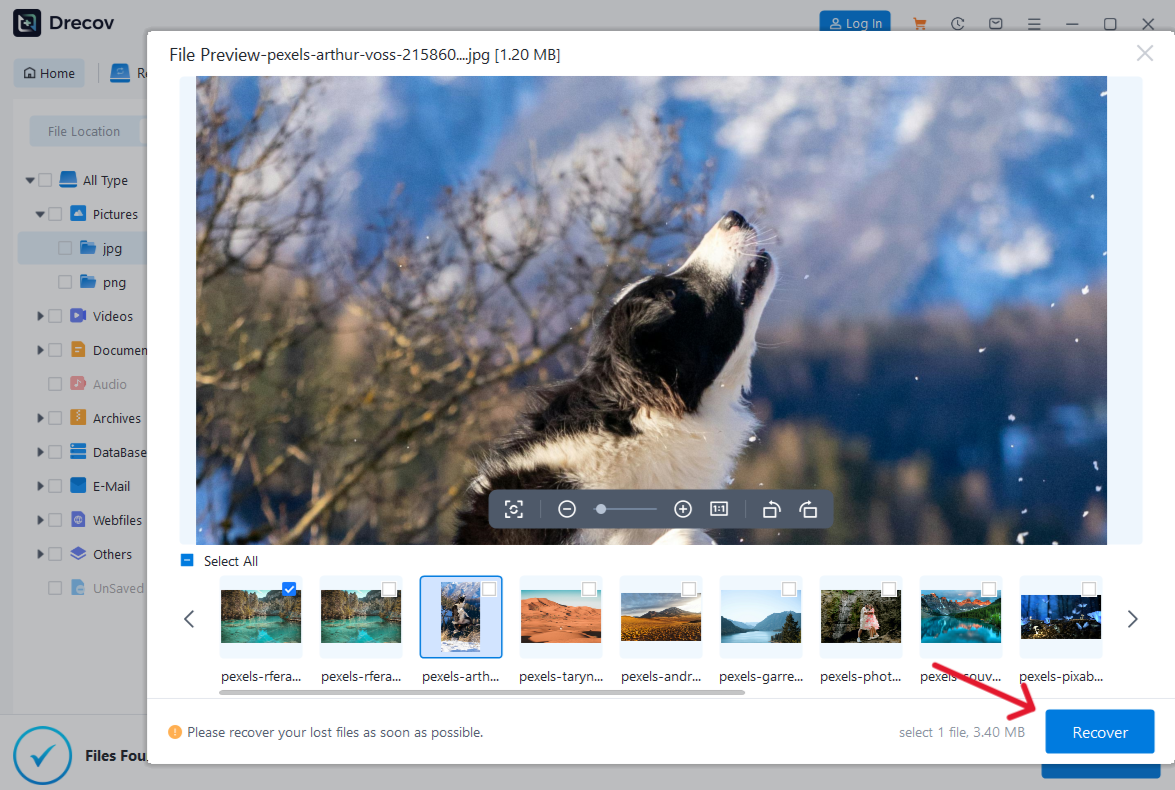
Recover selected videos to the separate healthy drive, never the source device. If output is not in the expected path, check Drecov Folder or Recovery Folder. Play the beginning, middle, and end on the PC before making another PS4 conversion. The USB recovery overview helps with other removable-drive loss scenarios. For files lost elsewhere on Windows, consult the general file recovery page.
⚠ Warning: Install it on a drive different from the one where your data was lost to prevent overwriting.
FAQs
Will every MP4 play on a PS4?
No. The picture and sound tracks must match supported codecs and relevant profile limits. An MP4 extension alone does not reveal those details. Inspect the file’s media information and compare it with the official PS4 list.
Does PS4 use the same USB video formats as PS5?
Not exactly. Sony publishes separate supported combinations for each console. Check the PS4 section when preparing a file for a PS4, particularly if someone recommended settings based on a PS5 test.
Should I rename MKV to MP4?
No. Renaming changes only the label. It does not change the encoded video, audio, or container structure. If conversion is needed, work from a copy and check both the output tracks and playback result.
Why does the PS4 see the drive but not a movie?
Confirm the video sits inside a folder at the drive’s root, then check its container and tracks. If other files in the same folder work, the missing movie deserves closer inspection. Do not format the whole drive as your first response.
Can recovery software repair a PS4 playback error?
No. It can search for a missing original file on a stable Windows-readable device. If the file exists but its encoding is unsupported, adjust a copy of the video rather than scanning for deleted data.
Conclusion
To answer what video format PS4 uses, check container, video codec, audio codec, USB file system, and folder layout together. Test one known-good file before converting a library, and keep originals untouched. If an original disappears during preparation, check backups first and avoid writing to its source. On a stable Windows or USB device, Drecov can help find the missing video, preview candidates, and save a verified copy elsewhere; it cannot solve an unsupported PS4 encoding by itself.
⚠ Warning: Install it on a drive different from the one where your data was lost to prevent overwriting.