








Identify the Missing Buffer, File, or Workspace
Sublime Text can hold useful work in saved files and in the state of an editing session. A missing unnamed tab therefore needs a different investigation from an overwritten source file. Start by identifying whether the document ever had a filename, which project window held it, and whether any text remains visible in another window. These details determine where real recovery evidence might exist.
For example, a project can reopen from its project description while the previous window layout and unsaved buffers do not appear. A separate workspace or retained session may explain that difference. However, a project description does not automatically contain every source file or every unsaved paragraph. Preserve surviving material first, then inspect actual session and workspace evidence without assuming that every recent editing state must remain recoverable.
Save Surviving Text before Troubleshooting
Inspect all open Sublime Text windows and views. If useful text survives, save it under a separate ordinary filename in a healthy recovery location. Include related fragments and record the project context. Avoid closing a live buffer merely to test whether it returns at startup. A direct saved copy is easier to verify than a later attempt to reconstruct application state from internal files.
Record the application version, active project, and installation type. A portable installation or another account can use a different data directory. Preserve accessible session and workspace evidence before resetting settings or reinstalling. The methods below use existing retained data without buying another recovery tool; legitimate access to the editor and any relevant licensed dependencies remains necessary. No setting can retroactively create a historical buffer that was never retained.
Free Method 1: Reopen the Correct Existing Workspace
Check the normal recent-project and workspace interfaces for the project used during the missing session. Confirm the full path before opening a similarly named entry. A project file describes project configuration, while workspace information can describe editing state associated with it. Keep both existing files when available, but do not mistake either one for a complete backup of the source tree it references.
Open a preserved copy through the supported workflow and inspect the returned buffers. Save any useful unsaved text separately immediately. Compare file paths and distinctive content with the missing work. A familiar tab title can refer to another clone or an older copy. The recovery goal is the intended text, not simply restoring a window whose arrangement looks like the one you remember.
Distinguish Project Content from Window State
A source directory can remain intact even when the editor’s previous tabs disappear. Inspect the actual files through the project tree and ordinary open-file workflow. If they are present, save their current state before changing organization. A missing tab is then an access or window-state problem rather than proof of file deletion. Reopening the correct saved file may solve the immediate need without any deeper recovery operation. For the storage-level causes behind this step, use the Hard drive recovery.
Conversely, a restored list of filenames does not prove that unsaved changes survived. Compare the actual text around the missing section. A project can reopen with yesterday’s saved file while the latest buffer contents remain absent. Record that distinction and continue with preserved session evidence or existing source versions. It prevents a cosmetically restored workspace from being mistaken for recovery of the work that mattered.
Free Method 2: Preserve and Inspect Existing Session Evidence
Sublime Text stores session-related data in its application data area, with details depending on version and installation. Locate that area through the supported settings or documentation for the copy you actually used. Preserve it before maintenance, preferably while the application is closed after you have saved useful live buffers. Keep the preserved evidence private because session data can include paths and unsaved text from unrelated documents.
Do not overwrite the live session files with arbitrary older candidates as a first experiment. Inspect copies and use supported application workflows whenever possible. A retained session or workspace can contain useful buffer information, but its internal structure is not an ordinary text document. A recognizable phrase inside it is evidence of a fragment, not automatic proof that you can restore the complete original window safely.
- Save every useful live buffer as a separate ordinary file before changing the session.
- Identify the actual installation, data directory, and associated workspace files.
- Preserve relevant existing evidence without editing the live internal state.
- Extract or reopen useful retained text through an appropriate copied workflow and verify its contents.
Extract Fragments without Damaging Their Meaning
If a copied session record contains the missing text, preserve the complete raw candidate before extraction. Encoded line breaks, quotation marks, and escape sequences can differ from the final document’s visible text. Do not perform broad replacements until you understand the representation. Save an extracted fragment as a new file and compare its structure with the surrounding code or prose it belongs to.
For code, inspect braces, string literals, indentation-sensitive blocks, and the final lines. For prose, verify paragraph boundaries and punctuation. A fragment can preserve the valuable missing section while omitting another part of the document. Label it as partial when appropriate. Keep the raw candidate unchanged so a later comparison can distinguish original retained text from mistakes introduced during manual extraction or reconstruction.
Free Method 3: Compare Existing Source Revisions
If the document was saved or versioned, inspect real earlier source copies and repository revisions. Use a separate working location instead of resetting the active project. A committed version can provide a coherent baseline but may omit recent unsaved changes. Compare it with any surviving buffer fragments before choosing the accepted result. Neither repository history nor session data automatically contains everything held by the other.
For an overwritten file, identify the exact missing block and preserve the current file first. Restore the smallest coherent section that meets your goal. A whole-file replacement can remove useful newer changes. Review imports, references, and nearby configuration after merging. Recovering text accurately is only the first step; the accepted file also needs to fit the current project or document context.
Keep Newer Work During a Selective Merge
Suppose an older revision contains a deleted parser function, while today’s file includes an unrelated bug fix. Keep both candidates and compare the relevant boundaries. Restore the function together with its required context, then verify that the bug fix remains. A selective merge can preserve more useful work than a blanket revert, but only if you understand the dependencies between the recovered block and its current surroundings. For the exact application behavior, consult the official recovery documentation.
If the recovered implementation depends on an old interface, save any adaptation as a separate deliberate change. Do not claim that an unchanged historical implementation worked when you actually rewrote part of it for compatibility. A concise recovery note can identify the source revision, extracted buffer fragment, and new adaptation. This makes the result easier to review and gives you a reliable baseline for future edits.
Understand Hot Exit without Treating It as Version Control
Sublime Text’s session-preservation behavior can help retain editing context across exits, subject to the relevant settings and version. Review the actual configuration after preserving evidence. Do not assume that enabling a hot-exit setting now recreates an earlier discarded buffer. A retained working session is not an unlimited archive of every tab you opened or every intermediate state you edited.
A deliberately closed buffer, changed workspace, reset data directory, or unavailable historical session can limit recovery. Keep expectations tied to real files and retained text. If the needed state is absent, move to existing source versions or reconstruction from legitimate evidence. Repeatedly launching and closing the editor does not create a missing past state and may change the current working session further.
Keep Safe Mode Separate from Normal Session Recovery
Sublime Text’s documented safe mode uses a separate data directory for troubleshooting. Its purpose is isolating customizations, not restoring your ordinary session. Important work should not live in that temporary troubleshooting area. If you start in safe mode and see no familiar tabs, do not interpret that empty state as proof that your normal data directory has been deleted.
Preserve normal session evidence before using safe mode to investigate crashes or package problems. If safe mode helps the application run, continue diagnosing the customization issue separately from content recovery. Save recovered text into ordinary project files outside the troubleshooting data area. This avoids making a temporary diagnostic environment the only place where your accepted work survives after the next launch.
Check Installation and Account Changes
An update or portable copy can make you inspect a different data location from the one used during the missing session. Compare the executable path, account, and project path. Preserve older accessible directories before cleanup. A new installation may work correctly while none of the previous buffers appear because its session context is different. That is a reason to inspect real old evidence, not to overwrite the new installation indiscriminately.
If several candidate data folders exist, build a small inventory using dates and recognizable project names. Keep the candidates separate and private. Do not merge entire directories merely because they contain similarly named session files. Extract useful content or use supported copied workflows first. Broad mixing can change package settings and other unrelated state without improving the recovery of the specific text you need. A comparable recovery case with useful validation checks is Recover IntelliJ IDEA Code: Local History, Deleted Files, and Selective Reverts.
Inspect Package Problems Independently
A package error can prevent normal editing even when document data survives. Preserve the source files and session evidence before disabling or removing customizations. Then use supported troubleshooting to identify the actual problem. Do not delete all settings simply because one package seems involved. A clean editor may solve stability while leaving the original unsaved-buffer recovery unresolved.
After recovering the text, test it in an ordinary stable environment. Keep the raw recovered file separate from any automatic formatting or package transformation. A plugin can alter line endings, indentation, or syntax on save. Record the accepted file’s state before those changes so you can distinguish recovery evidence from edits introduced by the tooling you use to resume normal work.
Validate Encoding and Document Boundaries
A recovered text candidate may appear damaged when interpreted with the wrong encoding. Preserve its original bytes before changing interpretation or converting it. Compare a known valid file from the same project and inspect non-English characters, symbols, and punctuation. A few readable opening lines do not establish that the entire document uses the expected character set or that a conversion preserved all meaningful content.
Check the beginning, the missing section, and the end. A partial candidate can contain useful text while stopping midway through a statement. Preserve that material as a fragment and identify what remains absent. Avoid appending a guessed ending without a note. A syntactically repaired file can be useful, but its newly written portion should not be mistaken for original recovered source.
Test Structured Text before Use
For JSON, XML, configuration, and source code, inspect separators, quoting, and nested structure. Use an appropriate syntax check in a controlled environment before relying on the file. Do not execute a recovered script against important systems merely because it opens in the editor. Review commands and destination paths first. Text integrity, correct program behavior, and safe execution are related but separate decisions.
For prose and notes, check whether a selective merge duplicated a paragraph or removed a transition that explains the argument. Compare the accepted text with the intended purpose rather than only counting lines. A recovery can preserve every extracted word while still combining incompatible revisions. Keep the original candidates until the complete document reads coherently and any project-specific checks pass.
Rebuild a Useful Workspace after the Text Is Safe
Once important documents exist as verified named files, recreate the working layout through normal editor controls. Open the accepted project, arrange views, and restore useful tabs deliberately. You do not need to reproduce every historical cursor position to complete a content recovery. A clean useful workspace around the verified files can be a better endpoint than continued experimentation with uncertain internal state. When the missing project was stored on a portable device, also review the External hard drive recovery.
Keep a source inventory if several documents came from different candidates. Record which files were saved originals, which were extracted buffers, and which include reconstructed sections. That information helps future review and reduces the chance of choosing an obsolete candidate accidentally. Save the accepted project independently before cleaning old data, and retain raw evidence until you are comfortable that the useful work has returned.
Set a Clear Stopping Point
Define completion in terms of usable content. For example, the missing function is back, its tests pass, and the later valid fix remains. Or the unsaved essay is readable, complete enough for its purpose, and saved as a normal document. These concrete goals prevent endless attempts to recreate a perfect historical session when the work you need is already protected and verified.
If some material remains missing, list it explicitly and choose a reconstruction plan based on actual evidence. Keep uncertain fragments separate from the accepted document until review. Partial recovery can still save substantial effort, but it should not be described as full restoration of the original editing state. A clear limit is more useful than a familiar-looking window whose contents nobody has checked carefully.
Recover an Unsaved Fragment in the Correct Code Revision
A retained buffer fragment can contain the missing algorithm while the current repository uses a changed interface. Preserve both sources and inspect the boundary carefully. Check argument meaning, return values, and surrounding variable names, not just whether the copied text compiles. A syntactically valid merge can still combine incompatible assumptions from two project states. Use a focused behavioral check to validate the intended recovery rather than accepting a clean editor view alone.
If adaptation is necessary, keep its source and purpose clear. Record which lines came from retained text and which you wrote to fit the current project. This makes the accepted result reviewable and prevents a reconstructed implementation from being mistaken for an unchanged historical file. Save a focused recovery checkpoint before unrelated refactoring so the meaningful restoration remains easy to assess later.
Check Extracted Escapes and Document Boundaries
Session evidence can represent line breaks and quotation marks differently from ordinary source. Preserve the raw candidate and inspect the extracted file at the missing section and at its end. An escape sequence interpreted incorrectly can change a string or configuration value while leaving most of the document readable. Compare against known syntax and a real source fragment rather than applying global replacements blindly.
For an essay or note, inspect paragraph order and punctuation after extraction. An apparently complete block can still omit text that was never retained or duplicate another fragment. Keep uncertain material separate until review. A coherent reconstructed document can be useful, but label new bridging text and preserve the extracted original so future comparison can distinguish the recovered wording from the editorial repairs you added. The vendor also documents the relevant backup or restore workflow in its official recovery documentation.
Avoid Losing Evidence During Stability Troubleshooting
If a package problem caused the editor to fail, save useful text before diagnosing customizations. A separate clean troubleshooting environment can help establish whether settings are involved, but it does not preserve the ordinary session automatically. Keep accepted documents outside temporary diagnostic data areas and verify their saved paths. A successful editor launch is not the same checkpoint as recovering and protecting the content that disappeared.
After the application is stable, reopen the accepted ordinary files through the intended project. Confirm the missing material and any needed later changes, then save an independent copy. Retain the raw session evidence until those checks pass. This clean separation lets you solve both content loss and editor stability without treating an empty fresh session as proof that valuable text was impossible to recover.
When Deleted-File Recovery Adds Another Route
PandaOffice Drecov may help search for an actually deleted source file, saved project copy, or existing session evidence on readable storage. It cannot guarantee reconstruction of every internal Sublime Text record or recover text that never reached retained storage. Check live buffers, correct workspaces, and actual existing revisions first. Those sources often give you clearer context than isolated fragments from a general scan.
Before scanning, stop unnecessary writes to the affected volume and preserve accessible data. Keep recovered outputs on another healthy destination. If the source device shows repeated read errors or disconnects, prioritize appropriate preservation rather than repeated editor launches and builds. A familiar session filename in scan results is only a candidate; the actual text and its structural context determine whether it is useful.
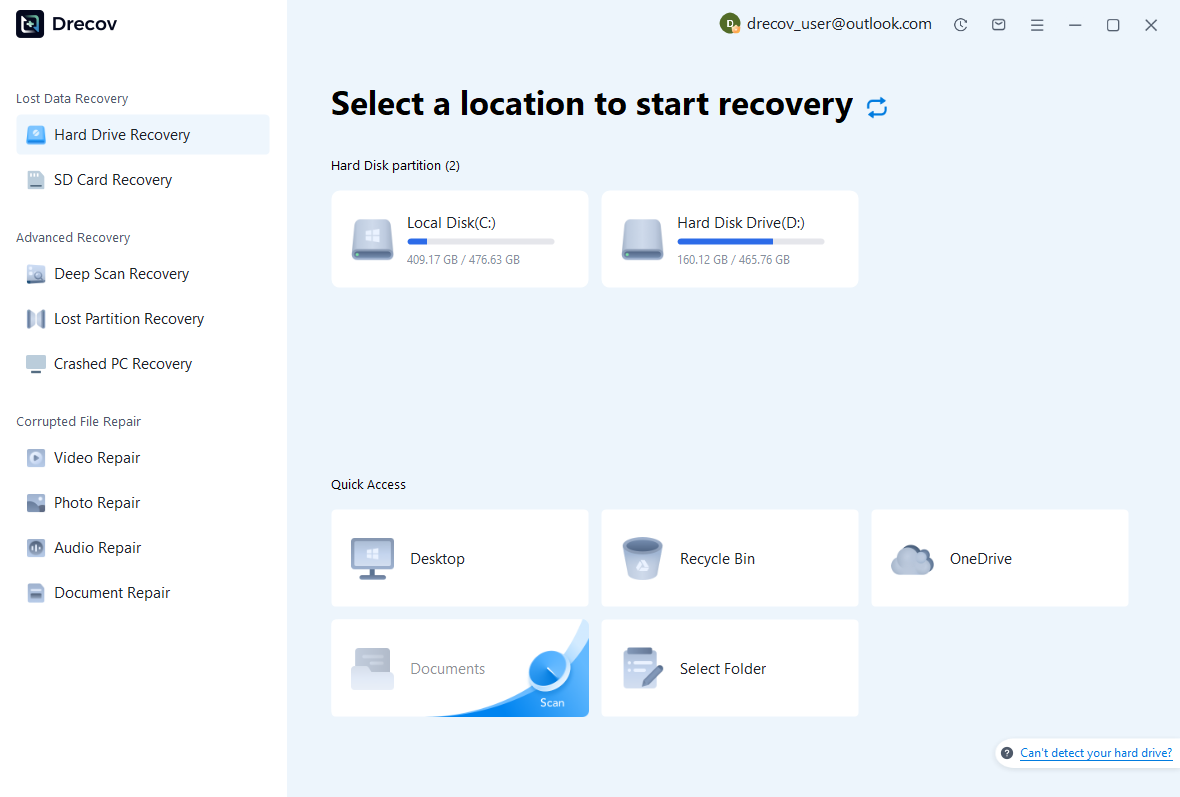
Step 1: Select the Storage That Held the Missing Text
Choose the volume containing the actual saved document or relevant application data area. A project can live on another volume from the editor installation, so confirm the original path first. Avoid installing recovery software or saving new trial files onto the affected source. Reserve a separate healthy destination and keep any private session material isolated from unrelated shared project outputs.
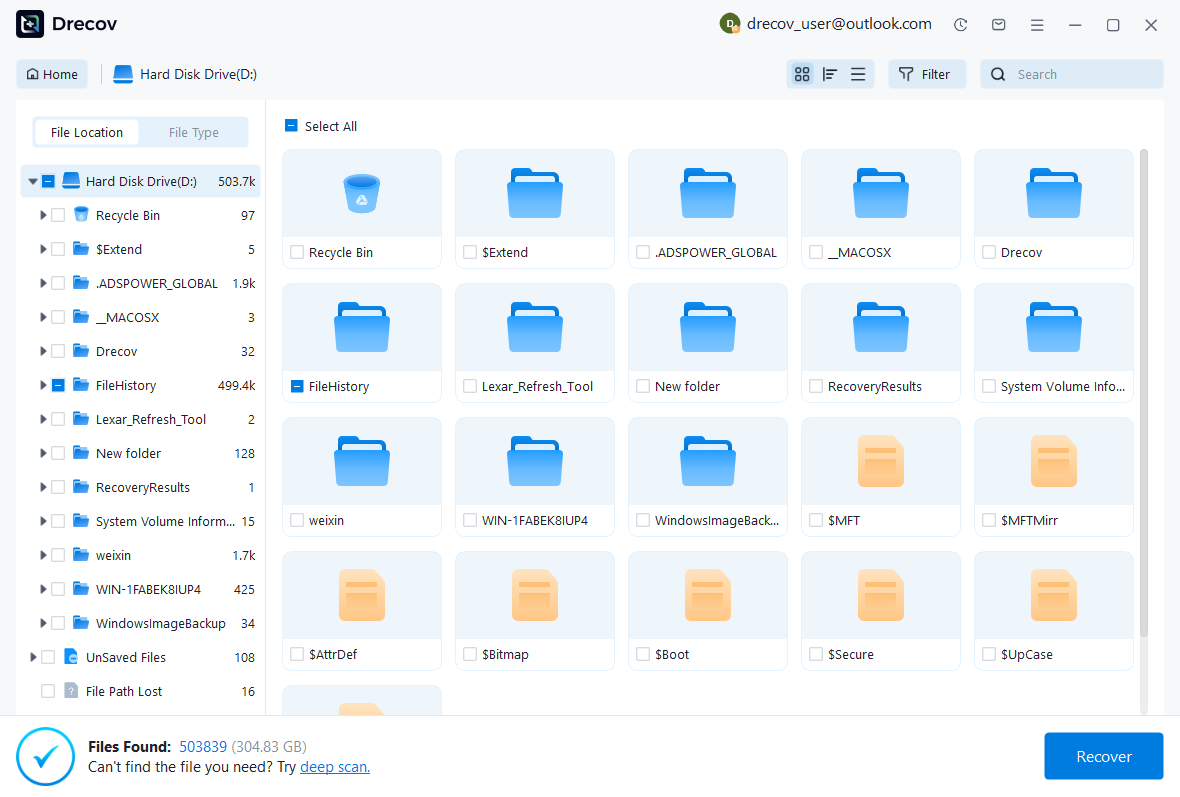
Step 2: Review Source and Session Candidates
Inspect available names, paths, dates, sizes, and supported previews. Retain competing versions when they contain different useful sections. Compare distinctive text rather than trusting a generic tab name. A session fragment may hold an unnamed buffer, while a saved source candidate may provide a more coherent baseline. Keep their origins clear and postpone broad merging until you can inspect complete recovered copies. Before changing the only candidate, compare the procedure with the official recovery documentation.
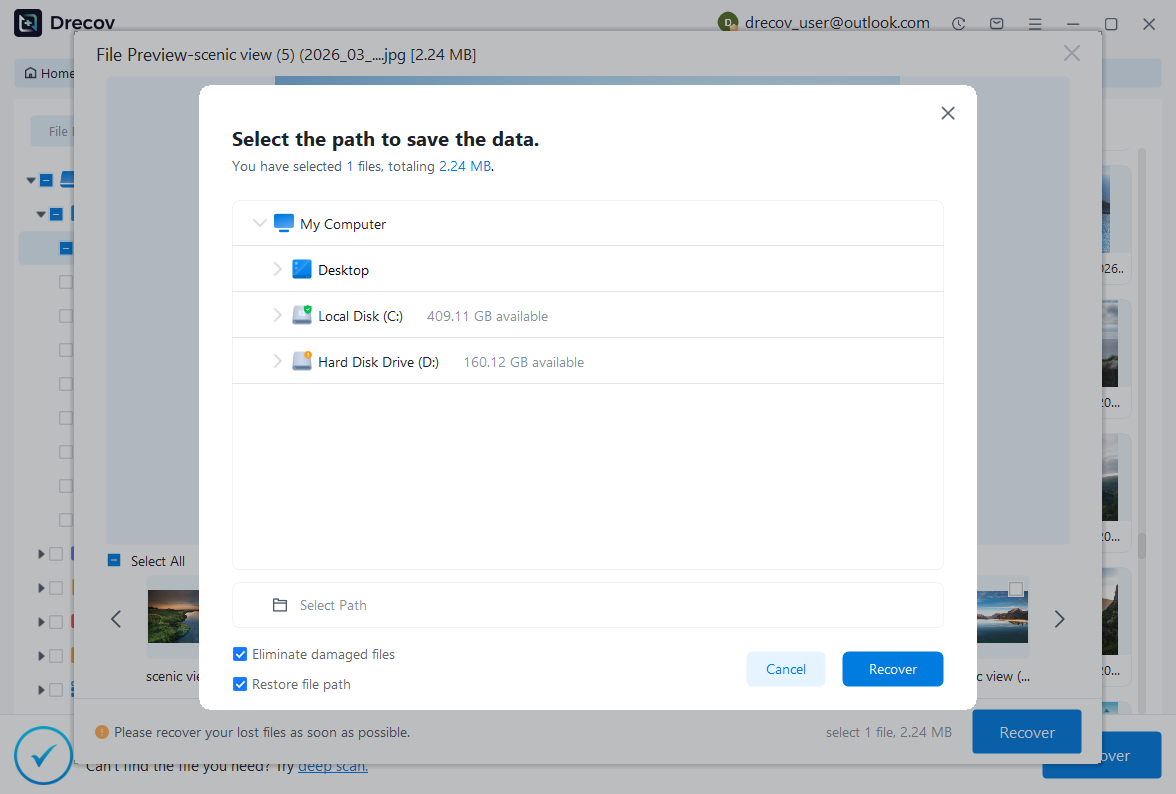
Step 3: Recover Elsewhere and Check the Accepted Document
Save candidates to the separate destination, then work on copies for extraction or merging. Verify encoding, boundaries, and the specific missing content. Use relevant syntax or project checks in a controlled environment before execution. Save the accepted document as an ordinary named file and preserve raw candidates unchanged. A successful file copy does not prove that every unsaved edit or workspace relationship survived.
Protect the Accepted Work as Ordinary Files
Finish with a clear set of named documents and a brief note explaining their sources and remaining gaps. Keep them outside application-managed diagnostic or session folders. If version control belongs in the project, create a reviewed checkpoint without unrelated cleanup. For writing, save an independent copy through your normal document backup process. The recovered content should remain available even if the editor’s next session starts empty.
- Confirm the intended text, file identity, and complete document boundaries.
- Review selective merges for missing dependencies and unwanted reversions.
- Run appropriate controlled validation and save ordinary named files.
- Preserve raw candidates and an independent accepted copy before cleaning old session evidence.
Make Session Convenience Complement Real Backups
Use session preservation as a convenience feature and verify its actual behavior with disposable work. Save important buffers under meaningful filenames and protect their project folders independently. Keep workspace descriptions with the project when useful, while remembering that referenced source files require their own protection. A project entry alone is not a complete backup of code, notes, and unsaved editing decisions.
Finally, rehearse recovering one harmless buffer or saved file through the workflow you intend to rely on. Confirm what survives a normal exit and what remains after intentionally closing a tab. This makes the feature’s limits concrete without risking valuable work. A tested ordinary-file backup and a clear session-recovery procedure give you complementary ways to resume after the next unexpected interruption.





