








Identify the Notebook and the Missing Kind of Content
A missing OneNote page can belong to another notebook, another account, a moved section, or a retained deleted-note area. An overwritten paragraph is a different problem from a deleted page. Start with a distinctive phrase from the note and identify the notebook where you last saw it. This narrows the recovery target before you change synchronization settings or restore an entire historical notebook.
Record the application edition and platform too. Desktop OneNote, the web interface, and other clients do not expose identical backup and recovery features. This guide focuses on supported Windows desktop and web workflows, while noting when a route depends on the available client. Do not assume that a menu described for another edition exists in yours or that every account retains the same history.
Preserve Notes That Still Exist
If useful content remains visible, copy it to a separate safe note or document before refreshing, signing out, or closing a problematic notebook. Include images, attachments, and important links where practical. Keep the original context in a short note identifying its notebook and section. A text-only copy can preserve wording while omitting embedded material, so inspect what the copy actually contains rather than assuming it captures the whole page.
If another authorized device still shows the missing version, preserve that version before changing synchronization. A device may hold useful local content even when the cloud view differs. Avoid a broad reset or cache deletion while you still need that evidence. Your first task is keeping the surviving material available, not making every client immediately display the same unverified state.
Free Method 1: Search the Correct Notebooks and Accounts
Search for a distinctive phrase, title fragment, or attachment name across the notebooks available to the current account. Check whether the relevant notebook is actually open and included in the search scope. A closed notebook or different organizational account can make a complete note appear absent. Confirm the account and notebook location through the normal interface before treating a failed search as proof of deletion.
Inspect sections and section groups that may have received the page during a move. A familiar title can appear in several places, so compare actual contents and nearby pages. If you find the note, copy it to a clearly identified recovery location before reorganizing it. Moving a page again without recording its source can make an already confusing notebook structure harder to reconcile.
Compare the Web View with the Desktop View
When legitimate web access is available, inspect the same notebook through its supported online interface. Compare the actual page text and modification context rather than only the notebook name. A page visible online but missing locally suggests a different problem from a page absent in both places. Preserve useful content before attempting synchronization repair, because troubleshooting should not remove the only version you can still read. For the storage-level causes behind this step, use the Word document recovery.
A difference between clients does not automatically identify which version is correct. One may contain newer valid content, while another holds an older section you need. Keep both sources available and compare the meaningful changes. Use ordinary authorized access and do not alter sharing permissions merely to make a recovery test easier. Content recovery and notebook access administration are separate tasks.
Free Method 2: Inspect Retained Deleted Notes
OneNote can retain some deleted pages or sections through its supported deleted-note or notebook recovery interface. Inspect the feature available in your client for the correct notebook. Review the candidate’s contents and context before moving it back. Retention is limited and depends on the feature and environment, so do not promise that every historical deletion must remain available indefinitely.
When you locate the needed page, use the supported move or copy workflow to place a recovered copy in an appropriate section. Copying first can preserve the retained candidate while you compare it. Check that the destination belongs to the intended notebook and account. A successful restore into an unrelated personal notebook may recover text but leave the working team without the page it actually needs.
- Confirm the intended account, notebook, and search scope before declaring a page deleted.
- Inspect the notebook’s available deleted-note or recovery area for the actual candidate.
- Copy or restore the useful page through the supported interface to a clear destination.
- Verify its contents, attachments, and notebook context before further reorganization.
Keep Deleted Content Separate from Overwritten Content
A retained deleted page may not help when only one paragraph changed inside an existing page. For an overwritten section of text, inspect any available page-version feature in the relevant client and account. Compare actual revisions rather than restoring the entire notebook automatically. Preserve the current page first, because it may contain useful updates added after the missing paragraph disappeared.
If an older revision contains the desired material, copy the needed coherent section into a new comparison page before merging. Include related images, labels, and links that explain it. Restoring only one sentence without its context can change meaning. Keep the original candidate and the current page unchanged until you have reviewed the accepted combined version and identified any uncertain reconstructed content.
Free Method 3: Open Existing Desktop Backups
Some Windows desktop OneNote workflows provide access to existing local backups through the File and Info areas. Use the supported Open Backups command available in your version and inspect real backup sections. This route requires a backup that actually exists. Enabling backup today does not create a historical copy of notes that already disappeared, and a web-only workflow should not be described as having the same local files automatically.
Open a plausible backup without replacing the current notebook. Inspect the section and page contents, then use the supported copy or move operation to recover useful material. Check the destination carefully and retain the current notebook for comparison. A section backup may be older than the last visible edit, so verify the specific missing content rather than trusting a recent-looking folder name.
Review Backup Scope and Completeness
An existing backup can contain some sections and omit others. Inventory the available pages, attachments, and dates before describing it as a complete notebook recovery. A page title or section tab is not enough evidence. Open representative content and the specific affected page. If the backup lacks a newly added section, record that gap and compare other actual sources instead of repeatedly reopening the same incomplete set. For the exact application behavior, consult the official recovery documentation.
For a notebook containing embedded documents, inspect the attachments separately. An icon can remain visible while a file cannot open correctly. Save a test copy of an important attachment to a safe location and verify its contents through the appropriate application. Keep that test separate from the native notebook recovery, because a recovered page and a readable embedded file are related but distinct validation results.
Compare Page Versions with a Specific Goal
Choose several concrete checkpoints before reviewing candidates. For a meeting note, check the decision, owner, and due date. For research notes, check the source citation, quotation context, and inserted figure. This makes comparison more reliable than a general impression that the page looks familiar. Two versions can share a title while documenting different outcomes or different stages of the same discussion.
If you merge an older paragraph with newer material, mark the operation in a brief recovery note. Preserve both original candidates and review the combined meaning. A current action item may depend on a later correction that the older page lacks. Recovering text accurately does not mean every historical statement should become current again. The accepted page needs both authentic recovered material and the correct present context.
Inspect Links and Section Relationships
A recovered page can contain links to other pages or notebooks whose locations changed. Test critical internal references and compare their targets. A link that opens an older duplicate can make the page seem complete while pointing readers to outdated instructions. Keep the original link as evidence until you identify the intended target, then make any repair deliberately in the accepted copy.
Also inspect page hierarchy and subpages. A child page can survive while its parent relationship changes during restoration. Confirm that readers can find the recovered material through the intended section structure. This is organization work after content recovery, so preserve a clean recovered baseline first. That makes it easier to revisit a misplaced subpage without searching through several unlabelled copies again.
Handle Synchronization Problems without Erasing Evidence
If the note exists in one client but not another, record the difference and any visible sync message. Preserve readable content before signing out, removing a notebook, or clearing application data. These maintenance actions can affect local state and should not be your first attempt while unsynchronized notes may remain. Use the application’s supported troubleshooting guidance for the actual error after the content is safe.
Do not force a broad overwrite simply because one device reports a newer time. Compare the meaningful text and attachments. A newer state can reflect an accidental deletion, while an older client may contain the missing original. Keep the comparison focused on actual content. Synchronization can align devices, but it does not replace a deliberate independent backup or guarantee an unlimited record of every prior page state. A comparable recovery case with useful validation checks is Recover Xournal++ Notes: Hidden Autosaves, PDF Backgrounds, and Page Checks.
Distinguish Permissions from Missing Notes
A notebook can become inaccessible because account or sharing conditions changed. A permission error does not prove its contents were deleted. Confirm the intended account and use the legitimate access process. Do not copy private notebooks into unrelated shared locations as a troubleshooting shortcut. Recovering your useful work should preserve the notebook’s appropriate audience and avoid creating a separate disclosure problem.
If you regain access, compare the actual page before making restoration changes. The desired version may still exist intact. If access remains unavailable, document that boundary and ask the appropriate owner through your normal process rather than describing a local file scan as a way around server-side permissions. Storage recovery and access authorization solve different problems and should remain clearly separated.
Use Exports as Reading Copies with Known Limits
A PDF export or printed copy can preserve useful visible notes when no editable page survives. Keep it unchanged and inspect the full page range. It may omit attachments, links, hidden structure, or later edits. Continuing from that output can be a practical reconstruction route, but it does not recreate all native OneNote objects or page history. Label the new page accordingly.
For technical handwriting, inspect symbols and diagram relationships carefully when reconstructing from an export. A missing mark can change an equation or instruction. Use legitimate reference material to resolve uncertainty, and keep uncertain readings visible in the recovery note. Avoid silently replacing ambiguous recovered content with a plausible guess, especially when the note documents a decision, measurement, or procedure whose exact wording matters.
Check Images and Ink Beyond a Thumbnail
A page thumbnail can remain recognizable while detailed ink or inserted images differ. Zoom into important regions and compare the actual content. Check arrows, labels, highlights, and text near page edges. A copied page may preserve much of the layout while an image or embedded file remains incomplete. Validate those elements according to their role rather than accepting the composite appearance alone.
If you copy material between pages, inspect alignment and surrounding labels afterward. A diagram separated from its caption can mislead a reader even when both elements survive somewhere. Preserve the original recovered page and make layout repairs in another copy until the meaning is clear. The final accepted note should explain the same relationships as the source evidence, not merely contain a similar amount of visible material.
Verify the Recovered Notebook in Normal Use
After restoring a useful page, reopen it from the intended notebook and section rather than only from a recovery view. Confirm that the text, attachments, and important links remain available. If the notebook normally syncs, check the accepted content in another supported authorized view after ordinary synchronization. Compare actual content and do not rely solely on a status icon as proof that every element transferred correctly. When the missing project was stored on a portable device, also review the Hard drive recovery.
Then save an appropriate independent copy or backup according to your platform’s capabilities and project needs. Keep the raw candidates until validation passes. A durable accepted page should remain useful after the recovery session ends. If some attachments or version details remain missing, list them explicitly so a future reader does not assume that the whole historical notebook has returned intact.
Plan Partial Recovery by Information Value
When only part of a notebook survives, prioritize irreplaceable text, original diagrams, and embedded evidence over easily reconstructed headings. Build a short inventory of missing pages and attachments. This turns partial recovery into a practical continuation plan and reduces repeated searches of sources you have already evaluated. Preserve readable fragments with their notebook and date context so they remain understandable later.
Keep reconstructed material separate until review. A new summary of an old meeting can be useful, but it is not the same as recovering the original notes. State the source and uncertainty clearly. This distinction helps you trust the accepted result and prevents a polished replacement page from hiding the fact that some historical wording or supporting file could not be recovered.
Recover a Meeting Page without Reintroducing an Old Decision
An older OneNote page may contain a missing discussion while today’s page records a later decision. Preserve both before merging. Compare the action owners, dates, and wording around the change. Restoring the entire older page can make an obsolete instruction look current. A selective recovery should retain the historical discussion and the valid later outcome, with enough context that a reader can understand their sequence.
If the note supports a team workflow, place the accepted copy in the intended notebook and section through normal authorized access. Do not leave the only useful recovery in a private comparison notebook and assume the team has regained the page. Verify actual availability in the appropriate view. Keep the raw historical candidate separately until the accepted page’s content and location have both passed review.
Verify Embedded Documents Independently
A page can show an attachment icon whose content belongs to another revision or does not open completely. Save a test copy through the supported workflow and inspect it in the appropriate application. Compare its actual title, page count, or other meaningful identity. A recovered note and a readable attachment are separate pieces of evidence, and a familiar attachment filename alone does not connect them reliably.
For a printed document embedded as page imagery, distinguish the visible printout from the original editable attachment. One can survive while the other is absent. Record which version you recovered and whether it meets the task. If you reconstruct an editable document from a printout, label that as new work. This prevents a useful reading copy from being mistaken for complete recovery of the original source file. The vendor also documents the relevant backup or restore workflow in its official recovery documentation.
Keep Page Reorganization after Content Acceptance
Before moving subpages or renaming sections, save a clear recovered baseline. Then reorganize a copy or proceed with deliberate recorded changes. This makes it easier to diagnose a broken link introduced during cleanup, rather than blaming the original recovery source. Test a representative incoming page link after movement and confirm that it leads to the intended accepted content instead of another similarly named candidate.
Finally, keep a concise list of missing information that still matters. Prioritize unique handwriting, original evidence, and embedded files before routine formatting. A partial notebook can remain useful when its gaps are explicit. The goal is a trustworthy accepted page and a realistic continuation plan, rather than an appearance of completeness created by copying headings and leaving unresolved attachments or contradictory decision text underneath them.
When Local File Recovery Can Add Candidates
PandaOffice Drecov may help search for an actually deleted local notebook section, backup, export, or saved attachment on readable storage. It cannot retrieve arbitrary server-side history or bypass a notebook permission problem. Check OneNote’s own search, deleted-note area, available versions, and actual backups first. Those sources often preserve more useful notebook context than isolated local file remnants.
Before scanning, identify the specific local item and its original location. Keep recovered outputs on another healthy destination and stop unnecessary writes to the affected volume. Check format support in your installed edition, especially for native section files that may not offer a visual preview. A familiar extension is a candidate clue, not proof that every page and embedded attachment survived inside it.
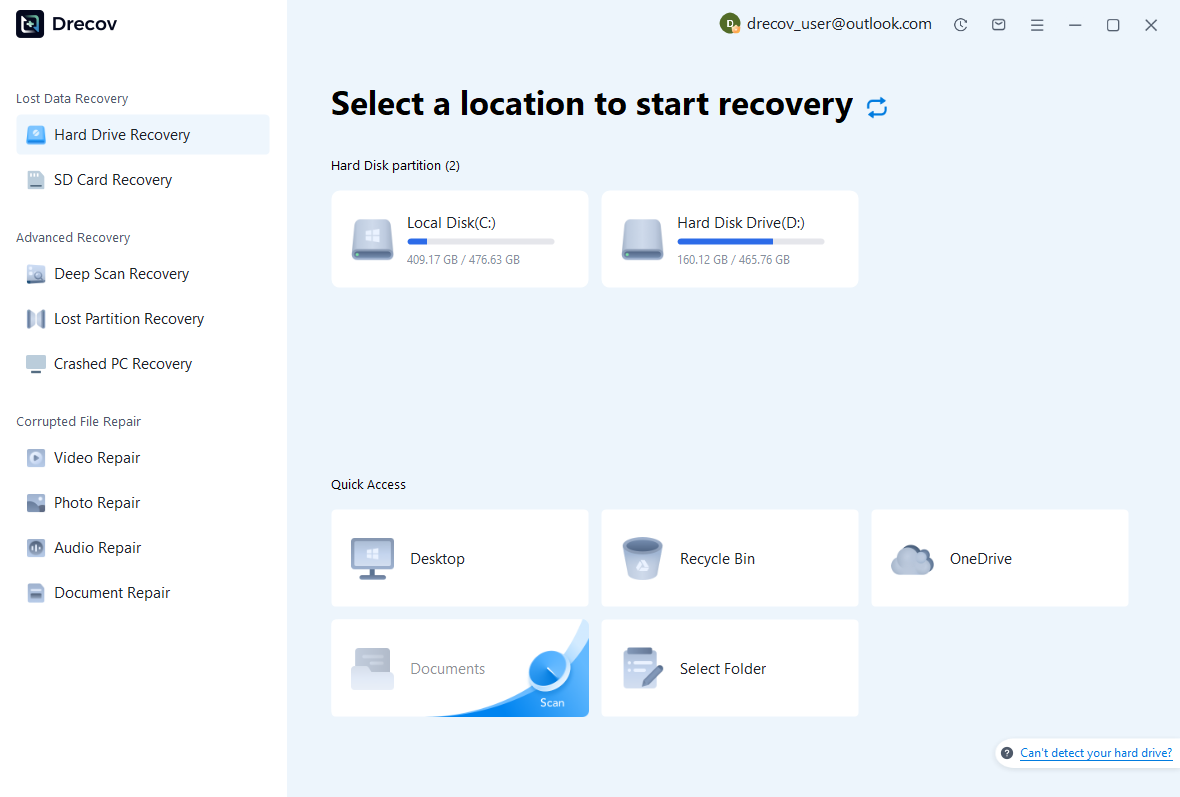
Step 1: Choose the Storage with the Missing Local Item
Select the volume containing the actual backup, section file, export, or attachment. Do not assume a cloud notebook’s entire history must exist in an ordinary local folder. Record what local evidence you expect to find and why. Avoid installing recovery software or creating new backup exports on the affected volume, and reserve a separate healthy destination for recovered candidates.
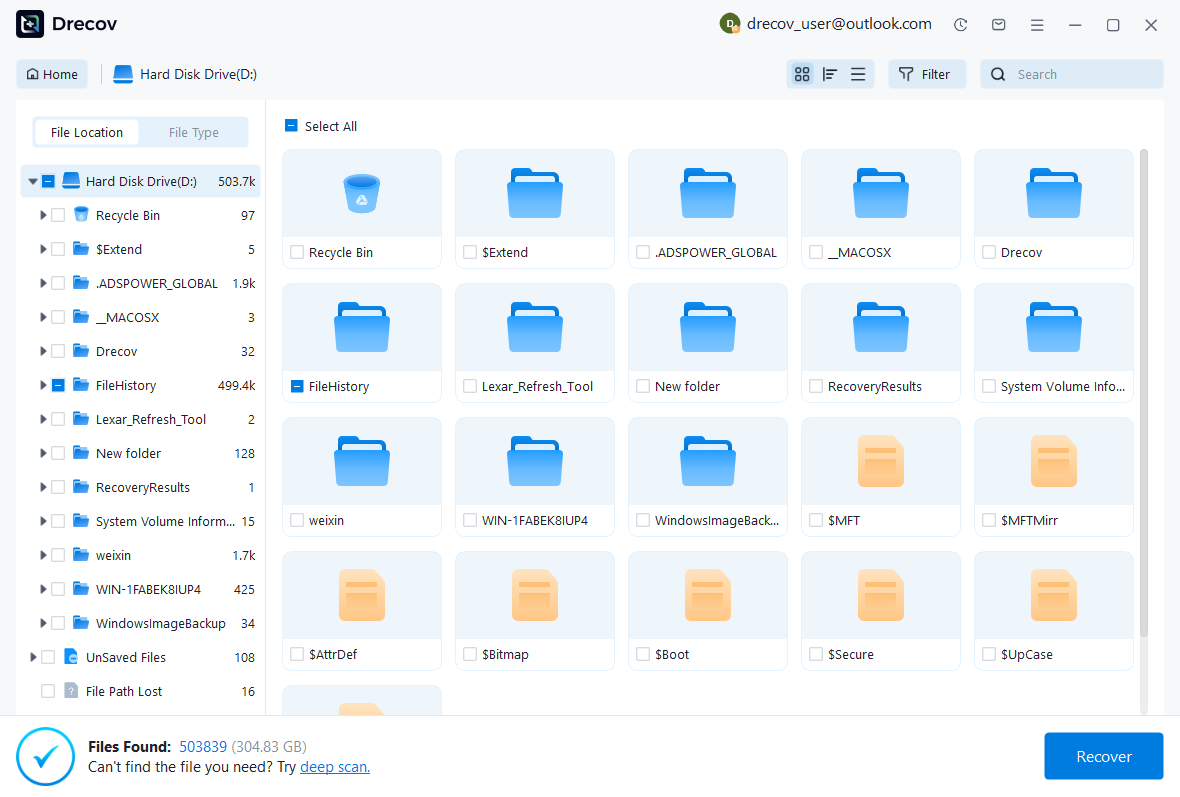
Step 2: Compare Notebook and Attachment Candidates
Review available names, paths, sizes, dates, and supported previews. Retain competing backup versions when they span the incident. A recent candidate may already contain the unwanted change. Keep native sections, reading exports, and attachments separate in your inventory, because they preserve different kinds of information. Validate actual contents after recovery rather than judging completeness from a section title or a recognizable preview. Before changing the only candidate, compare the procedure with the official recovery documentation.
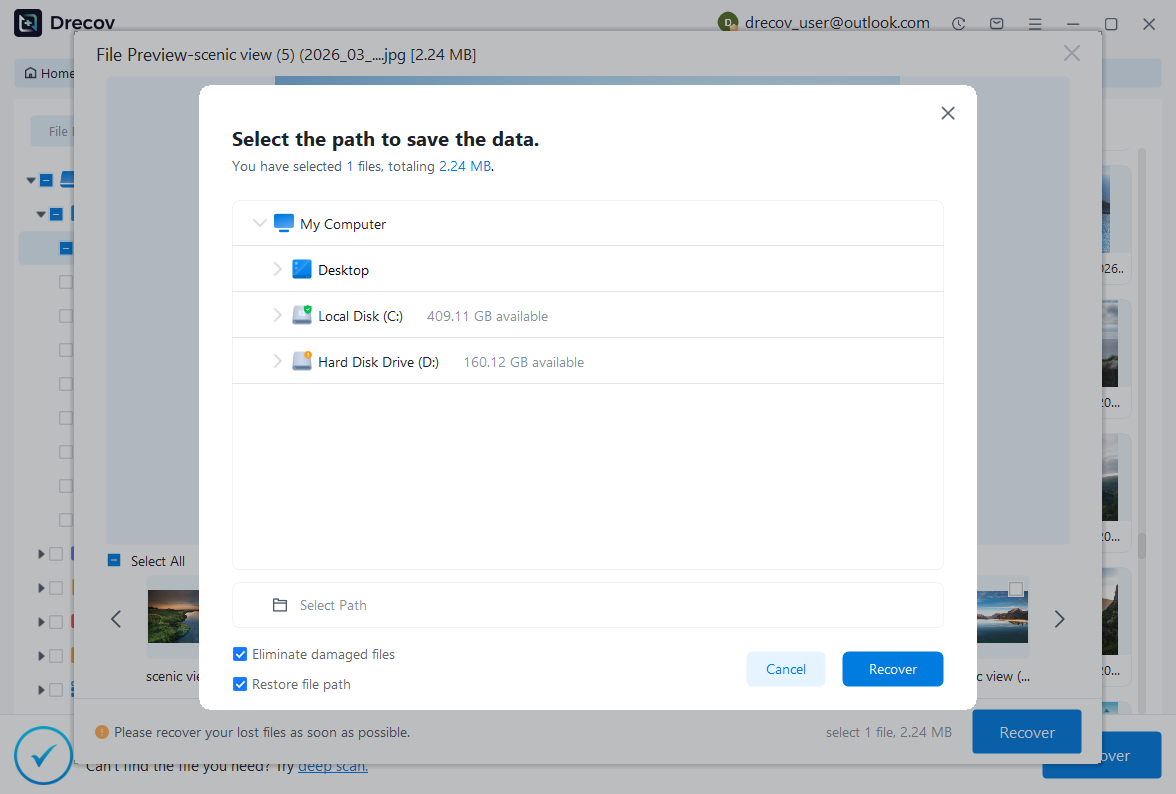
Step 3: Recover Elsewhere and Inspect through Supported Tools
Save candidates to the separate destination and test copies through the appropriate OneNote or document workflow. Inspect the specific missing page, important attachments, and surrounding context. Copy useful material into a clear recovery section before merging it with current notes. Keep raw candidates unchanged until the accepted page passes your content and access checks. A successful disk copy alone does not establish a complete notebook recovery.
Record the Accepted Notes and Remaining Gaps
Save a concise recovery note identifying the source of the accepted pages, the destination notebook, and any material you reconstructed. Include missing attachments or uncertain dates explicitly. This makes the result reviewable and gives you a clear endpoint. You can resume normal work with a known accepted page instead of leaving several similar candidates scattered across personal, shared, and backup notebooks.
- Confirm the recovered page belongs to the intended account, notebook, and section.
- Inspect important text, ink, images, attachments, and linked references.
- Reopen the accepted page through its normal location and verify supported synchronized views.
- Preserve an independent appropriate copy and document any partial recovery or reconstruction.
Protect Important Notebook Milestones
Use the backup and export features actually available on your platform, and test them with disposable material. Keep important attachments and evidence in a protection workflow appropriate to their value. Synchronization provides convenient access, but an independent verified copy protects a different need. Do not assume that every device, account, or OneNote edition exposes the same historical recovery options.
Finally, rehearse recovering one harmless page through a supported source and check its attachments afterward. This shows what your current environment retains and how destination selection works. A tested notebook recovery procedure is more useful than an unverified belief that notes must exist somewhere in the cloud. Protect the information and its context together so the next missing-page incident has a clearer starting point.





