








Find Out Whether Bookmarks Are Missing or Hidden
Firefox bookmarks can seem to disappear when the browser opens a new profile, hides a toolbar, or shows a different account’s data. These situations need different responses from an actual deletion. Start by looking for one distinctive bookmark in the library, using both its title and part of its address. A bookmark found in another folder is misplaced, while an empty library suggests a broader problem worth investigating.
Record when the links last appeared and what changed afterward. An update, Firefox Refresh, a new Windows account, and a deliberate bookmark deletion leave different clues. Do not immediately restore the first backup you find. A bookmark restore can replace the current collection, so preserving today’s links matters even when the current collection looks incomplete. Keep the existing state available while you compare older candidates.
Preserve Links That Still Exist
Create a manual bookmark backup through Firefox’s bookmark-management interface before making restoration changes. Save it outside the browser profile, under a descriptive name that identifies it as the current incomplete collection. If an HTML export is available and useful for comparison, keep that separately too. The native backup and HTML export have different restoration behavior, so label them clearly instead of assuming they are interchangeable historical snapshots.
Also preserve any important bookmark currently visible on another device before allowing synchronization to propagate further changes. Copy the needed addresses into a separate local document or make an appropriate export on that device. Avoid signing out, resetting Sync, or removing profiles as a first experiment. The goal is keeping useful evidence, not making every device agree on an unverified replacement collection.
Free Method 1: Check the Bookmark Library and Profile
Open the bookmark library and search the complete collection rather than only the visible toolbar. Inspect the menu, toolbar folders, and other bookmark locations shown by your version. A hidden toolbar changes presentation, not stored addresses. If the library still contains the expected links, adjust the relevant view and folder placement carefully. You can solve that display problem without replacing the entire bookmark collection.
Next, confirm that Firefox is using the expected profile. A profile contains browser data and can differ from another installation or Windows account. Use the browser’s supported profile information rather than guessing from a folder name. If another existing profile appears relevant, preserve its data before trying it. A familiar browser shortcut can start a new profile while the older bookmark collection remains intact elsewhere.
Identify an Old Profile by Content
An old profile folder can contain several kinds of personal data, not just bookmarks. Keep it private and inspect only what you need. Compare the bookmark backup dates and recognizable folder structure with the missing collection. A folder whose name includes default is not automatically the correct one. Installation changes and profile migrations can leave several plausible folders with different histories and different amounts of useful data. For the storage-level causes behind this step, use the Hard drive recovery.
If you locate an Old Firefox Data folder after a refresh, preserve the complete accessible folder before extracting bookmark candidates. Do not copy all its files over the live profile indiscriminately. That can change unrelated browser state and make the current problem harder to diagnose. Recover bookmark data through the supported bookmark workflow first, keeping your current manual backup available if the selected historical collection is not the one you wanted.
Free Method 2: Restore an Existing Bookmark Backup
Firefox can create automatic bookmark backups, and you may also have a manual JSON backup. Inspect the restore options in the bookmark library for candidates around the loss. Compare their dates with your incident timeline. Before accepting a restore, read the replacement warning and confirm that you have preserved the current collection. An older backup may recover the missing folders while omitting links added afterward.
Choose a plausible candidate through the native Restore or Choose File workflow available in your version. A compressed JSON bookmark backup may use a JSONLZ4 extension; changing its name to HTML does not convert it. Keep the original candidate unchanged and let Firefox handle the supported format. After restoration, inspect actual folders and addresses before treating a successful import message as proof of a complete recovery.
- Back up the current bookmark collection to a separate ordinary document location.
- Identify a real automatic or manual backup from before the loss.
- Restore the chosen candidate through Firefox’s supported bookmark interface.
- Compare the restored collection with your current-state backup and retain useful newer links.
Choose a Useful State Rather Than the Newest File
A backup created after an accidental deletion can faithfully preserve the unwanted result. An earlier candidate may therefore be more useful even when its timestamp looks less attractive. Select versions around the incident and compare recognizable folders, not just total entry counts. A large count can include duplicates, while a smaller collection may contain the exact research folder you need.
If the first candidate is wrong, preserve any useful recovered links before testing another. Keep a short inventory of which backup contains which material. This makes a selective combination possible without repeatedly losing discoveries. Avoid a cycle of unrecorded restores that leaves you unsure whether a link came from the original collection, a later backup, or an import you performed during recovery.
Free Method 3: Import a Surviving HTML Export Selectively
An existing HTML bookmark export can provide a separate recovery route when no useful native backup survives. Import it through the bookmark-management workflow and inspect where the imported folders appear. HTML import commonly adds bookmark material rather than recreating every aspect of a native profile. Verify the behavior in your installed version and retain the current backup before importing, especially when duplicate folders could make comparison confusing.
Treat the imported collection as a candidate set. Compare addresses and folder meanings before moving it into your main organization. A title such as Research or Reference can occur in several exports from different projects. Check the actual links and their purpose. Preserve the original HTML file so you can start again if a broad folder move creates duplicates or mixes unrelated historical collections. For the exact application behavior, consult the official recovery documentation.
Combine Older and Newer Links Deliberately
Suppose an older backup restores a complete reading list, while today’s incomplete collection contains several new sources. Keep both sets separately and move only the missing useful material into the accepted collection. Do not delete duplicate-looking entries solely by title. Two links with the same visible name may point to different versions, sections, or documents that matter to the research.
Compare full addresses when deciding whether two entries are duplicates. Query parameters and fragments can identify a useful document position, but they can also contain obsolete tracking information. Keep the original address until you understand its role. If you intentionally simplify or replace it, record that as new organization work rather than assuming it reproduces exactly what the recovered bookmark originally stored.
Understand What Sync Can and Cannot Recover
Synchronization can explain why a collection differs between devices, but it should not be treated as an unlimited independent backup. Check the account and bookmark-sync setting without resetting them immediately. If another device still has useful links, preserve those links locally first. Then compare the intended collection before allowing a broad restore or synchronization change to affect all connected devices.
A device showing old links is evidence that some useful data survives, not proof that the remote service holds every historical state. Avoid relying on a fresh sign-in to undo a deletion automatically. Your recovery plan should identify a real collection, export, backup, or surviving device state that you can inspect. That keeps expectations tied to actual evidence rather than to the idea that cloud data must always preserve the past.
Separate Account Problems from Profile Problems
A Mozilla account and a Firefox profile are related through optional features, but they are not the same thing. You can have local bookmarks in a profile without the expected account state, or an account connected to a newly created local profile. Record both pieces when diagnosing the incident. A correct account name alone does not prove that the browser currently uses the historical local collection.
If the browser cannot access a profile normally, preserve the readable folder and use supported recovery procedures. Do not edit personal-data databases in place merely to make the account display look familiar. Bookmark recovery should focus on inspected backup candidates and accepted addresses. Restoring unrelated cookies, sessions, or credentials is a separate task and should not become an accidental side effect of recovering a reading list.
Verify the Folder Structure after Restoration
Check several meaningful folders across the collection. Confirm that nested folders remain under the intended parent and that important links are not stranded in an imported root. A successful restore can bring back addresses while leaving you unsure which organizational version you selected. Compare the structure with your project notes or an earlier export and record any folder moves you make afterward. A comparable recovery case with useful validation checks is Recover RawTherapee Edits: PP3 Profiles, Cached Settings, and RAW Checks.
Also inspect bookmarks that use less obvious address forms, such as local files or internal document locations. A link can survive perfectly while its target has moved or become unavailable. That is a target-access problem rather than missing bookmark data. Keep the recovered address as evidence, and resolve the target separately instead of deleting the bookmark simply because the first click produces an error.
Test a Small Representative Set of Addresses
Open a few representative links deliberately, including one from the missing folder and one newer link you retained. Check that each points to the expected resource, not merely to a page with a familiar title. A redirected website can look different even when the stored address is correct. Record important broken targets separately so you do not confuse website changes with a failed bookmark restore.
Avoid opening hundreds of recovered links at once. That creates noise, can make another session difficult to preserve, and does little to establish collection quality. Use a small targeted sample and inspect critical addresses directly. For valuable research references, save an appropriate citation or document copy through your normal workflow rather than relying on a bookmark as the only record of the source’s identity.
Handle Duplicate Collections without Destroying Evidence
After several imports, you may have repeated folders with overlapping contents. Create another manual backup before cleanup. Then compare one meaningful folder at a time, retaining entries whose full addresses or purpose differ. A global deletion based only on duplicate titles can remove unique sources. Keep the raw recovered export separate from the cleaned collection so you can revisit an uncertain decision later.
If organization work is extensive, keep a brief mapping from old folder to accepted destination. That note helps explain why a recovered collection no longer exactly resembles its source backup. The native recovery and your later cleanup are distinct stages. Separating them makes it easier to confirm that you recovered the needed addresses before changing how the browser presents them for current use.
Protect New Links During Repeated Trials
If you continue browsing while testing backup candidates, save newly added important addresses outside the changing collection. Otherwise, another restore can remove them even though it successfully brings back older material. A short local recovery list is enough for a few links. For larger work, use a clearly named export or separate document and reconcile it after you accept the recovered collection.
Do not make the live profile your only storage for candidate evidence. Keep native backups, HTML exports, and comparison notes in an ordinary backed-up folder. Label them by source and purpose rather than only by date. A file named current-before-restore can be much easier to interpret later than several similar timestamped files whose relationship to the incident you no longer remember. When the missing project was stored on a portable device, also review the External hard drive recovery.
Know the Limits of Bookmark File Recovery
A bookmark backup contains saved links and organizational information; it does not normally preserve the full contents of the websites. Recovering a bookmark will not restore a deleted article on someone else’s server or recreate a private document you no longer have permission to access. Keep these boundaries clear when judging results. A correct recovered address and an unavailable remote resource can coexist.
Likewise, a damaged profile database is not automatically repaired by renaming files or forcing an unrelated backup into its place. Prefer supported bookmark exports and restore workflows. If the only remaining evidence is a deleted profile file, preserve the storage and consider whether a file recovery attempt is appropriate. Do not represent a scan result with a familiar database name as a verified complete bookmark collection.
Compare a Restored Research Folder with the Current Collection
Consider a reading list organized by project rather than by website. An older backup may contain a complete project folder, while today’s collection contains several new sources elsewhere. Before merging, identify the intended project and its scope. Compare full addresses, folder nesting, and descriptive titles. Keep the current-state backup unchanged so you can recover a useful newer link even if an older native restore replaces the live collection during comparison.
For sources with generic titles, add a separate comparison note explaining their role. A bookmark called Dashboard can point to a report, another workspace, or a temporary search. Do not decide identity from that label alone. Open only the necessary authorized target and verify the expected document. This prevents an imported folder from looking complete while quietly directing you to a different project or an outdated version of the evidence.
Preserve Local Targets and Document Versions
Some bookmarks point to local PDFs or project files. Recovering those addresses does not recover the target documents. Compare the stored path with the actual surviving file, including the document edition. If the file moved, keep its original address as evidence before updating the accepted bookmark. Record the new target deliberately so another person can understand whether you restored the original relationship or selected a current replacement.
For research material, the version can matter as much as the URL. A living document may change while the bookmark remains correct. Preserve an appropriate citation, date, or legitimate document copy through your normal workflow when the historical content matters. A recovered link list can restore navigation without establishing exactly what a website said at the time you originally saved it. Keep that limit visible when using the recovered collection as evidence.
Evaluate an Incomplete Backup without Discarding Useful Links
A candidate that lacks most of the collection can still contain one irreplaceable folder. Save or export that useful subset before testing another native restore, and label its source. Avoid treating every candidate as either perfect or worthless. A selective combination can recover more information than accepting one whole snapshot, provided you preserve the raw sets and compare their actual addresses carefully. The vendor also documents the relevant backup or restore workflow in its official recovery documentation.
After combining the accepted links, inspect one nested folder and one newer retained entry again. Confirm their destinations and organization. Then create a fresh independent backup representing the reconciled collection. Keep the source candidates separate until that backup has passed an appropriate test. This gives you a clear endpoint: the missing useful sources are present, current links are retained, and the final collection no longer depends on an uncertain sequence of imports.
When Deleted-File Recovery May Help
PandaOffice Drecov may offer another search route if an actual bookmark backup or saved export was deleted from readable storage. It cannot recreate cloud-only historical data or infer addresses that were never saved. Check the library, correct profile, and existing backups first. Those routes can preserve useful folder context and often solve the problem more directly than searching unrelated disk remnants.
Before scanning, stop unnecessary writes to the affected volume and keep recovered outputs elsewhere. Preserve any accessible profile data first. Check format support in the installed edition, because a native compressed backup may not provide a visual preview. A candidate’s extension is only a clue. Its usefulness depends on whether Firefox can read the preserved copy and whether the needed addresses actually appear.
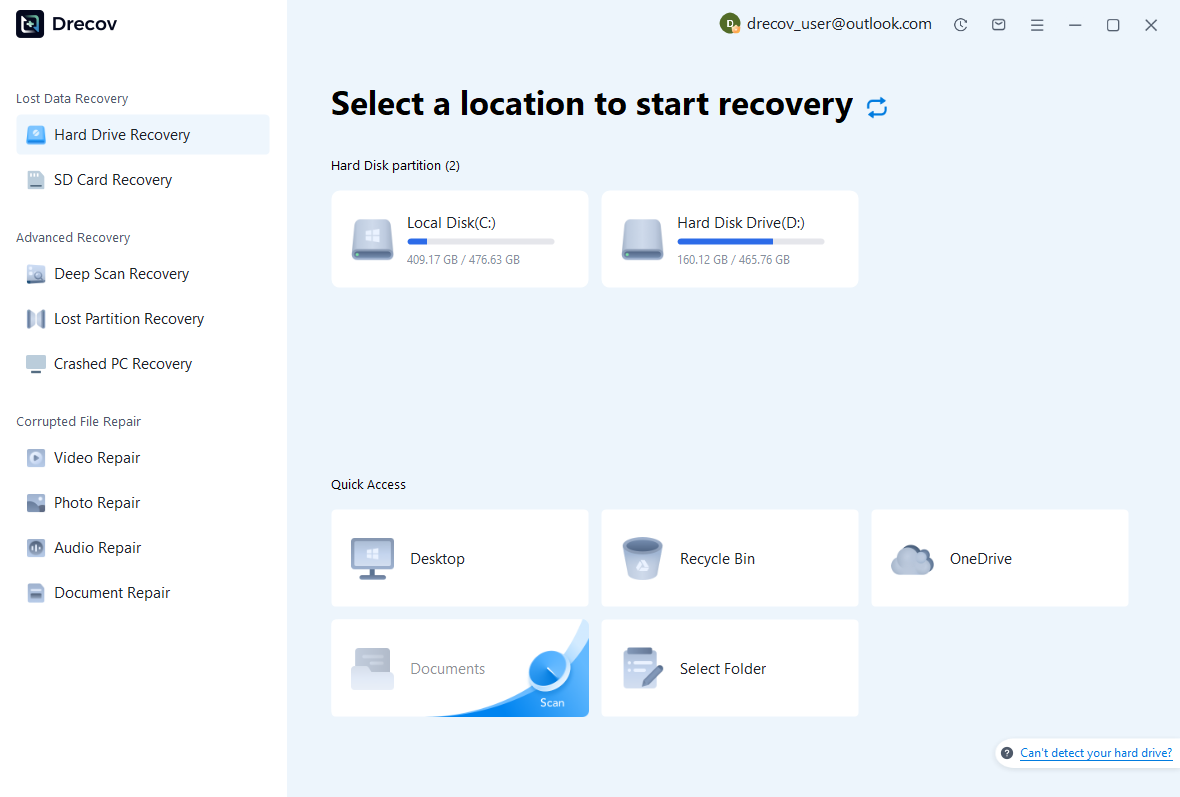
Step 1: Select the Volume with the Missing Backup
Choose the storage that held the profile, native bookmark backup, or HTML export. Confirm the original path and device identity rather than guessing from the first drive listed. Avoid installing recovery software or saving new exports to that volume. Reserve another healthy destination for candidates, and note whether you are searching for a browser backup or an independent export because those targets may live in different locations.
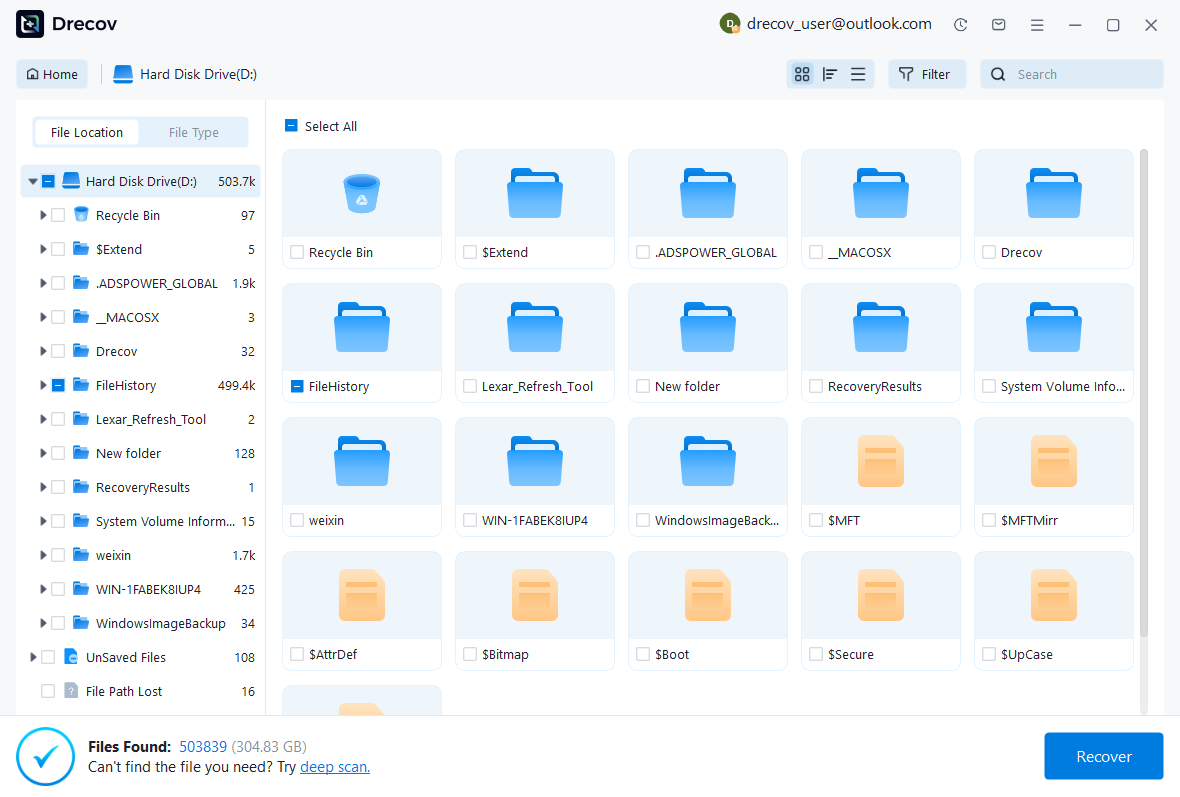
Step 2: Compare Candidate Backups and Exports
Review available paths, dates, names, sizes, and supported previews. Keep several plausible versions if their dates surround the incident. A recent candidate may preserve the deletion, while an older one may hold the missing folder. Do not assume that the largest file is best. Retain native backups and useful exports separately, with enough source information to test each without confusing their different restoration behavior. Before changing the only candidate, compare the procedure with the official recovery documentation.
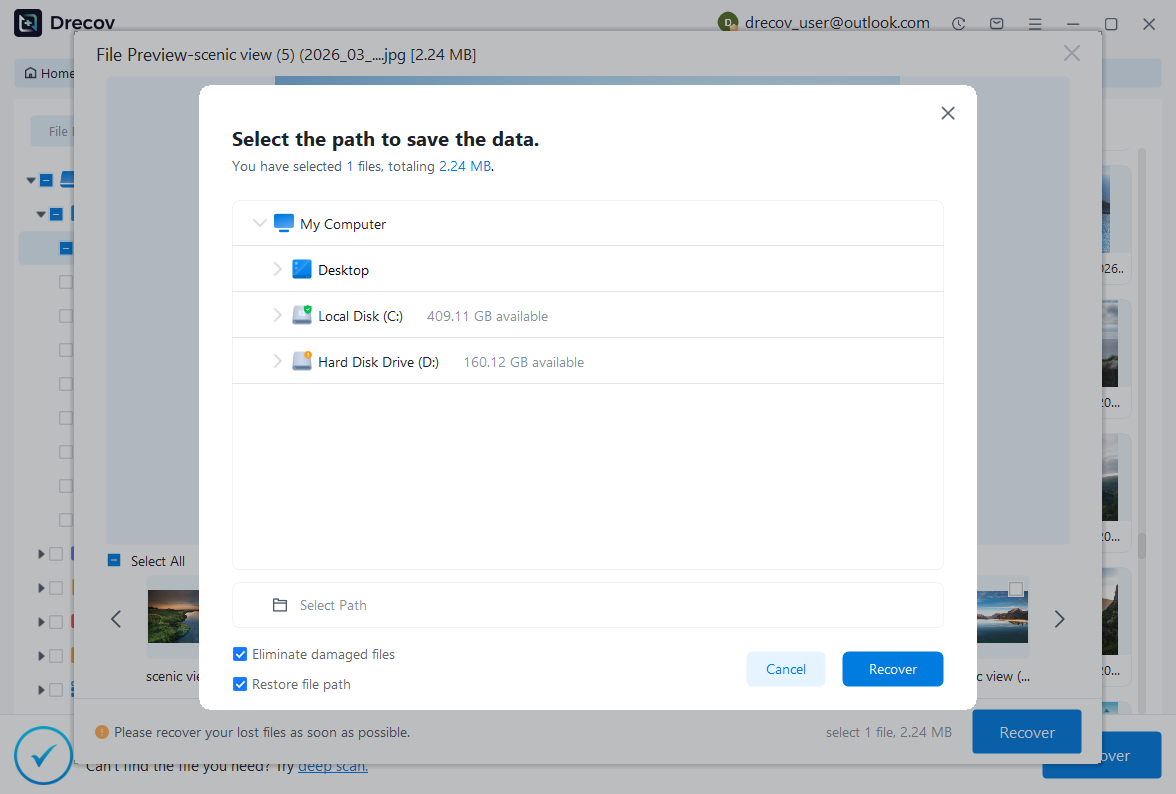
Step 3: Recover Elsewhere and Validate in Firefox
Save candidates to the separate destination and test copies through Firefox’s supported bookmark workflow. Preserve the current collection before any replacing restore. Inspect folder structure, important addresses, and useful newer links afterward. Keep raw recovered files unchanged until you have accepted a coherent collection and saved a fresh independent backup. File-copy success alone does not establish that the missing bookmarks survived.
Save a Verified Collection before Cleanup Ends
Once the intended links are present, create a fresh native backup and, if useful, a separate HTML export. Record what each file represents and keep the accepted set outside the profile. This provides a clear endpoint to the recovery rather than leaving several uncertain collections mixed together. You can then resume ordinary browsing with a known backup and a smaller list of unresolved target-access problems.
- Confirm that the missing folders and several distinctive addresses have returned.
- Retain useful newer links from the current-state collection before final cleanup.
- Test representative destinations and separate broken targets from missing bookmark data.
- Save an independent verified backup of the accepted collection and preserve raw candidates.
Make Future Bookmark Protection Testable
Export important collections before major profile migrations or extensive reorganization. Keep those exports somewhere that your normal backup process protects. Automatic browser backups can be useful, but their existence and retention need verification. A folder containing a backup filename is less reassuring than a tested copy that actually restores the intended organization and addresses through the supported interface.
Use a disposable collection or separate supported test profile when rehearsing restoration, and preserve its starting state too. Confirm the difference between a replacing native restore and an adding HTML import in your installed version. That small exercise makes future recovery decisions clearer and reduces the risk of recovering an old reading list at the cost of the useful links you added today.





