








Decide What the Lost Session Actually Contained
A missing Chrome session can mean closed tabs, a closed window, a different browser profile, or pages whose addresses remain in history. Those are different from a lost form draft or a downloaded file. Start by listing what you need: the page addresses, their arrangement, a tab group, or unsent text. Reopening an address does not guarantee restoration of the page’s previous temporary state.
For example, you might recover a research window containing ten sources through a recently closed window entry. However, reopening an application page may require signing in again, and an unsent form may not return. Keep these goals separate. This prevents you from describing a reopened website as full recovery of everything that was visible or typed there before the restart.
Preserve Any Windows That Still Survive
Inspect other Chrome windows and desktop workspaces before closing anything. A window can be minimized or behind another application while its tabs remain intact. If useful tabs survive, bookmark their addresses into a clearly named recovery folder or record a short list locally. Save any still-visible form text through an appropriate safe copy before experimenting with restarts, profile resets, or broad browser cleanup.
Record the profile name, incident time, and last action before the tabs disappeared. A deliberate close, an update, and a crash can produce different recovery options. Avoid repeated restarts simply to see whether Chrome eventually remembers the right window. Each new browsing session can change recent-session evidence. Preserve useful visible information first, then choose a specific supported recovery route.
Free Method 1: Reopen Recently Closed Tabs or Windows
On desktop Chrome, the standard reopen-closed-tab shortcut can restore retained closed items in the order available to the browser. Use it deliberately and inspect what appears. A closed window may return with several tabs, while another action may restore only one tab. Stop when the needed material appears and save its addresses, rather than continuing to cycle through unrelated history without a clear target.
You can also inspect the History menu for a recently closed window or group that matches the incident. The exact menu organization can change between versions, so use the labels your installation exposes. Compare the number and identity of returned pages with your notes. A restored window is a useful result, but its tab arrangement and temporary page state still need verification.
- Check surviving windows and preserve useful addresses before another restart.
- Use the supported reopen shortcut or recently closed menu entry deliberately.
- Confirm the returned pages belong to the missing window or task.
- Save important recovered addresses independently before continuing normal browsing.
Recognize When the Retained List Is Incomplete
The recently closed list is not an unlimited permanent archive. It may no longer contain an older window, especially after further browser activity. If the expected entry is absent, move to history and existing saved sources. Repeating the shortcut indefinitely does not recreate an unretained session. Keep any useful partial result and note which pages or groups remain missing. For the storage-level causes behind this step, use the Hard drive recovery.
A page that returns with an old address may still redirect or show updated content. Check the actual resource rather than only the tab title. If the site changed since your last visit, that is separate from the browser’s session recovery. Preserve the address and use the site’s legitimate document history or draft feature when available instead of assuming browser tabs hold a complete historical copy of the website.
Free Method 2: Rebuild Addresses from Browsing History
Open Chrome’s history in the correct profile and search for a distinctive domain, page title, or term from the task. Narrow the relevant time period through the available interface. Review entries individually and reopen the useful pages in a new organized window. History can help reconstruct a reading list, but it does not necessarily preserve the original tab order, grouping, or all pages that were open simultaneously.
Start with the most valuable sources rather than reopening everything from the day. For a research task, identify the primary document, several related sources, and the working application page. Keep a short recovered-address list outside the changing browser session. This gives you a stable inventory and makes it easier to distinguish confirmed recovered sources from pages you newly discovered during reconstruction.
Understand Missing History Entries
A history search can fail because you selected another profile, cleared the relevant data, used a private browsing window, or never loaded the page successfully. Check those possibilities without assuming that every absent entry reflects disk corruption. Private browsing does not provide the same retained history behavior as ordinary browsing. Do not promise recovery of a private session through the normal history list.
Also consider whether the tab was a local file, browser-internal page, or application-generated temporary address. Its behavior can differ from a standard website. A temporary link may no longer work even when the exact address survives. Preserve what you find, then investigate the underlying document or application through its own supported storage and history features. Browser reconstruction and document recovery remain separate tasks.
Free Method 3: Inspect the Correct Profile and Existing Device State
Chrome profiles maintain separate browsing contexts. Confirm that you opened the profile used for the missing work before treating an empty history view as data loss. A new shortcut or a recent account change can start another profile. Use the normal profile controls and inspect recognizable existing data. Do not delete or replace a profile simply because its current window is not the one you expected.
If you had already synchronized relevant browser data and another authorized device still shows useful tabs, inspect that actual available state. Preserve the addresses you need before changing synchronization settings. The feature’s availability depends on the account and settings used beforehand. Signing in today does not create a historical session that was never synchronized, and another device’s current tabs are not a guaranteed archive of every earlier window.
Keep Account Access Separate from Address Recovery
A recovered tab can point to a service that requires legitimate authentication. Use your normal sign-in method rather than trying to transplant cookies or bypass access checks. A saved address is not permission to access someone else’s account. If the site no longer grants access, record that limitation and use the proper account or sharing process. Session recovery should not become an unrelated credential-recovery experiment. For the exact application behavior, consult the official recovery documentation.
Likewise, do not copy an entire private browser profile to a third-party website that claims to recover tabs. Profiles can contain sensitive browsing and account information far beyond the missing reading list. Keep local evidence private and use supported browser or application workflows. For a small set of sources, a reviewed local address list is usually easier to validate than a broad transfer of browser state.
Separate Reopened Pages from Lost Form Drafts
Reopening a tab can retrieve the website address without restoring text that existed only in an unsent form. Check whether the application provides its own draft, autosave, or document-history feature. If a useful draft appears on another still-open page, preserve it before refreshing. Do not repeatedly submit or reload a recovered form merely to test whether the browser remembers the text.
If no draft survives, reconstruct from real evidence such as a local note or existing saved document. Label reconstructed content appropriately instead of treating it as recovered original text. For important transactions or messages, check the site’s actual completion state before attempting another submission. A lost tab does not prove that an operation failed, and reopening the page should not create a duplicate action.
Distinguish Downloads from Tabs
A tab can disappear while a downloaded file remains in its original destination. Inspect the browser’s download list and the actual saved file location through the supported interface. Confirm the filename, size, and contents before downloading again. A record in the download list is useful evidence, but it does not prove that the file still exists or that a partially interrupted download completed.
Conversely, recovering a download does not recreate the original surrounding tabs or research context. Keep the file and its source address together in your inventory when appropriate. If you need to recover an actually deleted downloaded document, that becomes a local file-recovery task. Choose the route based on the missing item rather than treating every browser-related loss as a session problem.
Check Startup Settings without Expecting Retroactive Recovery
Chrome offers startup behavior that can continue a previous session under supported circumstances. Review the setting after preserving current evidence, and understand what it changes for future launches. Enabling it now does not guarantee restoration of an older missing window. A setting controls behavior; it does not create a retained historical session whose data no longer exists.
If the setting was already enabled but the expected pages did not return, confirm the correct profile and available recently closed entries. Consider whether you closed several windows in an order that changed the retained state. Use actual current evidence rather than repeatedly toggling the setting. Keep useful recovered addresses independent of startup behavior so that another unexpected close does not erase your reconstruction progress. A comparable recovery case with useful validation checks is Recover Notepad++ Tabs: Session Backups, Saved Versions, and Encoding Checks.
Avoid Reset and Cleanup as First Responses
A browser reset or data cleanup can be useful for some troubleshooting goals, but it does not reconstruct missing tabs. Preserve history, useful bookmarks, and any relevant profile evidence before such changes. Do not remove the old profile to make Chrome start clean while it remains a possible source. A working empty browser is not the same outcome as recovering your previous task context.
Similarly, clearing cache should not be described as a general session-recovery method. Cached website data and retained session information serve different purposes. If the browser itself crashes, diagnose that separately after preserving what you can. Keep the recovery goal focused on real addresses and useful application data, rather than assuming a broad maintenance operation will bring every lost window back automatically.
Organize a Reconstructed Research Session
Once several sources return, group them by purpose rather than trying to recreate the exact original order from memory. Keep confirmed sources separate from uncertain candidates. A practical reconstruction can restore your ability to work even if the original tab arrangement is unavailable. Record which pages were recovered from history and which were newly found through a fresh search so the source trail remains clear.
Use a bookmark folder or ordinary document to preserve the accepted address set. Add a brief description for pages with generic titles, such as a report viewer or shared dashboard. This provides context that a browser tab label may omit. For important references, capture the proper citation and document version through your normal workflow, because a live website can change after the session recovery succeeds.
Verify Tab Groups and Pinned Pages Separately
A page list may survive while group membership or pinned status does not. Check those organizational features independently after recovering addresses. Do not assume that a window containing the expected number of tabs has the same internal arrangement. Compare the actual page identities and your task needs. Restore group labels and pinning deliberately, and treat that organization as a new working setup if historical details remain uncertain.
If a saved group or another native organization feature already exists, inspect its actual contents before replacing it with a reconstructed set. Different devices or profiles can hold different versions. Preserve useful unique addresses from each candidate. A selective comparison can recover more valuable work than accepting one whole group and discarding everything else simply because its name looks familiar.
Handle Local Session Evidence Conservatively
Chrome’s internal session files are application-managed and version-dependent. They should not be treated as ordinary HTML files that you can rename into a complete window. If you preserve profile evidence, keep it private and unchanged. Avoid speculative replacement of internal files while the browser is running. Supported recently closed and history interfaces provide a clearer route whenever they still expose the needed pages. When the missing project was stored on a portable device, also review the External hard drive recovery.
If a specialist examination of a preserved profile becomes necessary, distinguish that investigation from a guaranteed recovery procedure. A raw session fragment may contain useful addresses without a complete recoverable browser state. Extracted addresses still need content and identity checks. Do not promise that a file with a session-related name contains every tab, form draft, and account state from the lost window.
Recognize Storage Problems Beyond Chrome
If unrelated files also disappear or the device reports repeated read errors, preserve readable data before performing repeated browser experiments. A failing storage device can affect profile files and ordinary documents together. Avoid installing tools or writing large new files onto that source. The storage condition should guide your preservation approach rather than assuming that every failure is a browser preference issue.
On a healthy device with a recent deletion of a real saved session export or document, a targeted file scan may be worth considering. On storage that has overwritten or discarded deleted blocks, readable recovery may be limited. Keep expectations tied to actual retained files. No browser shortcut or scanning interface can recreate arbitrary temporary webpage state that never reached recoverable storage.
Rebuild a Task Session without Repeating Website Actions
Suppose the lost window contained a document editor, a reference article, and a page used to submit a request. Treat their recovery differently. Reopen the article address normally, inspect the editor’s own saved document or draft, and check the request’s actual completion state through the service. A missing browser window does not tell you whether a submission succeeded. Avoid repeating an action merely because its former confirmation tab disappeared.
Keep a short task inventory that records addresses separately from outstanding actions. Mark a page as reopened only after you identify the resource, and mark an operation as complete only through the application’s actual evidence. This makes session reconstruction useful without turning it into accidental resubmission. It also helps you see which missing information belongs to local browser history and which must come from the website’s legitimate document or activity records.
Compare Several Windows from the Same Profile
A retained closed window can belong to another task from the same day. Compare actual page identities before accepting it as the missing session. A similar tab count is weak evidence. Reopen a plausible candidate, save useful addresses, and keep its context in the inventory. If it is not the right window, retain only its relevant sources rather than mixing every reopened page into the accepted research set.
For pinned or grouped pages, document the organization you recreate when the historical arrangement is uncertain. A new useful working layout can meet the practical goal without claiming exact restoration. Keep confirmed historical sources separate from newly discovered alternatives. That distinction supports a clearer research trail and prevents an attractive replacement article from being mistaken for the original source whose tab was lost. The vendor also documents the relevant backup or restore workflow in its official recovery documentation.
Protect the Reconstructed Session before More Browsing
Once the essential pages return, save their addresses independently before opening many new tabs. Add a brief description for ambiguous application pages, and save document drafts in the service or local workflow that owns them. A bookmark folder can protect addresses while doing nothing for unsent text. Protect each kind of information according to its storage rather than assuming the restored window itself is now a sufficient backup.
At the end, review one source address, one actual saved document, and one relevant application state. These checks establish three different useful outcomes. If temporary form text remains missing, record that gap explicitly and reconstruct it from real evidence when appropriate. A practical partial recovery can restore the ability to continue work while honestly distinguishing recovered navigation from material the browser never retained.
When Local File Recovery Is Relevant
PandaOffice Drecov may help search for a deleted saved address list, bookmark export, downloaded document, or other actual local file associated with the task. It does not restore server-side drafts or guarantee reconstruction of Chrome’s internal session state. Use the browser’s native reopening and history routes first when the missing item is a set of page addresses rather than a deleted document.
Before scanning, identify exactly which file you expect to recover and where it lived. Keep outputs on another healthy destination and avoid new writes to the affected volume. Confirm format support in your installed edition. A scan can produce candidates, but their relationship to the browser task still needs validation. Recovering a document and recovering the original arrangement of open tabs are distinct results.
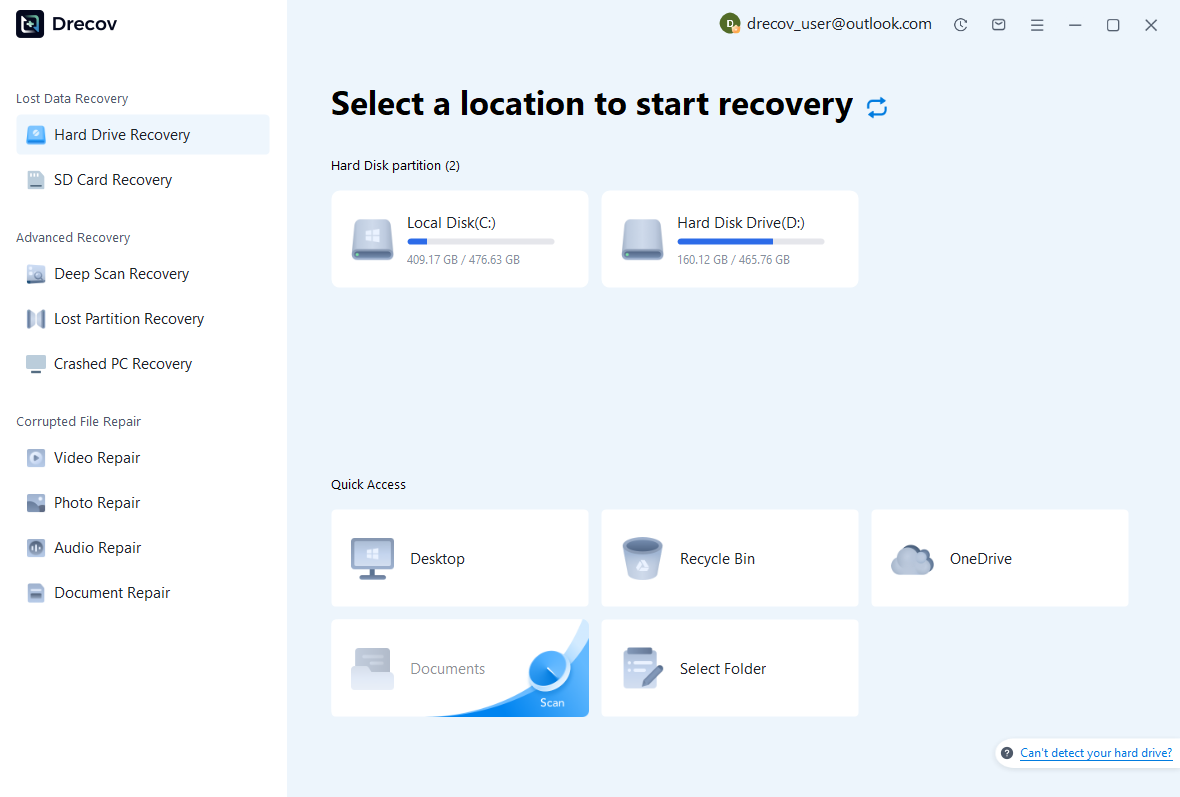
Step 1: Choose the Volume Holding the Missing Local File
Select the storage that held the saved list, export, or downloaded document. Confirm the original location and device identity rather than choosing a drive solely because Chrome is installed there. If the downloaded file lived elsewhere, use that actual source. Reserve a separate healthy destination for candidates, and keep private browser profile material out of unrelated shared recovery folders.
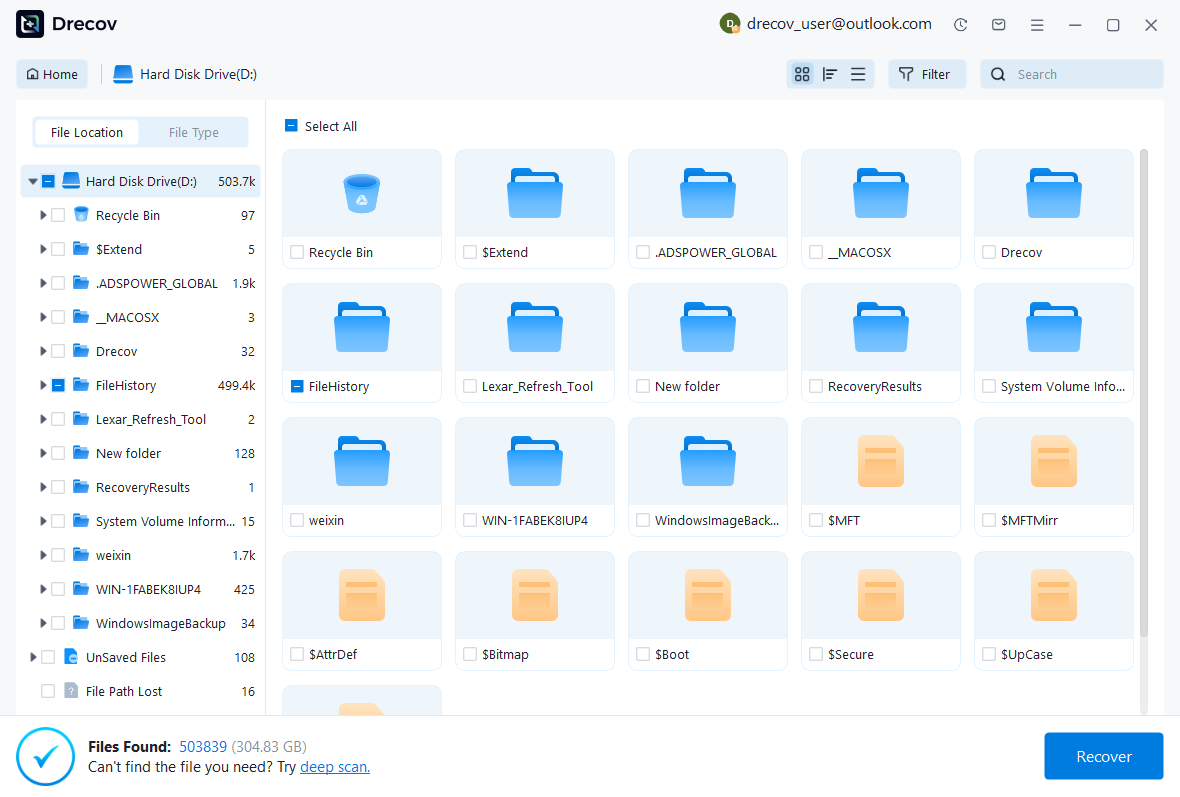
Step 2: Inspect Candidates Against the Task
Review available names, paths, dates, sizes, and supported previews. Compare actual document content or addresses when possible. Keep several plausible versions if the task evolved over time. A familiar filename may belong to another project, and the newest candidate may be incomplete. Preserve the original recovered names and source notes so you can evaluate competing results without confusing them with a newly reconstructed list. Before changing the only candidate, compare the procedure with the official recovery documentation.
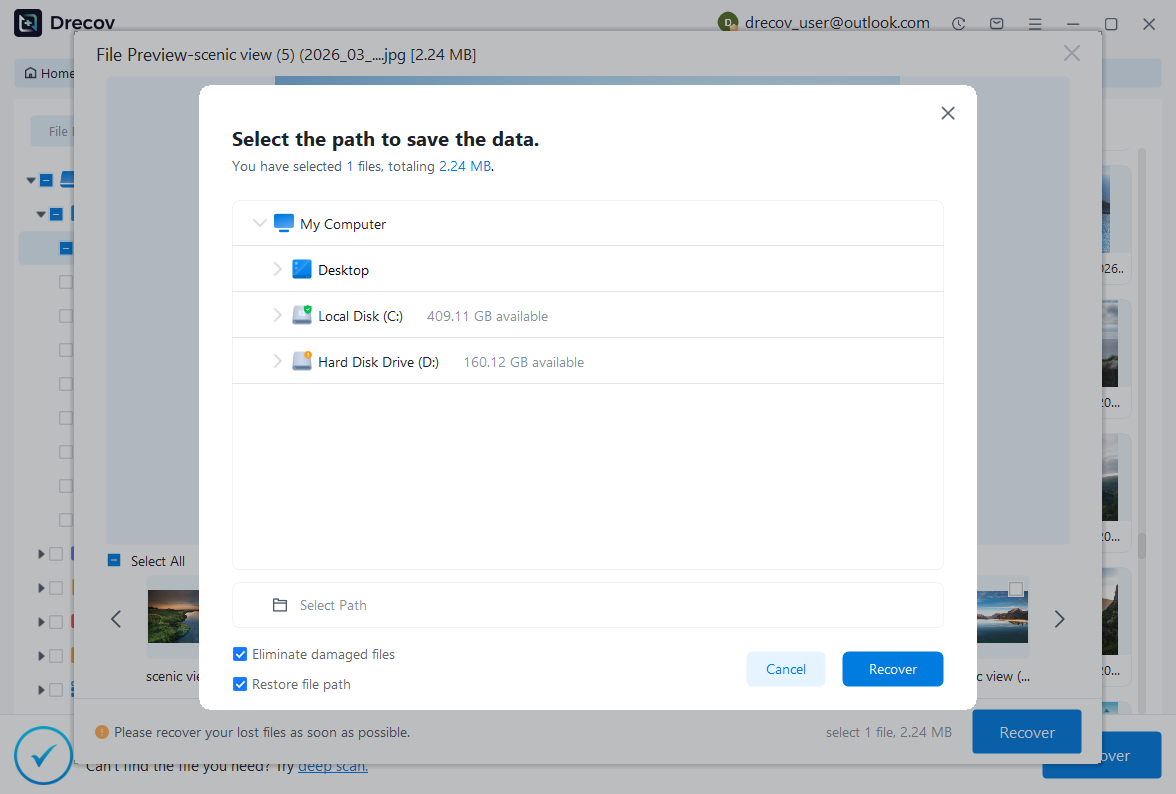
Step 3: Recover Elsewhere and Verify the Useful Material
Save candidates to the separate destination, then inspect copies. Confirm that a recovered document opens fully or that a saved address list contains the intended sources. Reopen representative pages through normal authorized access and check their identity. Keep raw candidates unchanged until you have a verified working collection. Do not label the original Chrome session restored when only selected local documents or addresses survived.
Keep a Durable Record of the Recovered Task
At the end, list the useful addresses and documents that returned, alongside any missing form text or uncertain session details. Save that inventory independently of the active browser window. This makes the partial result practical and reviewable. You can resume work without relying on the assumption that Chrome will preserve the reconstructed window exactly through another unexpected restart.
- Confirm the correct profile and the identity of the reopened sources.
- Separate address recovery from unsent drafts, downloads, and completed website actions.
- Preserve the accepted page list in a deliberate bookmark folder or local document.
- Record remaining gaps and protect actual saved files through your normal backup process.
Make Future Sessions Easier to Rebuild
Use a deliberate source list for important research rather than treating dozens of open tabs as the only record. Bookmark useful groups at meaningful milestones and save drafts in the application that owns them. Review startup behavior for convenience, but keep its limits clear. A retained browser session can reduce disruption; it should not be the sole protection for irreplaceable writing, evidence, or project documents.
Finally, rehearse reopening a harmless closed window and compare it with a saved source list. Confirm what returns in your actual profile and version, including whether grouping and temporary page state survive. This small test makes the feature’s behavior concrete. A recoverable work session is easier to maintain when addresses, documents, and application drafts each have an explicit place to live.





