







Losing an important video can feel like watching precious memories disappear into thin air. Whether it’s a family vacation clip, wedding footage, a critical work presentation, YouTube content, or personal recordings, accidentally deleting videos is more common than most people realize. The good news is that lost video recovery is often possible if you act quickly and use the right recovery methods.
This complete guide explains everything you need to know about recovering deleted videos from Windows PCs, Mac computers, Android devices, iPhones, SD cards, USB drives, cameras, and cloud storage platforms. You’ll also learn how recovery tools work, which methods are safest, and how to prevent permanent video loss in the future.
What Is Deleted Video Recovery?
Deleted video recovery refers to the process of restoring video files that were accidentally removed, formatted, corrupted, or lost from a storage device. Whenever a file disappears, user-friendly software solutions can scanning the underlying architecture to rebuild the video file structure.
Recovery methods can help retrieve videos from:
- Hard drives (HDDs) and Solid-State Drives (SSDs)
- SD cards and microSD cards
- USB flash drives and external media
- Smartphones (Android & iOS)
- Digital cameras and drones
- Cloud storage services
The success rate of lost video recovery depends heavily on:
- How recently the file was deleted from the system.
- Whether new data overwrote the specific sectors.
- The overall physical and logical condition of the storage device.
Common Causes of Video Loss
Videos can disappear for many reasons, ranging from simple human error to severe system malfunctions. Understanding how your files disappeared helps determine the best lost video recovery strategy.
Most Common Causes
| Cause | Description |
| Accidental Deletion | Human error, such as pressing Shift + Delete or clearing the Recycle Bin. |
| Formatting Storage | Accidentally formatting a camera SD card or a computer drive partition. |
| Virus or Malware | Malicious software that corrupts, encrypts, or hides your media videos. |
| Device Damage | Hardware failure, dropped drives, or exposure to water and heat. |
| Software Crashes | Video editing programs crashing while saving or exporting a file. |
| File Corruption | Sudden power loss while transferring videos, destroying file headers. |
| System Updates | Operating system upgrades occasionally causing unexpected file removal. |
How lost Video Recovery Works
When you delete a video, most devices do not immediately destroy the actual data. Instead, the file allocation table or file system architecture handles the deletion quietly to save processing power.
The internal process follows these exact phases:
- The system removes the file index pointer and reference pathway.
- The storage space occupied by the video becomes marked as “available” or “unallocated.”
- The actual raw data bits of the video remain hidden on the sectors until overwritten by new content.
Specialized lost video recovery software scans the storage device byte by byte, searching for these hidden file remnants or file signatures (like .mp4, .mov, or .avi headers). This structural tracking is why data recovery experts recommend stopping device usage immediately after an accidental deletion occurs.
First Things to Do After Deleting a Video
Quick action improves lost video recovery success rates dramatically. If you realize a video is missing, you must execute immediate triage steps to protect the fragile, unallocated data from destruction.
Immediate Steps
Stop Using the Device
To maximize the chances of successful lost video recovery, you must immediately avoid:
- Recording new videos or taking photos
- Downloading files or streaming music
- Installing new apps or software utilities
- Moving, copying, or modifying existing data
New information written to the storage media can overwrite deleted videos permanently, making future recovery completely impossible.
Check the Recycle Bin or Trash
Before trying advanced technical solutions, check the primary system repositories on Windows and Mac:
- Step 1: Open the Recycle Bin (Windows) or Trash (Mac) by double-clicking its desktop icon.
- Step 2: Use the search bar to look for the name or extension of the deleted video.
- Step 3: Right-click the file and choose Restore (or Put Back on Mac).
This simple check solves many accidental deletion cases instantly without requiring third-party software.
Check Recently Deleted Folders
Many modern smart devices and digital storage tools keep deleted videos temporarily in a buffer zone. Examples include:
- Google Photos (Trash folder holds files for 60 days)
- iPhone Photos app (Recently Deleted album preserves videos for 30 days)
- Cloud storage services (Dropbox and OneDrive feature dedicated web-based recycle bins)
Deleted videos may remain safely recoverable within these folders for 30 to 60 days before purging permanently.
Recover Deleted Videos on Mac
Mac users can recover videos using native utility architecture or specialized applications. The process depends on whether you maintain routine system snapshots.
Time Machine Recovery
If Apple’s native Time Machine backup utility is enabled on your macOS device, you can roll back your system folders to a state prior to the deletion.
- Step 1: Connect your external Time Machine backup drive to your Mac computer.
- Step 2: Open the folder where your video file was originally stored.
- Step 3: Click the Time Machine icon in the menu bar and select Enter Time Machine.
- Step 4: Use the timeline arrows on the edge of the screen to browse previous backups.
- Step 5: Locate the deleted videos, highlight them, and click the Restore button.
This stands as one of the safest recovery methods available because it relies on fully preserved duplicate files rather than data reconstruction. If no backup exists, Mac users must utilize third-party programs to run a complete storage scan.
Recover Deleted Videos on iPhone
Apple iOS devices include built-in recovery systems designed to protect users from accidental thumb slips. If you act within a few weeks, recovery requires no technical configuration.
Recently Deleted Folder
- Step 1: Open the native iOS Photos app on your iPhone.
- Step 2: Tap the Albums tab located at the bottom of the screen.
- Step 3: Scroll down to the Utilities section and select Recently Deleted.
- Step 4: Authenticate using Face ID, Touch ID, or your passcode.
- Step 5: Find the deleted videos you wish to retrieve, tap them, and select Recover.
Videos remain inside this protective buffer for up to 30 days before the iOS system purges them permanently from device storage.
Step-by-Step Guide Using PandaOffice Drecov Data Recovery Software
When built-in system tools fail to find your missing files, using professional utility software offers the most dependable approach to deleted video recovery. The PandaOffice Drecov data recovery software provides advanced deeply integrated file-carving algorithms capable of scanning raw drive storage sectors to reconstruct fragmented video formats like MP4, MOV, AVI, MKV, and 4K ProRes footage.
The software is engineered with a straightforward layout so that users do not need a degree in data forensics to save their files. Below is the complete operational guide for utilizing this tool to perform a comprehensive storage scan.
⚠ Warning: Install it on a drive different from the one where your data was lost to prevent overwriting.
- Step 1: Look at the main user interface dashboard and click to select the target drive or specific external device volume where your deleted videos used to live.

- Step 2: Click the Scan button in the lower corner of the screen. The program will automatically launch a Quick Scan, immediately followed by a sector-by-sector Deep Scan.

- Step 3: Use the built-in file type filters on the left panel. Select Video to filter out unrelated documents, cache items, or system configuration logs, allowing you to monitor found videos in real-time.
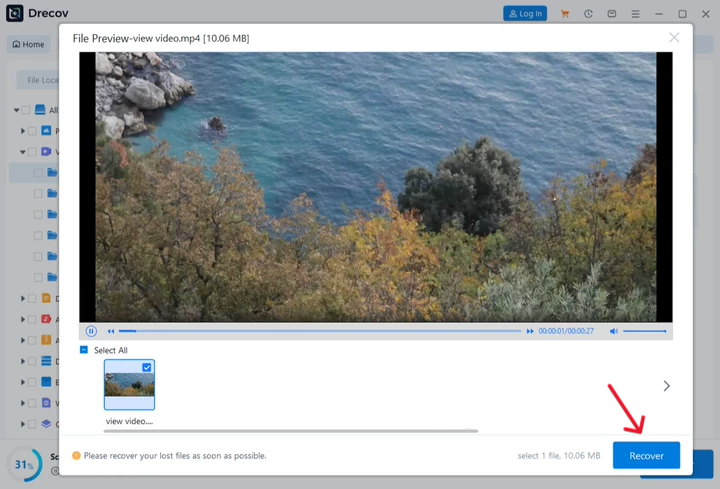
- Step 3: Double-click a file to initiate the real-time preview player. This allows you to verify that the video header is intact and that the file plays smoothly before recovery.
- Step 4: Tick the selection checkboxes next to the specific videos you want to retrieve. Click the prominent Recover button located at the bottom right.
- Step 5: A file browser window will pop open. Select a secure destination directory located on a completely different storage drive to complete the lost video recovery process safely.
Helpful Technical Fixes and Related System Guides
Once you complete the data recovery steps, you might need to adjust peripheral configurations or resolve system bugs related to how your operating system manages stored files. For instance, if you rely heavily on specific web applications or cloud utilities, managing local storage architecture helps prevent data fragmentation and random file displacement.
To ensure your computer operates cleanly while working with complex media, you can explore these practical, step-by-step optimization resources:
- If you are managing complex browser workspaces alongside your data solutions, learn where Firefox bookmarks are stored to keep local profile assets organized.
- If your system files are acting erratically or saving over important data paths, see how to fix Windows Save As default location stuck on OneDrive to regain manual folder storage routing control.
- For deep system crashes or corrupt media storage structures that affect drive visibility, you can discover how to reinstall Windows 10 from a USB to fix underlying partition errors and speed up your PC performance.
Recover Videos from Cloud Storage
Cloud services often provide recovery tools built straight into their web interfaces. Because files are stored remotely on enterprise servers, cloud-based deleted video recovery is often easier and bypasses disk overwriting risks entirely.
Popular Platforms
Google Drive
- Step 1: Navigate to your Google Drive via a web browser.
- Step 2: Click the Trash icon located in the left sidebar menu.
- Step 3: Right-click your deleted video file and select Restore.
Dropbox
- Step 1: Log into the official Dropbox web portal.
- Step 2: Click on Deleted files in the left sidebar navigation pane.
- Step 3: Find the target video asset and click the Restore option on the right.
OneDrive
- Step 1: Access your Microsoft OneDrive account online.
- Step 2: Go to the Recycle bin option listed on the side menu.
- Step 3: Select the video files and click the Restore action at the top.
iCloud
- Step 1: Go to the iCloud website and sign in with your Apple ID.
- Step 2: Click into the Photos web app or navigate to iCloud Drive settings.
- Step 3: Open the Recently Deleted album page to recover your video clips easily.
Can Permanently Deleted Videos Be Recovered?
Sometimes yes. The phrase “permanently deleted” usually just means that the operating system has cleared the file from the desktop Recycle Bin and marked its directory path as destroyed.
Even permanently deleted files may remain completely recoverable if:
- The raw storage sectors holding the binary blocks remain untouched by writing operations.
- File allocation tables still contain fragmented reference paths.
- The storage medium remains functionally healthy without physical hardware failure.
Deep scanning tools can reconstruct video fragments successfully in many cases by matching signature data patterns across unallocated blocks. However, solid-state drives (SSDs) equipped with active TRIM functions erase deleted data blocks far more aggressively than traditional mechanical hard drives, which reduces recovery windows on internal laptop storage.
Professional Video Recovery Services
If consumer-grade software fails to yield results or if your device is physically broken, seeking professional data recovery labs is your next logical step. Professional services can recover videos from severe scenarios:
- Water-damaged or corroded circuit boards
- Broken phones or smashed tablet screens
- Dead hard drives experiencing mechanical clicking noises
- Physically snapped or fractured SD memory cards
Industry-leading labs include:
- DriveSavers Data Recovery
- Ontrack Data Recovery
These professional lab services can be expensive, often costing hundreds or thousands of dollars depending on the severity of the hardware damage. However, for highly valuable, sentimental, or irreplaceable commercial videos, they provide the best possible chance of recovery.
Common Mistakes That Reduce Recovery Success
Many users accidentally make deleted video recovery significantly harder by making critical errors out of panic right after losing data. Avoiding these pitfalls keeps your data recovery chances high.
Mistakes to Avoid
- Continuing device usage: Browsing the web, playing games, or shooting more clips on the device.
- Installing software on the affected drive: Downloading tools onto the exact partition where the lost videos were stored.
- Formatting storage repeatedly: Attempting to fix a minor raw disk error by formatting it again, which strips file system indices further.
- Saving recovered files to the same location: Writing restored data back onto the source drive during active scanning.
- Using unreliable recovery apps: Running unverified, cracked, or scam software applications that write garbage data across the drive sectors.
How to Prevent Future Video Loss
Developing preventive backup habits is the most effective defense against permanent video loss. Implement a clear data safety workflow to ensure you never have to deal with catastrophic video deletion panics again.
Best Prevention Tips
| Tip | Benefit |
| Use Cloud Backups | Automatic offsite synchronization ensures remote safety if local hardware fails. |
| Keep Duplicate Copies | Maintain an extra copy on an external backup drive to provide immediate redundancy. |
| Use Quality SD Cards | Buying reputable high-speed media cards leads to fewer file corruption risks. |
| Enable Auto Backup | Continuous background protection removes human forgetfulness from the equation. |
| Avoid Sudden Removal | Always unmount USB or SD devices safely to prevent partition table corruption. |
Maintaining strong backup habits remains the single best defense against permanent data loss.
Why Video Recovery Sometimes Fails
Despite advanced tech solutions, not all deleted videos can be restored to their original form. Understanding why failures occur helps manage recovery expectations realistically.
Recovery may fail completely because:
- Files were overwritten: New data took over the specific physical storage clusters, obliterating the older video remnants.
- Storage suffered severe physical damage: The magnetic platter inside an HDD or the NAND flash wafer inside an SSD cracked or burned out.
- Encryption blocks access: Software like BitLocker, FileVault, or mobile security enclaves encrypt the remaining sectors, masking file headers.
- SSD TRIM functions erased sectors: The automated system maintenance command cleared out unallocated space blocks immediately upon file deletion to optimize solid-state writing speeds.
Large video files are also inherently prone to fragmentation, meaning their parts are scattered across different parts of a drive. If some of those blocks get overwritten while others remain intact, the recovered video file may turn out corrupted or unplayable.
The Future of Video Recovery Technology
Data restoration technology continues to improve rapidly to match shifting storage hardware designs. Modern digital investigation techniques are keeping pace with increasingly complex storage systems.
Innovations driving the industry include:
- AI-assisted reconstruction: Intelligent software analyzing video fragment edges to reassemble broken video streams seamlessly.
- Better deep scanning algorithms: Enhanced recognition of evolving proprietary ultra-high-definition camera formats.
- Advanced forensic recovery tools: Highly technical engineering methods that bypass secure firmware blocks on modern flash devices.
- Cloud-based restoration systems: Automated, server-side data preservation buffers that catch file deletions across networked workspaces.
As video file sizes grow larger with 4K, 8K, and spatial recording innovations, data recovery systems are becoming increasingly sophisticated to protect creative assets.
FAQs About Deleted Video Recovery
1. Can permanently deleted videos really be recovered?
Yes, in many cases. If the storage space where the file lived has not been overwritten by new files, professional recovery software can search out the raw binary markers and restore the files successfully.
2. Can I recover deleted videos from my phone without using a computer?
Sometimes yes. Apps like Google Photos and iPhone Photos include built-in Recently Deleted trash folders where videos stay safely buffered for up to 30 to 60 days. However, if they are cleared from those folders, a desktop computer link is required to perform deep internal chip storage scanning.
3. Why should I stop using my device immediately after video deletion?
Every single action you take on a device writes small chunks of new data to the system. If the system writes this new data into the unallocated blocks containing your hidden deleted video, it will overwrite the file permanently, making recovery impossible.
Conclusion
The deleted video recovery process can feel overwhelming at first, especially when valuable family memories or critical business projects suddenly disappear. Fortunately, modern recovery tools and built-in backup systems make it highly possible to restore many deleted videos successfully. Whether the data loss occurred on a home computer, a smartphone, a camera SD card, a USB drive, or a cloud platform, acting quickly greatly improves your recovery chances.
By understanding how deleted files behave within a storage drive, utilizing trusted solutions like the PandaOffice Drecov data recovery software, avoiding overwriting vulnerable storage devices, and keeping reliable backups, you can dramatically reduce the risk of permanent data loss. Video recovery is no longer limited to data forensic experts. With a clear and patient approach, even tech beginners can often retrieve lost footage successfully.






