







In the fast-paced world of digital research, there is nothing quite as heart-sinking as the sudden disappearance of a meticulously organized workspace. Imagine you are a graduate student finishing a thesis or a project manager coordinating a global launch; you have twenty critical sources open, ranging from market data to design inspiration. Suddenly, your laptop battery dies or a system update forces a reboot. When you reopen your browser, the screen is a blank, daunting white. This is where the need to restore tabs in google chrome becomes more than just a convenience—it is a vital survival skill for your productivity.
The Magic Behind Chrome Tabs and Why Data Isn’t Truly Lost
Understanding the Role of Chrome Tabs
Google Chrome tabs are more than just windows to the internet; they are active processes managed by your computer’s memory. Each tab you open is a “snapshot” of a specific digital location. However, because these processes consume significant Random Access Memory (RAM), Chrome must constantly manage them. While it might seem like those pages vanish into the ether after a crash, the truth is much more reassuring.
Why Do Tabs Disappear?
Common scenarios for tab loss include:
- Accidental Closure: A slip of the mouse on the “X” button.
- System Crashes: Sudden power loss or blue-screen errors.
- Forced Updates: Windows or macOS restarting your machine without your permission.
- Browser Freezes: Chrome becoming unresponsive, requiring a “Force Quit.”
The Science of Digital “Echoes”: How Recovery Works
To understand how we can restore tabs in google chrome, think of your browser like a library. Every time you open a book (a tab), the librarian (Chrome) writes down the title and page number in a small notebook called the Session Log. Even if the library catches fire (a system crash), the librarian often escapes with that notebook intact.
When you relaunch the browser, Chrome looks at this log. If the log says, “Before the crash, these ten books were open,” the browser can simply go back to the shelves and pull them out again. This digital “echo” is stored in your computer’s local files, which is why recovery is possible even after a full power cycle.
Comprehensive Methods to Restore Tabs in Google Chrome
Depending on how you lost your data, you can choose from several methods ranging from simple shortcuts to professional recovery tools.
Method 1: The “Life-Saving” Keyboard Shortcut
The fastest way to get your work back is a simple three-finger salute. This is the first thing every user should try.
- Step 1: Open a new, blank Google Chrome window.
- Step 2: Press
Ctrl + Shift + T(Windows/Linux) orCmd + Shift + T(Mac). - Step 3: Watch as Chrome reopens the last closed tab. If you closed an entire window, this shortcut would restore that whole window and all its contents.
Key Node: You can press this combination multiple times to go back further in your browsing history.
Method 2: Professional Recovery with PandaOffice Drecov
If the native shortcuts fail—perhaps because you opened and closed Chrome several times after the crash, overwriting the session log—you need a more powerful solution. PandaOffice Drecov is a professional data recovery tool that can scan your hard drive for “deleted” or corrupted session files that the browser can no longer see.
- Step 1: Launch the software and select the drive where your browser is installed (usually the C: drive).

- Step 2: Use the “Deep Scan” feature. You can filter the results by searching for
SessionorTabsfiles within the Chrome user data path.

- Step 3: Preview the found files to identify the ones created just before your data loss.

- Step 4: Click “Recover” to save these files to a safe location, and then you can manually replace the corrupted files in your Chrome directory.
Method 3: Utilizing the History Menu
If you are looking for a specific set of tabs from yesterday or several hours ago, the History menu is your best friend.
- Step 1: Click the three vertical dots in the top-right corner of Chrome.
- Step 2: Hover over History.
- Step 3: Look for the section labeled “Recently Closed.” You will often see entries like “8 Tabs” or “Window.”
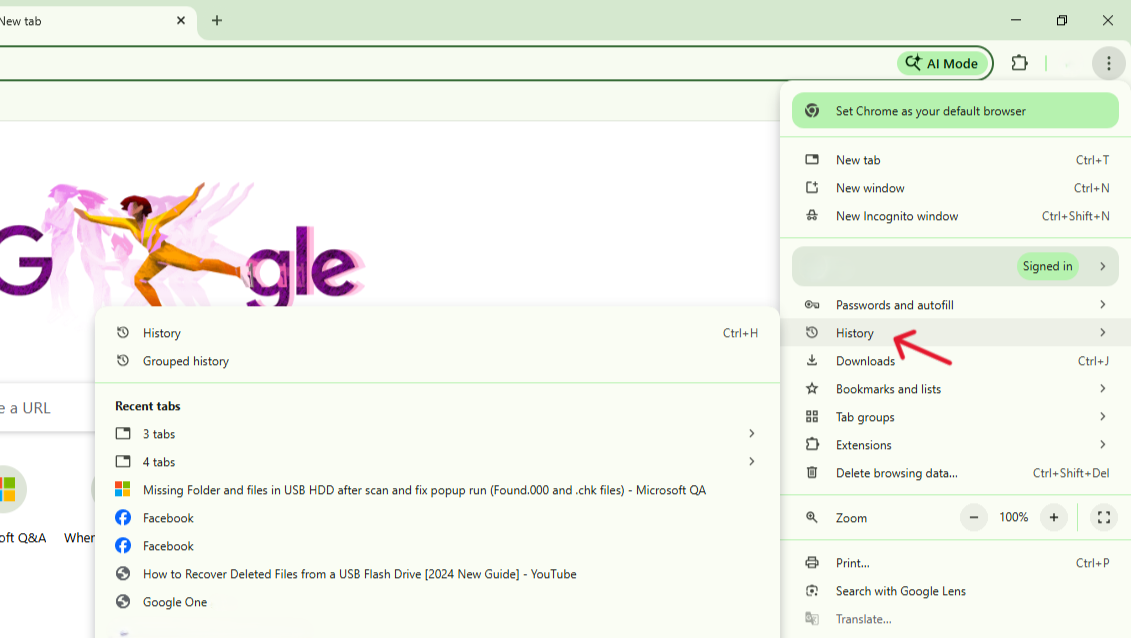
- Step 4: Click on the specific group to restore tabs in google chrome all at once.
Method 4: Manual Session File Replacement (For Tech-Savvy Users)
Chrome stores session data in a folder on your computer. If you are comfortable navigating folders, you can sometimes “trick” Chrome into loading an older session.
- Step 1: Navigate to
%LOCALAPPDATA%\Google\Chrome\User Data\Default\Sessionson Windows. - Step 2: You will see files named
Current SessionandLast Session. - Step 3: If Chrome is closed, you can try renaming
Last SessiontoCurrent Session(after backing up the original) to force a restore.
Why Tabs Won’t Restore—Unmasking the Hidden Barriers
Even when you follow the steps to restore tabs in google chrome, technology can be temperamental. In 2026, browser architecture has become more complex with AI integrations and aggressive memory management. Understanding why restoration fails is the first step to finding a workaround.
1. The “Memory Saver” Hibernation Glitch
Chrome’s modern “Memory Saver” mode is designed to freeze inactive tabs to free up RAM.
- The Issue: If a crash occurs while twenty tabs are “discarded” (hibernating), Chrome’s session manager might fail to write their active state to the
Current Sessionfile. Upon restart, the browser may only see the 2 or 3 tabs that were actually “active” at the moment of the crash. - The Fix: Always check your “History” (Ctrl + H) immediately. If the tabs were hibernating, they won’t appear in “Recently Closed,” but they will be in your chronological history list.
2. Multi-Window Closure Sequence
This is the most common user-error-driven failure. Chrome’s restoration priority is based on the last window closed.
- The Scenario: You have your main work window (30 tabs) and a secondary music window (1 tab). You close the work window first, then the music window.
- The Result: When you click “Restore,” Chrome opens the music window.
- The Fix: Do not panic. Keep pressing
Ctrl + Shift + T. Chrome stores a stack of closed windows. Usually, the second or third “restore” command will bring back the 30-tab window.
3. Third-Party “Cleaner” Interference
Software designed to “speed up” your PC often targets the %LOCALAPPDATA% folder where Chrome stores session logs.
- The Conflict: If a cleaner runs automatically upon reboot, it may identify the
Last Sessionfile as “temporary junk” and delete it before you even open Chrome. - The Fix: Disable “Clear Browser Session on Exit” in tools like CCleaner or Windows Storage Sense. If the file is already deleted, this is where PandaOffice Drecov becomes essential, as it can recover these deleted log files from the disk’s clusters.
4. Profile and Sync Overwrites
If you are signed into Chrome on multiple devices (phone, tablet, and PC), a “Sync Conflict” can occur.
- The Risk: If you close a tab on your phone, Chrome’s cloud sync might tell your PC, “This session is now finished,” effectively wiping the local restoration path.
- The Fix: If you notice tabs disappearing across devices, temporarily toggle off “Tabs” in your Google Sync settings to stabilize the local session.
How to Prevent Future Tab Loss
The best way to restore tabs in google chrome is to ensure you never have to “recover” them at all. Proactive management is the key.
Enable the “Continue Where You Left Off” Setting
This is the most important setting for any Chrome user.
- Go to Settings > On Startup.
- Select “Continue where you left off.” Now, every time you open Chrome, it will automatically load your previous session, even if you didn’t have a crash.
Use Tab Groups and Sync
- Tab Groups: Right-click a tab to “Add tab to new group.” This organizes your workspace and makes it easier for Chrome to categorize your data.
- Google Sync: Ensure you are signed into your Google Account. This allows you to access tabs from other devices. If your laptop dies, you can see your open tabs on your phone!
For more help with managing your browser data, check out this how to recover chrome bookmarks guide.
Restore Google Chrome Tabs FAQs:
1. Can I restore tabs in google chrome if I accidentally cleared my history?
A: If you cleared your “Browsing History,” the “Recently Closed” list will also be wiped. In this case, your best chance is using a tool like PandaOffice Drecov to find deleted file remnants on your hard drive.
2.Is there a limit to how many tabs I can restore?
A: Chrome typically remembers the last few closed windows and dozens of individual tabs. However, the further back you go, the more likely the data is to be overwritten by new browsing activity.
3.How do I restore tabs from my phone to my computer?
A: Open Chrome on your computer, go to History, and click “Tabs from other devices.” As long as you are signed into the same Google account, they will appear there.
4.What should I do if my bookmarks also disappeared?
A: Bookmarks are stored in a different file than sessions. You can follow this 2026 complete guide for recovering deleted chrome bookmarks for specialized help.
5.How to restore google chrome tabs after Windows update restart?
Windows updates often force a “hard” restart. If Chrome doesn’t prompt you to restore, go to Settings > On Startup and ensure “Continue where you left off” was enabled. If not, immediately check the History > Recently Closed menu. If the update corrupted the session file, use PandaOffice Drecov to roll back to a previous file version.
Conclusion
Losing your browsing session can feel like a major setback, but as we have explored, you have multiple ways to restore tabs in google chrome. Whether you use the lightning-fast Ctrl + Shift + T shortcut, dig through your History, or use professional software like PandaOffice Drecov for deep recovery, your data is rarely truly gone. By enabling the “Continue where you left off” setting and practicing good tab hygiene, you can turn a potential disaster into a minor five-second fix.






