







If you can’t delete a corrupted folder, do not begin with a force-delete command. First read the exact Windows message and check whether other files on the same drive still open. “In use,” “Access denied,” and “The file or directory is corrupted” point to different problems. Copy any wanted files from the folder and nearby locations to another healthy device while they remain readable. If the drive clicks or repeatedly disconnects, stop direct tests. A folder is less important than the data still on its storage.
The error message is your first useful clue
A folder that refuses deletion is not necessarily damaged. An application may still have a file inside it open. A synchronizing service might be updating it, or your account may lack permission to remove it. File-system damage is another possibility, but you should not assume it from the word “corrupted” in a search query. Note the complete message and when it appears: while opening the folder, deleting a child file, or emptying the Recycle Bin. Each point suggests a different next check.
“Folder in use” or a file is open
Save your work in the program that may be using the folder, then close that program normally. Check whether File Explorer has a preview of a file inside it open. Wait for a sync client to finish, if one is active. Try deleting the folder again only after you have copied anything worth keeping. If the same lock returns, restart Windows once and try again before installing a specialized deletion utility. A locked folder does not by itself justify disk repair.
“Access denied” or permission required
Confirm that you are signed in to the Windows account that owns the files. A folder from another account, an application installation, or an organization-managed device may have intentional protections. Do not change permissions across an entire drive merely to remove one directory. On a work computer, ask the administrator who manages that folder. If the folder contains personal data, copy what you are authorized to retain before any ownership change.
“File or directory is corrupted and unreadable”
This wording makes a file-system problem more plausible. Check whether sibling folders also fail to open, whether copying files produces read errors, and whether the drive remains consistently visible with the right capacity. Those observations matter more than repeating the Delete key. If several areas fail, protect accessible files and consider an image of the drive before repairs. If the only problem is one directory on a stable drive, investigate its contents and available backups before deciding how to repair the file system.
Copy wanted data before trying to remove the folder
Ask whether you truly want everything inside the folder gone. A corrupt directory entry can obscure files that are still valuable. Look for project files, photos, and documents in adjacent folders as well. Copy readable material to a different healthy device. Verify a few copied files by opening them, not just by comparing filenames. If a copy operation stops on one item, note the item and preserve the rest rather than forcing repeated reads from the failing area.
When a drive starts making mechanical sounds, vanishing from Windows, or reporting the wrong size, stop. Software that tries again and again against unstable hardware may reduce access to the remaining data. A suitable image made with appropriate equipment or professional recovery may be safer. If the storage is stable but one file cannot be copied, preserve the other files first. You can return to the single difficult item after securing the easier material.
Check existing backups and previous versions. You may discover that the “broken” folder is only an outdated duplicate. Confirm that the backup actually contains the important files before deletion. If you restore a version, put it into a separate location so it does not overwrite what still exists. A backup label or date is not enough; open representative documents. This step often makes the eventual deletion routine and low risk.
Try the least disruptive fixes that match the cause
For a normal lock, closing the application and restarting Windows are sensible first moves. After the restart, open File Explorer and try to rename the folder. If renaming works but deletion fails, look for a child item that remains in use or for access restrictions. Do not run an unfamiliar command with broad wildcard paths. A mistaken target could remove far more than the folder you intended to discard.
For a permission problem, inspect the folder’s Properties and Security tab rather than changing the whole disk. Confirm its owner, your account’s permissions, and whether the folder belongs to another user or managed application. If it is a shared network folder, the server controls access; local disk-repair commands on your PC will not fix server permissions. Ask the owner to review the specific path. Only an authorized person should change access rights, and the change should be as narrow as possible.
For a clear file-system error on a stable local drive, repair may eventually be appropriate. It is not a data recovery step. Microsoft’s CHKDSK documentation explains that the command without repair parameters reports status, while options such as /f change file-system structures. Do not run a modifying variant before preserving important files or obtaining a suitable image. It can alter entries while resolving inconsistencies, and it will not repair physical hardware.
After securing data, identify the volume by name, capacity, and drive letter. Removable media may receive a new letter. If you are unsure which volume holds the folder, verify in Disk Management rather than copying a command from a web page. When a repair completes, inspect the affected folder and nearby files. If new errors appear, do not keep repeating repairs without understanding the drive’s condition.
When missing files require recovery before deletion
Sometimes the folder is not merely hard to remove: wanted files have disappeared from it or from nearby folders. Check the Recycle Bin and backup first. If a file was deleted during cleanup, the Recycle Bin recovery options may resolve it without a full disk scan. Avoid new downloads and installs on the source partition. If you later delete the directory or run a file-system repair, you may change the evidence needed for recovery.
Drecov is Windows data-recovery software for a stable and correctly recognized source device. It can search a PC drive or external device for locally missing files. Quick Scan, Deep Scan, type and path filters, and preview can help identify candidates before saving them to another healthy device. Lost Partition Recovery addresses data in a missing partition, not repair of a damaged directory entry or a drive’s hardware. Drecov does not delete the unwanted folder and cannot guarantee recovery of overwritten content.
⚠ Warning: Install it on a drive different from the one where your data was lost to prevent overwriting.
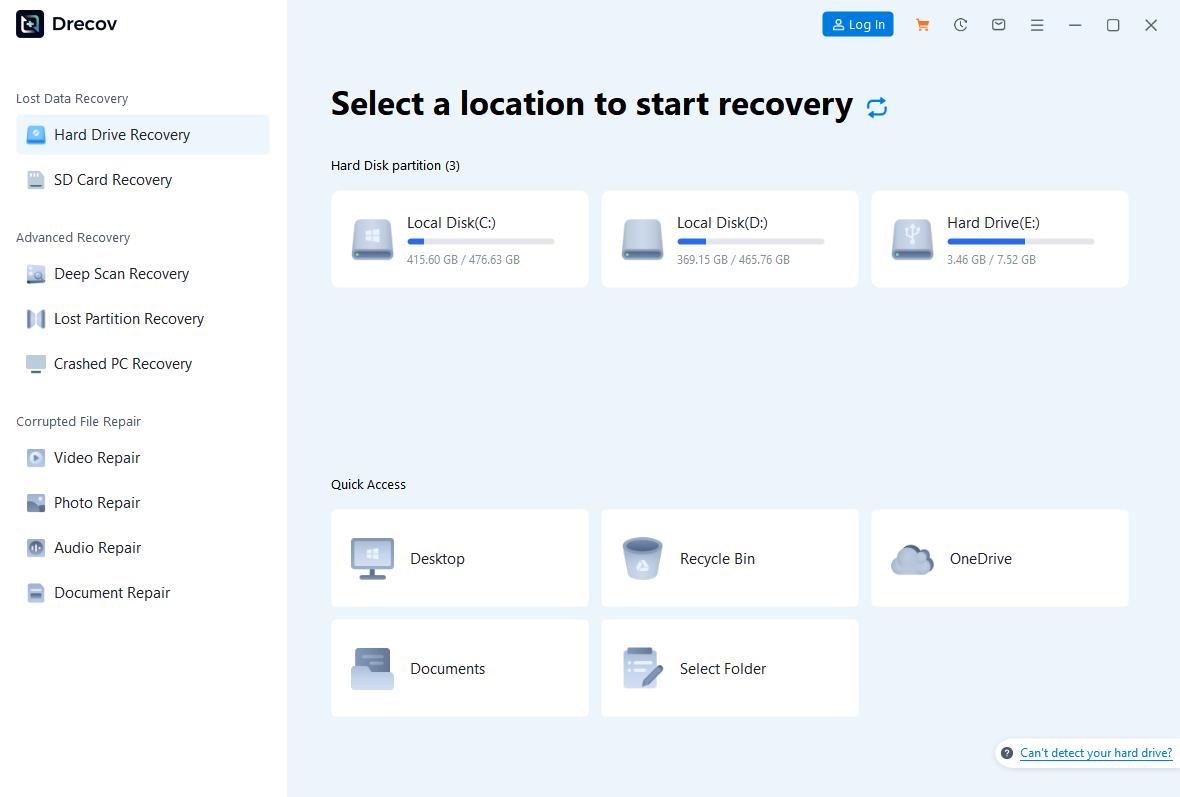
Step 1: choose the source that held the missing files
Open Drecov and select the original drive or partition containing the affected folder. If Windows no longer detects the device consistently, stop direct scanning. Prepare another healthy device for the output, and do not install Drecov on the source partition. For general file-loss branches beyond one directory, see Windows file recovery options.
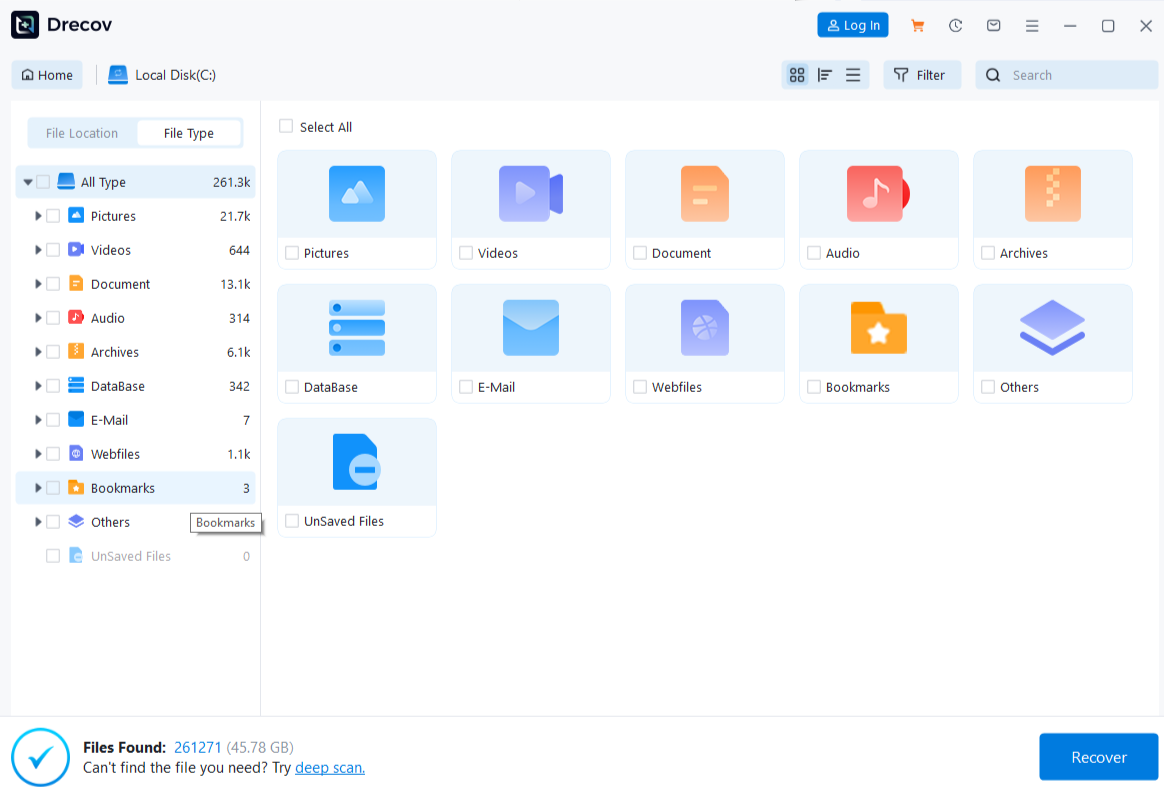
Step 2: narrow the search to useful candidates
Run Quick Scan first. If it does not show the needed files and the drive remains stable, use Deep Scan. Filter by type, name, or former folder when possible. Preview several representative files. A readable preview does not certify every page or frame. If the drive begins to disconnect or report severe errors, stop instead of trying repeated deeper scans.
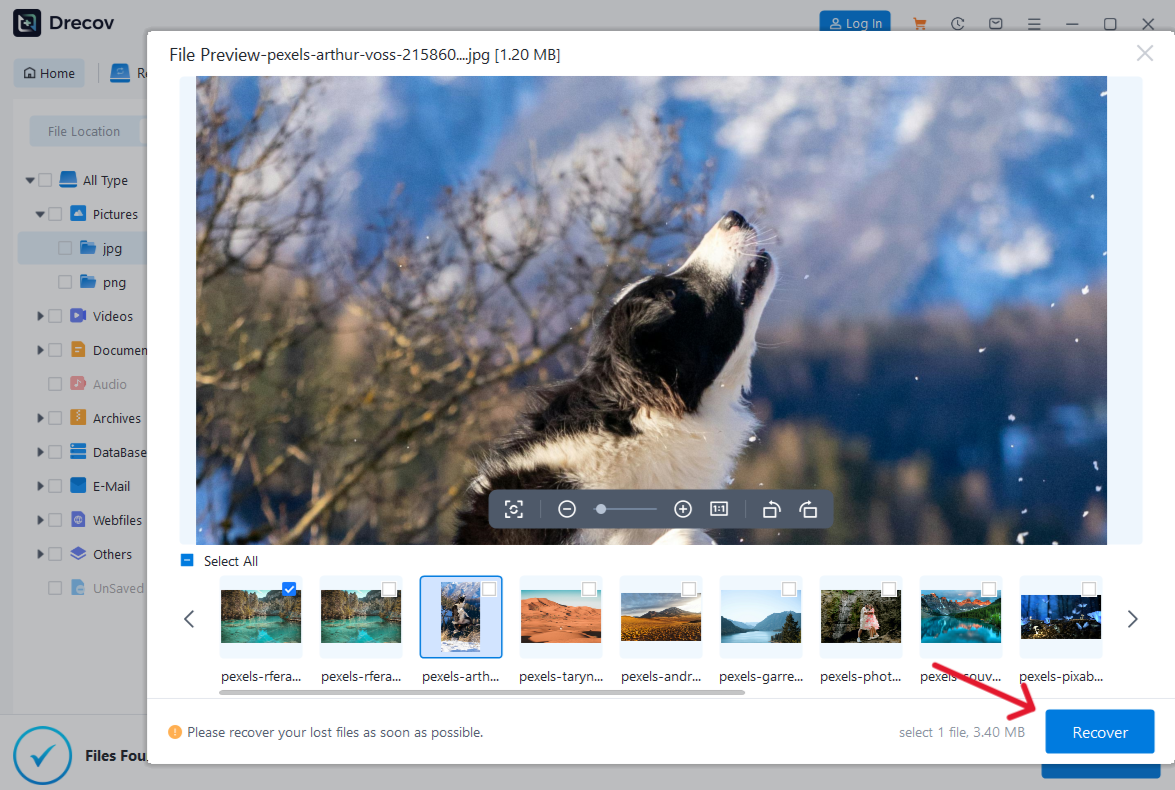
Step 3: recover elsewhere and test before repair
Save selected candidates on the separate healthy drive, never the affected volume. Check Drecov Folder or Recovery Folder if output is not in the expected destination folder. Open and sample the recovered files. Compare names and contents with a backup or project record if available. Only after that verification should you consider CHKDSK, removal of the broken directory, or formatting. For an affected USB device, also read the USB recovery precautions.
⚠ Warning: Install it on a drive different from the one where your data was lost to prevent overwriting.
Check the outcome, not just whether Delete works
After a lock or permission issue is resolved, confirm that the intended folder disappeared and that nearby working folders remain accessible. If you changed a narrow permission setting, document what changed. If a sync service owns the folder, watch whether it recreates the folder or restores files from another device. That behavior indicates the real issue may be a synchronization rule rather than a stubborn Windows directory.
After a file-system repair, open several files on the same volume. A repair command can report success while individual documents still have damage. Check the drive’s behavior during normal reading. New disconnections or recurring errors call for a fresh backup or specialist assessment, not repeated deletion attempts. If the original data is important, keep the verified copies on a separate device until you are satisfied that the source is stable.
When the folder is finally removable, consider why it became troublesome. A one-time application lock needs a different prevention step from a storage device with repeated read faults. Updating a workflow may help: close the app before moving files, wait for synchronization, or replace a failing drive. Do not treat successful deletion as proof that all other data on the device is safe.
FAQs
Will forcing deletion fix a corrupted folder?
It may remove an entry in a simple lock or permission case, but it does not identify the cause. On a damaged file system, forcing changes before saving important files can make recovery harder. Read the exact error and protect the data first.
Should I run CHKDSK immediately?
Not if needed files are still at risk. A repair option changes file-system structures. Copy accessible files or obtain a suitable image first, then choose the correct volume and a repair method that matches the evidence.
What if only one folder is affected?
Check whether an app is using it and whether your account has permission. Copy any valuable contents, then retry after closing the app or restarting Windows. A single affected folder does not prove that the entire drive has failed.
What if I hear clicking from the drive?
Stop direct scans, deletion attempts, and repeated power cycles. Clicking can indicate physical trouble. Consider a suitable image or professional help; neither CHKDSK nor a deletion utility repairs a failing mechanism.
Can recovery software make the folder deletable?
No. Its role is to find missing files and save them elsewhere. Once important files are verified on a healthy device, you can address the folder or file system separately. Do not confuse extraction with repair.
Conclusion
If you can’t delete a corrupted folder, use the exact Windows message to distinguish a lock, permission issue, and storage damage. Protect readable files before commands that change the source. After simple checks, choose the narrow fix that fits the evidence and verify neighboring folders. If wanted local files are already missing from a stable Windows drive, Drecov can search their original location, preview candidates, and recover them elsewhere before deletion or repair.
⚠ Warning: Install it on a drive different from the one where your data was lost to prevent overwriting.