







Have you ever encountered a situation where you right-click the desktop icon, hit “Empty,” and… absolutely nothing happens? Or perhaps you are greeted by a persistent, nagging error message that refuses to budge. If so, you are certainly not alone. While the desktop trash can is designed to be a simple, temporary holding area for unwanted data, it can occasionally become a digital bottleneck. When Windows Recycle Bin won’t empty, it transforms from a convenient safety net into a stubborn storage hog that consumes valuable disk space.
This guide is specifically designed to help you navigate the complexities of file deletion errors. Whether you are dealing with a “corrupted” directory or a file that is “in use by another program,” we will walk you through the technical steps to reclaim your storage. Beyond just fixing the bin, we will also explore how to recover data if you accidentally purge something important using professional tools like PandaOffice Drecov.
Understanding the Recycle Bin Problem
Before we dive into the “how-to,” it is vital to understand the “what” and the “why.” The Recycle Bin isn’t just a folder; it is a shielded system directory (usually named $Recycle.bin) that tracks every file you delete across different partitions. When this database loses its synchronization with the actual files on your hard drive, the system hangs.
What Happens When the Recycle Bin Won’t Empty
When the Windows Recycle Bin won’t empty, the visual symptoms are usually quite obvious. You might see the “full” icon even after clicking empty, or the progress bar might freeze at 0% indefinitely. In more severe cases, the entire File Explorer window might crash or become unresponsive when you attempt to interact with deleted items.
This issue is essentially a communication breakdown between the Windows Shell (the interface you see) and the NTFS file system (the underlying architecture). If the file system believes a file is still needed for a background task, it will veto any command to permanently erase it.
Common Error Messages Explained
As you attempt the process of emptying the recycle bin, Windows might provide specific error codes or descriptions. Understanding these is the first step toward a solution:
- “The Recycle Bin on C:\ is corrupted. Do you want to empty the Recycle Bin for this drive?”: This indicates the hidden database file is physically or logically damaged.
- “Access is denied”: This suggests a permission conflict where your user profile doesn’t have “Full Control” over the trash directory.
- “The action can’t be completed because the file is open in another program”: A background process is still “hooked” into the file.
- “Unexpected error is keeping you from deleting the folder”: Often related to deep path lengths or metadata glitches.
Why the Recycle Bin Won’t Empty
Identifying the root cause saves time. If you understand why the system is blocking you, you can choose the most direct path to a fix.
Corrupted Recycle Bin Files
Every drive partition has its own hidden $Recycle.bin folder. If your computer shuts down unexpectedly during a large file deletion, the index file within this folder can become corrupted. Once corrupted, Windows can no longer “read” the list of files to be deleted, leading to a total standstill.
Files in Use or Locked
Windows protects active data. If a DLL file or a document is being indexed by Windows Search, scanned by an antivirus, or held open by a crashed application, the system locks it. Because the Recycle Bin is technically just a folder, these locks remain active even after the file is “deleted” from its original location.
Permission Issues
In many cases, especially after a Windows update or a hard drive migration, the “Owner” of the Recycle Bin files might be set to “SYSTEM” or an old SID (Security Identifier) that no longer exists. If your current user account isn’t recognized as the owner, Windows will block the permanent erasure to prevent accidental data loss.
Basic Fixes You Should Try First
We always recommend starting with the least invasive methods. You don’t need to be an IT pro to perform these initial steps.
Restart Your Computer
It sounds like a cliché, but restarting is a powerful tool. When you restart, Windows forces all active “handles” on files to close. If a background app was secretly holding onto a file in the trash, a reboot will break that connection and often allow you to proceed with how empty recycle bin commands successfully.
Empty Recycle Bin in Safe Mode
Safe Mode starts Windows with only the most essential drivers. This prevents third-party apps (which are often the culprits behind locked files) from starting.
- Step 1: Press the Windows Key + I to open Settings.
- Step 2: Go to System > Recovery (or Update & Security > Recovery).
- Step 3: Under Advanced startup, click Restart now.
- Step 4: After the reboot, navigate to Troubleshoot > Advanced options > Startup Settings > Restart.
- Step 5: Press 4 or F4 to start in Safe Mode.
- Step 6: Once in Safe Mode, try right-clicking the Recycle Bin and selecting Empty Recycle Bin.
Advanced Fixes to Force Empty Recycle Bin
If the basic steps fail, it’s time to use more “forceful” system tools. These methods bypass the standard user interface to talk directly to the operating system.
Using Command Prompt
The Command Prompt (CMD) allows you to bypass the safety warnings that the Windows GUI might be stuck on. This is a very effective way to handle a Windows Recycle Bin won’t empty scenario.
Resetting the Recycle Bin
Resetting the bin essentially deletes the entire structure of the trash folder and tells Windows to rebuild it from scratch. This is the “nuclear option” for corruption.
Command Line Example
Follow these steps carefully to perform a reset:
- Step 1: Click the Start button and type
cmd.
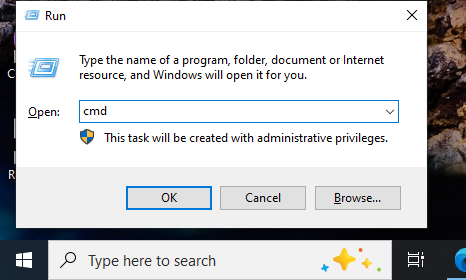
- Step 2: Right-click Command Prompt and select Run as administrator. This is crucial for permission-level tasks.
- Step 3: In the black window, type the following command exactly:$$rd /s /q C:\$Recycle.bin$$
- Step 4: Press Enter.
- Step 5: If you have multiple drives (like a D: or E: drive), repeat the command by replacing
C:with the other drive letters. - Step 6: Restart your computer. Windows will automatically recreate a fresh, healthy
$Recycle.binfolder on each drive.
Warning: This command will permanently delete all files currently in the Recycle Bin without sending them to a “second” trash can. Ensure you don’t need anything in there before proceeding!
Fixing Corrupted System Files
Sometimes the issue isn’t the Recycle Bin itself, but the core Windows components that manage file operations.
Running System File Checker
The SFC utility is a built-in tool that verifies the integrity of every protected operating system file.
- Step 1: Open Command Prompt as an administrator.
- Step 2: Type
sfc /scannowand hit Enter. - Step 3: Wait for the verification to reach 100%. If it finds errors, Windows will attempt to repair them using a cached copy.
Using DISM Tool
If SFC fails, the Deployment Image Servicing and Management (DISM) tool can fix the underlying Windows system image.
- Step 1: In the administrator Command Prompt, type:$$DISM /Online /Cleanup-Image /RestoreHealth$$
- Step 2: This process requires an internet connection as it may download fresh files from Microsoft’s official Windows Update servers.
- Step 3: Once finished, restart your PC and try emptying the recycle bin again.
Dealing with Locked Files
If the system tells you a file is “in use,” we need to find the “holding” process.
Identifying Locked Files
You can use the Resource Monitor to see exactly what is locking your trash.
- Press Ctrl + Shift + Esc to open Task Manager.
- Click the Performance tab and select Open Resource Monitor at the bottom.
- In the CPU tab, look for the Associated Handles search bar.
- Type
Recycleor the name of the stuck file. This will show you which application is “holding” it. You can then right-click that process and select End Process.
Using Third-Party Tools
If manual identification is too complex, tools like LockHunter or IObit Unlocker are designed to force-close handles. However, for most users, the Command Prompt method mentioned earlier is more than sufficient.
Fixing Permission Issues
If you see “Access Denied,” you need to assert your authority over the folder.
Taking Ownership of Files
By default, the Recycle Bin is managed by the system. If permissions get scrambled, you must manually reclaim ownership.
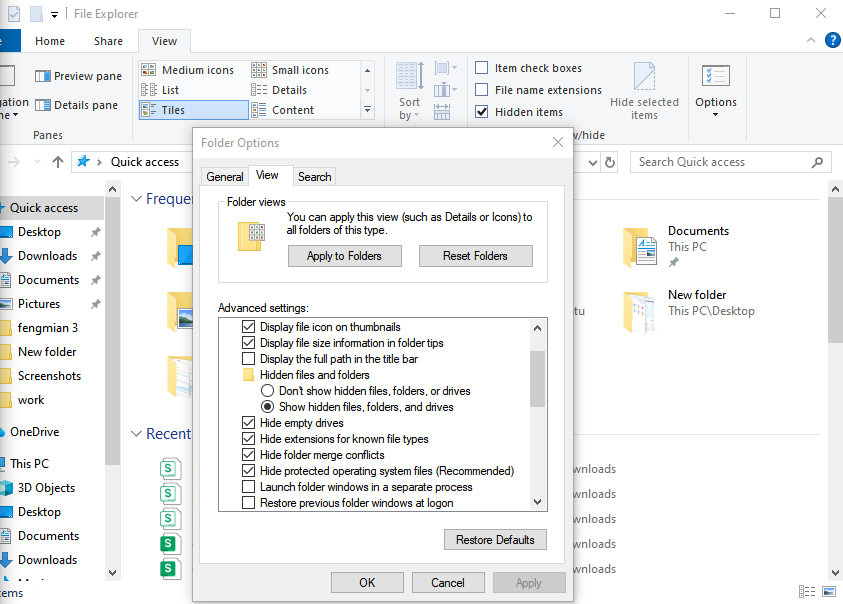
- Step 1: Open File Explorer and go to View > Options > Change folder and search options.
- Step 2: In the View tab, uncheck Hide protected operating system files (Recommended) and select Show hidden files, folders, and drives.
- Step 3: Go to the root of your C: drive, right-click
$Recycle.bin, and select Properties. - Step 4: Under the Security tab, click Advanced, then click Change next to the Owner name.
- Step 5: Type your username, click Check Names, and hit OK.
- Step 6: Check the box Replace owner on subcontainers and objects and click Apply.
Recovering Data After Emptying: Using PandaOffice Drecov
In the process of trying to fix a Windows Recycle Bin won’t empty error, you might accidentally delete a file you actually needed. Or, perhaps you successfully forced the bin to empty, only to realize a crucial work document was inside. This is where PandaOffice Drecov becomes your most valuable asset.
PandaOffice Drecov is a professional-grade data recovery solution designed for ease of use. It can scan the “unallocated space” on your hard drive to find files that were permanently deleted but haven’t been overwritten by new data yet.
⚠ Warning: Install it on a drive different from the one where your data was lost to prevent overwriting.
How to Recover Files with PandaOffice Drecov
- Step 1: Select Location. Launch the software. You will see a list of drives. Select the drive where your Recycle Bin was located (usually C: Local Disk) and click Scan.

- Step 2: Preview and Filter. As the scan progresses, you can browse through folders. Use the “Filter” feature to search for specific file types (like .docx or .jpg) or look specifically for the
$Recycle.binfolder in the scan results.

- Step 3: Recover Your Data. Select the files you wish to bring back. Click the Recover button and choose a different drive (like a USB flash drive) to save the recovered files.
Pro Tip: The sooner you use Drecov after a deletion, the higher the chance of a 100% successful recovery. Once you continue using your PC, Windows writes new data over the old “deleted” files.
Comparison Table: All Fix Methods
| Method | Difficulty | Effectiveness | Best Used For |
| Restart PC | Very Low | Low-Medium | Temporary glitches and simple file locks. |
| Safe Mode | Low | Medium | Software conflicts and persistent background apps. |
| CMD Reset | Medium | Very High | Corrupted Recycle Bin files or structural errors. |
| SFC / DISM | Medium | High | Broad system instability affecting file management. |
| Permissions Fix | High | Medium | “Access Denied” errors and multi-user issues. |
| PandaOffice Drecov | Low | High (Recovery) | Recovering files after a forced empty or accidental loss. |
Preventing Future Recycle Bin Issues
Consistency is key to a healthy Windows environment. To avoid the Windows Recycle Bin won’t empty nightmare in the future, consider these maintenance tips:
- Don’t Let it Get Too Big: If your Recycle Bin contains hundreds of gigabytes, the index file becomes massive and prone to errors. Empty it at least once a week.
- Use Shift + Delete Sparingly: While
Shift + Deletebypasses the bin entirely, it’s safer to let things go to the bin first—unless you are absolutely sure you don’t need them. - Run Disk Cleanup: Use the built-in Windows “Disk Cleanup” tool once a month. It handles the how empty recycle bin process through a different system service that is less likely to hang than the desktop icon.
- Monitor Drive Health: Sometimes, file corruption is a sign of a failing hard drive. Use tools to check your S.M.A.R.T. status to ensure your hardware isn’t the problem.
Internal Resources for Further Help
If you’ve managed to clear your bin but are facing other Windows storage or system quirks, check out our related guides:
- Learn what to do if you find your Windows save as default location is stuck on OneDrive.
- If you’ve lost the icon entirely, here are 3 quick ways to find the Recycle Bin in Windows 10.
- In case of severe system errors, see how to restore your computer to an earlier date on Windows.
Windows Recycle Bin won’t empty FAQs
1. Why can’t I empty my Recycle Bin?
As discussed, the most frequent culprits are file corruption within the $Recycle.bin folder, files currently being used by another application, or a lack of administrative permissions to modify the folder.
2. Is it safe to reset the Recycle Bin using Command Prompt?
Yes, it is perfectly safe. The command only removes the folder and its contents. Windows is programmed to recognize the missing directory and recreate a clean version automatically upon the next restart or file deletion.
3. Can malware cause the Windows Recycle Bin won’t empty issue?
Yes. Some malicious scripts create “undeletable” files or hide themselves within system folders like the Recycle Bin to avoid detection. If the fixes above fail, run a full system scan with your antivirus.
4. What does Safe Mode do to help?
Safe Mode prevents non-essential programs from loading. If a third-party app is locking a file in the trash, Safe Mode ensures that app never starts, allowing you to delete the file freely.
5. Does emptying the Recycle Bin permanently delete files?
Technically, it tells Windows the space occupied by those files is now “free.” The data remains on the disk until new data is written over it. This is why tools like PandaOffice Drecov can still find them.
Conclusion
Dealing with a Windows Recycle Bin won’t empty error can feel like an uphill battle, but by following a structured troubleshooting path, you can resolve it in minutes. Start with a simple restart, move to Safe Mode, and if necessary, use the Command Prompt to reset the system entirely.
Remember, the goal of emptying the recycle bin is to keep your system lean and fast. If you ever find yourself in a situation where you’ve been too aggressive with your deletions, don’t panic—professional recovery software like PandaOffice Drecov is always there to catch you. Keep your system updated, perform regular maintenance, and your Recycle Bin will remain the helpful tool it was meant to be.






