







Windows says the Recycle Bin is corrupted and asks whether you want to empty it. That prompt can be unsettling, especially if you deleted something recently and expected the Bin to be your fallback. Don’t approve the reset yet if you might need a file inside. Emptying or rebuilding the Bin can remove its remaining contents.
The safest route has three stages: confirm that this is a real corruption error rather than a missing icon, recover any files you still need, and reset the Bin on the affected drive. If the error returns, investigate the underlying drive or Windows installation instead of repeating the reset indefinitely.
First, identify what is actually broken
A missing desktop icon and a corrupted Recycle Bin are different problems. If the Bin opens normally but its icon has disappeared, restore the icon through Settings > Personalization > Themes > Desktop icon settings. Select Recycle Bin, apply the change, and check the desktop again.
If Windows displays a message such as “The Recycle Bin on C:\ is corrupted. Do you want to empty the Recycle Bin for this drive?”, the icon setting will not repair it. The drive letter in the prompt matters: Windows maintains a separate hidden Recycle Bin folder on each volume. Note the letter before you do anything else.
Also check whether the issue began after an unsafe disconnect, a storage error, or a sudden shutdown. Those events do not prove the drive is failing, but they make a recovery-first approach more important. If the drive disconnects repeatedly, clicks, or disappears from Windows, stop routine troubleshooting and consider professional help.
Step 1: Check for files you still need
If the Bin opens, sort its contents by Date Deleted and look for anything you may want back. Right-click a file and choose Restore when it is intact and available. Windows returns it to its original location. For a broader set of restore options, see our guide to recovering deleted files from the Recycle Bin.
If the Bin will not open, don’t assume it is empty. Ask yourself whether you recently deleted important photos, documents, or project files from the affected drive. Avoid copying new data onto that drive, installing recovery software there, or repeatedly accepting Windows’ offer to empty the Bin. New writes can reduce the chance of recovering deleted data.
You can also check cloud or local backups before scanning. OneDrive version history, File History, and an external backup may provide an earlier copy. If a file is already safe elsewhere, you can move directly to the reset in Step 3.
For a removable drive, keep the connection stable while you decide what to do. Avoid unplugging it during a scan, and use a reliable port rather than a loose hub. The Bin may not show every file that went missing from that device: how a file was deleted and how the drive is formatted can change whether Windows sent it to the Bin at all. Our guide to emptying the Recycle Bin explains why an empty Bin is not a full account of what remains recoverable.
When the original drive seems unhealthy
Software recovery assumes the source remains readable. Frequent disconnects, unusual mechanical noises, or read errors call for more caution. Do not run a repair command first or keep scanning an unstable drive. A specialist may need to image the device before any file-level recovery attempt.
Step 2: Recover needed files before resetting the Bin with Drecov
Drecov is an option when the Bin will not open, has already been emptied, or no longer lists a file you need. Its Windows workflow lets you scan the original location, narrow the results, and preview candidates before selecting files to recover. It does not repair a damaged drive or guarantee that an overwritten file can be restored.
⚠ Warning: Install it on a drive different from the one where your data was lost to prevent overwriting.
The order matters here. Recover first; reset the corrupted Recycle Bin afterward. If you run a reset while important files remain only in the Bin, you may remove useful recovery information.
Step 1: Open Drecov
Choose the original drive or location where the file was deleted. Start with the relevant recovery mode, such as Hard Drive Recovery for a local disk.
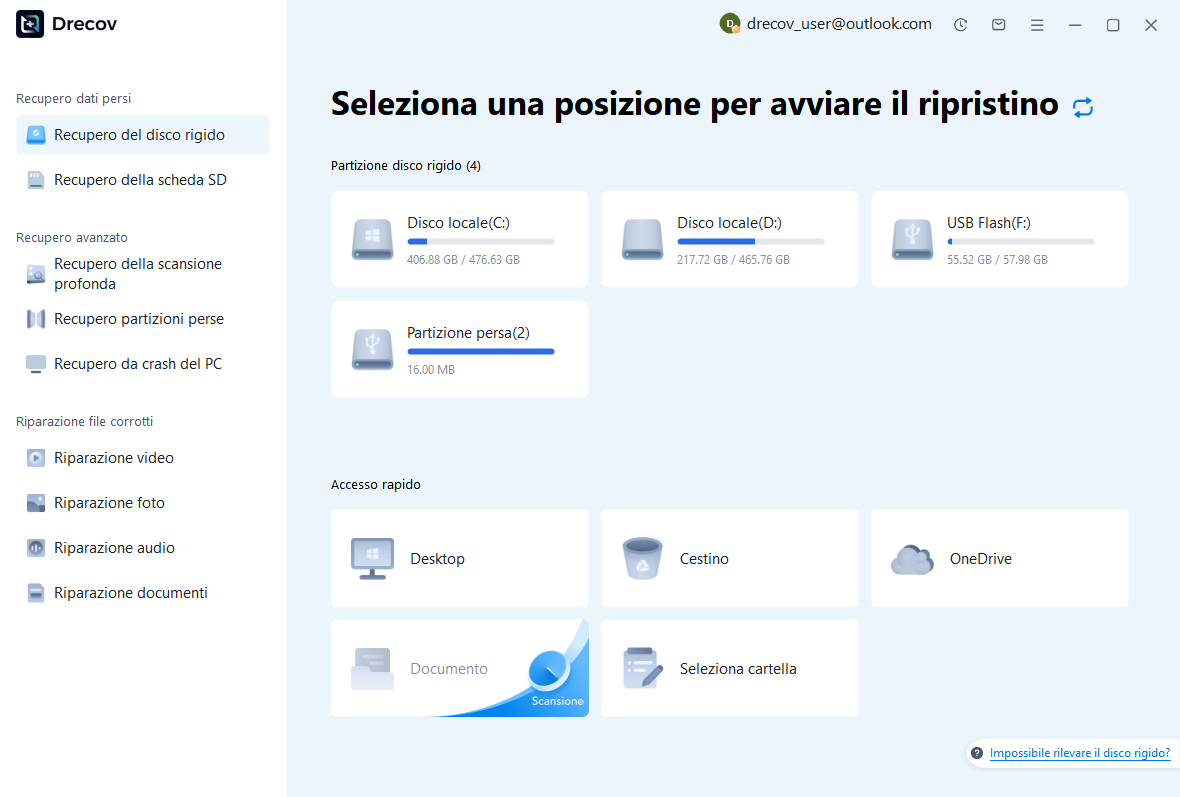
Step 2: Run Quick Scan and inspect its results
If the drive is stable but the file is missing, use Deep Scan Recovery to look more broadly.

Filter by file type, name, or path where the results allow it. Check likely folders and preview candidates; a recognizable preview helps you choose, but it does not guarantee that every recovered file will open perfectly.

Step 3: Select the files you need
Recover them to the separate healthy device, not back onto the source drive. Using a different drive letter is not enough if both letters belong to the same physical disk.
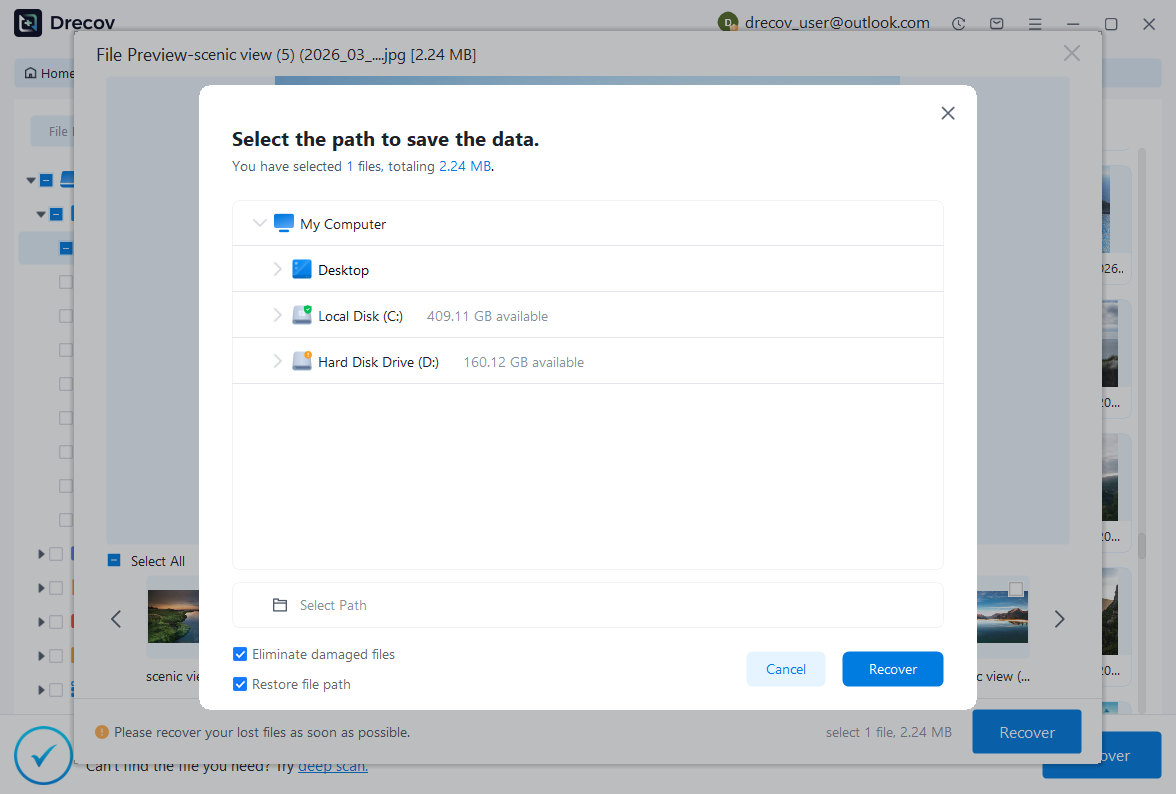
Step 4: Open the recovered copies
If they are not where you expected, check the chosen destination and any Drecov or Recovery folder created there.
For the product workflow and available modes, see Drecov’s Recycle Bin recovery. If the recovered copy is incomplete, preserve the source drive and try a backup or another recovery route before treating the file as lost.
Step 3: Reset only the affected Recycle Bin
Once needed files are recovered or confirmed safe elsewhere, you can rebuild the Bin folder on the drive named in the Windows error. This reset deletes what remains in that drive’s Recycle Bin. It is a fix for the Bin’s state, not a method for recovering its contents.
Open Command Prompt as administrator. Replace C: below only if the error names another drive, and verify the letter before pressing Enter:
rd /s /q C:\$Recycle.BinThe command removes that drive’s hidden Recycle Bin folder; /s includes its contents and /q suppresses the confirmation prompt. Restart Windows. It should recreate the folder when needed. Then delete a disposable test file and confirm that you can open the Bin and restore the test file.
Do not run the command across every drive “just in case.” Nor should you expose protected operating-system folders in File Explorer and manually delete $Recycle.Bin as a supposedly safer alternative. Both actions remove Bin contents; the command above at least makes the target explicit.
If Windows denies access, check that Command Prompt is elevated and that you typed the correct drive letter. Do not keep changing permissions or deleting other system folders to force the reset. Record the exact error and move to the checks below.
If the error comes back
A recurring corrupted Recycle Bin message can indicate a wider Windows or storage problem. First, make sure your important files are backed up. Review the drive’s health information and Windows’ storage-related warnings. If the device is unstable, prioritize an image or professional diagnosis rather than another reset.
If other Windows components also malfunction, Microsoft’s system-file repair sequence is DISM first, then SFC. Open an elevated Command Prompt and run:
DISM.exe /Online /Cleanup-image /Restorehealth
sfc /scannow
These tools repair Windows components; they do not restore deleted files or prove that a storage device is healthy. See Microsoft’s system-file repair instructions for details.
Likewise, avoid using chkdsk /f or /r as a reflexive first step when valuable data remains at risk. Those options can modify filesystem structures. Protect the data or make a suitable image first, then decide whether a filesystem repair fits the diagnosis. Microsoft’s CHKDSK documentation explains what the switches do.
Which action fits your situation?
| What you see | Best next move | Avoid for now |
|---|---|---|
| Bin icon is missing, but the Bin opens | Restore the desktop icon | Resetting Bin folders |
| Corruption prompt and possibly needed files | Check backups; recover files from the affected drive | Clicking Yes or running rd immediately |
| Corruption prompt, with all needed files safe | Reset the Bin on the named drive | Deleting Bin folders on unrelated drives |
| Error returns or drive behaves abnormally | Back up, assess drive health, seek help if unstable | Repeated resets or repair commands before data protection |
Preventing Future Recycle Bin Corruption
While you now know how to fix a recycle bin is corrupted error, prevention is much more efficient than repair.
- Avoid Hard Shutdowns: Always use the “Shut Down” menu. Pulling the power cord or holding the power button is the #1 cause of a recycle bin corrupted state.
- Regular Maintenance: Use the Windows “Disk Cleanup” tool once a month to clear out temporary files safely rather than letting the bin grow to hundreds of gigabytes.
- Check Drive Health: Use tools like
chkdskregularly. Open CMD as admin and typechkdsk C: /fto find and repair file system errors before they become critical.
For those looking to maintain a healthy PC, it is also useful to manage your system-wide data. For instance, if you’ve resolved your trash issues but find your computer acting sluggish, you might want to learn how to restore computer to an earlier date on Windows. Furthermore, data isn’t just lost on your hard drive; it can be lost in collaborative apps too. If you’ve accidentally wiped a conversation, check our guide on how to recover deleted messages from microsoft teams. Finally, don’t forget your browser data! If your browser shortcuts are gone, you should know where are firefox bookmarks stored on your pc to keep your navigation seamless.
Recycle bin corrupted FAQs
Will fixing a recycle bin corrupted error delete the files currently on my desktop or in my documents?
No. When you resolve a recycle bin is corrupted message using the rd /s /q command or by deleting the $Recycle.Bin folder, you are only resetting the “trash” directory. Your existing files in the Desktop, Documents, or Downloads folders remain completely untouched. However, any files that were already in the Recycle Bin waiting to be deleted will be cleared during the reset process. If you need those specific files back, you should use PandaOffice Drecov to scan the drive after the reset.
Why does the “the recycle bin on C is corrupted” message keep reappearing even after I fix it?
If the corrupted recycle bin error returns repeatedly, it usually indicates a deeper issue with your hard drive’s physical health or a persistent file system error. This often happens if there are “bad sectors” on the disk where the $Recycle.Bin directory is stored. You should immediately run a disk check by opening CMD as admin and typing chkdsk C: /r to locate and “seal off” those bad sectors, or consider backing up your data to a new drive.
Can a virus cause my recycle bin to become corrupted?
Yes, it is possible. Certain types of malware or “folder-hider” viruses attempt to modify system directories to hide their presence. If a virus tries to write data into the hidden $Recycle.Bin folder and fails, it can leave the recycle bin corrupted. If you suspect this, run a full system scan with your antivirus software before attempting to rebuild the bin, otherwise, the malware might just corrupt the new folder again.
I have multiple drive partitions (C:, D:, and E:). Do I need to fix the corrupted recycle bin on each one separately?
Yes. Windows maintains a separate hidden $Recycle.Bin folder for every single drive partition. If the error message specifically says the recycle bin on D: is corrupted, you only need to run the reset command for that specific drive (rd /s /q D:\$Recycle.Bin). However, if the system is generally unstable, it doesn’t hurt to reset the folders on all drives to ensure a clean slate.
Is it safe to just ignore the “the recycle bin is corrupted” warning if I don’t plan on using the bin?
It is not recommended to ignore it. It’s can lead to “ghost” storage usage, where deleted files aren’t actually cleared, slowly filling up your hard drive. Furthermore, if the corruption is caused by file system errors, ignoring it could lead to the corruption spreading to other critical system files. It is always best to perform the 2-minute Command Prompt fix to maintain overall system integrity.
Conclusion
Facing a recycle bin corrupted error is undoubtedly stressful, but it is a manageable technical hurdle. By understanding that the recycle bin is corrupted usually because of a broken index in a hidden folder, you can use the Command Prompt to wipe the slate clean and start over.
Whether you are fixing the recycle bin is corrupted on a single laptop or managing a fleet of office computers, the key is to act methodically. Start with the software fixes, and if you realize you’ve lost important data in the process, rely on the deep-scanning power of PandaOffice Drecov.
Digital files are the lifeblood of our professional and personal lives in 2026. Taking the time to master these recovery methods ensures that a simple corrupted recycle bin never becomes a permanent data loss tragedy. Keep your system updated, shut down properly, and always have a recovery tool ready for those unexpected moments!
⚠ Warning: Install it on a drive different from the one where your data was lost to prevent overwriting.






