







Understanding HDD Recovery and Why It Matters
What Is HDD Recovery and How Does It Work
HDD recovery refers to the process of restoring deleted, lost, or inaccessible data from a hard disk drive. When files disappear due to accidental deletion, formatting, system crashes, or malware attacks, they are not always permanently erased. Instead, the operating system simply marks the storage space as available for reuse. Until new data overwrites those sectors, the original files often remain recoverable.
This is where hdd data recovery software and specialized tools come into play. These programs scan the hard drive’s storage sectors to locate fragments of lost files and reconstruct them. A reliable hdd recovery software solution can retrieve documents, photos, videos, and many other file types from damaged or formatted drives.
For example, a modern hdd data recovery program typically performs two types of scans:
- Quick Scan: Finds recently deleted files by analyzing the file system index.
- Deep Scan: Searches every sector of the drive to rebuild files that have lost their original directory structure.
In real-world situations, HDD data loss happens more frequently than many users expect. From accidental file deletion to operating system crashes, important data can disappear within seconds.
⚠️ Warning:
When you notice data loss, stop using the affected drive immediately. Continuing to write data to the disk may overwrite recoverable files and significantly reduce the success rate of hdd file recovery software.
Understanding how HDD recovery works is the first step toward successfully restoring your files.
Common Causes of Hard Drive Data Loss
Why Files Disappear from Hard Drives
Data loss can occur unexpectedly, even on well-maintained systems. Understanding the common causes helps users choose the most suitable hdd data recovery software and avoid similar problems in the future.
One of the most frequent causes is accidental deletion. Many users unintentionally remove important files and later realize they were needed. In some cases, the files may still be recoverable through simple methods or by using a professional hdd data recovery program.
Another major cause is drive formatting. Formatting a partition wipes the file allocation table, making the operating system believe the drive is empty. However, the underlying data often remains on the disk until it is overwritten, which means hdd recovery software can potentially retrieve it.
Other common scenarios include:
- System crashes or OS failures
- Virus or ransomware attacks
- Corrupted file systems
- Bad sectors on the hard drive
- Power outages during file transfers
Hardware issues also play a role. Mechanical hard drives contain moving parts that can wear out over time. If the read/write head becomes damaged or the disk platter develops errors, accessing stored data may become difficult.
⚠️ Warning:
If your hard drive makes unusual clicking or grinding sounds, do not attempt repeated scans with hdd file recovery software. Physical damage may require professional repair services.
By identifying the root cause of data loss, users can choose the most effective hdd recovery approach and improve the chances of successful restoration.
How to Perform HDD Data Recovery: Proven Methods
Method 1: Restore Deleted Files from the Recycle Bin
One of the easiest ways to perform hdd recovery is by checking the system’s Recycle Bin. When files are deleted normally in Windows, they are temporarily moved to this folder rather than permanently erased.
This method works best when files were recently removed and the Recycle Bin has not been emptied.
Test Environment
- Operating System: Windows 10 / Windows 11
- Storage Device: Internal HDD
- Scenario: Recently deleted document files
Steps to recover files
- Open the Recycle Bin on your desktop.
- Browse the list of deleted files and locate the ones you want to restore.
- Right-click the file or folder.
- Select Restore.
Once restored, the file will return to its original folder on the hard drive.
This approach requires no hdd data recovery software, making it the quickest solution for simple deletion scenarios. However, it only works if the files are still stored in the Recycle Bin.
⚠️ Warning:
If the Recycle Bin has been emptied, the file entries will disappear. At that point, you will need to rely on a professional hdd data recovery program to scan the drive and locate recoverable data.
Even though this method is simple, it should always be the first step before trying more advanced hdd recovery software solutions.
Method 2: Recover Hard Drive Files Using File History
Another built-in Windows feature that can assist with hdd data recovery is File History. This backup system automatically saves previous versions of files located in important folders such as Documents, Desktop, Pictures, and Videos.
If File History was enabled before data loss occurred, it can restore older copies of files that were deleted or modified.
Test Environment
- Operating System: Windows 10
- Storage Device: Internal HDD with File History enabled
- Scenario: Accidentally deleted project folder
Steps to recover files using File History
- Click the Start menu and search for Restore your files with File History.
- Open the File History recovery window.
- Navigate to the folder where the lost file was previously stored.
- Use the timeline arrows to browse earlier versions of the folder.
- Select the desired file and click Restore.
The selected files will be returned to their original locations on the hard drive.
This method is especially useful when recovering earlier versions of documents that were overwritten or modified incorrectly. While it is not a full hdd data recovery software solution, it serves as an effective backup-based hdd recovery strategy.
However, File History only works if backups were configured beforehand. Without an active backup system, users must rely on hdd file recovery software or other recovery techniques.
Method 3: Recover Data with HDD Data Recovery Software
When files are permanently deleted or the Recycle Bin is empty, using specialized hdd recovery software becomes the most reliable option. A professional hdd data recovery program scans the entire disk and reconstructs lost file structures.
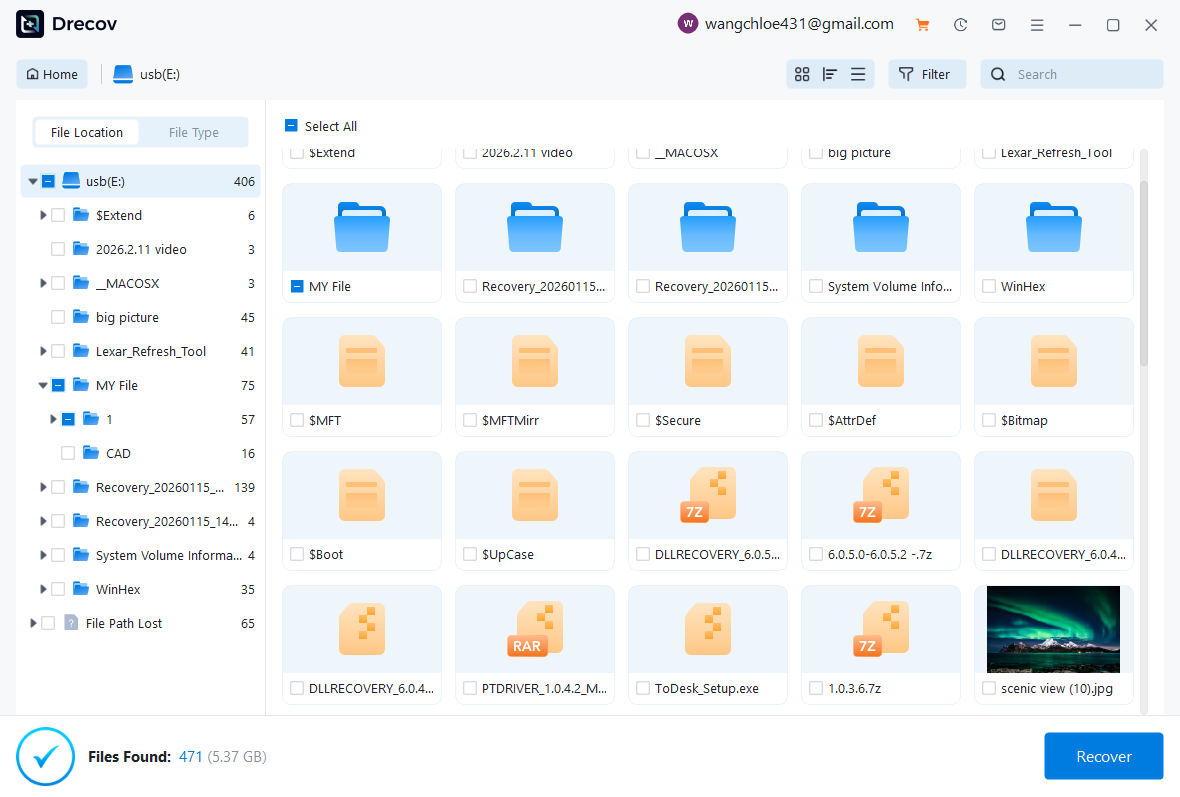
One example is Pandaoffice Drecov, a dedicated hdd data recovery software designed to recover files from formatted, corrupted, or accidentally deleted hard drives.
Download DrecovTest Environment
- Operating System: Windows 11
- Storage Device: 1TB internal HDD
- Scenario: Deleted video files and formatted partition
Steps to recover files using Pandaoffice Drecov
- Install and launch Pandaoffice Drecov on your computer.
- Select the hard drive or partition where the data was lost.
- Start a deep scan to analyze all storage sectors.
- Preview the detected files to confirm recoverability.
- Choose the files you want and save them to another storage device.
The preview feature allows users to verify files before recovery, which helps ensure that the retrieved data is intact.


Why Choose Pandaoffice Drecov?
Data loss can occur unexpectedly due to accidental deletion, system crashes, formatting errors, or software failures. Whether you need to restore Windows previous date, perform recover Excel files,or handle deleted PowerPoint recovery, Pandaoffice Drecov provides a reliable and efficient solution designed to restore important documents quickly and safely.
Pandaoffice Drecov is a professional PowerPoint Recovery Software that supports recovery for multiple document types, including Excel spreadsheets, Word documents, and PowerPoint presentations. With advanced scanning technology, the software can detect and recover files even after deletion, formatting, or unexpected system shutdowns. This makes it an ideal tool for users who urgently need Document Recovery from hard drives, SSDs, USB drives, memory cards, and other storage devices.
One of the key advantages of Pandaoffice Drecov is its intelligent deep-scan engine. It carefully analyzes storage sectors to locate lost or hidden files that standard recovery tools often miss. Whether you accidentally deleted a presentation and require deleted PowerPoint recovery, or you lost critical spreadsheets and need to recover Excel files, the software provides fast scanning and high recovery success rates.
The software also features a user-friendly interface that allows beginners and professionals alike to complete recovery tasks in just a few steps. Users can preview recoverable files before restoring them, ensuring that only the needed data is recovered. In situations where files were lost due to system errors, the software can also help recover documents after attempts to restore Windows previous date.
⚠️ Warning:
Always save recovered files to a different drive, not the original disk. Writing data to the same drive may overwrite other recoverable files.
With modern scanning algorithms, advanced hdd file recovery software can restore thousands of file types and significantly improve the success rate of hdd recovery.
Method 4: Recover Data from Backup and Restore
Another useful Windows feature for hdd data recovery is the Backup and Restore utility. Unlike File History, which focuses on personal folders, Backup and Restore can create full system backups, including files, applications, and system settings.
If a backup was created before data loss occurred, users can restore files quickly without using additional hdd recovery software.
Test Environment
- Operating System: Windows 10
- Storage Device: Internal HDD with scheduled system backups
- Scenario: Lost files after accidental disk cleanup
Steps to restore files
- Open Control Panel on your computer.
- Navigate to System and Security.
- Select Backup and Restore (Windows 7).
- Click Restore my files.
- Search for the files or folders you want to recover.
- Choose the restore location and confirm.
The system will retrieve the files from the backup archive and restore them to your computer.
This approach is highly reliable because it restores data directly from a stored backup image. However, it requires that the backup feature was enabled before the incident.
Without backups, users must rely on hdd data recovery software or professional recovery services to retrieve lost files.
Method 5: Use CHKDSK to Repair File System Errors
Sometimes data loss is caused by file system corruption rather than actual deletion. In these situations, repairing the disk structure may restore access to files without using full hdd recovery software scanning tools.
The Windows CHKDSK utility checks the integrity of the file system and repairs logical errors that may prevent files from appearing. This method is especially useful when folders suddenly become inaccessible or the system reports that the drive needs repair.
Test Environment
- Operating System: Windows 11
- Storage Device: External 2TB HDD
- Scenario: Files missing due to file system corruption
Steps to run CHKDSK
- Connect the hard drive to your computer.
- Open the Start menu and search for Command Prompt.
- Right-click it and select Run as administrator.
- Enter the following command:
chkdsk X: /f /r
(Replace X with the letter of your hard drive.) - Press Enter and wait for the scanning process to finish.
The /f parameter fixes file system errors, while /r searches for bad sectors and attempts to recover readable information.
This process may take time depending on the size of the disk. After the scan completes, the system may restore previously hidden files or repair corrupted directories.
⚠️ Warning:
Do not interrupt the CHKDSK process while it is running, as stopping the scan prematurely could lead to additional file system issues.
Although CHKDSK is not a full hdd data recovery program, it can sometimes restore access to files before a deeper hdd recovery scan becomes necessary.
Professional HDD Recovery Services
When Software-Based HDD Recovery Is Not Enough
While many cases of data loss can be solved with hdd file recovery software, there are situations where software tools cannot access the drive at all. This usually occurs when the hard drive suffers physical damage or severe firmware issues.
Mechanical hard drives contain sensitive components such as spinning platters and read/write heads. If these components fail, the drive may stop responding or produce unusual sounds. In these cases, using typical hdd recovery software may not be effective.
Professional hdd data recovery services use specialized equipment in controlled laboratory environments to repair damaged hardware and extract stored data. Technicians often work in clean rooms to prevent dust particles from damaging internal components.
Typical situations that require professional assistance include:
- Hard drives making clicking or grinding noises
- Drives not detected by the operating system
- Severe physical damage from drops or water exposure
- Burned circuit boards or electrical failure
These services often involve disassembling the drive, repairing internal parts, and reading the disk platters using specialized imaging tools.
⚠️ Warning:
Never open a hard drive outside a professional clean room environment. Dust particles can permanently damage the disk surface and make hdd recovery impossible.
Although professional recovery services can be expensive, they may be the only option when critical business or personal data must be restored from severely damaged drives.
Tips to Increase HDD Data Recovery Success Rate
Best Practices Before and During Data Recovery
Successful hdd data recovery often depends on how quickly and carefully the recovery process begins. Many users accidentally reduce their chances of recovering files by continuing to use the affected drive after data loss occurs.
One of the most important steps is to stop writing data to the drive immediately. When a file is deleted, the operating system marks the storage space as available. New data written to that area may permanently overwrite the lost file.
Another important practice is to install recovery tools on a different disk. If you install hdd recovery software directly on the damaged drive, the installation process may overwrite recoverable sectors.
Additional tips include:
- Scan the drive using reliable hdd data recovery software as soon as possible
- Save recovered files to another storage device
- Avoid repeatedly formatting the affected drive
- Perform a deep scan if the quick scan does not find the missing files
It is also helpful to maintain regular backups. Even the best hdd data recovery program cannot guarantee 100% recovery in every scenario.
Creating scheduled backups of important data significantly reduces the risk of permanent data loss and eliminates the need for complex recovery procedures.
By following these precautions, users can improve the success rate of hdd recovery and prevent avoidable data loss situations in the future.
Advanced HDD Recovery Techniques
Using Disk Imaging Before Attempting Recovery
In some complex situations, experts recommend creating a full disk image before starting hdd recovery procedures. Disk imaging creates an exact copy of the drive’s data, allowing recovery attempts to be performed on the copy rather than the original disk.
This method is particularly useful when dealing with unstable drives that may degrade further during scanning.
A disk image preserves all sectors of the drive, including damaged or unreadable areas. Advanced hdd data recovery software can then analyze the image file and attempt to reconstruct lost data without risking further damage to the original hardware.
Advantages of disk imaging include:
- Protects the original drive from additional wear
- Allows multiple recovery attempts without further damage
- Provides a backup snapshot of the current drive state
The process typically involves connecting the hard drive to a computer using a disk cloning tool or specialized recovery utility. Once the image file is created, the hdd data recovery program scans the image instead of the original disk.
This technique is commonly used by professional technicians because it minimizes the risk of worsening the problem while still allowing comprehensive data analysis.
While disk imaging may require additional storage space, it is considered one of the safest strategies when performing complex hdd recovery operations.
Frequently Asked Questions About HDD Recovery
Can HDD Recovery Restore Permanently Deleted Files
Yes, in many cases permanently deleted files can still be recovered. When files are deleted, the operating system removes their references from the file system but does not immediately erase the data itself.
Using reliable hdd recovery software, users can scan the drive to locate and reconstruct these deleted files. However, the success rate depends on whether the data sectors have been overwritten.
If the drive has been heavily used after deletion, recovery may become more difficult.
How Long Does HDD Data Recovery Take
The time required for hdd data recovery depends on several factors, including the size of the hard drive, the number of lost files, and the scanning method used.
A quick scan performed by hdd file recovery software may take only a few minutes, while a deep scan analyzing every sector of the drive could take several hours.
For large drives or severe corruption, the process may even take an entire day.
Is HDD Recovery Always Successful
No recovery method can guarantee a 100% success rate. If files have already been overwritten or if the disk surface is severely damaged, some data may be permanently lost.
However, modern hdd data recovery software significantly improves the chances of restoring files in most common data loss scenarios.
The sooner the recovery process begins, the better the results are likely to be.
Conclusion: Choosing the Right HDD Recovery Method
Data loss from a hard drive can be stressful, especially when important personal or business files are involved. Fortunately, many situations can be resolved using the right hdd recovery approach.
Simple cases, such as accidental deletion, may be solved through built-in tools like the Recycle Bin or File History. More serious situations often require specialized hdd recovery software capable of scanning disk sectors and reconstructing lost files.
In cases involving severe corruption or hardware damage, professional hdd data recovery services may be necessary to retrieve information safely.
The key to successful recovery is acting quickly and avoiding actions that could overwrite the lost data. Using reliable hdd data recovery software, maintaining regular backups, and following safe storage practices can greatly reduce the risk of permanent file loss.
By understanding the available tools and recovery strategies, users can confidently handle hard drive data loss and protect their valuable digital information.





