








Protect the Workbook before Testing Recovery
A LibreOffice Calc file that will not open may be damaged, incomplete, or simply unavailable at its expected path. A workbook that opens with missing formulas is a different problem from one that disappeared entirely. First, record the original filename, location, error message, and the last successful save. Then identify whether you need the latest cell values, working formulas, or the full workbook with charts and linked data.
If Calc still displays useful work, save a new ODS copy to healthy storage before closing the application. Preserve the current state even when it looks incomplete. Next, keep any original candidate unchanged while you test copies. Repeated repair attempts or format conversions can alter evidence and make it harder to recover the useful parts that remained available at the start.
Define a Spreadsheet-Specific Acceptance List
Write down the expected sheet names, approximate row counts, key totals, and a few important formulas. Also record named ranges, hidden sheets, charts, and external links that the workbook uses. These details prevent a readable but incomplete file from passing unnoticed. A restored table of visible values may solve one deadline while failing to recover the actual model that calculates them.
Preserve related input files and earlier outputs too. A workbook can depend on a separate CSV, another spreadsheet, or a database connection. Copying only the main ODS may leave a working formula pointed at an unavailable source. Keep dependency locations in your notes and distinguish existing source data from cached results that merely display an old value without proving the current calculation works.
Free Method 1: Use Available AutoRecovery Information
When LibreOffice offers document recovery after a crash, inspect the proposed document and let the supported recovery workflow process a copy of the relevant state where possible. Save a recovered result under a new name and location. AutoRecovery information is intended to help after an unexpected interruption, but its usefulness depends on what the application managed to preserve before the failure.
Do not assume that the configured interval guarantees every latest edit. A change made just before the crash may not appear. Likewise, enabling AutoRecovery now cannot reconstruct a pre-existing unsaved workbook retroactively. Inspect the actual recovered sheets and formulas rather than treating a recovery completion message as proof that the whole spreadsheet returned exactly as it was.
Compare the Recovered State with the Last Saved File
Keep the ordinary saved workbook and the recovered result separately. Compare the cells involved in the last editing session, especially formulas, inserted rows, and changed sheet names. A recovered version may contain newer useful work, while the saved file may retain a structure that an accidental edit damaged. Preserve both before deciding which becomes the accepted base.
If one result contains complementary data, copy only verified material into a new reconstruction workbook. Check references after copying. Relative formulas can change when moved, and named ranges may not follow exactly as expected. Save the reconstruction under a distinct name, document its sources, and rerun the checks that matter to the workbook rather than assuming a visually correct paste preserves its behavior. For the storage-level causes behind this step, use the Excel file recovery.
Free Method 2: Inspect Existing BAK Copies
LibreOffice can keep a backup of the previous saved document when the relevant backup option is active. Check the actual Backups path in the application’s settings and inspect existing files there. A BAK candidate can be valuable after an unwanted save, but it is not an unlimited timeline. The documented behavior can overwrite the existing backup for the same document during later saves.
Copy a promising BAK to a separate folder before testing it. Preserve the raw candidate, then open a working copy using the appropriate document format when necessary. Compare its sheets and key calculations with the current workbook. Do not repeatedly save the damaged source first, because additional saves can replace the older backup state that you hoped to recover.
Use Dates as Clues, Then Check Contents
A backup may contain the previous saved milestone rather than the last unsaved edit. Therefore, compare actual cells and formulas around the incident. For example, an older backup might preserve correct lookup ranges but omit today’s new transactions. Keep that distinction clear. You may need a controlled merge of verified new entries rather than choosing a single file solely by its timestamp.
Also check whether two workbooks with the same basename used the same backup location. Names alone can be ambiguous when files came from different projects or directories. Inspect sheet names, distinctive records, and known totals to establish identity. A readable BAK from another workbook is not a useful recovery merely because its filename resembles the missing file.
Free Method 3: Open Existing Document Versions
If you deliberately stored versions within the document, inspect File and Versions in the appropriate LibreOffice workflow. These versions exist only if someone saved them; the feature is not automatic evidence of a complete history. Preserve the containing document first. An internally stored version depends on that document remaining available and readable, so it is different from an independent backup elsewhere.
Open a relevant historical version for inspection and save a separate working copy if appropriate. Compare the model structure and the values that matter. A version from before the incident may recover formulas that a later overwrite removed. However, it may also lack legitimate newer entries. Record those differences before any merge, especially if the workbook supports financial or operational decisions.
Check Existing External History and Delivered Copies
Inspect your own dated project folders, authorized message attachments, and backup history. A delivered workbook can provide a genuine earlier model without a disk scan. Confirm the source date and intended audience, because an exported report may omit hidden calculations or contain values only. Do not assume every file with the same visible table retains the same editable spreadsheet structure.
Cloud synchronization also requires careful interpretation. Check whether the service actually retains a usable earlier version for your account and incident date. Recover a separate candidate where possible. A synchronized current file can faithfully propagate an unwanted overwrite, so the existence of the cloud copy alone does not establish that the pre-incident formulas remain available. For the exact application behavior, consult the official recovery documentation.
- Preserve the current workbook and collect available AutoRecovery, BAK, and saved-version candidates.
- Open copies and compare distinctive sheets, formulas, and recent entries.
- Keep complementary sources separate until you can merge verified data safely.
- Save the accepted workbook under a new name and validate its calculation behavior.
Use CSV Recovery for Values with Clear Limits
A surviving CSV can recover rows and columns of data, but it normally does not preserve a full multi-sheet workbook with its charts, formatting, and formula relationships. Import it into a new document and inspect delimiter, encoding, and column-type choices. Those options affect interpretation. A file that opens without an error can still convert identifiers, dates, or decimal values incorrectly.
Pay special attention to leading zeros, long account numbers, and codes that resemble dates. Import such fields as text when their meaning requires it. Also check decimal and thousands separators according to the source’s locale. Keep the original CSV unchanged and compare a small set of known records before accepting the imported table as a reliable source for reconstruction.
Distinguish Formulas from Displayed Results
A cell that shows the right number may contain a formula, a pasted value, or an old cached result. Inspect the formula bar and dependent cells. Change a harmless test input in a disposable copy to confirm that the relevant calculation updates as intended. This simple test can expose a values-only recovery that looks correct but no longer performs the workbook’s actual job.
Likewise, do not infer hidden calculations from a PDF report. The report can help verify totals and layout, but it does not recreate every formula or supporting sheet automatically. If you rebuild the model from reported values, label it as reconstruction and validate the new formulas independently. Preserve the original report as evidence of an earlier output, not as proof of the missing computational logic.
Diagnose an ODS That Exists but Will Not Open
Record the exact error and test a known-good spreadsheet in the same environment. Then attempt supported opening or recovery behavior only on a copy of the affected file. An application installation problem can resemble document damage. Conversely, one failing candidate may be truncated or internally inconsistent. Keep those possibilities separate before converting the workbook through several programs.
An ODS uses a structured package. Inspecting a copy with an archive tool can sometimes reveal surviving components, but a readable archive listing is not equivalent to a working workbook. Internal content can still be incomplete or inconsistent. Avoid random member replacement, and keep any extracted text or images labeled as partial salvage until Calc-level checks establish what they represent.
Avoid Silent Changes During Format Conversion
Saving a candidate as XLSX or another format can alter unsupported features or their behavior. Preserve the native source before conversion and inspect warnings. Reopen the converted file and compare key formulas, named ranges, charts, and special features. A successful save does not prove the converted model is functionally identical, especially when the workbook relies on application-specific behavior.
If another application opens the candidate, use it as an additional test rather than automatically replacing the source. Compare formula syntax and results before accepting a new output. Keep one untouched original and distinct conversion attempts with clear notes. This controlled approach makes it possible to identify where a change occurred instead of losing track after several successive resaves. A comparable recovery case with useful validation checks is Excel Workbook Won’t Open: Repair, AutoRecover, and Version Checks.
Verify Formulas, Ranges, and External Data
Inspect important formulas for shifted references, broken ranges, and unexpected fixed values. Check the first and last rows of key tables, not only a central example. A missing row at a boundary can change totals without making the whole sheet look obviously damaged. Also review cross-sheet references after any sheet rename or merge, because a familiar tab name does not guarantee that formulas point to the intended data.
Check named ranges, filters, hidden rows, and hidden sheets according to the workbook’s purpose. A recovered file may contain the data but display only part of it. Conversely, hidden support sheets may be missing while visible reports still show cached numbers. Use independent control totals and known record counts to distinguish a display issue from an incomplete computational model.
Review External Links before Updating Them
When Calc offers to update external data, first preserve the current candidate and identify the target. A link may point to a moved file, an obsolete source, or a location you no longer intend to use. Updating blindly can replace useful cached evidence with different data. Test link repair in a copy and compare the results with the expected source revision.
If a connection requires credentials or unavailable services, record that limitation separately from local workbook recovery. Recovering the ODS does not restore access rights or recreate deleted server data. You may still preserve formulas and cached outputs while waiting for an authorized source to become available. Describe that partial state clearly rather than declaring the entire workbook either fully recovered or completely lost.
Build a Small Acceptance Test for the Workbook
Choose several independent checks: a known transaction, a subtotal, a cross-sheet calculation, and a chart that should respond to a controlled change. Perform them in a disposable copy. Then revert the test input or return to the preserved accepted state before saving the final master. This verifies behavior without contaminating the production data with recovery experiments.
For a large workbook, prioritize its most consequential outputs and recent changes. You do not need to click every cell manually, but you should not rely only on the first visible sheet. Keep a concise record of what you tested and any unresolved references. This helps the next user understand the practical limits of the recovery and avoids overstating confidence in unexamined sections.
Preserve Data Meaning During Merges
When combining an older working model with newer recovered entries, check identifiers and duplicate rows before pasting. An apparent missing transaction may already exist under a different sort order. Also preserve dates and number formats deliberately. A merge that increases the row count can still be wrong if it duplicates entries or converts text identifiers into numerical values with lost leading zeros. When the missing project was stored on a portable device, also review the Hard drive recovery.
Save the merged workbook as a new revision and compare control totals against both sources. Explain intentional differences, such as genuinely new records, rather than forcing every total to match the older version. This creates a defensible reconstruction and gives you a way to trace errors if later review discovers that one recovered source contained an incomplete or duplicated set of entries.
Work through a Recovered Invoice Workbook
Imagine an invoice workbook whose older BAK opens correctly while the latest ODS contains new rows but broken totals. First, compare the row identifiers and dates rather than copying the entire visible range. Some newer entries may already exist elsewhere because the sheet was sorted or filtered. Build a verified list of genuinely missing records, then merge those into a new copy of the working model.
Next, inspect the formulas at the boundary between old and new rows. A total can exclude appended entries if its range did not expand as intended. Compare an independent control sum with the workbook’s result. Preserve the two source files and document which records you added. This creates a traceable reconstruction instead of a visually plausible table whose arithmetic no longer matches the actual data.
Protect Identifiers During Text Imports
Invoice numbers, customer codes, and postal fields often resemble ordinary numbers while require text preservation. When rebuilding from CSV, inspect the import column types before accepting the data. Leading zeros can disappear without an obvious error. A later formatting change may make a value look longer again without proving it matches the original identifier, so compare actual source strings directly.
Also check dates with ambiguous day and month order. A value such as a short numeric date can import differently under another locale. Use known records and the source format to verify interpretation. Keep the raw CSV unchanged and correct the import in a new document rather than manually editing a large collection of uncertain dates after they have already entered the live workbook.
Verify Cross-Sheet Logic with Independent Examples
Choose a few known transactions that exercise different parts of the model. One might use a standard rate, another a discount, and another a special category. Inspect the formulas and compare expected results from reliable source records. A workbook can return the right grand total by coincidence while individual calculations are wrong, so use more than one independent example.
Check named ranges and lookup tables after merging sheets from different candidates. Similar names can refer to different ranges or outdated categories. Preserve the original definitions and inspect the accepted references. If you rebuild a missing lookup table, document its source and review the formulas that depend on it. That distinguishes restored logic from a new model that happens to resemble the old one.
Test Charts and Reports Against Their Data Sources
A recovered chart can display an old cached result even when its source range is incomplete. Inspect the chart’s data relationship and compare it with the accepted table. Then change a harmless input in a disposable copy and confirm that the chart responds appropriately. Keep the production source unchanged while testing, and return to the verified state before saving the final master. The vendor also documents the relevant backup or restore workflow in its official recovery documentation.
For a dashboard, check the most consequential output and at least one supporting calculation. A large workbook may contain many sheets, but not every cell needs the same manual attention. Prioritize recent edits, external dependencies, and outputs that guide decisions. Record the coverage of your checks so later users understand which parts passed and which remain outside the recovery review.
Preserve Cached Evidence before Refreshing Connections
If the workbook displays useful values from an unavailable external source, save a preserved copy before updating links or refreshing data. The current cached result can be valuable evidence of the last known state. A refresh against a moved or changed source may replace it. Identify the intended source revision and access requirements before deciding which update behavior is appropriate.
When access cannot be restored immediately, keep that limitation separate from local document recovery. You may have recovered formulas and historical outputs without recovering the remote data. Label the accepted file accordingly and retain an independent output for reference. This avoids presenting a workbook with stale dependencies as a fully current operational model simply because its visible sheets look complete.
Make the Final Merge Reversible
Save the reconstructed workbook under a new name and keep a concise record of source files, added rows, restored formulas, and corrected imports. Compare control totals after the merge and after reopening the saved file. A result held only in the current session has not yet passed the same test as a verified stored master. Reopening confirms that the accepted state actually reached the document you intend to keep.
Retain the raw candidates until normal review is complete. If a later discrepancy appears, your source record makes it possible to trace one entry or formula instead of repeating the entire recovery. It also provides a focused comparison when another backup becomes available. The aim is a reliable spreadsheet with understandable provenance, not merely a large file whose visible totals seem reassuring at first glance.
When a Disk Scan May Help Find Spreadsheet Files
PandaOffice Drecov may help locate missing saved ODS workbooks, existing BAK files, CSV inputs, and earlier document copies on accessible storage. It cannot recreate unsaved calculations that never reached disk or guarantee intact formulas from a partial file. Overwriting and SSD TRIM can also prevent deleted data recovery. Plan to validate candidates in Calc rather than treating the recovered extension as proof of a complete workbook.
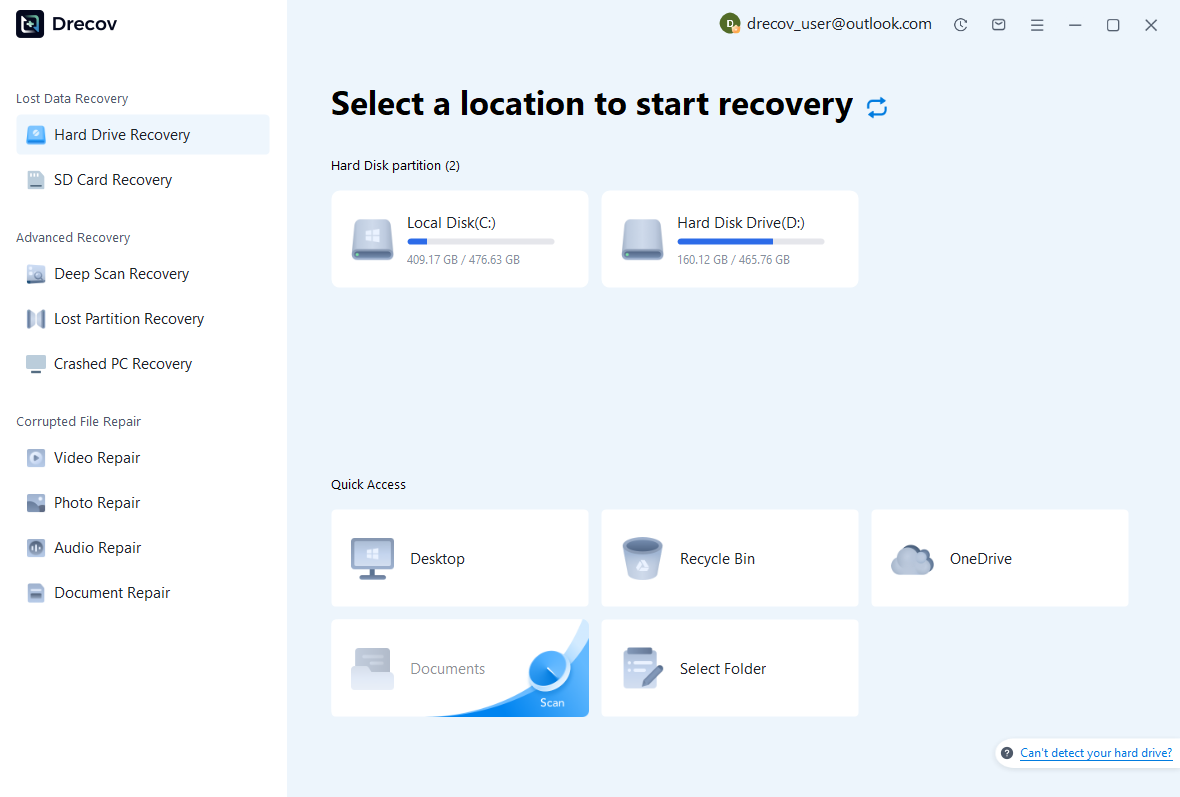
Step 1: Select the Original Workbook or Backup Volume
Identify the storage that held the workbook, backup directory, or external input data. Prepare a different healthy destination and avoid new saves or exports on the source. Record whether the target is the editable model, a prior backup, or values-only input. These files support different recovery goals, so a useful search should follow their original paths and roles rather than one familiar filename alone. Before changing the only candidate, compare the procedure with the official recovery documentation.
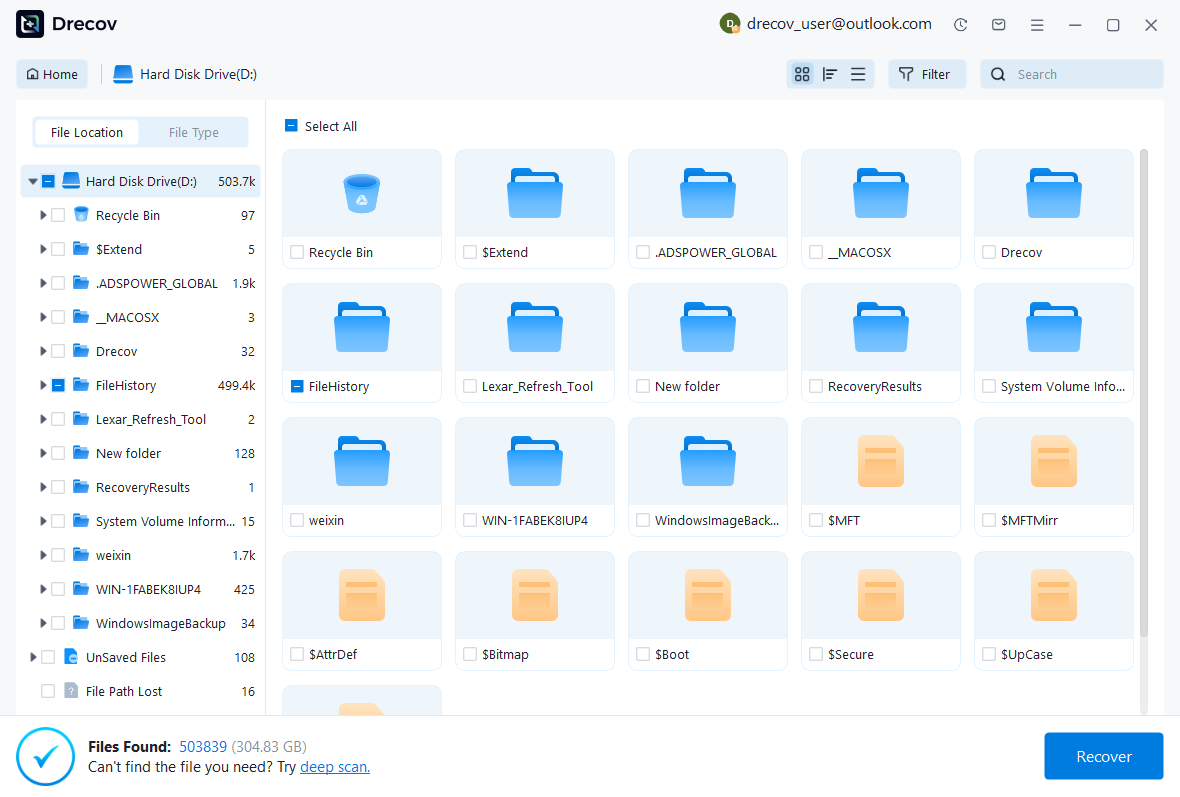
Step 2: Compare Workbooks, Backups, and Input Candidates
Review available names, paths, dates, sizes, and supported previews. Preserve multiple candidates around the incident and retain related input files where possible. A newer spreadsheet may contain the overwrite, while an older backup may preserve the correct model. Keep source notes so you can compare actual sheet structure and formulas without confusing an exported data table with the original calculation workbook.
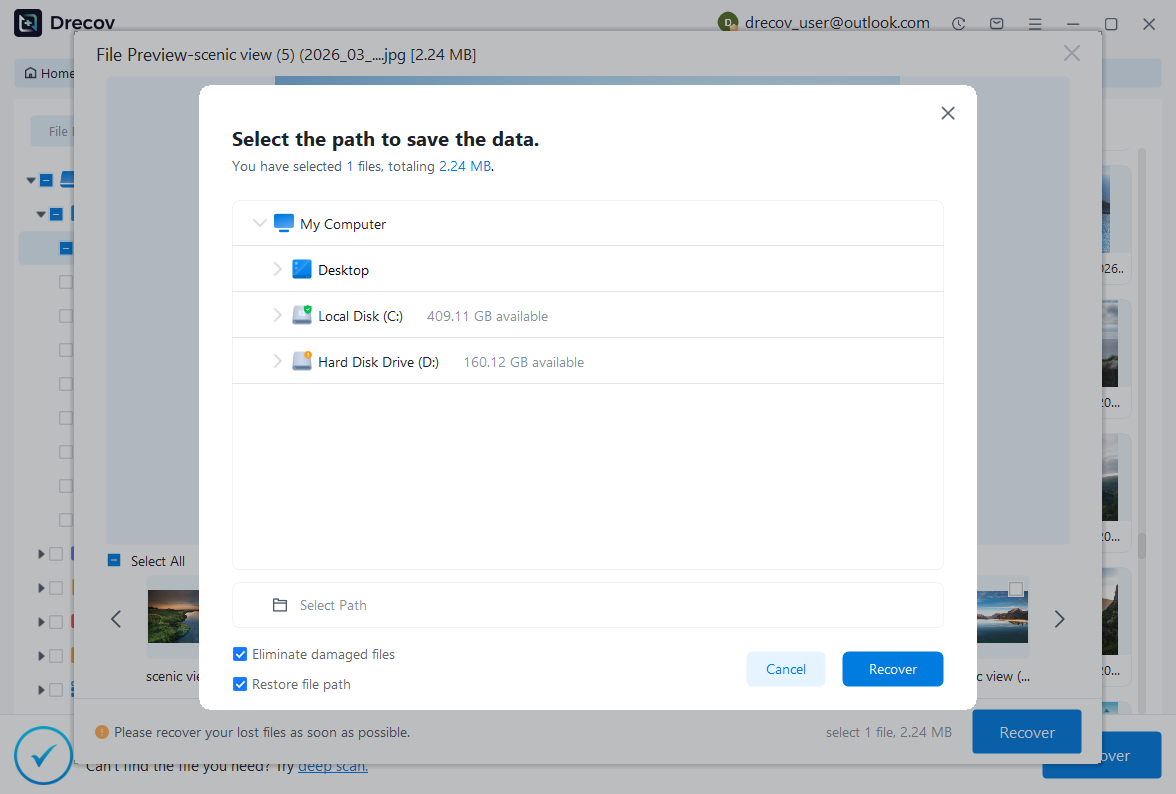
Step 3: Recover Elsewhere and Test in Calc
Save candidates to the separate destination and open copies in Calc. Check sheet identity, formulas, ranges, external links, important totals, and the most recent entries. Run a small controlled calculation test in a disposable copy. Preserve raw recovered files until acceptance, and label any reconstructed formulas or merged records so later users can distinguish recovered data from new model-building work.
Keep a Tested Native Master
After acceptance, save and reopen the verified ODS master. Keep its required inputs, a reference output, and the recovery notes in a clear project structure. Retain raw candidates until the workbook has passed normal review. A readable spreadsheet with documented limitations is more useful than an unqualified recovery claim that hides missing external data or reconstructed formulas.
For future protection, check actual AutoRecovery and backup settings and test them with disposable data. Preserve dated milestones before major formula changes or imports. Keep independent backups outside the active working directory, because an internal document version or nearby BAK can share the same storage risk as the main file. Verify that a retained copy calculates correctly, rather than only confirming that it exists.
- Check sheet identity, key formulas, record counts, and independent control totals.
- Verify imports, external links, named ranges, and hidden supporting data.
- Reopen the accepted ODS and test one representative calculation safely.
- Retain independent milestones and document reconstructed formulas or unresolved sources.





