








Separate the Houdini Scene from Its External Data
A Houdini scene recovery starts by identifying what actually failed. A HIP file may be missing, refuse to load, or open with errors because external geometry, textures, caches, or digital assets are unavailable. These cases require different actions. First, record the original scene path, Houdini version, license category, and the exact error. Then decide whether you need editable networks, the latest simulation state, or a particular rendered result.
If the current scene remains open, save a new native copy to healthy storage before restarting. Preserve useful external paths and notes about the last successful operation. A scene that displays correctly now may depend on cached data or resources outside the HIP file. Keeping the application open until you verify a stored copy protects work that might otherwise exist only in the current session.
Record a Few Network-Specific Acceptance Checks
Write down important node paths, expected frame range, and the last meaningful parameter change. Also note external digital assets and the version of any tools the scene requires. These details let you compare candidates by actual behavior. A scene with a familiar viewport can still contain an older network or load geometry from a cache unrelated to the intended revision.
Preserve the available project structure before moving files. Keep HIP candidates, digital asset definitions, textures, geometry, and cache folders separate but traceable. Record environment variables or project-relative path assumptions that affect resolution. The aim is a coherent test copy, not a collection of isolated files whose original relationships become impossible to reconstruct after you rename everything.
Free Method 1: Compare Numbered Scene Backups
Inspect existing numbered backups associated with the scene. Houdini’s saving and autosaving settings can create backup copies, and the backup location can depend on configuration. Check the actual save preferences and any configured backup directory. A neighboring backup folder is a useful lead, but do not assume every user chose the same behavior or that a file exists simply because an option now appears enabled.
Copy promising candidates before loading them. Compare versions around the last successful operation rather than selecting the newest automatically. A later candidate can preserve an unwanted network edit or already contain the problem. Keep an earlier working state and a newer useful state separately until you understand which nodes, parameter values, and dependencies each one contains.
Distinguish Backup Methods and Autosave Timing
Houdini offers different automatic saving behaviors, including overwriting and numbered alternatives. Inspect the installed configuration rather than assuming autosave always protects the previous scene. A setting that replaces the active file provides a different recovery history from one that keeps numbered backups. Enabling a safer method today does not recreate files from a session before that change.
Also compare the actual save times with your editing timeline. A scene can contain new parameters while a long simulation or external process has not produced matching output yet. Keep those states separate in your notes. Successful scene recovery does not imply that every associated cache corresponds to the recovered network, and a cache filename alone cannot establish that relationship reliably. For the storage-level causes behind this step, use the Hard drive recovery.
Free Method 2: Inspect Surviving Crash-Save Candidates
After an abnormal exit, look for any crash-save notification or file location the application reports. Preserve the actual candidate before further sessions or temporary cleanup alter it. Crash-saving is conditional: the process must have had enough opportunity to write usable data. Do not promise a universal complete recovery file after every crash, power interruption, or forced termination.
Test a copy in an appropriate Houdini environment and save useful results under a new name. Compare the last edited network and critical parameter values with the ordinary saved scene. A crash candidate may contain valuable newer work, but it can also preserve an incomplete experiment. Keep both until you establish a coherent recovery base instead of overwriting the older working scene immediately.
Open Candidates with Resource Demands in Mind
A scene may trigger expensive cooking or simulation when opened or evaluated. Use the supported controls in your environment to limit unnecessary evaluation while inspecting the network. Preserve the original candidate and note any deliberate change to playback or update behavior. Your first task is identifying the scene state, not recomputing every frame before you know whether the relevant nodes and dependencies are correct.
If a crash recurs at the same operation, inspect the affected network in a copy. Compare external assets and software compatibility before deleting large sections. A missing plug-in or incompatible asset definition can resemble scene damage. Keep the diagnostic change distinct from the accepted source so a simplified test network does not accidentally replace the actual production scene.
Free Method 3: Repair Project Paths and Asset Definitions
When the HIP opens but the viewport is empty or nodes show missing-file errors, read the actual paths. Compare project-relative references, environment variables, and the storage locations of external inputs. A moved project can break references without deleting geometry. Restore the intended folder relationship in a copied project where practical, rather than manually substituting unrelated files until the errors disappear.
Digital asset definitions need their own checks. Locate the correct authorized asset library and revision, then use the supported loading workflow. A similarly named asset from another project can expose different parameters or behavior. Preserve the original definition candidates and compare their expected interface with the scene. A node that becomes available is not necessarily the same implementation the original network used.
Recover Geometry Caches without Confusing Them with Networks
A surviving geometry or simulation cache may preserve a useful evaluated result. Inspect its frame range, topology or attributes, and relationship to the intended shot. It can support rendering or downstream work even when some procedural source is missing. However, the cached result does not automatically reconstruct every node, parameter, dependency, or simulation setup that generated it. For the exact application behavior, consult the official recovery documentation.
Likewise, an intact HIP may still need a missing cache that cannot be recomputed without unavailable source data. Record that limitation separately. If recomputation is possible, do it only after the network and inputs pass review, and write new output elsewhere. This preserves the historical cache evidence and prevents a test run from replacing the only surviving usable simulation result.
- Preserve open scene data and inspect existing numbered backup candidates.
- Compare actual crash-save files with the last ordinary saved scene.
- Restore the correct project paths and digital asset definitions in a copied workspace.
- Verify external caches independently before deciding that the full procedural setup returned.
Check Version and License Compatibility before Converting
Record the Houdini version and scene category associated with the source. Different editions and native scene types can impose workflow constraints. Preserve original files and use an appropriate authorized environment for testing. Changing an extension does not convert the scene’s licensing or internal data, and it should not be presented as a method for bypassing application restrictions.
If a newer environment opens the candidate, save a separate test copy and inspect important networks and outputs. A successful load does not guarantee identical cooking behavior across versions or asset revisions. Keep the original candidate available for comparison and record any deliberate migration. This protects the difference between recovering historical work and updating it to a new production environment.
Compare a Known-Good Scene in the Same Environment
Open a small known-good scene separately to establish whether the application can perform ordinary operations. If many unrelated scenes fail similarly, investigate the environment before rewriting the recovered project. If only one candidate fails, compare an earlier version and narrow the issue to its particular network or dependency. This simple distinction prevents unnecessary edits to valuable source data.
Keep exact messages and a short list of reproducible steps. A vague statement that the scene crashes provides less guidance than knowing which node evaluates immediately before the failure. Test changes in a copy, one meaningful group at a time. This makes it possible to identify a useful correction without losing track of whether the resulting network still matches the intended design.
Work through a Procedural Ribbon Scene Example
Suppose your scene generates a ribbon from a curve, adds deformation, and caches an animation. An older backup opens, while a newer crash candidate contains additional shape controls. First, compare the curve source and critical node connections. Then inspect the parameter change that matters to the final shape. A familiar frame can hide a different animation expression or a missing upstream attribute.
Preserve the older working network and newer useful controls before combining anything. Reconstruct verified changes in a new scene revision and compare several frames. Check the beginning, a major deformation, and the end of the intended range. This establishes behavior across time rather than accepting one frame that happens to look similar to the reference output.
Inspect Attributes and Group Membership
Downstream nodes can depend on point, primitive, or other attributes that a recovered geometry candidate lacks. Inspect the attributes and groups used by the actual network. A mesh with the correct silhouette can still fail a later operation because identifiers or selection groups changed. Keep a record of these dependencies when they determine the usefulness of the procedural recovery. A comparable recovery case with useful validation checks is AutoCAD Drawing Lost or Corrupted: BAK, SV$, and DWG Recovery.
If you recreate an attribute or group manually, label it as reconstruction and validate its effect over the relevant frames. A selection that works at one frame may fail when topology changes. Preserve original geometry candidates so you can revisit that decision. The purpose is a dependable network, not merely a green node status reached by removing every requirement that produced an error.
Compare Cached and Recomputed Results Deliberately
Load the existing cache in a separate test branch where appropriate and compare it with a controlled evaluation of the recovered network. Differences can reveal an older cache, changed inputs, or parameter mismatches. Record which result matches the accepted reference and why. Do not assume that the newest cache filename contains the latest valid simulation or that a readable cache proves the source network is complete.
When the cache is the only surviving result, define a practical partial success. You may be able to render or export its geometry while losing convenient procedural edits. Keep that achievement distinct from full source recovery. This makes the next production decision clear: continue from a fixed result, search for another scene milestone, or rebuild the missing procedural control deliberately.
Validate Time, Cameras, and Rendering Dependencies
Inspect frame rate, frame range, and animation channels alongside geometry. A recovered network can contain the right objects while evaluate at the wrong timing assumptions. Compare a few known events with reference output. Then check cameras, lights, materials, and texture paths that affect the intended delivery. The viewport alone does not exercise every part of a renderable production scene.
Render a representative test to a new destination after the scene passes structural checks. Use a limited region or short frame range when that answers the question efficiently. Compare the result with the expected appearance and note missing dependencies separately. A render failure caused by an absent texture is different from a lost procedural network and may require a much narrower recovery action.
Keep Source Recovery Separate from Optimization
Do not silently simplify or improve the network while comparing candidates. First, preserve a recovered baseline that reflects the best available evidence. Then create another revision for performance changes or design improvements. This separation helps explain differences later and gives you a stable route back if an optimization changes the shape, timing, or generated attributes unexpectedly.
For a large scene, prioritize the networks that drive the intended shot or asset. You do not need to recompute every unused branch to establish a useful recovery. However, document the coverage of your checks and any untested dependencies. A focused verified result is more credible than an unqualified claim that every network recovered because the application opened the HIP file once. When the missing project was stored on a portable device, also review the External hard drive recovery.
Use Existing Production Packages and Source History
Inspect deliberate project packages, authorized shared deliveries, and established version history. Recover a coherent scene and dependency milestone into a separate location. Existing history can return genuine source, but it contains only material someone actually saved or submitted. Starting a repository now cannot reconstruct an unsaved network from before the incident.
Keep project ownership and revision context clear when several artists work on the same asset. A colleague’s newer digital asset may belong to another branch. Compare its intended interface and output before substitution. Preserve recovery experiments outside the shared master so one uncertain scene or cache does not propagate into other users’ working projects while you investigate.
Minimize Writes to Deleted or Unstable Storage
If the whole scene directory disappeared, avoid creating new HIP saves, large caches, or renders on its original volume. Deleted data can become unavailable through overwriting or SSD TRIM. Existing healthy project copies often provide a better first route than a disk scan. No scan can guarantee an intact scene or a coherent multi-file simulation after the underlying data changes.
Persistent disconnections or read errors indicate a storage problem rather than a normal missing-path issue. Reduce repeated access and consider specialist assistance when physical failure symptoms appear. A usable backup elsewhere can preserve production progress without repeatedly stressing the failing source. Keep this distinction clear before attempting long evaluations or scans against unstable media.
Verify a Cache Against the Network That Generated It
For the procedural ribbon example, compare the recovered network and cache at several known frames. Inspect a major bend, a point where the shape changes quickly, and the final pose. A cache can preserve useful geometry while belong to another parameter configuration. Keep its origin and date in your notes instead of assuming that a matching base filename proves it was generated by the recovered HIP.
Next, compare attributes used downstream, not only the silhouette. A material or deformation branch can depend on names, groups, or values absent from an alternative geometry export. If you recreate those attributes, save the result as a new processing step. This preserves the distinction between a historical cache that returned directly and a reconstructed result built to make the remaining network work.
Check Relative Paths after Relocation
Copy the accepted scene package to a fresh test location and inspect the paths that depend on the project root. A scene can appear portable while still reading an old absolute texture or asset path. Identify that relationship before deleting historical folders. Repair it in a test copy and compare the same representative frames again, keeping the old source available until the relocated package passes.
A digital asset definition deserves the same treatment. Confirm that the intended definition loads from the accepted package or authorized shared location, rather than an unrelated library already installed on the recovery machine. A node name alone cannot prove implementation identity. Record the asset revision and any deliberate substitution so another user can reproduce the recovered behavior without guessing which local tool happened to resolve it. The vendor also documents the relevant backup or restore workflow in its official recovery documentation.
Keep Simulation Regeneration Separate from Source Restoration
If the source network and inputs survive, a missing cache may be regenerable. Preserve the recovered source first, then write a limited test to new storage. Compare its relevant properties with a surviving reference before committing to a large run. A successful computation shows that the network can produce output, but the output still needs validation against the intended production state.
If regeneration differs, investigate inputs, parameters, timing, and environment rather than immediately overwriting the source to match one frame. A changed dependency can affect the result even when the graph looks familiar. Keep test outputs distinct and document which changes improve agreement. This produces an understandable recovery path instead of a collection of large cache files whose relationship to the accepted scene is unclear.
Define the Smallest Reproducible Asset
The useful recovery package may be a HIP, one digital asset library, a few source images, and selected essential caches. It need not include every temporary output ever generated. Identify what the intended next task actually needs and record the excluded or unresolved dependencies. This keeps the package practical while avoiding an unsupported claim that every branch and historical simulation state recovered.
Reopen the stored scene and test its representative behavior from that package. If another backup later appears, compare it with the unresolved list rather than replacing the verified network blindly. You may recover one missing definition or a newer parameter state while retain useful reconstruction work. A focused comparison protects completed validation and gives the next artist a coherent source milestone.
When a Disk Scan May Help Find Missing Houdini Files
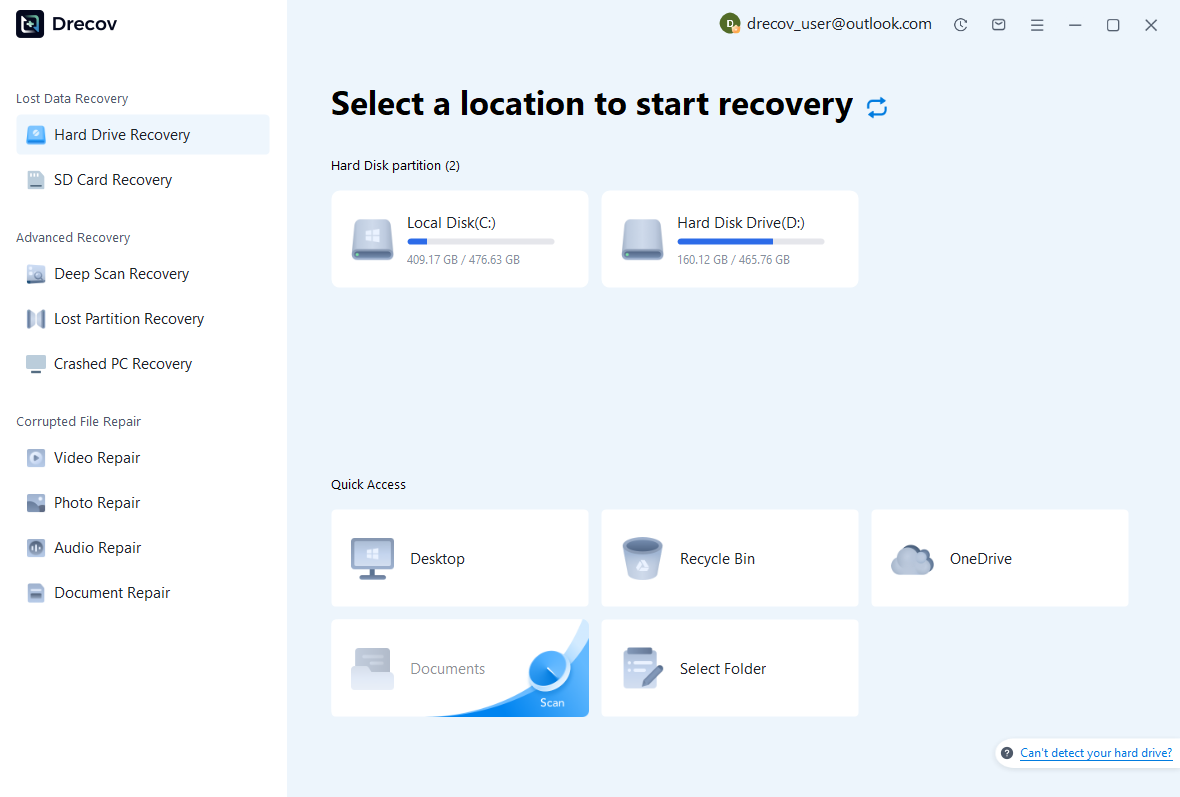
PandaOffice Drecov may help locate missing saved HIP scenes, numbered backups, actual crash-save files, digital asset libraries, and external geometry caches on accessible storage. It cannot recreate unsaved networks or guarantee the original procedural setup from a rendered image. Candidate usefulness depends on integrity and compatible dependencies. Plan to inspect recovered scenes in Houdini and verify the specific production behavior you need.
Step 1: Select the Original Scene or Cache Volume
Identify the storage that held the missing scene, configured backup folder, asset library, or cache. Prepare another healthy destination and avoid writing new simulations or recovery output onto the source. Record the target’s role and original path. An editable scene, an asset definition, and a fixed geometry cache support different recovery goals and may occupy different locations. Before changing the only candidate, compare the procedure with the official recovery documentation.
Step 2: Compare Scene and Dependency Candidates
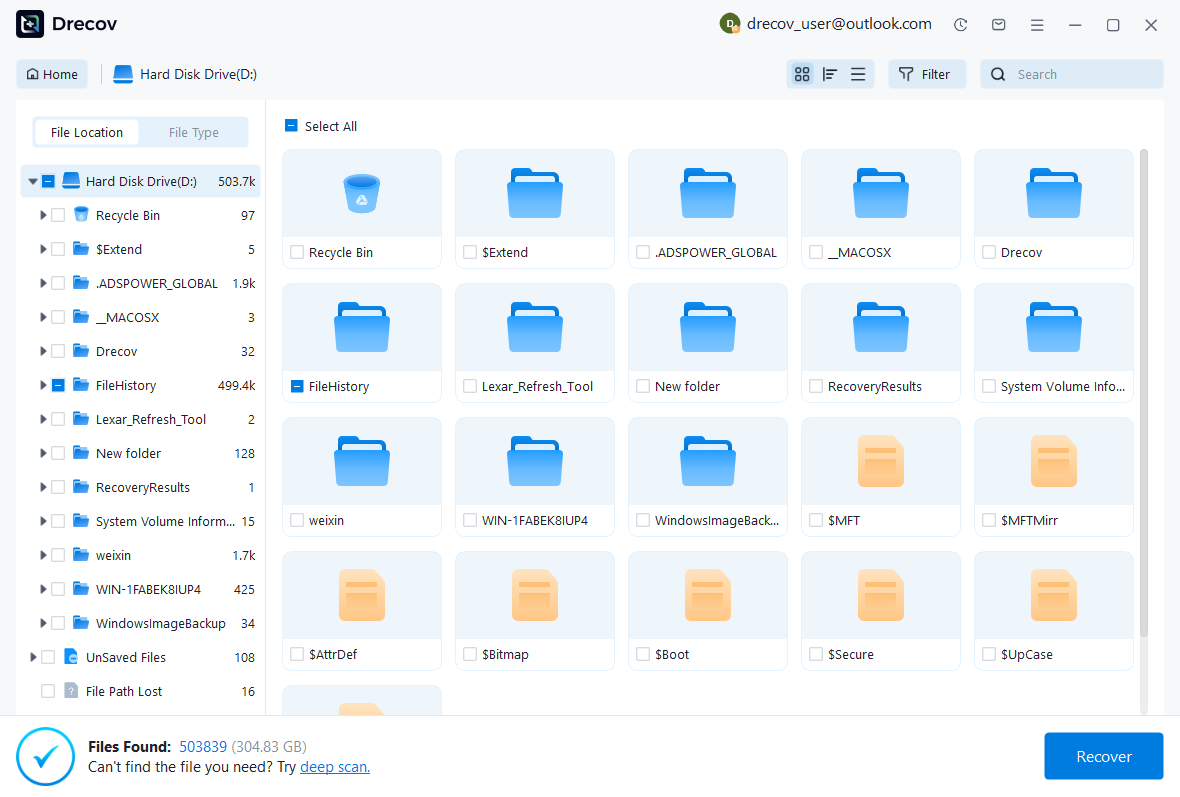
Review available names, paths, dates, sizes, and supported previews. Preserve several plausible scene versions around the last successful operation and keep related libraries or caches with source notes. A familiar filename does not prove that the network and external result belong to the same milestone. Retain enough context to compare parameters, frame ranges, and dependencies after recovery.
Step 3: Recover Elsewhere and Test in Houdini
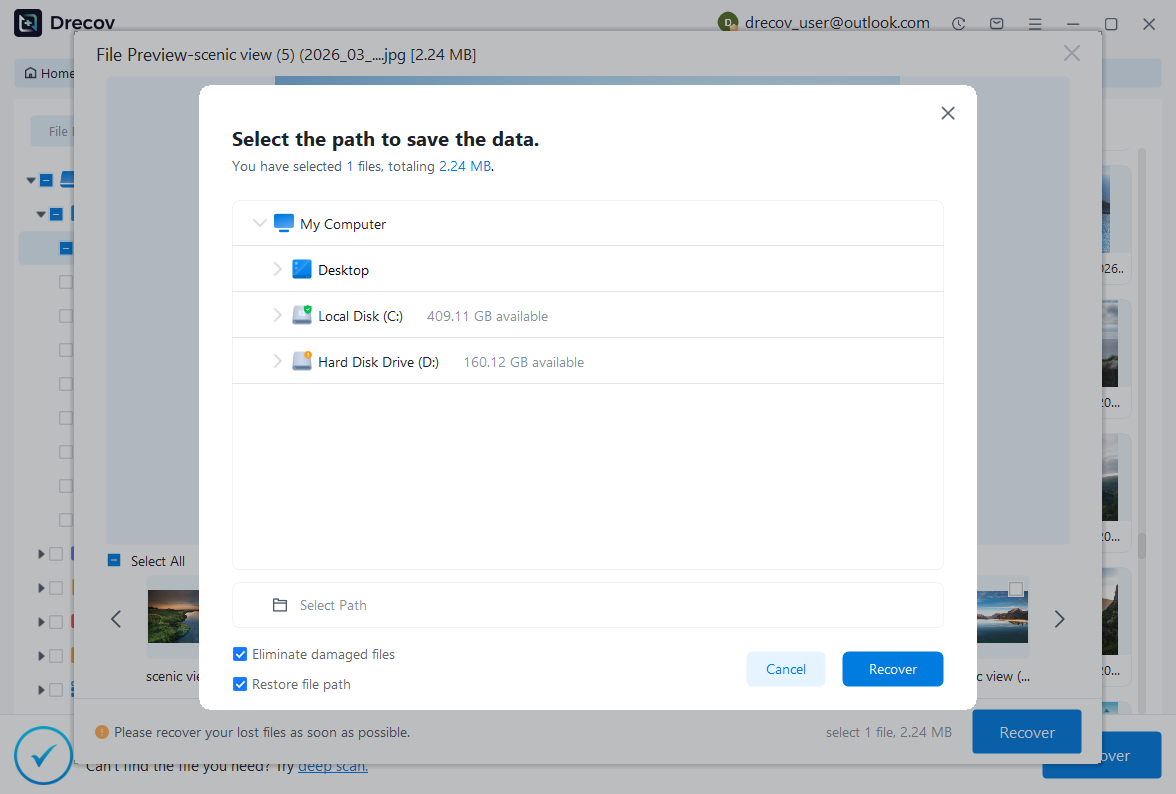
Save candidates to the separate destination and inspect copies in an appropriate Houdini environment. Verify important node connections, parameters, asset definitions, paths, and representative frames. Test a limited output only after the source passes those checks. Preserve raw recovered files until acceptance, and document any reconstructed network sections or regenerated caches separately from historical material that returned directly.
Save a Reproducible Scene Milestone
After validation, save and reopen the accepted scene with its required assets and path notes. Keep representative cache or render evidence according to the production’s actual needs. Preserve original recovery candidates until review is complete. This gives you an understandable source milestone rather than a scene that works only while an old temporary folder or live session remains available.
For future protection, review the actual numbered-backup and autosave settings using disposable scenes. Save deliberate milestones before major network changes or simulation experiments. Back up source and essential dependencies independently, then test a retained copy. A reproducible network with known inputs is a stronger recovery unit than one HIP filename whose external requirements remain undocumented.
- Check important node paths, parameters, attributes, and asset definitions.
- Verify timing and compare representative frames with reliable reference output.
- Reopen the stored scene and test required external dependencies separately.
- Keep independent milestones and document reconstructed networks or regenerated results.





