Deleted recordings on a Windows PC may still exist in the Recycle Bin, a backup or an earlier export. Stop recording new audio to the same location while you check. If the recorder’s list is empty, inspect the saved files before resetting or reinstalling the app. A missing list entry and a deleted audio file are not necessarily the same problem.
This advice concerns local recordings that you saved on Windows or connected storage. A phone voice memo, a television recording and an online voicemail account need their own recovery routes. Start with where the complete audio actually lived, not simply the application you last used to play it.
Identify the recording, not just the app entry
Separate the full audio from an excerpt or transcript
Note the recording date, approximate length and a distinctive spoken passage. A shared excerpt may preserve a useful answer without containing the entire interview. Likewise, a transcript retains words but not tone, pauses or every background sound. Keep these alternatives, but do not treat them as proof that you recovered the complete original.
Check the actual saved location
Open the folder you selected when saving or exporting the audio. Search for part of the filename in File Explorer, then compare the date and expected audio type. If another recording still appears in the app, inspect its available file-location controls to understand the current setup. Storage paths and menu labels vary between recorder versions, so an old online folder example may not match yours.
Look under the Windows account you used for the recording. A different account can have different application data and personal folders. On a managed computer, ask the administrator for authorized access rather than changing ownership or resetting another person’s account. Preserve the original profile while you work out where the audio went.
Find an existing copy before scanning for deleted recordings
Inspect the bin and previous exports
Open Recycle Bin and check filenames, Original Location and Date Deleted. Restore the correct local item, then play it from the original folder. Make an independent copy once you verify the content. The Recycle Bin recovery instructions help with this ordinary Windows route.
Check email attachments, a collaborator’s copy and any export folder you used. A recording can survive under a renamed export even after its app entry disappears. Compare its duration and important speech before accepting it. Avoid automatically deleting shorter versions; one may contain a segment missing from the longer copy.
Open a backup from before the loss
If File History protected the recording folder beforehand, browse its saved versions through File History and restore the needed file to another healthy location. The folder’s Previous Versions tab may also show prior protected versions. Availability depends on earlier backup settings. Starting a new backup today cannot recreate a recording that disappeared yesterday.
How Drecov can retrieve missing local audio
Drecov searches Windows-accessible storage for lost files, including audio recordings. Its read-only recovery mode examines a stable source, with Quick Scan and Deep Scan available when appropriate. Filters, file-location information and supported previews help identify likely results. You save selected files to another healthy device and test the actual recording afterward.
The source must be the place that held the saved audio. Lost Partition Recovery is available if that partition disappeared. Drecov does not recreate speech that never reached storage, repair broken hardware or guarantee audio after complete overwriting. An application reset or reinstall also does not prove what remains; the original file location and subsequent activity determine the recovery route.
⚠ Warning: Install it on a drive different from the one where your data was lost to prevent overwriting.
Recover the saved audio without replacing what remains
Prepare the source and output device
Stop new recordings, downloads and unnecessary writes to the affected location. Install Drecov outside the partition containing the lost audio and prepare another healthy physical device for output. Check existing backups first. Repeated disconnects or serious read errors mean you should stop direct scans and seek imaging or professional recovery advice.
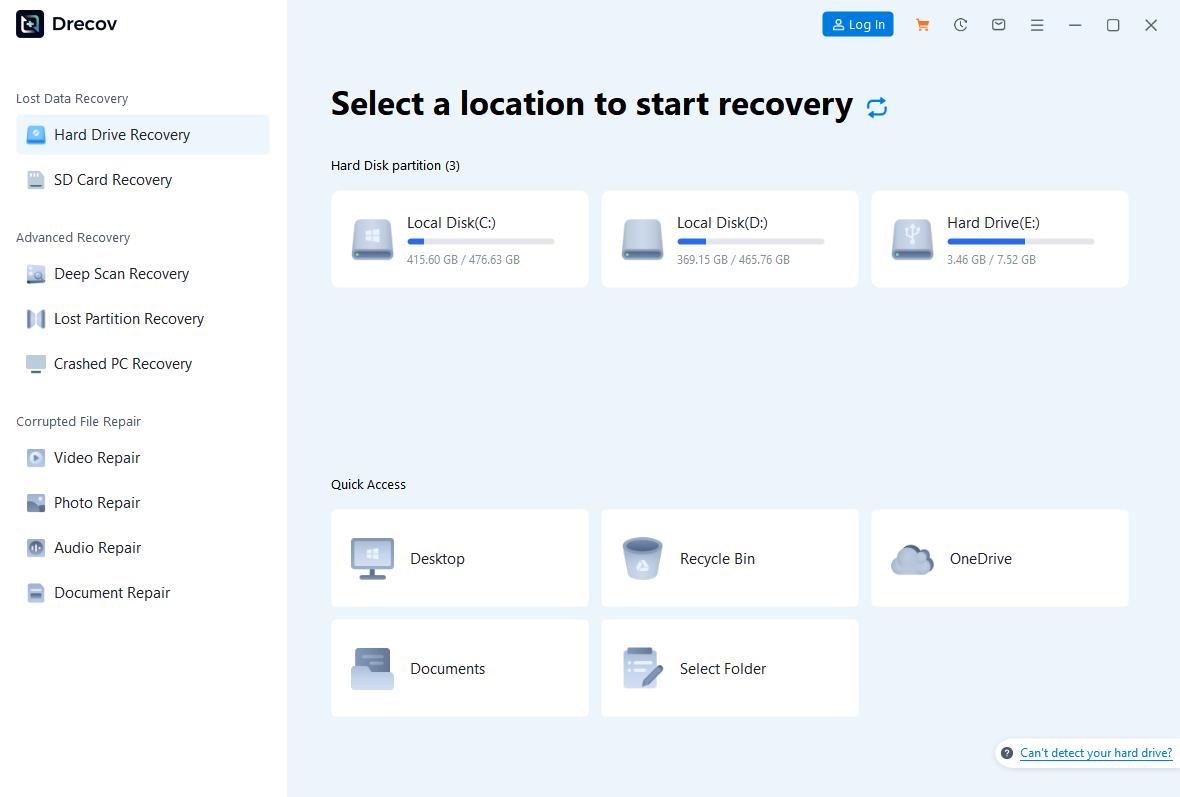
Step 1: Open Drecov and select the original audio location
Choose the volume or folder that contained the saved recording, not merely the recorder application’s shortcut. If the audio lived on a stable USB, identify that device by its current capacity and label. The USB recovery route applies to that original rather than the PC’s empty application list.
Step 2: Run Quick Scan and look for the session
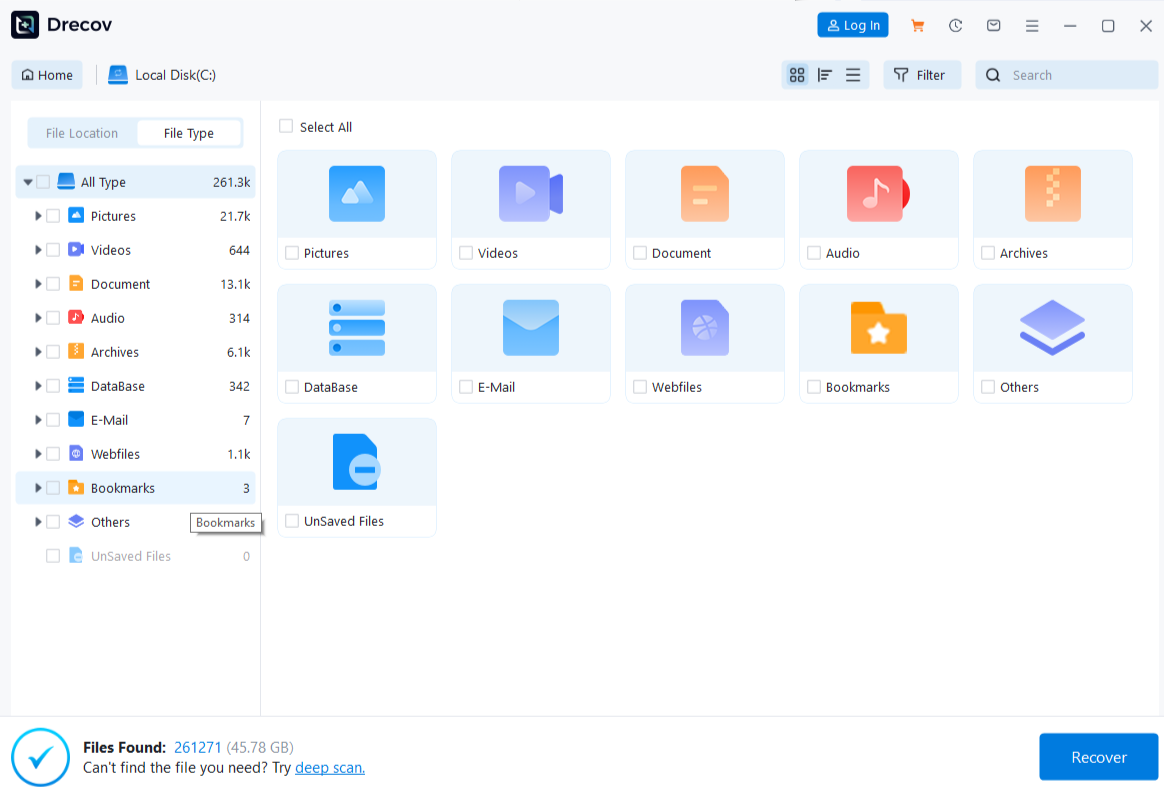
Look for familiar names, recording dates and expected file types. A session may include several short takes alongside one long interview. Select likely candidates from the relevant period and include alternative names you used when exporting. A generic name such as Recording does not identify the required conversation by itself.
Step 3: Use Deep Scan if needed while access stays stable
Continue when Quick Scan does not find the audio and the source remains reliable. Stop if read errors increase or the device repeatedly disappears. Further scanning cannot reconstruct completely overwritten sound. Do not format, initialize or run file-system repairs simply to make an unfamiliar results list look more orderly.
Step 4: Narrow the files and preview supported results
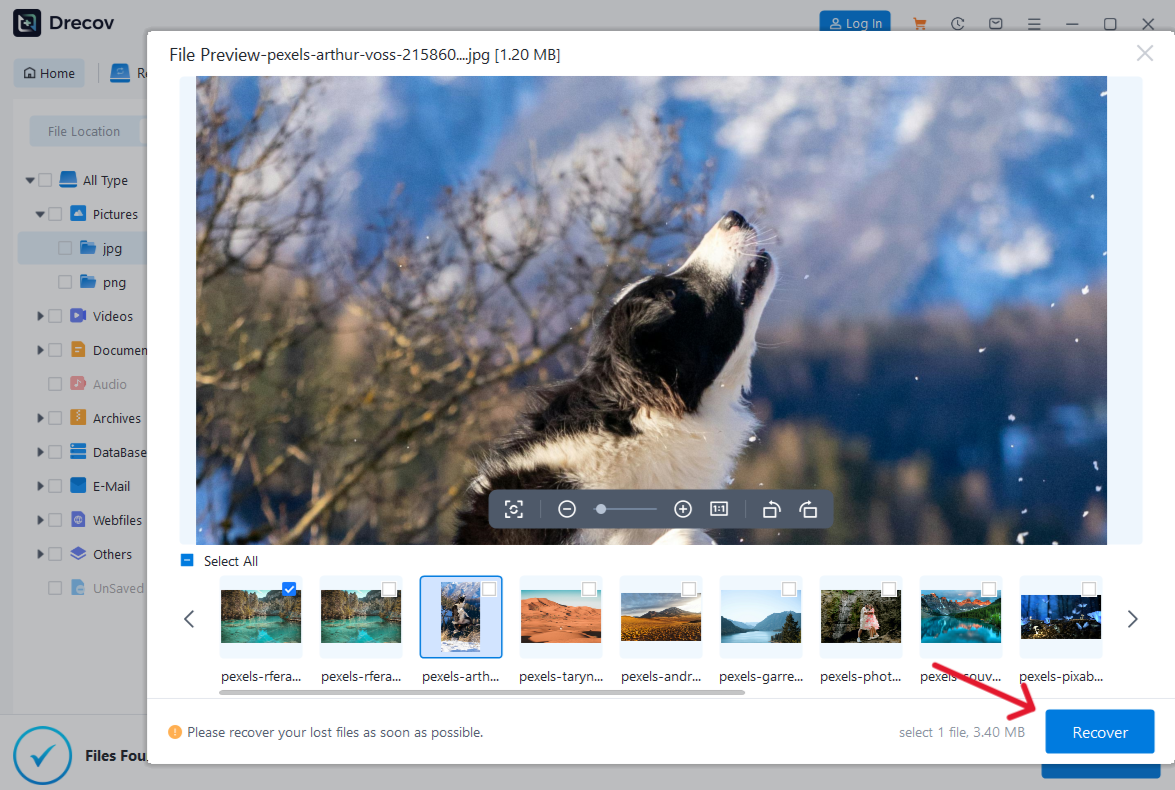
Use available filename, type, path and date information. Preview supported examples for recognizable speech where possible, while remembering that a brief playable passage does not verify the whole recording. Keep several plausible versions for comparison. A sound file with a familiar name can still be a short export rather than the original session.
Step 5: Save to another device and listen before changing the source
Recover the selected files to the healthy output device, never the original source. Look in Drecov Folder or Recovery Folder if the results do not appear where expected. Play the opening, an important middle passage and the ending. Check duration and sound before repair, resetting, formatting or reinstallation. Any missing notes or project files require their own file recovery checks.
⚠ Warning: Install it on a drive different from the one where your data was lost to prevent overwriting.
When Sound Recorder looks empty after an app reset
Do not repeat the reset as a recovery method
An app reset can affect local application state, but the visible list alone does not tell you whether every recording file still exists. Record which application and Windows account you used, then inspect known saved and exported locations. Avoid creating a new test recording in the old location while you need to recover deleted recordings.
Microsoft’s Sound Recorder FAQ warns about recording loss when uninstalling the app. Treat that as a reason to preserve existing data before more application changes. Do not assume every version uses one universal storage path or provides a built-in undo for a reset.
If the audio files remain, protect them before repairing the app
Copy readable originals to another healthy device and open several examples there. Listen to a recognizable passage and check the duration. Only after this independent copy passes inspection should you consider application troubleshooting. Rebuilding the app’s list and restoring deleted file content are separate tasks; a working app can still point to the wrong collection.
If the files are absent, treat it as a local loss event
Check independent backups and the recording’s earlier exports before scanning the original volume. An empty list following a reset does not justify overwriting the profile or reinstalling Windows. When you cannot establish the saved location, collect the app name, account and recording date for support. That information is more useful than trying several unrelated storage paths blindly.
Verify speech and completeness before calling the recovery finished
Listen at the places that matter
Keep an untouched copy of the recovery output and play a working copy. Check the first spoken words, the specific answer or event you need, and the final seconds. A player showing the expected length does not prove every interval contains sound. Inspect any separate channels when you know the session used different microphones.
Preserve versions until you understand their differences
Name verified working copies clearly, while retaining the original recovered filenames in your notes. Do not overwrite a complete shorter recording with a longer result that contains gaps. A transcript can help identify a conversation, but it does not validate the audio. Once you have a useful full copy, make a second independent backup before cleaning up alternatives.
FAQs
Can I recover deleted recordings after emptying the bin?
Sometimes, if a backup or recoverable local content remains. Identify the original storage and stop new writes. Examine a stable source only when independent copies cannot supply the recording.
Will reinstalling the recorder restore its old list?
Do not rely on that. Preserve saved files and application data first. An app reinstall is not a substitute for finding the original audio or restoring a backup.
What if I never stopped and saved the recording?
Check the recorder’s own available recovery behavior and any actual saved files. A file scanner cannot recover sound that the application never wrote to storage.
Can Drecov reconstruct missing speech?
No. It searches for lost files that may contain the audio. Missing or overwritten speech inside a surviving file requires a different assessment and may not be recoverable.
Is a playable excerpt enough to keep?
Keep it, but label it accurately. Check for the full recording in other results or backups before treating the excerpt as a complete replacement.
Conclusion
For deleted recordings on Windows, find the original audio location before changing the recorder application. Check the bin, exports and earlier backups, then use Drecov on a stable local source when file recovery is appropriate. Save elsewhere and listen to the required speech and ending. If a reset left the app empty, preserve readable audio first; restoring its list is not the same as recovering the recording itself.
⚠ Warning: Install it on a drive different from the one where your data was lost to prevent overwriting.