Zotero’s library records and its attached PDFs are different recovery targets. A library can show titles and authors while its files remain unavailable, and a folder full of PDFs cannot by itself reconstruct every collection, note, and citation relationship. Start by identifying whether you lost metadata, attachments, or the connection between them. Then preserve the current data directory before testing a backup or changing synchronization.
Quick answer: locate the original data and attachment source
Check the active data directory and compare the online library or an existing original device where appropriate. For lost library records, an existing automatic database backup can provide a historical candidate. For missing PDFs, inspect the device that actually held the file and distinguish stored attachments from linked files. A legitimate publisher download can replace an available PDF, but it does not automatically restore annotations or the attachment’s original relationship to the library.
Zotero’s native local recovery routes do not require a separate repair utility. However, existing file synchronization and online storage depend on their configured coverage. A successful metadata sync does not prove that every PDF uploaded. Also, restoring an older database can conflict with a newer synchronized state. Preserve the current directory and consult the official recovery guidance before reconnecting a restored candidate to a live synchronized library.
Identify what is actually missing
Library records versus attachment files
Inspect whether the item, its attachment entry, and the actual PDF each exist. Those are separate questions. A title may remain in a collection while its stored file is missing. Conversely, the PDF may exist on disk even if the database no longer lists its parent item. Record a few distinctive titles, attachment names, and note contents before comparing candidates. This provides a repeatable test for the required research state.
Also distinguish deleting a collection from losing its items. A collection organizes library records rather than necessarily holding independent copies of every item. Search the broader library before concluding that the research disappeared. Keep the current state intact while investigating. Rebuilding an entire database to restore one organizational view can unnecessarily discard newer notes or references that still survive elsewhere in the library.
Stored files and linked files
Stored attachments and linked attachments use different location and synchronization behavior. Inspect the actual attachment type and expected path. A linked PDF may live outside Zotero’s managed storage, so copying the data directory alone can omit it. Conversely, a managed attachment can belong under a storage subfolder that should retain its relationship to the database. Preserve those structures rather than flattening every PDF into one directory.
Record whether the library is personal or belongs to a group, and identify the account you actually used. A different account can show an empty or incomplete library without proving deletion. Also inspect the device where the PDF originally opened. That device may retain the only readable attachment even when another computer shows its metadata correctly. A useful recovery map follows actual file availability rather than the presence of a sync icon.
Free route 1: reconnect the correct data directory
- Use Zotero’s settings to identify the active data directory.
- Close Zotero and preserve complete readable copies of current and candidate directories.
- Select a verified existing directory through the supported configuration workflow.
- Open Zotero and compare recognizable items, notes, collections, and attachment access.
A migration or custom path change can leave Zotero looking at a new empty database while the old data remains elsewhere. Selecting a directory does not necessarily move the data into it. Confirm the actual folder containing the relevant database and storage structure. Do not point the application at only a nested storage folder and assume it can rebuild library records from the PDFs. Preserve the full candidate before testing it.
Compare content rather than database size alone
A larger database can suggest more content, but it may belong to another library or an older editing state. Check recent references, a known note, and the expected collections. Also open several attachments. This distinguishes a useful complete candidate from one that restores familiar titles while lacking research files. Keep a record of the path and content milestone for each tested directory.
Avoid repeatedly launching uncertain candidates in different Zotero versions. A database upgrade can change compatibility, so preserve the original set first. If a candidate requires version-specific handling, follow the relevant official guidance. The goal is to recover a usable research state without sacrificing the only source that another supported environment might still read.
Free route 2: inspect an existing automatic database backup
- Preserve the current complete data directory and all available database backups.
- Review the backup dates and identify a candidate from before the unwanted change.
- With Zotero closed, follow the official backup-restoration procedure on a working copy.
- Inspect the restored records before allowing synchronization to reconcile them with a live account.
An automatic database backup can preserve library data from an earlier point. It does not automatically contain every attachment file. Also, a backup created after the unwanted change may preserve the same loss. Compare recognizable items and notes rather than trusting the BAK extension alone. Keep the current database and all useful backups unchanged while you assess the candidate.
The official restore procedure uses the active filename zotero.sqlite rather than importing a database through File, Import. Preserve the complete directory first and keep Zotero closed while preparing the candidate. Retain the current database under a distinct preserved name, then place a copy of the selected backup at the documented active filename in the controlled recovery state. If synchronization was enabled, pause automatic sync before opening that historical state and follow Zotero’s reconciliation guidance before reconnecting it.
Treat synchronization as a separate recovery decision
A restored local database can disagree with a newer online state. Resuming sync without understanding that relationship can replace or remove data you intended to recover. Follow Zotero’s official guidance for the actual situation, especially when restoring many items or collections. Do not use a whole-library replacement option as a casual shortcut. First identify the desired authoritative state and preserve every useful source independently.
For a small recovery, a focused restoration or reconstruction may be more practical than replacing an entire shared research state. Compare the required items, their notes, and their attachment relationships. Also consider changes other users legitimately made after the backup. A technically readable old database is not automatically the right version to impose on an active collaboration library.
Free route 3: recover an attachment from its original device
- Identify a legitimate device where the PDF previously opened successfully.
- Inspect the actual attachment and preserve a readable independent copy.
- Check the device’s file-sync status and relevant error information.
- Restore access through the supported file workflow, then verify the attachment on the intended device.
This route is particularly useful when library metadata synchronized but the PDF never uploaded. The computer where the file originated provides stronger evidence than a second computer that only knows the attachment name. Check actual file availability and any sync error. Do not repeatedly reset the receiving device while ignoring the device that holds the only source copy.
Verify the complete PDF
Open representative pages, compare page count, and inspect figures and text. A readable first page does not establish a complete article. Also confirm that the file matches the cited work and intended version. Preprints, accepted manuscripts, and published versions can share similar titles while differing in pagination or content. Record which source you restored so the research workflow remains understandable.
Preserve the original readable file before troubleshooting synchronization. Afterwards, confirm that the intended device can open the actual attachment rather than only show its title. If the provider reports a quota or configuration problem, address that through its normal workflow. Do not claim that re-downloading metadata alone restores a PDF that never reached the file-storage service.
Free route 4: repair a linked-file path
- Inspect the attachment’s expected path and identify whether it is a linked file.
- Locate the verified original in your existing research folders.
- Use Zotero’s supported locate or linked-file path configuration for the relevant workflow.
- Open the file and check other affected linked attachments before saving the accepted configuration.
A folder move or changed drive letter can break linked-file references without deleting the documents. Reconnecting the path can restore access with no recovery purchase. However, a similarly named PDF is not necessarily the same attachment. Compare title, authors, pages, and identifying details. Also preserve the surrounding folder structure where it supports a base-directory arrangement across computers.
Check annotation context
Annotations and notes can live in different forms depending on the Zotero workflow and file. A replacement PDF may open while missing the expected annotation context. Compare the relevant highlights, notes, and cited passages explicitly. Do not overwrite an annotated original with a clean publisher download merely because both use the same title. Keep both candidates and document which research information each one preserves.
If only the path changed, avoid reimporting every PDF as a new unrelated item. That can create duplicates and weaken citation relationships. First repair existing attachment references where possible. If reconstruction is necessary, preserve item identity and document the change. The useful result is a coherent research library, not merely a folder full of readable documents.
Free route 5: obtain an available legitimate source copy
- Identify the exact missing publication and intended version.
- Use an authorized publisher, institutional, author, or open-access source already available to you.
- Save the verified PDF separately and inspect its content.
- Reattach or associate it deliberately while preserving any surviving annotated candidate.
Reacquiring an available article can solve a missing-file problem, but it is not recovery of the original annotation history. Also, access terms and publication versions differ. Use a legitimate available source rather than an arbitrary download with the same title. Compare bibliographic identity, pagination, and important figures. Record any version difference that affects citations or the interpretation of your research notes.
If the missing attachment is a personal dataset, unpublished draft, or locally annotated document, public re-download may offer no substitute. Search your own authorized project archive and existing device copies instead. State the limitation clearly. A clean article PDF can preserve reading access while leaving years of annotations or unique source material unresolved.
Example: restore a migrated literature review
Suppose a researcher moves to a new computer and sees all article titles but several PDFs fail to open. The original laptop still opens those PDFs, while some linked files lived in a separate research directory. First preserve the laptop’s data and actual files. Then distinguish managed attachments from linked ones. Repair file synchronization for the managed set and reconnect verified paths for the linked set.
Next, inspect annotations and important notes on representative papers. Do not restore an older database merely because attachments are unavailable on the new device. That could discard recent references without fixing the file-source problem. Finally, test the accepted library on the intended computer and preserve an independent backup that includes both database data and the actual research files covered by the workflow.
Validate research context, not only file availability
Check known items, collections, tags, notes, attachment relationships, and important annotations. Open several PDFs across the affected date range and inspect complete content. Then close and reopen Zotero. For citation work, confirm that the accepted library still supports the intended document workflow. A readable replacement PDF and a familiar title are useful evidence, but they do not independently establish a complete restored research project.
Keep current and historical database candidates, original attachments, and accepted material until review finishes. Document missing files, reconstructed notes, and replacement publication versions. Afterwards, protect the complete data directory and any linked-file locations independently. Metadata sync, file sync, and local backups cover different losses. Understanding their boundaries provides several practical recovery routes instead of one assumption that all visible library items have complete online files.
Compare library candidates with research milestones
Identify a meaningful sample
Choose a recent reference, an older annotated paper, a known collection, and a distinctive personal note. Inspect the same sample in each database candidate. This is more informative than selecting only by database size. A large library can belong to another project, while a smaller backup may preserve the specific records you need. Record actual content and attachment availability together.
Also inspect the final research period before the incident. An older backup can restore years of references while omitting a recent literature review. Preserve it as a useful historical source and look for complementary current records. Do not replace the whole current library until you understand the exact gap. A focused recovery can preserve newer legitimate work that remains intact.
Keep collections and records distinct
A collection is an organizational relationship, while an item can appear elsewhere in the library. Search broadly for the record before reconstructing it from scratch. Also compare notes and attachment children. A missing collection view does not prove that all its research content disappeared. Conversely, a visible item does not establish that its supporting PDF and annotations remain available.
When rebuilding organization, preserve item identity where the supported workflow permits. Reimporting every PDF as a new record can create duplicates and weaken the connection to existing citations. Keep an untouched candidate and record the reconstruction decisions. This helps the researcher continue work without later discovering several nearly identical references with different notes and incomplete attachments.
Validate publication identity
Similar titles and different versions
Compare authors, publication year, document title, page count, and the version required by the research. A preprint and published article can have different pagination or revised figures. A replacement PDF with the same broad title may therefore change citation details. Record the actual source version and inspect the passages the project relies on rather than accepting the first readable download.
Preserve any older annotated candidate even when a clean replacement becomes available. Its highlights and notes may contain unique research work. The clean PDF can restore reading access while the original annotation context still needs recovery. Keep both associated with the relevant item until review finishes. This prevents a successful re-download from silently replacing the only surviving evidence of earlier analysis.
Annotations and personal notes
Inspect representative highlights, comments, and extracted notes according to the workflow used by the project. Annotation storage can differ from a PDF’s visible embedded marks. Do not assume that copying one file restores every Zotero-level relationship. Compare the actual research interaction: open a note, follow its reference, and inspect the intended passage. A familiar highlight color alone is not enough.
If you reconstruct a note from an export or manuscript, identify it as reconstructed material. Check quotation accuracy and source version. Also preserve citation context so a later reviewer can locate the exact passage. Recovery of research files does not certify the scholarly interpretation, and a partial library should not appear more complete simply because its PDFs open without an error.
Linked files across computers
A linked-file arrangement can rely on different base paths on different machines. Record the intended directory relationship before changing settings. Then test a few representative attachments rather than applying a broad path replacement blindly. A common folder name can exist in several locations with different contents. Compare actual documents and preserve the original path information for later troubleshooting.
After reconnection, test from the computer that needs the recovered library. A file that opens on the original device may remain unavailable elsewhere. Also check whether the workflow expects local linked files or managed synchronized attachments. Those are different designs. The accepted recovery should follow the intended design rather than creating an accidental dependency on a temporary shared folder.
Restore historical metadata without sacrificing current work
Choose a controlled comparison state
When an older database contains missing records, inspect it as a preserved candidate before reconciling with current data. Record which items, notes, and collections it supplies. Also preserve the current library’s legitimate later changes. A whole-library rollback can recover old records while discarding new research, so the scope of restoration should match the scope of the actual loss.
Follow the official synchronization recovery procedure for the situation. Do not treat a destructive online replacement as a universal next step. Shared or group libraries can involve other people’s current work. Establish the intended authoritative state and retain independent evidence before applying a broad reconciliation. A database that opens successfully is a candidate, not automatic authorization to impose its contents everywhere.
Keep attachments with their metadata source
If the recovered database refers to storage folders that no longer exist, inventory those missing attachments separately. A folder of PDFs from another backup may help, but compare identity before association. Preserve relevant directory relationships where they support the native workflow. Do not rename internal attachment directories at random in the only candidate to make filenames look more readable.
Use a concise recovery note identifying the database source, attachment source, and any reconstructed associations. This makes the result understandable without exposing every intermediate experiment. It also helps another researcher distinguish a fully restored annotated item from one whose metadata returned but whose file remains a clean replacement or a partial salvage.
Verify citation workflow after recovery
Test a representative manuscript
If the library supports an ongoing writing project, inspect a representative citation workflow through the normal supported tools. Confirm that the relevant records remain identifiable and that bibliographic details match the intended sources. Do not rewrite every citation as a recovery shortcut. First establish what survives and which records need careful reconciliation. The working manuscript may preserve useful context that the library candidate lacks.
Also compare duplicate records before merging them. Similar titles can represent different editions or publication versions. Keep the accepted research context intact and document changes that affect citation output. A library recovery should support future writing rather than merely increase the visible item count. This is why content, attachment, and citation checks all matter to the final result.
Create a complete tested backup
After acceptance, preserve the complete data directory and any external linked-file locations covered by the workflow. Test a representative restore into a separate recovery location. Open a known annotated item, inspect a personal note, and verify an attachment. This checks practical completeness rather than only the presence of a database file with the right extension.
Keep current and historical sources until the research owner approves the result. Then document one authoritative library and its file locations. Metadata synchronization, attachment synchronization, and independent backups protect different things. A tested plan should cover all material the project cannot easily recreate, including unique notes and locally stored research documents that no public download can replace.
When PandaOffice Drecov may help
A storage scan may help when a local PDF, database backup, or other research file is genuinely absent from supported media. PandaOffice Drecov does not repair Zotero’s synchronization state or reconstruct a library solely from a storage folder. Check current support and inspect actual candidates. A recovered SQLite filename remains a candidate requiring appropriate native handling, while a recovered PDF still needs content and annotation checks.
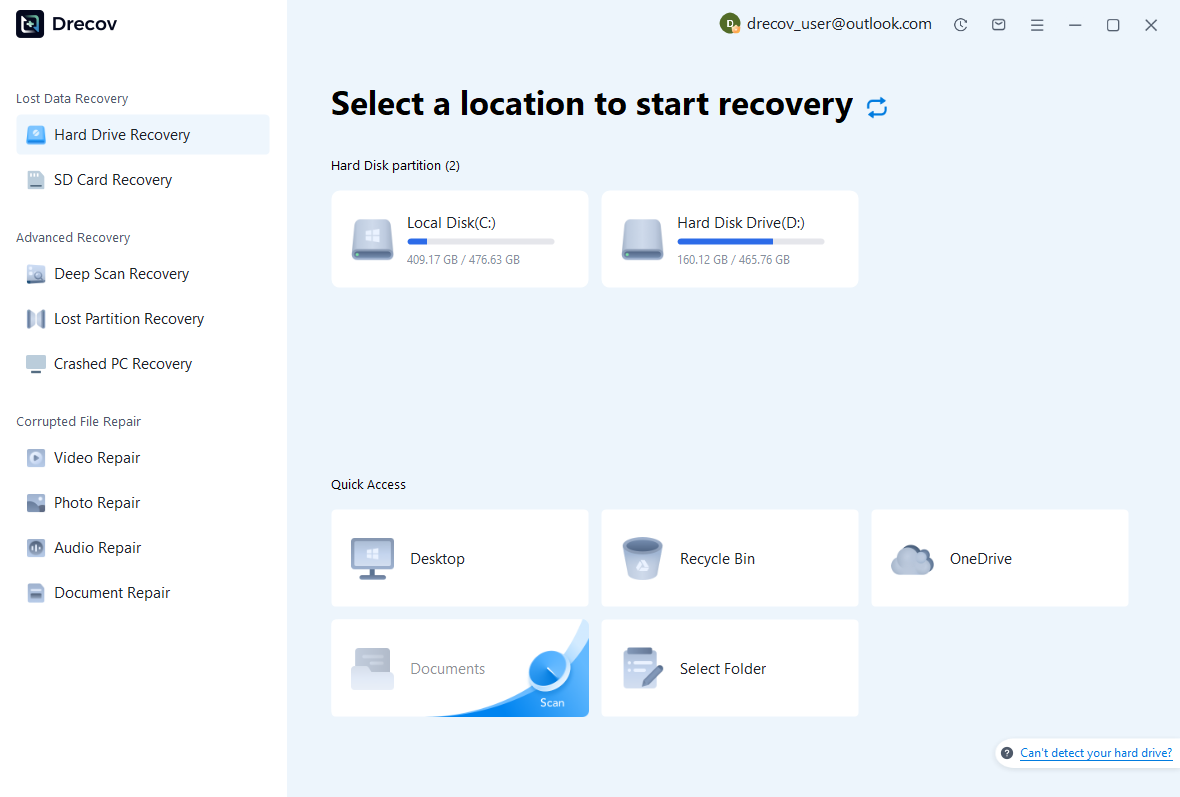
Step 1: identify the real research storage
Select the supported disk that held the missing database or attachment. Linked files may live outside the active data directory. Avoid importing a new library, downloading large article collections, or installing recovery software on affected storage. If the device becomes unstable, stop repeated scans and assess its condition. A scan of the wrong directory or device cannot retrieve files that never lived there.
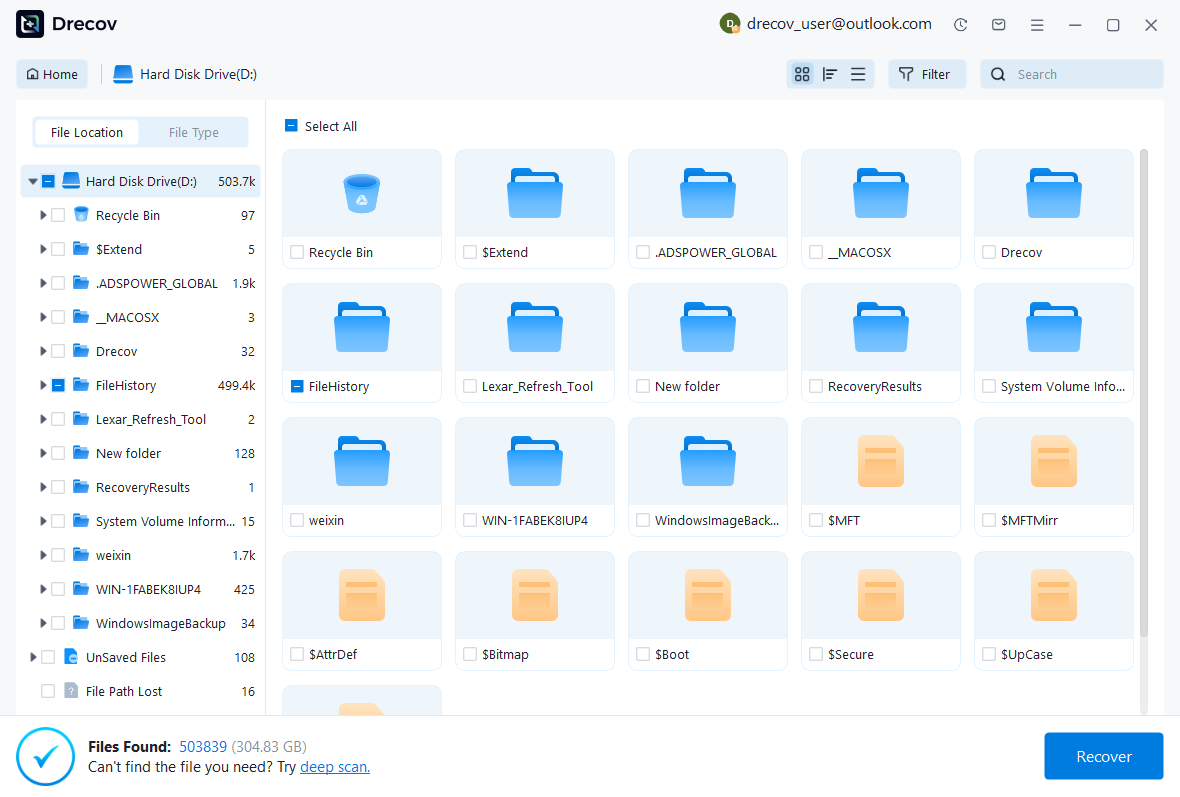
Step 2: preserve plausible research candidates
Use available path, date, name, and format filters. Preserve several database or attachment versions when their editing state remains uncertain. Also retain relevant folder context. A large file or recognizable title does not prove the correct library or complete article. Keep candidate origins recorded so you can reconcile records, attachments, and annotation sources through the appropriate Zotero workflow.
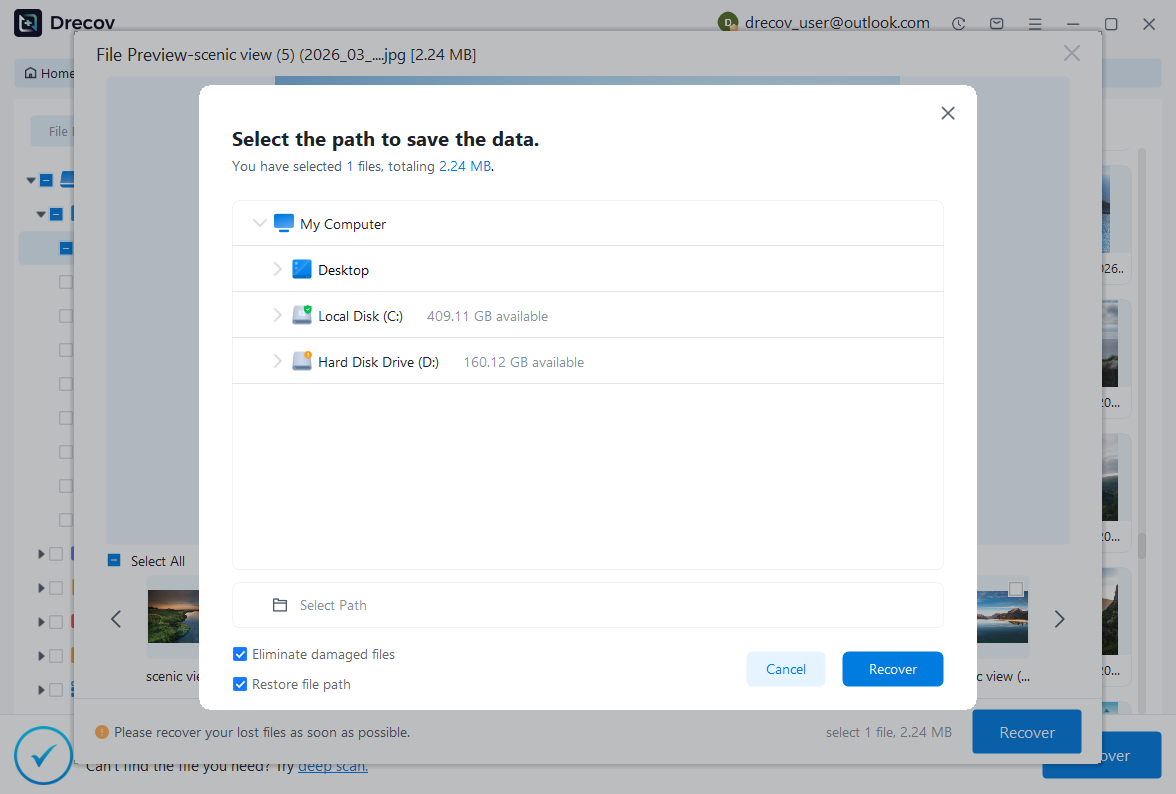
Step 3: recover elsewhere and inspect natively
Save useful candidates to a different healthy physical disk. Review licensing and preview limitations before purchasing. Then test copies through the appropriate application workflow without replacing the only current database. Open recovered PDFs and compare research context. The storage utility supplies potential files; Zotero-level and document-level review determine whether they restore the intended library rather than only its filenames.
Related recovery resources
Explore the relevant recovery options: Hard drive recovery, External hard drive recovery.
For another recovery case and its practical checks, read the related recovery guide.
Check the vendor guidance for the installed version: official recovery documentation 1, official recovery documentation 2, official recovery documentation 3, official recovery documentation 4.