You can sometimes recover deleted videos from the Recycle Bin, an existing backup, or the storage that held the original recording. Stop saving new files there while you check. If the video disappeared only from Microsoft Photos, first inspect its actual folder: a missing app entry does not always mean deletion. Recovery software becomes relevant when the local original really is gone and no usable copy remains.
A video project, its camera recording and an exported movie are different files. Losing one does not prove you lost all three. Establish which version you need before scanning, especially if the recording matters for work, an interview or a family event you cannot repeat.
Find out which video disappeared and where it lived
Start with the original storage, not the recent-items list
Think back to the last successful playback. Was the file on the PC, a USB, a camera, or a cloud account? Open the likely folder in File Explorer and search for part of the name. Include the date of the event when names are generic. A recent-items shortcut can remain after a file moves, so its presence does not prove the recording still exists.
Check the original capture device or the person who supplied the footage before attempting recovery. An untouched camera copy can be better than an older compressed export. For a shared project, ask collaborators whether they kept the source rather than sending them a request to recreate the finished movie.
Distinguish deletion from a playback failure
A file that still exists but fails to play needs a different investigation. Note its size and try a known-good copy or another suitable player without modifying the original. Renaming an extension does not restore missing frames. If several files become unreadable while the device disconnects, stop accessing it and seek imaging or specialist advice.
When the folder is genuinely empty, avoid recording new footage onto that source. Flash storage and SSD behavior can limit what survives deletion, and later writes can replace recoverable content. The video recovery overview covers the broader distinction between finding lost media and repairing an existing recording.
Where Drecov fits when the local recording is gone
Drecov searches for lost files on Windows-accessible storage. Its read-only recovery mode lets you examine a stable source, using Quick Scan and, when appropriate, Deep Scan. Search and filtering help locate likely video files, while supported previews can show whether a result resembles the footage you need. Recover selected files to another healthy device for proper playback testing.
This workflow suits a deleted local recording, not a video that existed only in a cloud account. Lost Partition Recovery is also available when the original partition disappeared. Neither capability repairs a physically failing device or recreates frames that new data fully overwrote. A preview helps recognition; it does not certify the complete interview or final scene.
⚠ Warning: Install it on a drive different from the one where your data was lost to prevent overwriting.
How do I recover deleted videos without scanning?
Restore an item that is still in the Recycle Bin
Open the Windows Recycle Bin under the account that deleted the local file. Look for its name and check Original Location and Date Deleted. Select the correct item and choose Restore, then open it from its original folder. Once it plays correctly, make an independent copy on another healthy device.
An empty bin does not prove the recording never existed. Deletion from some removable devices bypasses it, and another Windows account can show a different set of items. For bin-specific questions, use the Recycle Bin recovery guidance. Do not restore unrelated items just because their dates look similar.
Open a backup before changing the source
Connect the drive that held your existing backup. If File History protected the folder before deletion, open Control Panel, File History, then Restore personal files. Browse to a version from before the loss and inspect the recording. Use Restore to when available to select a separate healthy destination rather than replacing current files.
Another possibility is the folder’s Properties and Previous Versions tab. Entries depend on prior protection; enabling backup now cannot create yesterday’s copy. Check any export sent to a colleague as well, but compare duration and content. A short review clip may omit the very scene you need.
Use the cloud service for a cloud-only recording
Sign in to the correct account on the service’s website and inspect its deleted-items area and available versions. Ask the owner for help when the video belonged to a shared collection. Local recovery software cannot scan a provider’s remote storage. If you once downloaded the full recording, that former local location may offer a separate recovery route.
Recover a deleted local video with Drecov
Prepare without writing over the lost recording
Check backups and stop writes to the original location before installing anything. Put Drecov on a different healthy device or partition, not the partition that held the lost video. Use another healthy physical device for output. An unstable source needs professional advice about imaging or recovery before repeated direct scans.
Step 1: Open Drecov and select the original location
Choose the volume or device that stored the full recording. Match its identity and capacity rather than assuming its current drive letter is the same as before. When a partition disappeared, use the applicable Lost Partition Recovery mode. A shortcut to an editing project is not the source video itself.
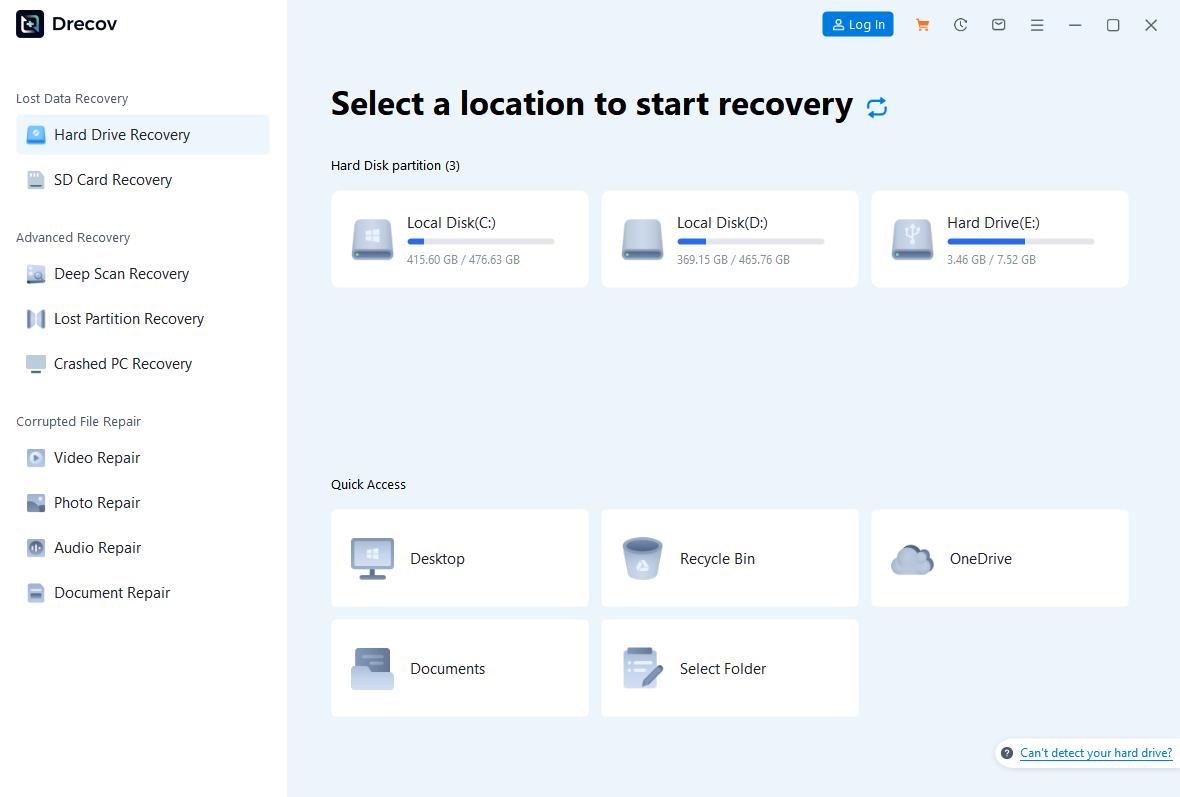
Step 2: Run Quick Scan and look for the right recording
Inspect familiar folders and names, then compare available dates with the filming date. Keep camera originals separate from later edited exports. A wedding folder, for example, may contain a full ceremony and short clips with similar names. Identify which recording contains the required event before selecting the whole folder.
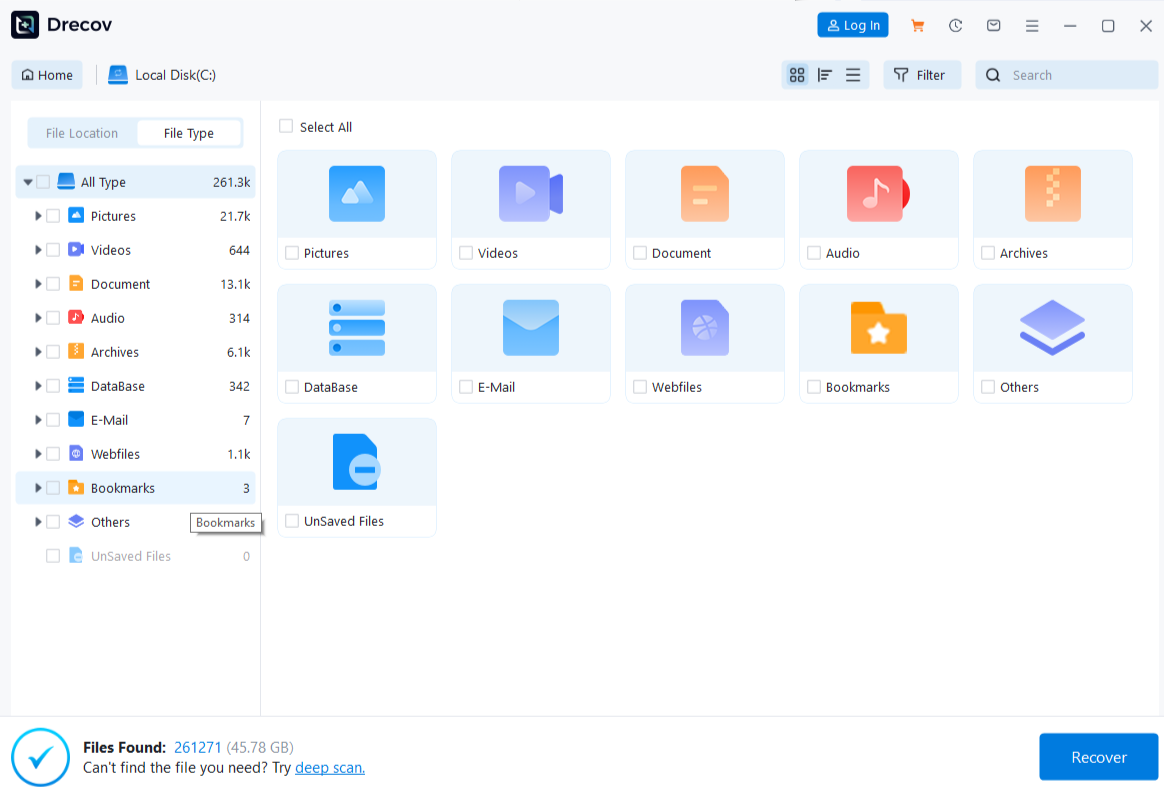
Step 3: Continue with Deep Scan if the source remains stable
Use Deep Scan when Quick Scan does not find the needed file and access remains reliable. Stop at repeated disconnects or serious read errors. More scanning cannot guarantee a complete movie, especially when later recording replaced the old content. Do not format or run CHKDSK just because the first search failed.
Step 4: Narrow the results and inspect supported previews
Filter or locate files using available type, name, path and date information. Examine several plausible results rather than trusting one recognizable thumbnail. Consider separate audio if an editor used an external microphone. Other missing project assets belong to the same broader file recovery task, although each must retain its own identity.
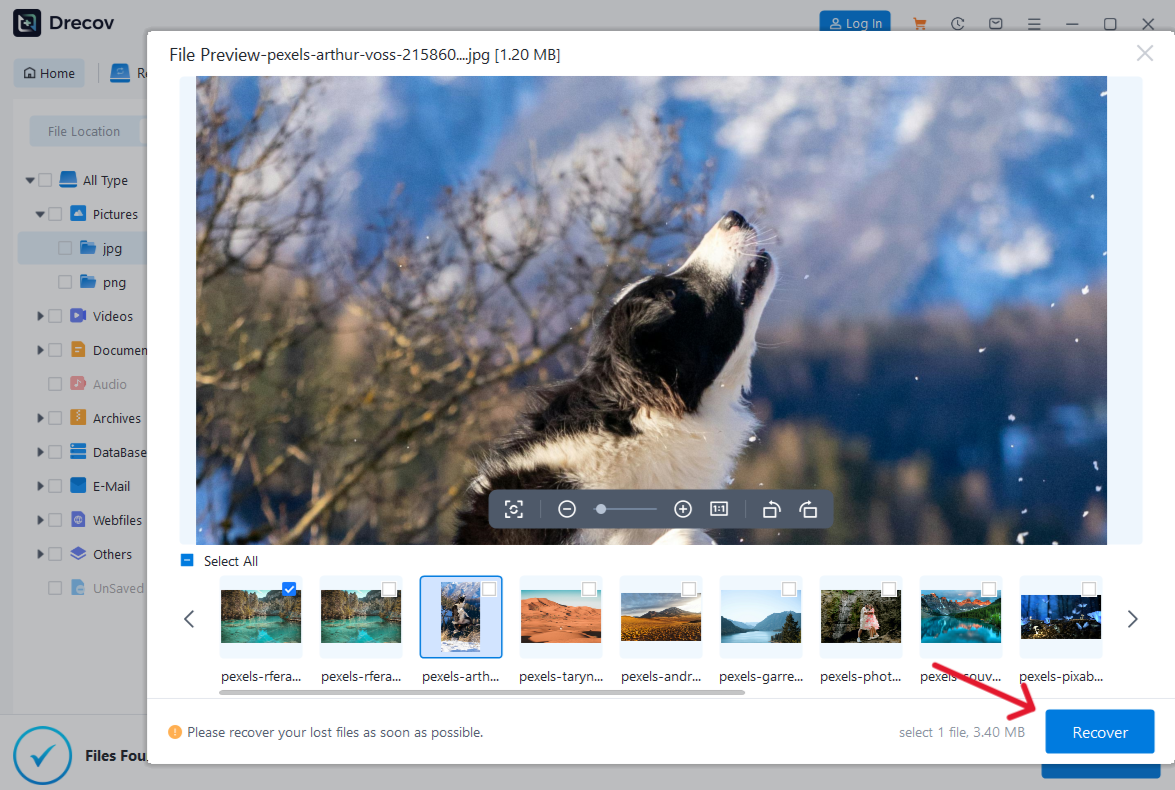
Step 5: Recover elsewhere and test more than the opening
Save the recovered clips to the separate drive you prepared; writing them back to the deletion location could overwrite other missing footage. Check Drecov Folder or Recovery Folder if the results appear in an unexpected location. Play the beginning, the important middle passage and the ending. Compare duration, picture and sound before relying on the recording. Repairs, resetting, initialization or formatting must wait until needed files are safe and verified.
⚠ Warning: Install it on a drive different from the one where your data was lost to prevent overwriting.
If the video disappeared from Microsoft Photos
Removing a folder is not the same as deleting its files
Microsoft’s Photos management instructions distinguish removing a folder from the app from deleting its contents. Open that folder directly in File Explorer. If the video remains there and plays, reconnect the folder through the app’s available folder controls rather than scanning for deleted data.
Read the action label and any confirmation message before repeating the operation. App versions and connected services can present different choices. Take note of the actual storage location, not just a thumbnail in the app. A folder that Photos no longer displays can still contain every original recording.
Check the connected account and the deletion location
Photos can display media from different locations, including connected cloud services. Inspect which account and folder supplied the missing video, then check the corresponding website if necessary. A thumbnail in Photos does not establish that the entire video ever lived on the PC. Search local storage only when a full local copy previously existed.
Keep the recovery copy separate when rebuilding the collection
After recovery, name the verified copy clearly and preserve the untouched recovered version elsewhere. Reconnect or import a working copy as needed. Avoid replacing every similarly named movie automatically: an earlier edit may have a different soundtrack or ending. Open the intended final file after adding it back to the collection.
FAQs
How do I recover deleted videos after emptying the bin?
Check independent backups and the original capture device first. If no usable copy remains, stop writes and examine the stable original local storage. Recover to another device and verify playback.
Will reinstalling Photos bring the video back?
Reinstalling an app does not restore a deleted local recording. Check the real folder and connected account first. Avoid resetting or removing applications while you still need to identify their local data.
Can I recover a video that I never downloaded?
Use the cloud service’s recovery options or contact the content owner. A local scan cannot retrieve remote data that never existed on the scanned device.
Why does the recovered movie stop halfway?
The result may be incomplete, or the player may encounter damaged data later in the file. Preserve it and look for other versions. A working first frame never proves full recovery.
Can Drecov recover an unsaved edit?
Drecov searches for files that existed on storage. Check the editor’s own project recovery or version features for unsaved changes. Recovering a camera original does not reconstruct every editing decision.
Conclusion
The useful answer to “how do I recover deleted videos” starts with the original file and its location. Check the bin, backups and capture device before scanning. If the loss happened through Photos, distinguish a missing folder view from actual deletion. Drecov can search a stable local source for genuinely missing recordings; save the results elsewhere and test the scenes you need before modifying the source or rebuilding your project.
⚠ Warning: Install it on a drive different from the one where your data was lost to prevent overwriting.