








A missing Photoshop document and a damaged Photoshop document need different recovery plans. After a crash, you may have an automatic recovery candidate. After an unwanted edit to a cloud document, an earlier cloud version may help. When a PSD still exists but its layers fail to open, a saved composite might preserve its appearance. First identify which situation you face. Then protect the original before trying a method that changes the file.
Quick answer: recover the editable design first
Start Photoshop once and inspect any recovered documents without dismissing them. Save useful candidates under new names. If the design was a cloud document, inspect its version history in the correct Adobe account. If an existing PSD or PSB remains unreadable, test a duplicate and consider composite recovery only as a fallback. A flattened image can preserve a deadline deliverable while losing the layers needed for future editing.
These options add no separate recovery charge for an existing Photoshop user. However, using Photoshop still requires whatever access your installation normally needs. A local PSD does not automatically have cloud document history, and enabling recovery now does not recreate past snapshots. If no intact candidate exists, consider whether another project, export, or independent copy contains usable material before moving to deleted-file recovery.
Diagnose the actual failure
Decide whether the file is absent or unreadable
Use the recent-document entry to identify the original location, but do not treat that entry as a stored backup. Inspect the actual folder and the full filename. A recent item can point to a moved file, an unavailable disk, or a different user account. Record the path and any error before making changes. This helps separate a navigation problem from a missing file and prevents unnecessary repair attempts.
Next, compare the symptom across documents. If several healthy images show the same visual artifacts, the display environment deserves attention. If only one PSD refuses to parse while other projects open normally, investigate that file and its candidates. Also check whether a copy transferred from another computer has the expected size. A truncated transfer cannot become complete merely because you rename its extension to PSD.
Define what must survive
List the elements that make the design useful: canvas dimensions, layer groups, masks, live text, Smart Objects, color settings, and the most recent revisions. For a print job, resolution and profile matter. For a reusable template, editable text and separate elements may matter more than a perfect flattened appearance. This list guides your choice between restoring an older layered document and salvaging a newer composite.
Use a known export or proof as a visual reference, but avoid confusing it with an editable backup. A JPEG can show the final arrangement while discarding masks, hidden alternatives, and type information. Therefore, label every result according to what it contains. A recovered layered master, a composite salvage, and a manual reconstruction can all be useful, but they serve different purposes and should never share an ambiguous final filename.
Free route 1: inspect Photoshop’s automatic recovery
- Preserve readable project files and avoid clearing temporary folders after the crash.
- Start Photoshop and allow its automatic recovery attempt to finish.
- Inspect any recovered document for the latest edits and important layers.
- Use Save As or Save a Copy, as appropriate, to preserve a new local candidate.
Automatic recovery depends on recovery information that Photoshop saved before the interruption. Check the File Handling preferences for the configured interval after you secure the available result. The interval is a safety net rather than a promise that the last brush stroke survives. If recovery opens a document from several minutes earlier, record the missing changes immediately while you still remember them clearly.
Save the recovered state before experimenting
A recovered document may look correct at first glance while holding missing linked assets or an incomplete layer group. Save a separate candidate before relinking, flattening, or adjusting it. Then inspect the layer panel systematically. Expand groups, toggle important masks, and check that Smart Objects contain the expected content. This preserves the automatic result even if a later troubleshooting step introduces a new problem.
Do not assume a large scratch file is a complete PSD backup. Photoshop uses working storage for purposes that differ from a normal saved document. Likewise, an arbitrary temporary file may not contain a usable image structure. Keep plausible recovery material intact, but avoid random extension changes or repeated cleanup cycles. When the application offers no candidate, move to cloud history or existing project copies instead of promising that a temp folder must contain one.
Free route 2: compare cloud document versions
- Sign in to the Adobe account that owns the affected cloud document.
- Open that document and access its Version History interface.
- Preview an earlier state from before the unwanted edit or corruption.
- Preserve the current state separately, then restore or save the useful version as your interface allows.
This route applies to documents actually saved as Photoshop cloud documents. It does not turn every PSD inside a synchronized folder into a Photoshop cloud document. A work account and a personal account may show different files, even when both use similar names. Therefore, confirm the owner, project thumbnail, and document history before restoring anything. Avoid changing a shared design until you understand which current edits the restore could replace.
Compare the right milestone
Choose versions around the event rather than simply selecting the oldest available entry. For example, a morning version may preserve all layers but lack a final headline, while a later version may contain the headline and an accidental merge. In that situation, the morning layered version may be the best master. You can then recreate the headline from a proof instead of accepting a permanently merged design.
Also distinguish a missing document from a missing version. Retention and availability can vary with the service and account. If the required state does not appear, record that limitation instead of implying unlimited history. Preserve any useful alternatives that remain. Furthermore, coordinate within your normal project workflow before replacing a shared current version, because another designer may have made legitimate changes after the incident.
Free route 3: salvage a compatible composite
- Duplicate the damaged PSD or PSB and retain the unchanged original.
- Follow Adobe’s composite-opening procedure for your Photoshop version; on Windows it uses Shift and Alt during opening.
- Check whether Photoshop can display the stored flattened composite.
- Save a separately named salvage and label it clearly as flattened content.
Composite recovery requires compatible composite data that the original save actually included. It does not generate a new composite from missing or unreadable layers. Consequently, a failure here does not prove that every other candidate is useless, and a success does not restore the original editing structure. Keep looking for a layered backup if future changes require separate text, masks, or linked elements.
Check dimensions and visual completeness
Compare the composite against a known proof at full size. Inspect edges, gradients, transparency, fine text, and large areas of similar color where corruption can hide. Then confirm pixel dimensions and color appearance. A small embedded preview is not equivalent to the full-resolution composite. Do not enlarge a thumbnail and describe it as a recovered production master simply because the image looks familiar at screen size.
If the composite meets an urgent output need, preserve it alongside a note about the missing editability. For example, a flat approved banner may be sufficient for one export, while the layered campaign template still needs reconstruction. Keep those goals separate. This lets the team use a valid salvage without losing sight of the remaining work or accidentally deleting the damaged layered original.
Free route 4: isolate display corruption
- Open a duplicate and compare its screen appearance with a controlled export.
- If the export is sound but the display is wrong, inspect the graphics troubleshooting path.
- Test Photoshop with GPU use disabled in Performance preferences, then restart as required.
- Reopen the copy and compare the same image areas before changing the source document.
Use this route only when evidence points to a display problem. It changes how Photoshop renders the image rather than recovering deleted layers. If the exported pixels show the same damage, continue investigating the file itself. Also avoid resaving a visually uncertain document over its original. A clean comparison image gives you a much better basis for deciding whether a driver problem explains the symptom.
Keep the test narrow
Change one relevant setting at a time and record the result. Otherwise, an update, reset, and resave performed together can hide which action mattered. If disabling GPU use resolves the view, follow the vendor’s graphics guidance before restoring normal acceleration. Meanwhile, retain the intact document and its verified export. Do not run unrelated file repair tools on a healthy PSD merely because the original display looked wrong.
If every document fails to open, investigate application health, available storage, and the environment before judging each file individually. Conversely, if the same single PSD fails on a suitable second installation, that strengthens the case for file-specific damage. These checks help focus the recovery effort. They do not certify a cause with certainty, but they prevent an attractive yet irrelevant repair method from consuming the entire investigation.
Recover material from an existing production package
Search your own project handoff folders for the layered master, a packaged asset set, or an earlier client delivery. Also inspect source photographs and linked Smart Object files. A missing embedded result and a missing linked asset call for different work. If the PSD opens and reports an unavailable link, restore that asset’s path using a verified copy rather than replacing the whole design with an older document.
An approved PDF, TIFF, or PNG can support a controlled rebuild when the layered master has no healthy copy. Extract only material that the export genuinely contains, and retain the original color and size information where available. Explain which parts you reconstructed manually. For example, rebuilding a text layer from a proof restores editability through new work; it does not mean the original type layer survived the corruption.
Example: choose between a layered version and a newer flat image
Imagine a product poster with separate photographs, adjustment layers, live prices, and a final export. After a crash, the recovered PSD opens but lacks the last price change. A later composite includes that change but merges everything. The safer editing master may be the recovered layered PSD. Compare the export, reapply the verified price change, and preserve the flat composite as evidence of the intended appearance.
Next, inspect masks around the product edges and open the important Smart Objects. Check that the recovered file still uses the expected canvas and color profile. Then export a test and compare it with the approved proof. This targeted review catches defects that a quick thumbnail check misses. Finally, save a new revision with a short recovery note so another designer understands which change you reapplied.
Choose a recovery target for the actual design job
Separate a production master from an emergency output
Before comparing candidates, decide whether the next task requires live editing or only a specific approved export. A layered PSD with one outdated caption may be the stronger master, while a newer flat composite may be the stronger visual reference. Keep both when they complement each other. Do not let an urgent delivery erase the distinction between an editable source and an image that merely looks correct at the required output size.
Write the intended use in the result note. For example, state that the composite supports a web banner export but does not preserve editable pricing or masks. This helps the next designer choose the right file. Also record any manually reapplied change in the layered master. A short explicit note prevents a later revision from starting with a flat emergency file and discovering its limits only after substantial new work.
Compare layer groups using a small checklist
Identify the groups that carry the design’s value: product imagery, typography, adjustment layers, background, and alternate versions. Inspect them in a consistent order across candidates. Toggle visibility and check that masks and clipping relationships behave as expected. This can reveal a partly recovered document that looks complete only because a cached composite hides an underlying missing element. Preserve the initial candidate before making any structural correction.
If a group is missing, compare earlier layered versions before rebuilding it from a flat export. An older group may preserve editability even if you must update its text or position. However, transfer it into a new working copy and check blending behavior. A layer copied between documents can interact differently with surrounding adjustments. Compare the result with an approved proof rather than assuming that the copied pixels reproduce the intended composition automatically.
Inspect color, transparency, and linked content
Color settings and output intent
Check the document’s color mode and profile before comparing appearance across applications. A browser preview, Photoshop canvas, and print proof can show differences that reflect color handling rather than damaged pixels. Use the normal production workflow for the job and compare a known reference. Do not repeatedly convert the candidate between color spaces simply to make one display look closer. Preserve a copy before any intentional conversion.
For print work, inspect dimensions, resolution, and critical colors through the usual review process. For screen work, compare at the intended export size as well as full detail. A tiny composite can look convincing at thumbnail scale while failing at production dimensions. Record whether the recovered candidate is a full-resolution master, a smaller salvage, or a reference image. This makes its practical value clear without overstating image quality.
Transparency and edge detail
Inspect transparent regions against contrasting backgrounds. A recovered image can appear correct on white while showing damaged edges, missing semitransparency, or a wrong matte on another background. Check hair, product outlines, shadows, and fine mask transitions. Also compare the canvas boundary and any cropped elements. These areas often matter more to the final deliverable than the broad central composition visible in a small preview.
If you salvage a flattened composite, determine whether it retains the transparency the job requires. A white background may be acceptable for one output and unusable for another. Keep the salvage’s limitations explicit. You can rebuild a new mask as an editing task, but that does not mean the original mask survived. Preserve the best available source while documenting any edge work you perform after recovery.
Smart Objects and external sources
Open important Smart Objects where the workflow permits and confirm that their content matches the current design. A visible placed object can use an outdated internal state or depend on a missing external file. Inspect the relevant link information and locate verified sources. Also compare any alternate object states used by the project. An intact main PSD may still need a separate source asset to support future edits.
When the external source is available, copy it into the recovered project structure and relink deliberately. Then reopen the master from that location. Avoid leaving the accepted PSD dependent on a temporary downloads folder or a candidate directory you plan to remove. This portability test turns a locally successful recovery into a project another designer can actually use. Keep the source provenance in the handoff note where multiple asset revisions exist.
Reconstruct missing edits in a controlled copy
Use proofs to reapply specific changes
Suppose the recovered master preserves all layers but lacks a revised headline and one retouch. Compare the approved proof and the earlier master, then create a new recovery revision for those changes. Rebuild only the verified differences. Do not infer hidden client decisions from a small preview. If the proof does not establish a detail, mark it for review instead of silently inventing a replacement that changes the design.
After reconstruction, export a comparison image and inspect the changed areas at useful detail. Also check that the new edits did not alter nearby masks or adjustments. Keep a brief list of reapplied changes with the master. This separates recovered content from fresh production work and gives the project owner a focused review task. It also prevents the same missing revision from being reapplied differently by another designer.
Establish a verified new baseline
Once the master passes the visual and structural checks, save it under a clear revision name and reopen it. Then create an independent backup with the required linked assets. Keep exports in a separate delivery folder so that a flat output does not compete with the editable master. A simple folder structure reduces the risk of choosing an obsolete candidate during the next deadline.
Retain the damaged original and useful alternatives until the project owner accepts the recovery. Afterwards, follow your normal retention policy rather than deleting evidence immediately because one export looks good. Finally, test that the accepted project can produce the intended deliverable without relying on the recovery session. That confirms a durable production baseline and gives the next revision a trustworthy starting point.
When PandaOffice Drecov may help
A deleted-file scan becomes relevant when the PSD, PSB, source image, or linked asset is absent from supported storage. PandaOffice Drecov does not recreate Photoshop’s layer structure from a flattened export or replace Photoshop’s document recovery logic. Check current file-type support and any available preview first. If the tool cannot demonstrate a suitable result for your format, treat that uncertainty honestly rather than assuming every named candidate is intact.
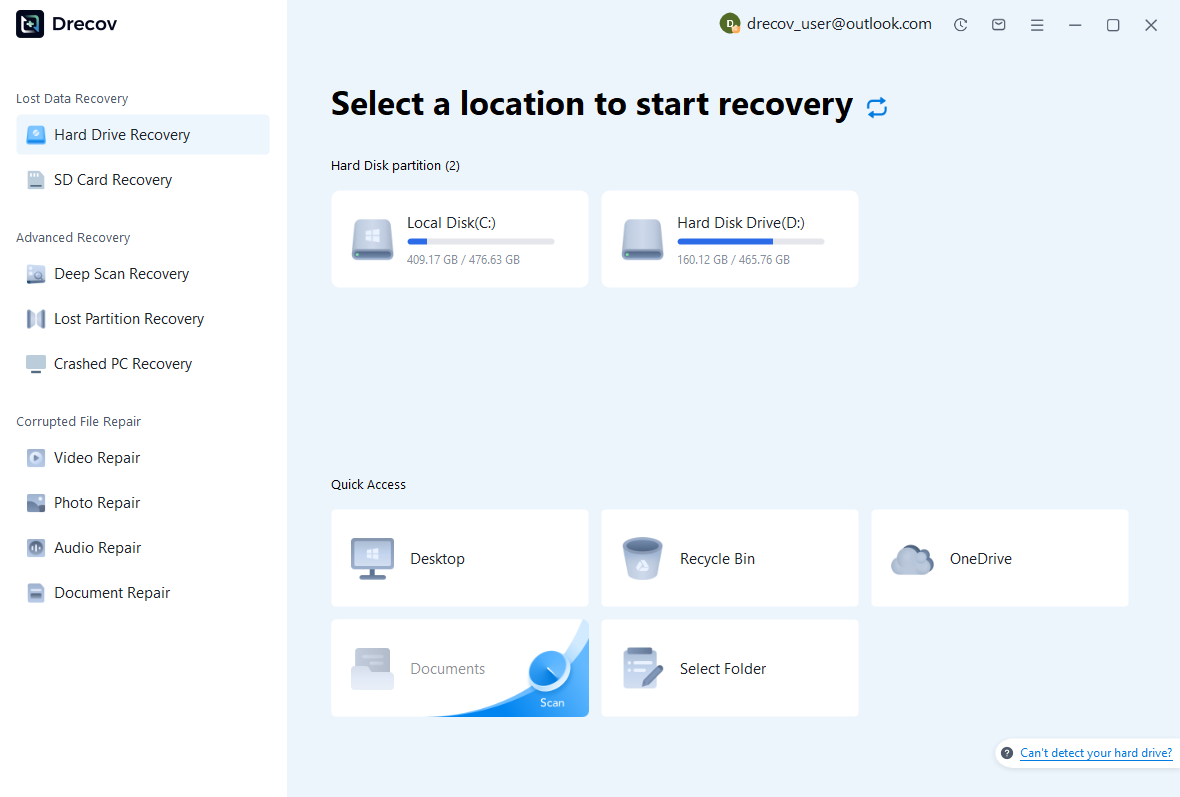
Step 1: choose the original source location
Select the disk or partition that held the missing design. The cloud account, local synchronized folder, and original working drive may represent different recovery routes. Avoid installing software or saving new exports to an affected local source. If the missing file was on a system SSD, ongoing activity and storage behavior may reduce recovery chances. A scan cannot guarantee retrieval of overwritten or discarded data.
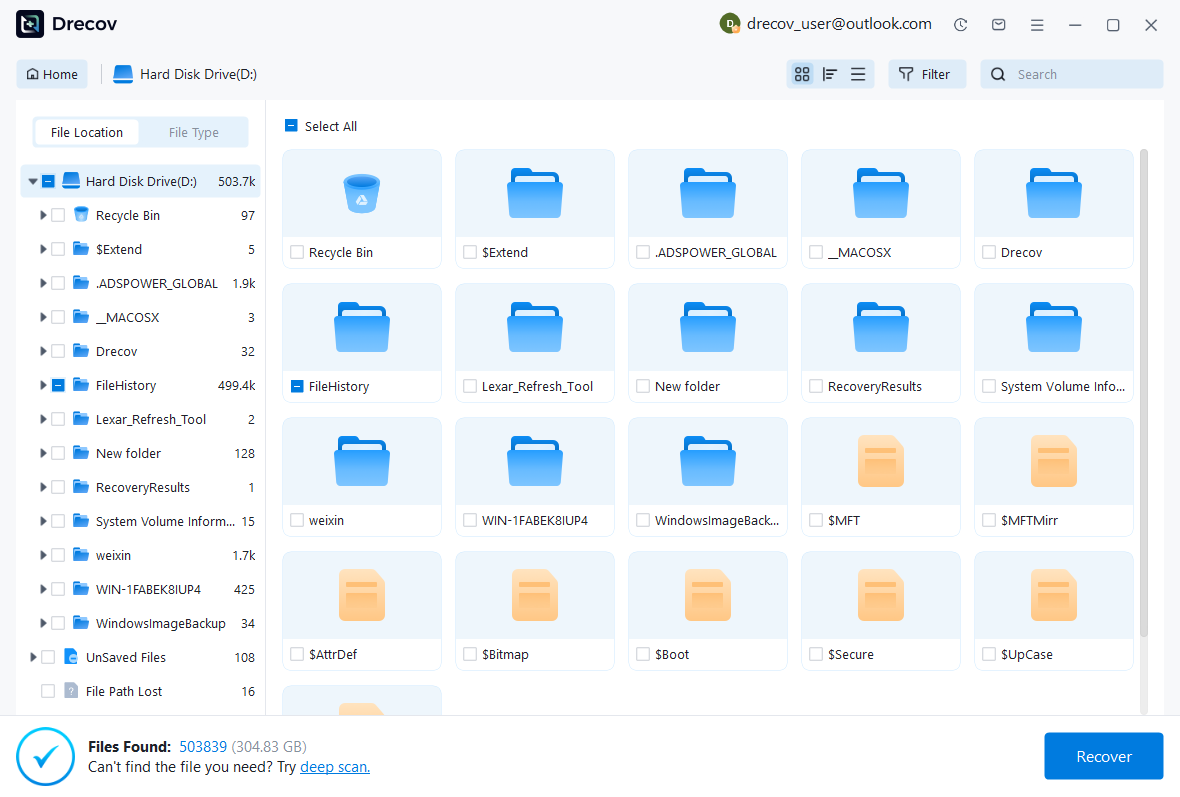
Look for the main document and any linked images using available name, path, date, and format filters. Compare plausible candidates rather than choosing only the largest one. Large PSDs may still contain damaged sections, while a smaller earlier version may remain fully editable. Also preserve multiple candidates when the final revision is uncertain. Keep their source details so you can trace each one during Photoshop validation.
Step 3: save elsewhere and test the actual document
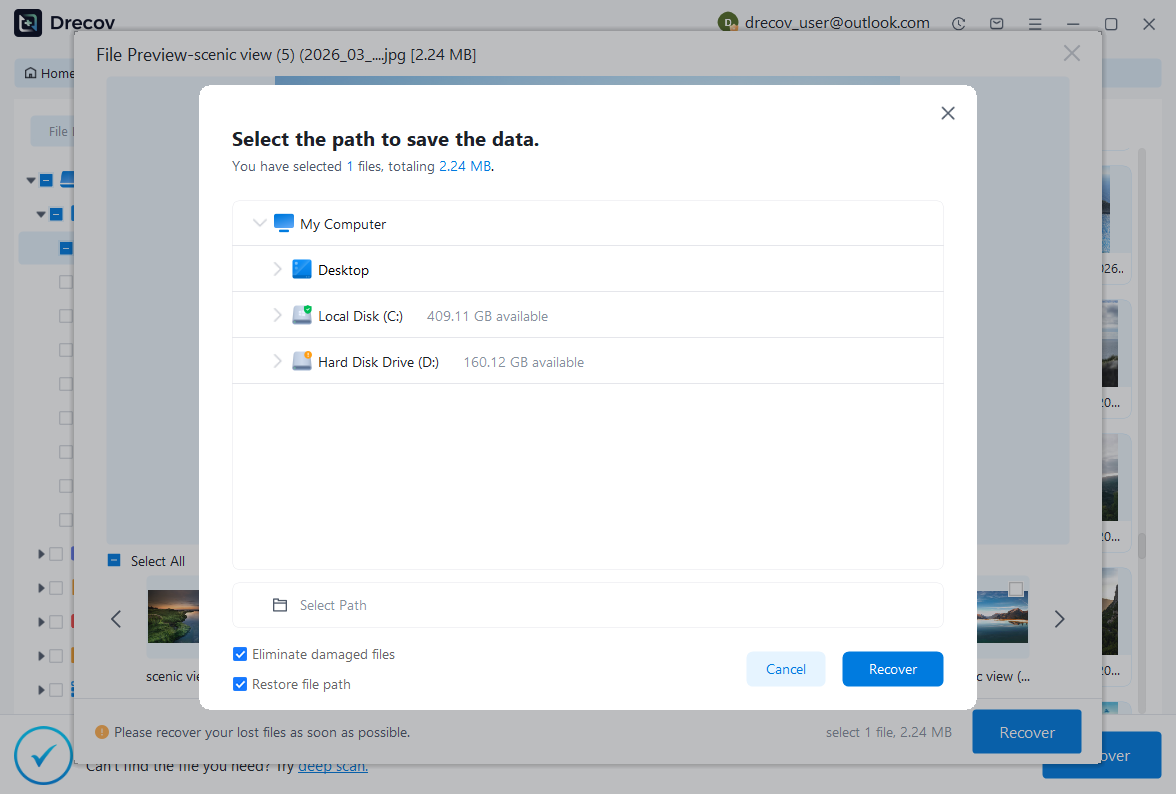
Recover to a different healthy physical disk, then open copies in Photoshop. If preview is unavailable for your proprietary format, verify the saved candidate before treating the job as successful. Review current licensing and limits before purchasing. Afterwards, compare the recovered layers and visual output against your acceptance list. Storage recovery finishes only part of the job; the design still needs an editing and production check.
Validate the recovered design
Inspect canvas size, resolution, profiles, layer order, masks, text, Smart Objects, and transparency. Toggle critical groups and compare the approved composition. Then save, close, and reopen the accepted candidate. This checks that the new saved version remains usable beyond the recovery session. For print work, generate a proof through the usual production settings rather than assuming that a screen view confirms the required output.
Document any compromises, such as a missing linked source, a flattened section, or a manually recreated headline. Keep the recovered master separate from exports and salvage files. Additionally, back up the accepted project and its dependencies to an independent location. A clear record prevents the next designer from choosing an obsolete backup or editing a flat emergency export because its filename happens to contain the word final.
Recovery questions with practical consequences
Can a JPEG restore the PSD layers?
A normal JPEG contains rendered pixels rather than the PSD’s original layer hierarchy. You can use it as a reference or rebuild new layers around it, but that reconstruction does not recover hidden masks or live type. Therefore, keep searching for an editable candidate when the project requires future changes. If a flat image meets a limited deadline, label it accurately and retain the layered recovery task as unfinished.
Why did automatic recovery miss the final edits?
Recovery information reflects the snapshots Photoshop managed to preserve, not every action in memory. A crash between intervals can leave a gap. Also, a candidate from another account or session may not represent the intended project. Compare the final edited region before accepting the result. For future work, combine appropriate recovery intervals with deliberate revision saves and independent copies of linked assets rather than relying on one temporary mechanism.
What should I preserve after a partial success?
Keep the unchanged damaged document, every useful recovered version, the accepted master, and a visual reference showing the intended result. You may later extract an element that the first attempt missed. Meanwhile, use distinct filenames for layered recovery and composite salvage. This small organizational step preserves further options and makes the status of the design clear to everyone who receives it.
Related recovery resources
Explore the relevant recovery options: Hard drive recovery, External hard drive recovery.
For another recovery case and its practical checks, read the related recovery guide.
Check the vendor guidance for the installed version: official recovery documentation 1, official recovery documentation 2, official recovery documentation 3.





