







Imagine waking up, grabbing your coffee, and opening Firefox to start your workday, only to find your carefully curated library of research, favorite shops, and essential tools has vanished. The “Bookmarks” toolbar is a ghost town. For many, this isn’t just a minor glitch; it’s a loss of digital productivity and years of organized knowledge. If you are currently staring at an empty star icon, don’t panic. Firefox bookmark recovery is not only possible; it’s often quite straightforward once you understand how the browser handles your data.
The Secret Vault: Understanding the Logic of Bookmark Storage
To master Firefox bookmark recovery, it helps to think of Firefox not just as a window to the web, but as a meticulous librarian. Every time you “star” a page, the librarian doesn’t just write a note on a scrap of paper; they record it in a specialized ledger.
In technical terms, Firefox stores your bookmarks in a file called places.sqlite. Think of this file as a heavy, leather-bound book. However, because books can get lost or damaged, the librarian creates a “safety copy” every single day and tucks it away in a secret drawer called the bookmarkbackups folder. These backups are stored in a compressed format known as .jsonlz4.
When you “lose” a bookmark, it’s usually because the current ledger (places.sqlite) got smudged or misplaced. Firefox bookmark recovery is simply the act of walking into that secret backroom, finding the most recent “safety copy,” and swapping it back onto the main desk.
Why Do Bookmarks Disappear?
Before we dive into the “how-to,” let’s look at the “why.” Understanding the cause helps you choose the best Firefox bookmark recovery path:
- Accidental Deletion: The most common human error—deleting a folder instead of a single link.
- Browser Crashes: A sudden power outage can corrupt the active database.
- Profile Corruption: Sometimes the entire “user profile” folder becomes unreadable.
- Update Glitches: Rarely, a major browser update might fail to migrate old data.
Method 1: The Built-in “Library” Restore
Firefox knows that accidents happen, so it includes a built-in time machine for your links. This should always be your first stop for Firefox bookmark recovery.
- Step 1: Open Firefox and click the Library icon (or press
Ctrl+Shift+Oon Windows /Cmd+Shift+Oon Mac). - Step 2: In the Library window, click the Import and Backup button at the top.
- Step 3: Hover over Restore. You will see a list of dates.
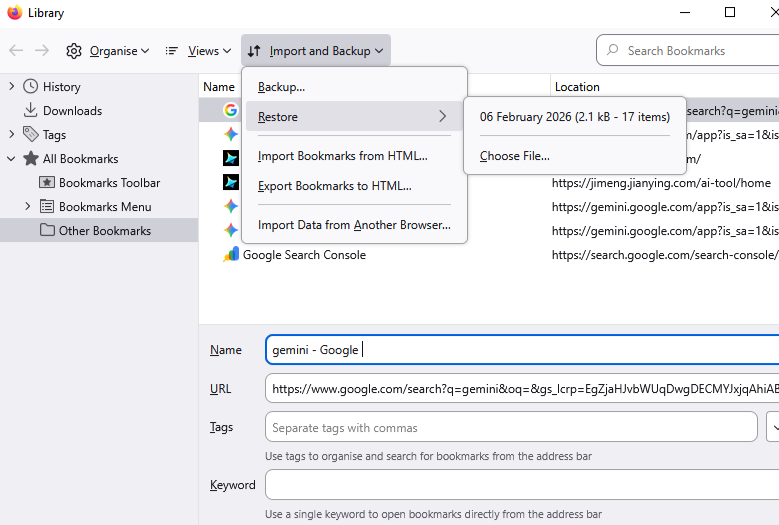
- Step 4: Select the date from just before your bookmarks went missing.
- Step 5: Click OK on the prompt. Firefox will replace your current bookmarks with the backup.
Warning: Using this method will overwrite any new bookmarks you’ve added since that backup date. If you saved something vital this morning, copy the URL elsewhere first!
Method 2: Professional Firefox Bookmarks Recovery with PandaOffice Drecov
Sometimes, the built-in backups are gone—perhaps due to a hard drive failure, an accidental reformat, or a “system cleaner” app that was a bit too aggressive. In these scenarios, the files don’t exist within Firefox anymore. You need to go deeper into the hard drive’s sectors.
This is where PandaOffice Drecov shines. Unlike standard browser tools, Drecov is a specialized data recovery engine designed to scavenge for deleted .sqlite and .jsonlz4 files that the operating system has marked as “empty space.”
Why choose PandaOffice Drecov for Firefox bookmark recovery?
It features a dedicated algorithm for browser metadata. While other tools might find your photos and documents, Drecov specifically identifies the structure of Firefox profile folders, making the recovery process much faster and more accurate. This makes it an indispensable tool for a wide range of data loss scenarios, including:
- Accidental Desktop Deletions: Instantly retrieving files wiped from your local workspace.
- Disk Formatting Errors: Salvaging files from drives that have been completely wiped or reformatted.
- External Media Rescue: Recovering lost data from formatted or corrupted SD cards and USB flash drives.
- Sync Conflict Resolution: Reversing data loss caused by synchronization errors between your PC and the OneDrive cloud.
- Browser Metadata Recovery: Restoring lost Chrome bookmarks and other essential application data.”
Steps to Recover using PandaOffice Drecov:
- Step 1: Launch the software and select the drive where your OS resides (usually the
C:drive).

- Step 2: Select the Deep Scan mode. In the file type filter, search for
.jsonlz4orplaces.sqlite. - Step 3: Preview the results. Drecov allows you to see the file creation dates. Look for files located in the
AppData\Roaming\Mozilla\Firefox\Profiles\path.

- Step 4: Select the relevant files and click Recover. Save them to an external folder.
- Step 5: Once recovered, you can manually drop these files back into your Firefox profile folder or use the “Import” function in the Firefox Library.
Method 3: Manual Profile Surgery (The “Old School” Way)
If the Library menu isn’t working but you still have access to your computer’s folders, you can perform manual Firefox bookmark recovery by navigating the hidden corridors of your Windows or Mac OS.
For Windows Users:
- Step 1: Press
Windows Key + R, type%APPDATA%\Mozilla\Firefox\Profiles\, and hit Enter.
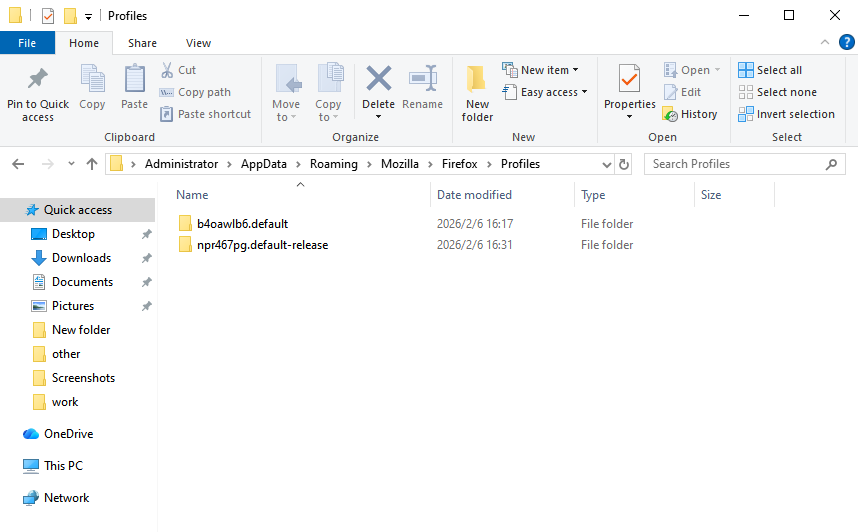
- Step 2: Open the folder that ends in
.defaultor.default-release. - Step 3: Look for the bookmarkbackups folder.
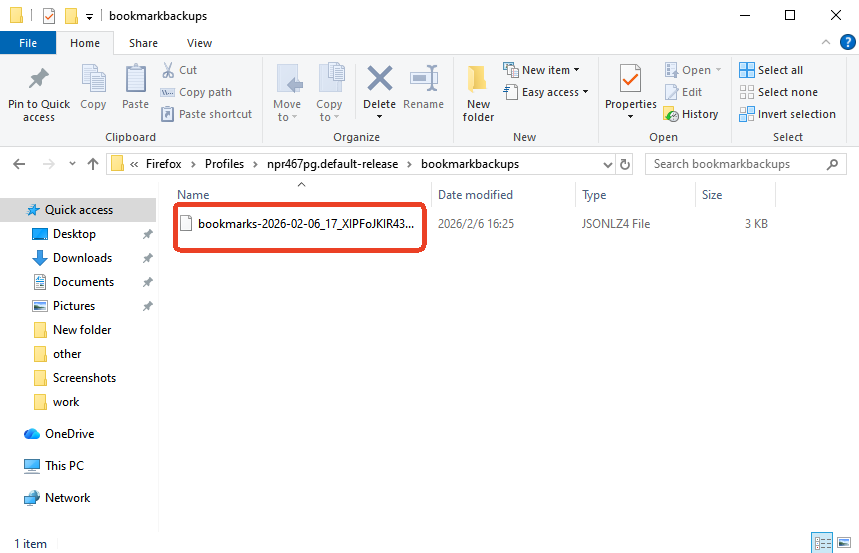
- Step 4: Copy the most recent
.jsonlz4file to your desktop. - Step 5: In Firefox, go to the Library (
Ctrl+Shift+O) -> Import and Backup -> Restore -> Choose File… and select the file from your desktop.
Method 4: The “Old Data” Ghost (After a System Refresh)
If you recently “Refreshed” Firefox to fix a speed issue, the browser might have created a folder on your desktop called “Old Firefox Data.” This is a goldmine for Firefox bookmark recovery.
- Step 1: Open the “Old Firefox Data” folder on your desktop.
- Step 2: Navigate to the profile folder inside.
- Step 3: Locate the
places.sqlitefile. - Step 4: Close Firefox completely.
- Step 5: Copy this
places.sqliteand paste it into your current profile folder (the one we found in Method 3), replacing the empty one.
Comparative Analysis of Recovery Methods
| Method | Success Rate | Difficulty | Best For… |
| Built-in Restore | High | Very Easy | Recent accidental deletions. |
| PandaOffice Drecov | Highest | Moderate | Corrupted drives, formatted PCs, or missing backups. |
| Manual Profile Swap | Medium | Moderate | Profile corruption or browser won’t open. |
| Old Firefox Data | High | Easy | Post-browser “Refresh” or reset. |
The PandaOffice Drecov Advantage: While manual methods rely on the files actually existing on your visible file system, Drecov can “resurrect” files that have been deleted from the recycle bin or lost during a partition error. Its specialized file-header recognition ensures that even if a file is renamed, the software identifies it as a Firefox backup.
Proactive Defense: How to Never Lose a Bookmark Again
The best Firefox bookmark recovery strategy is to ensure you never need one. Data loss is a matter of “when,” not “if.”
1. Enable Firefox Sync
This is the easiest preventative measure. By creating a Firefox account, your bookmarks are encrypted and stored on Mozilla’s servers. If your laptop falls into a lake, you simply sign in on a new device, and your links reappear instantly.
2. Manual Monthly Exports
Once a month, export your bookmarks to an HTML file:
- Open Library (
Ctrl+Shift+O). - Import and Backup -> Export Bookmarks to HTML.
- Save this file to a cloud service like Google Drive or Dropbox.
3. Schedule Automatic Backups with PandaOffice
Many users utilize PandaOffice tools not just for recovery, but for automated backup scheduling of specific “App Data” folders. Ensuring your Mozilla folder is part of your weekly backup routine is a pro-tier move.
Common Questions on Firefox Bookmarks Recovery
Q: Can I recover bookmarks after uninstalling Firefox?
A: Yes. Usually, the uninstaller asks if you want to remove user data. If you didn’t check that box, your data is still in the %APPDATA% folder. If you did delete it, PandaOffice Drecov is your only hope to find those deleted sectors.
Q: Does “Undo” (Ctrl+Z) work for deleted bookmarks?
A: Yes, but only if the Library window is still open and you haven’t closed the browser yet. It is the fastest form of Firefox bookmark recovery.
Q: Why are my recovered bookmarks icons just gray globes?
A: Firefox stores the links, but not the “favicon” (the little logo). Once you click the bookmark and visit the site again, Firefox will automatically download and cache the icon.
Q: I found a places.sqlite file, but it’s 0 KB. What happened?
A: This indicates severe file corruption. In this case, stop using the drive immediately and run a scan with a tool like Drecov to find an older, uncorrupted version of the file.
Conclusion
In the digital age, our bookmarks are more than just links; they are a map of our interests, work, and history. While the disappearance of these links can be jarring, the architecture of Firefox provides multiple layers of protection. Whether you use the simple built-in Firefox bookmark recovery tools or employ the deep-scanning power of PandaOffice Drecov, your data is rarely truly “gone.”
By understanding where these files live and how to handle them, you turn a potential digital disaster into a minor speed bump. Remember: sync your data today so you don’t have to scramble tomorrow.






