







Imagine you are a senior research analyst who has spent the last five years meticulously organizing thousands of references, project folders, and essential digital tools within your Firefox browser. One morning, your company upgrades you to a high-performance workstation. The excitement of the new hardware is quickly overshadowed by a cold realization: your entire “digital brain”—those carefully curated bookmarks—is still trapped on the old machine. To maintain your professional momentum, you must migrate Firefox bookmarks swiftly and securely without losing a single data point.
Transferring browser data is more than a technical necessity; it’s about preserving your digital productivity and history. Whether you are switching devices, moving to a different browser, or performing a clean OS installation, knowing how to migrate Firefox bookmarks ensures your gateway to the internet remains intact. In this extensive guide, we will explore every professional method to move your data, the underlying database structures involved, and, crucially, how to recover your library if the migration process encounters unforeseen errors.
Part 1: How to Migrate Firefox Bookmarks
To successfully migrate Firefox bookmarks, one must understand that Firefox does not store this data in a simple text file. Instead, it utilizes a sophisticated SQLite relational database. Depending on your technical requirements—whether you need a cloud-based sync or a hard-coded file transfer—choose the method that best aligns with your workflow.
Method 1: The Cloud-Native Approach (Firefox Sync)
For most users, the most efficient way to migrate Firefox bookmarks is via the Firefox Account ecosystem. This method uses end-to-end encryption to mirror your data across instances.
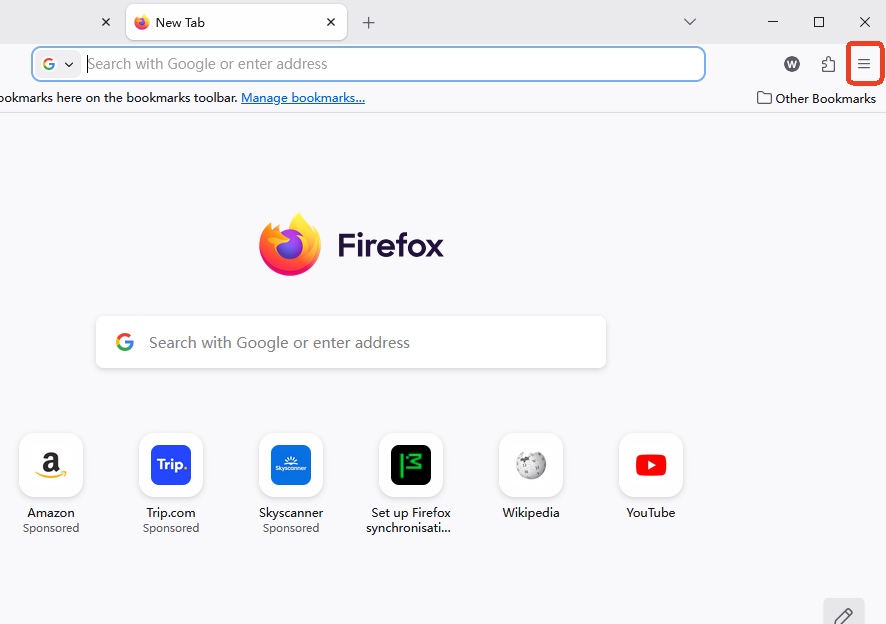
- 1.On the Source Machine: Click the Menu button (three horizontal lines) and select Sign In next to “Sync and save data.” Create an account or log in.
- 2.Configuration: Access Settings > Sync. Ensure the “Bookmarks” checkbox is toggled. For a complete profile migration, include “History,” “Add-ons,” and “Passwords.”
- 3.On the Target Machine: Install the latest version of Firefox. Sign in with the same credentials.
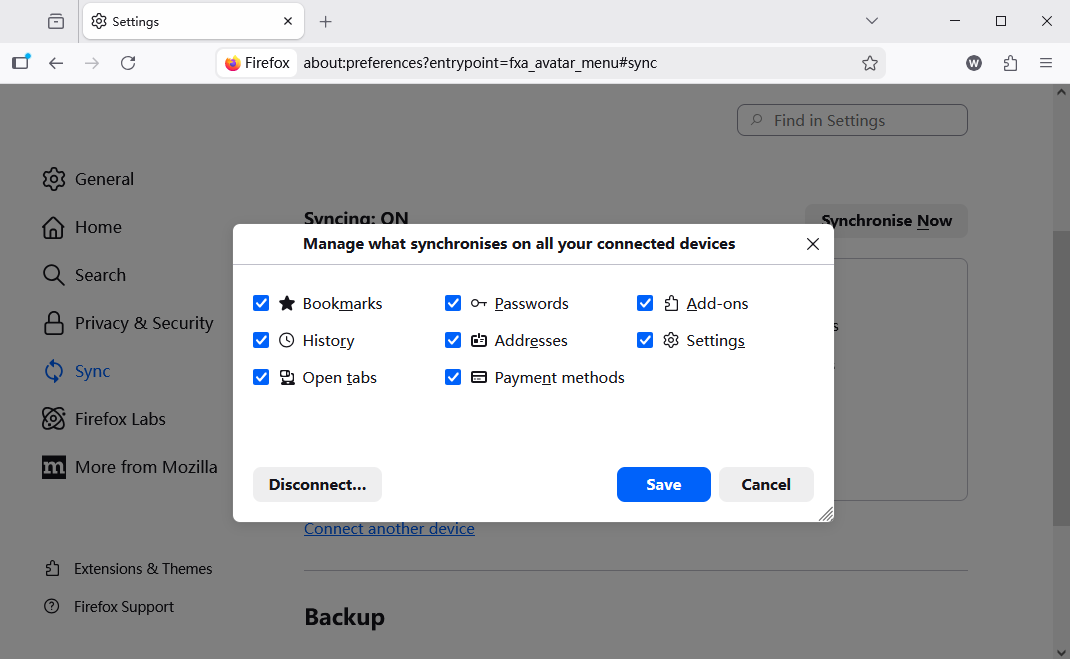
- 4.Verification: Firefox will begin a background pull request. You can monitor the progress by clicking the Sync icon in the toolbar. Within minutes, your library will be populated.
Method 2: The Universal HTML Interchange (Cross-Browser Migration)
If your goal is to migrate Firefox bookmarks to a different browser engine (such as Chromium-based Chrome or Edge), the HTML export is the industry standard.
- 1.Trigger the Library: Press
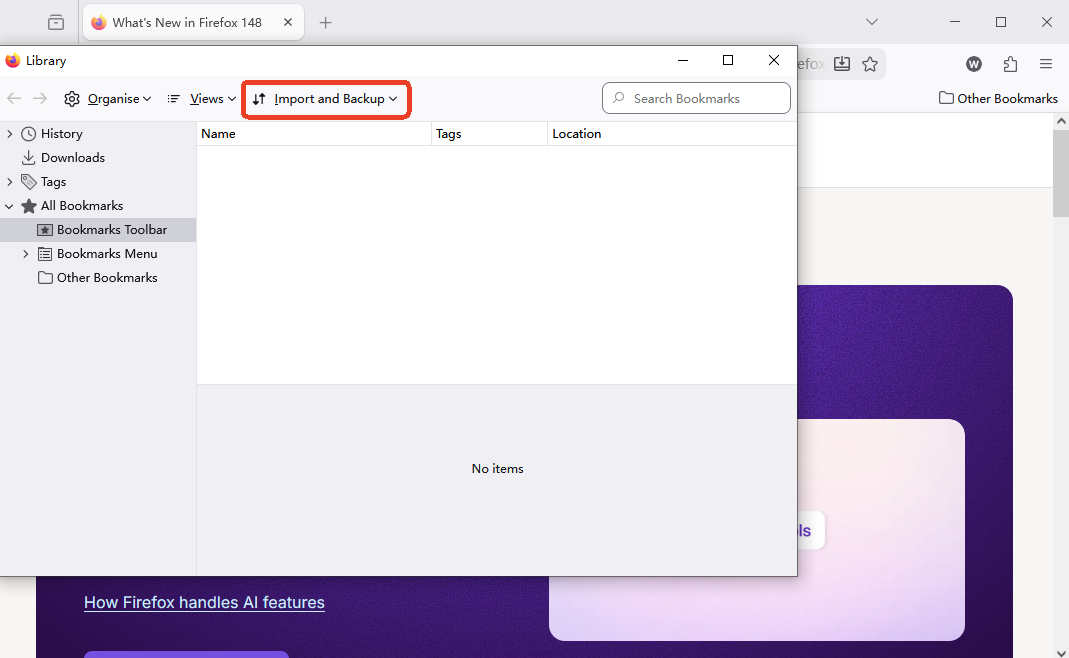
Ctrl + Shift + B(Windows/Linux) orCmd + Shift + B(macOS). - 2.Data Export: Click Import and Backup on the top toolbar. Select Export Bookmarks to HTML….
- 3.Pathing: Save the
bookmarks.htmlfile to a secure external drive or cloud root. - 4.Importing: On the new browser, locate its “Bookmark Manager” and select “Import from HTML.” Note that while this moves URLs, it often strips away Firefox-specific metadata like “Tags” and “Keyword Shortcuts.”
Method 3: The “places.sqlite” Deep Migration (For Power Users)
When you need a 1:1 bit-for-bit replica of your digital environment, you must manually move the profile database. This is the most robust way to migrate Firefox bookmarks without relying on third-party servers.
| Feature | Firefox Sync | HTML Export | Manual SQLite Transfer |
| Data Integrity | High | Medium (Loses Tags) | Absolute (1:1 Copy) |
| Speed | Depends on Net | Instant | Fast |
| Complexity | Low | Low | High |
Detailed Steps for SQLite Migration:
- 1.Identify the Source Profile: In Firefox, type
about:supportin the URL bar. Find the Profile Folder entry and click Open Folder. - 2.Terminate Processes: You must close Firefox completely. If the
parent.lockfile exists in the folder, Firefox is still active in the background; terminate it via Task Manager. - 3.Extraction: Locate
places.sqlite. This file contains both your bookmarks and your global history. Copy it to your migration media. - 4.Injection: On the new PC, navigate to the new profile path (e.g.,
%APPDATA%\Mozilla\Firefox\Profiles\[random-string].default-release\). Paste and overwrite the existingplaces.sqlite.
Part 2: Recovering Lost Bookmarks During Migration
Migration is a high-risk operation. A sudden OS crash, a corrupted USB sector, or an accidental directory deletion can result in the loss of years of work. If you attempt to migrate Firefox bookmarks and find your library is empty, immediate recovery protocols must be initiated.
1. Internal Restoration via JSON Backups
Firefox performs a daily “snapshot” of your bookmarks in JSON format. If your manual migration failed, these snapshots are your first line of defense.
- Step 1: Open the Library window (
Ctrl + Shift + B). - Step 2: Click Import and Backup > Restore.
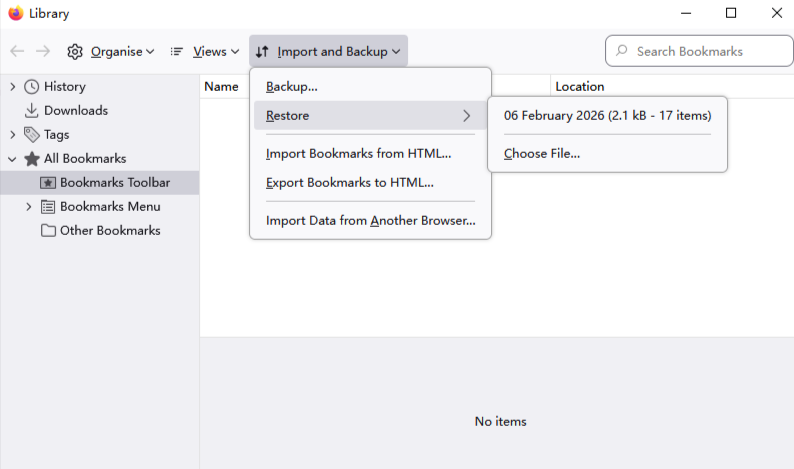
- Step 3: Select a date from the automated list. Firefox will overwrite the current (empty) state with the archived data.
For specialized cases where the standard menu isn’t responding, you can manually browse top-tier expert methods for Firefox bookmark recovery to understand the underlying file structure.
2. Advanced Recovery with PandaOffice Drecov
In scenarios where the places.sqlite file has been deleted from the disk or the “bookmarkbackups” folder is missing, standard browser tools will fail. This is where professional data carving software becomes essential. If you have deleted bookmarks from Firefox and need 5-minute recovery for critical business data, follow this technical breakdown using PandaOffice Drecov:
Crucial: Install the software on a secondary drive (e.g., Drive D: or a portable SSD) to ensure the deleted Firefox sectors on Drive C: are not overwritten by the installation process.
- Step 1: Deep Sector Analysis. Launch the application and select the physical drive containing your Windows user profile. Choose the Deep Scan mode. This mode bypasses the File Allocation Table (FAT) and scans for the unique file headers of SQLite databases.

- Step 2: Filter by Extension. Once the scan is active, use the search filter to look for
*.sqliteand*.json. Specifically, look for files namedplaces.sqliteor those located in a directory path ending in\bookmarkbackups\.

- Step 3: Integrity Verification. PandaOffice Drecov allows you to preview the file’s metadata. Check the “Date Modified” to ensure it matches your last known good state. Select the files and click Recover.

- Step 4: Database Re-integration. Navigate to your active Firefox profile path (typically
%AppData%\Mozilla\Firefox\Profiles\). Ensure Firefox is closed. Rename the recovered file toplaces.sqliteand place it in the folder. Restart Firefox to verify the restoration.
For further official guidance on how Firefox handles these files, you may consult the Mozilla Support guide on restoring bookmarks for a deeper look at the JSON structure.
Part 3: Proactive Prevention: Securing Your Firefox Data
A successful strategy to migrate Firefox bookmarks includes a “defense-in-depth” approach to prevent future data loss.
1. Hard Drive & File System Health
Since bookmarks are stored in a relational database, they are susceptible to “bit rot” or file system errors.
- Action: Run
chkdsk /fperiodically on your primary drive to repair logical errors in the NTFS/APFS file system that could corrupt the Firefox profile.
2. Automated Registry and Path Management
On Windows systems, Firefox relies on the Registry to locate the default profile.
- Technical Detail: The key
HKEY_CURRENT_USER\Software\Mozilla\Firefox\Extensionscan sometimes be targeted by aggressive “PC Cleaner” software. Avoid automated registry cleaners that might break the link between the browser executable and its data profile.
3. Redundant Backup Scripting
For developers or power users, a simple batch script can automate the process of securing your data before you migrate Firefox bookmarks.
@echo off
set source="%APPDATA%\Mozilla\Firefox\Profiles\*.default-release\places.sqlite"
set destination="D:\Backups\Firefox_Bookmarks_%date:~-4,4%%date:~-10,2%%date:~-7,2%.sqlite"
xcopy %source% %destination% /y
Running this via Windows Task Scheduler ensures you always have a restorable version of your library.
Migrating Firefox Bookmarks FAQs
How do I migrate Firefox bookmarks to Chrome or Edge?
The most reliable method is the HTML export. While Firefox Sync works only within Firefox, an HTML file is a universal language. Export from Firefox’s Library and import via the “Bookmark Manager” in your new browser.
Where is the Firefox profile folder located on different OS?
- Windows:
%APPDATA%\Mozilla\Firefox\Profiles\ - macOS:
~/Library/Application Support/Firefox/Profiles/ - Linux:
~/.mozilla/firefox/
Can I migrate my bookmarks if my old computer is dead?
Yes, provided the disk is intact. You can extract the hard drive, use a SATA-to-USB adapter, and browse to the paths mentioned above to manually copy the places.sqlite file to a healthy machine.
Why did some of my icons (favicons) disappear after I migrated?
Favicons are often stored in a separate file called favicons.sqlite. To keep your visual cues, make sure to migrate both places.sqlite and favicons.sqlite together.
Will migrating bookmarks also move my saved passwords?
Only if you use Firefox Sync or copy the entire profile folder (including key4.db and logins.json). The HTML export method only moves bookmarks.
Conclusion
The ability to migrate Firefox bookmarks is an essential technical skill that ensures your digital assets move with you across the evolving landscape of hardware and software. By leveraging Firefox Sync for ease of use, HTML exports for compatibility, and Manual SQLite transfers for technical precision, you can manage your data with total authority.
In cases of catastrophic failure, remember that tools like PandaOffice Drecov act as a critical fallback, capable of retrieving data even when the operating system loses track of it. By following the preventive measures and technical steps outlined in this guide, you can ensure your research, tools, and digital history remain secure and accessible.






