







In the fast-paced digital landscape of 2026, staying current with your web browser is no longer a luxury—it is a fundamental necessity for digital safety. Whether you are a casual surfer or a professional who relies on web-based tools, knowing how to update the firefox ensures that your system remains resilient against modern cyber threats. This guide will walk you through every nuance of the update process across all platforms while also addressing the critical intersection of browser maintenance and data integrity.
Why Updating Firefox Is Important
Security Benefits
Let’s start with a simple truth—running an outdated browser is like leaving your front door unlocked. You might feel safe, but you’re exposing yourself to unnecessary risks. Learning how to update the firefox isn’t just about getting new features; it’s primarily about protecting your data, privacy, and online identity.
Every time a new version of Firefox is released, it includes patches for known vulnerabilities. Cybersecurity threats evolve rapidly, and hackers constantly look for weaknesses in outdated software. According to recent security reports, a significant percentage of cyberattacks exploit known vulnerabilities that already have fixes available—users just haven’t updated their software yet. That’s like having a lock but choosing not to use it. When you perform a firefox update, you’re essentially strengthening your defenses. You’re closing security gaps, improving encryption protocols, and ensuring your browsing activity stays private. Mozilla, the organization behind Firefox, regularly releases updates specifically to counter emerging threats.
Performance Improvements
Security is crucial, but performance is where you’ll actually feel the difference. Ever notice your browser getting slower over time? Pages take longer to load, videos buffer, and tabs freeze. That’s often a sign you’re running an outdated version. New Firefox updates optimize speed, reduce memory usage, and improve overall efficiency. Think of it like tuning up your car—everything runs smoother, faster, and more reliably. Updates often include enhancements to the rendering engine, making websites load quicker and animations feel more responsive. You’ll also notice better compatibility with modern websites. As web technologies evolve, older browser versions may struggle to display content correctly. Understanding how do you update firefox browser ensures you’re not left behind as the internet moves forward.
How Firefox Updates Work
Automatic Updates Explained
One of the best things about Firefox is that it takes care of updates for you—most of the time. By default, Firefox is set to update automatically in the background. This means you don’t have to constantly check for new versions; the browser handles it quietly and efficiently. When an update is available, Firefox downloads it in the background and installs it the next time you restart the browser. It’s seamless and designed to minimize disruption. You might not even realize an update happened—except for a slightly faster, more secure browsing experience.
Manual Update Options
Of course, there are times when you might want to learn how to update the firefox manually. Maybe you’ve disabled automatic updates to save data, or perhaps you want to check for updates immediately after hearing about a critical security patch. Manual updates give you control. You can trigger them whenever you want, ensuring you’re always running the latest version. This is especially useful if you suspect your browser is outdated or if you’re troubleshooting an issue where a feature isn’t working as expected.
How to Update Firefox on Windows
Using Built-in Update Feature
Updating Firefox on Windows is incredibly straightforward. You don’t need to download anything manually or navigate complicated settings. Here is the standard procedure for how to update the firefox using the internal interface:
- Step 1: Open your Firefox browser and look at the top-right corner of the window.
- Step 2: Click the menu button, which is represented by three horizontal lines (often called the “hamburger” menu).
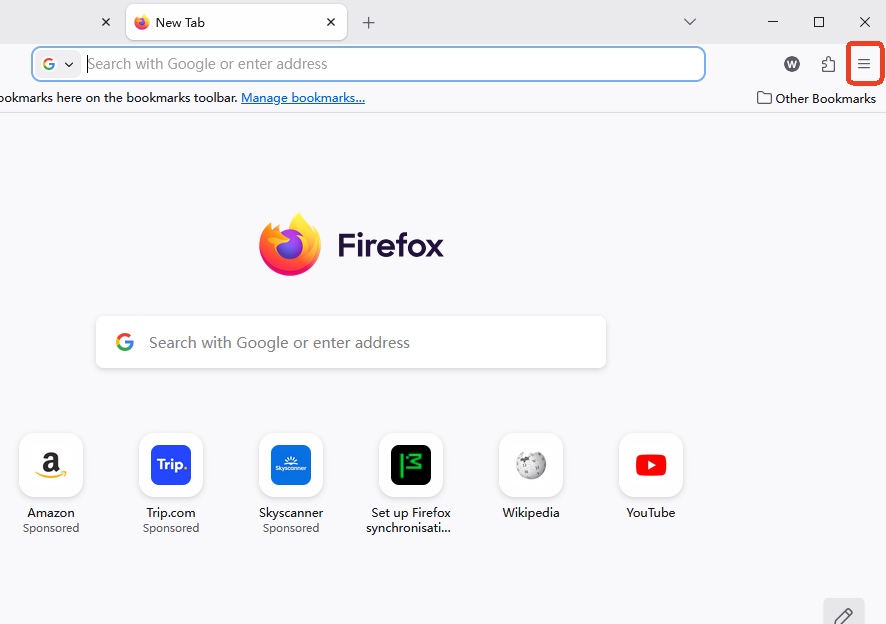
- Step 3: Select Help from the dropdown menu that appears.
- Step 4: Click on About Firefox. A new small window will open.
- Step 5: Firefox will automatically check for updates. If one is found, it will start downloading. Once the update is complete, you’ll be prompted to click a button that says Restart to update Firefox.
how do you update firefox browser via Reinstallation?
If the built-in update tool fails or gets stuck, you might wonder, “how do you update firefox browser manually?” The most effective way is to reinstall the latest version. This process replaces corrupted system files while generally preserving your profile data.
- Step 1: Visit the official Mozilla Firefox download page.
- Step 2: Download the latest installer for Windows.
- Step 3: Close your current Firefox browser completely.
- Step 4: Run the installer you just downloaded. It will detect your existing installation and upgrade it to the latest version.
How to Update Firefox on Mac
Automatic Update Process
On macOS, Firefox behaves similarly to Windows. Automatic updates are enabled by default, and the browser handles most of the work behind the scenes. However, because Mac users often keep their laptops in “Sleep” mode rather than shutting them down, the “Restart to Update” prompt is a crucial step to finalize the installation.
Manual Update Steps
If you prefer to take the lead on your Mac, follow these steps to master how to update the firefox:
- Step 1: With Firefox active, click on the Firefox name in the macOS menu bar at the top of your screen.
- Step 2: Select About Firefox from the list.
- Step 3: A window will pop up. Firefox will immediately begin checking for the latest version.
- Step 4: If an update is ready, click Restart to update Firefox. Your tabs will be saved and will reopen automatically after the update is applied.
How to Update Firefox on Linux
Using Package Manager
Linux users typically update Firefox through their system’s package manager rather than within the browser itself. This keeps the software integrated with the rest of your operating system.
- Step 1: Open your Terminal.
- Step 2: For Ubuntu or Debian-based systems, type
sudo apt update && sudo apt upgradeand press Enter. - Step 3: For Fedora users, the command is
sudo dnf update. - Step 4: If a Firefox update is listed, confirm the installation by typing ‘Y’.
Snap and Flatpak Updates
If you installed Firefox using Snap or Flatpak, updates are handled through those specific systems. They usually update automatically in the background, but you can force a check by running snap refresh firefox or flatpak update.
Updating Firefox on Mobile Devices
Android Update Steps
On Android, the process of how to firefox update is handled by the Google Play Store.
- Step 1: Open the Google Play Store app.
- Step 2: Tap your profile icon at the top right and select Manage apps & device.
- Step 3: Look for Updates available and see if Firefox is on the list.
- Step 4: Tap Update next to Firefox.
iPhone Update Steps
For iOS users, the App Store is the primary hub for updates.
- Step 1: Open the App Store.
- Step 2: Tap your profile icon at the top of the screen.
- Step 3: Scroll down to see pending updates.
- Step 4: Locate Firefox and tap Update. If it’s not there, you are likely already running the latest version.
How to Check Firefox Version
To verify if your efforts were successful, you should check your current version number. Go to the Menu > Help > About Firefox. You will see a version number (e.g., 142.0.1). If you see a message saying “Firefox is up to date,” you have successfully mastered how to update the firefox.
Common Problems When Updating
Update Not Installing
Sometimes updates fail due to network issues, insufficient disk space, or system conflicts. If the progress bar hangs, try restarting your computer. This clears temporary memory and often allows the update to proceed.
Firefox Not Opening After Update
In rare cases, a firefox update might lead to a crash upon startup. This usually happens if a third-party extension is incompatible with the new version. You can try starting Firefox in Troubleshoot Mode by holding the Shift key (Windows) or Option key (Mac) while clicking the Firefox icon.
The Risk of Data Loss During Updates and How to Recover It
While updating Firefox is generally safe, software glitches or sudden power outages during an update can lead to lost bookmarks, saved passwords, or even deleted browser history. If you find that your important data has vanished after a firefox update, you need a professional-grade solution to retrieve it.
PandaOffice Drecov data recovery software
When local backups are unavailable, PandaOffice Drecov data recovery software is the premier choice for restoring lost browser profiles, history files, and other critical documents. This software is designed to scan your hard drive for “logical deletions”—files that are still physically on the disk but no longer visible to the operating system.
⚠ Warning: Install it on a drive different from the one where your data was lost to prevent overwriting.
Step-by-Step Data Recovery with PandaOffice Drecov
If you’ve lost data after trying to learn how to update the firefox, follow these steps to get it back:
- Step 1: Select the Scan Location. Launch the program and select the drive where Firefox is installed (usually the
C:drive on Windows).

- Step 2: Deep Scan. Click the Scan button. The software will perform a deep analysis of the file system. You can use the search bar to look for specific file types like
.sqlite(which Firefox uses for history and bookmarks).

- Step 3: Preview and Recover. Once the scan is finished, browse the results. PandaOffice Drecov allows you to preview many files before recovery. Select the files you need and click Recover.
- Step 4: Save to a New Location. Always save your recovered data to an external drive or a different partition to ensure the integrity of the recovery.
After successfully recovering your files, you may also find these resources helpful for other common data loss scenarios:
- How to recover deleted files from a thumb drive
- Fast fixes for restoring files from the Recycle Bin
- How to recover Chrome deleted history (2026 Updated)
Tips to Ensure Smooth Updates
To avoid complications when you how to update the firefox, keep these best practices in mind:
- Check Your Connection: Ensure you have a stable Wi-Fi or Ethernet connection before starting a manual update.
- Clear Disk Space: Firefox updates require a small amount of temporary space to unpack files. Ensure you have at least 500MB of free space on your system drive.
- Disable Heavy Antivirus Temporarily: Occasionally, aggressive antivirus software might block the Firefox updater from modifying files in the
Program Filesfolder. - Restart Regularly: If you keep your browser open for weeks at a time, it cannot finalize the update. Close and reopen Firefox at least once every few days.
Best Practices for Browser Maintenance
Beyond knowing how to update the firefox, you should treat your browser like a digital workspace. Regular maintenance includes:
- Managing Extensions: Remove any add-ons you no longer use. These can slow down the browser and occasionally interfere with the firefox update process.
- Clearing Cache: While the cache helps pages load faster, a corrupted cache can cause display issues. Clear it every few months via Settings > Privacy & Security > Cookies and Site Data.
- Reviewing Security Settings: Every new update might bring new privacy toggles. After you how do you update firefox browser, take a quick look at your security settings to see if there are new ways to block trackers.
Comparison of Update Methods
| Method | Ease of Use | Speed | Reliability | Best For |
| Automatic Updates | Extremely Easy | Background | High | Everyday users |
| “About Firefox” Menu | Easy | Fast | Very High | Manual verification |
| Reinstallation | Moderate | Medium | Highest | Troubleshooting errors |
| Package Manager (Linux) | Moderate | Fast | High | System integration |
Update the Firefox FAQs
1. How often should I update Firefox?
Ideally, you should allow Firefox to update automatically as soon as a new version is released. Mozilla typically releases a major firefox update every four weeks, with minor security patches released in between.
2. Is it safe to update Firefox?
Yes, it is safer to update than to stay on an old version. Updates are the primary way Mozilla delivers security patches to protect you from malware and phishing.
3. Will updating Firefox delete my bookmarks or passwords?
No. The update process is designed to update the application files while leaving your “Profile Folder” (where your personal data is stored) untouched. However, for total peace of mind, using a tool like PandaOffice Drecov data recovery software can help if something goes wrong.
4. Why is my Firefox not updating?
The most common reasons are lack of administrative permissions, a firewall blocking the update server, or a corrupted installation. Trying a manual reinstallation usually solves this.
5. Can I roll back to an older version of Firefox?
While possible, it is highly discouraged. Older versions contain security holes that are publicly known, making your computer an easy target for hackers.
6. Does “how to update the firefox” differ on Windows 10 vs. Windows 11?
No, the process within the browser is identical. The only difference might be the UI of the Windows settings if you are managing app permissions.
Conclusion
Mastering how to update the firefox is one of the simplest yet most effective ways to maintain your digital health. By ensuring you are running the latest version, you benefit from the fastest browsing speeds, the most modern web compatibility, and—most importantly—the strongest security protections available in 2026.
Whether you choose to let the browser handle everything automatically or prefer the hands-on approach of a manual firefox update, the result is the same: a safer, smoother experience. And remember, if an update ever leads to unexpected data loss, professional tools like PandaOffice Drecov are always available to help you recover your valuable information. Stay updated, stay secure, and enjoy the best that the web has to offer.






