







You open Chrome, press Ctrl + H, and suddenly realize something’s missing. Your browsing history is gone. Maybe you cleared it by accident during a privacy sweep. Maybe Chrome crashed during a critical update. If you’re searching for how to recover Chrome deleted history, you’re not alone—and yes, recovery is often possible. In this guide, we will explore every viable method to bring back your lost data, from basic account settings to professional-grade recovery software.
Understanding Chrome Browsing History
What Chrome History Really Stores
Chrome history is far more than just a list of websites. It is a structured SQLite database that contains:
- URLs: The exact web addresses you visited.
- Page Titles: The names of the pages for easier identification.
- Visit Timestamps: Precise logs of when you accessed the site.
- Frequency Data: How many times you’ve visited a specific domain.
Think of it like breadcrumbs across the web. Delete them, and navigation becomes tricky.
Where Chrome History Is Saved
On most systems, Chrome history is stored locally as a database file. Knowing the exact file location is crucial when learning how to recover Chrome deleted history.
- Windows Path:
C:\Users\[YourUsername]\AppData\Local\Google\Chrome\User Data\Default\History - macOS Path:
~/Library/Application Support/Google/Chrome/Default/History
Note: If you use multiple Chrome profiles, the “Default” folder may be replaced by “Profile 1” or “Profile 2”.
Common Reasons Chrome History Gets Deleted
1. Manual Deletion by Users
The most frequent cause is human error. One click on “Clear browsing data” in the Settings > Privacy and Security menu can wipe years of data instantly.
2. Automatic Cleanup and Sync Issues
If you have Chrome Sync enabled, deleting history on your phone will trigger a deletion on your PC. Occasionally, sync conflicts between devices may overwrite history unexpectedly during a cloud update.
3. Browser Crashes and System Errors
Sudden power outages or browser crashes can lead to “Database Corruption.” When the History file becomes unreadable, Chrome may automatically create a fresh, empty one, effectively hiding your old records.
Can You Recover Chrome Deleted History?
Success depends on several technical factors. You must evaluate these before choosing a recovery method:
- Time: The longer you wait, the more likely the deleted data will be overwritten by new browsing activity.
- Sync Status: If Google Sync was active, the data might still live on Google’s servers.
- File Integrity: If the physical file on your hard drive hasn’t been replaced by new data, software recovery is highly likely to succeed.
Method 1: Recover Chrome Deleted History Using Google Account
Checking Google My Activity
If you were logged into your Google account while browsing, Google stores a secondary log of your actions on their servers. This is often the most reliable way to how to recover Chrome deleted history without using third-party tools.
Step-by-Step Instructions:
- Navigate to myactivity.google.com.
- Sign in with the Google credentials associated with your Chrome profile.
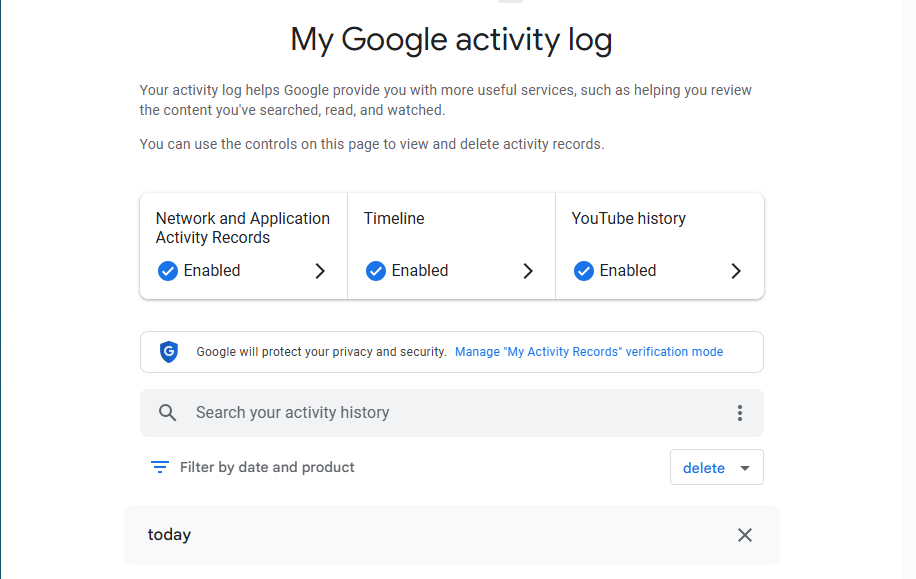
- Look for the “Web & App Activity” section.
- Use the “Filter by date & product” option and select “Chrome.”
- Browse the list to find the specific URLs you need.
Filtering Browsing Data Correctly
Google My Activity tracks everything from YouTube searches to Map locations. To stay focused on how to recover Chrome deleted history, always apply the Chrome-specific filter to avoid being overwhelmed by unrelated data.
Method 2: Restore Chrome History from Cached DNS Records
How DNS Cache Works
Every time you visit a website, your Windows OS stores the domain name in a temporary cache to speed up future visits. While this won’t show you the specific sub-pages (the full URL), it will show you the main websites you accessed recently.
Step-by-Step DNS Cache Check:
- Press Win + R, type
cmd, and press Enter to open the Command Prompt.
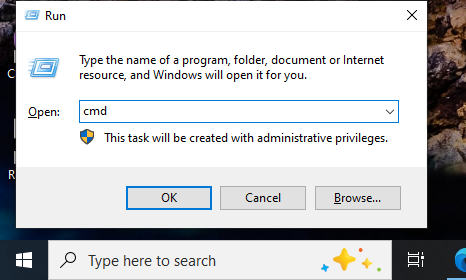
- In the black window, type the following command precisely:
ipconfig /displaydns
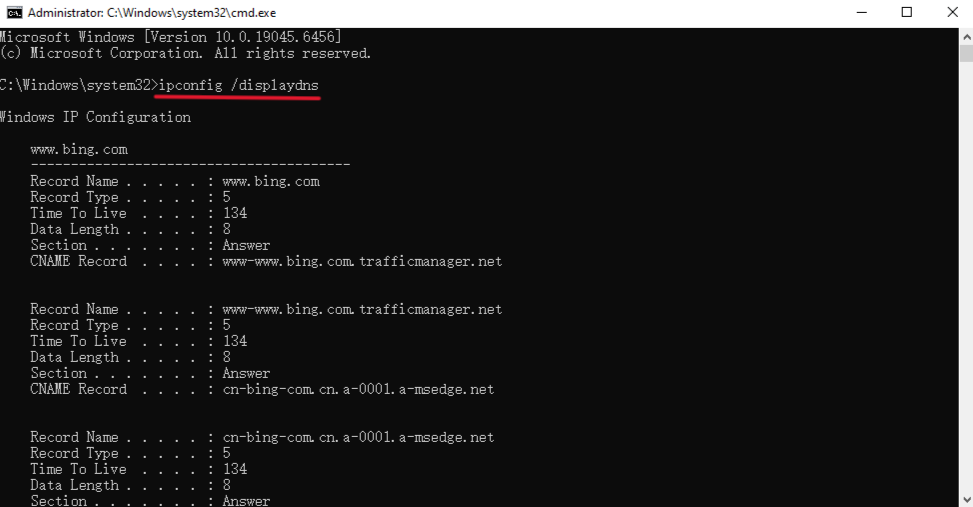
- Press Enter. A long list of web addresses will appear.
- Scroll through the “Record Name” entries to find the domains you visited.
Warning: Restarting your computer or flushing your DNS will wipe this record, making this method time-sensitive.
Method 3: Recover Chrome Deleted History via System Restore
When System Restore Helps
If your history disappeared due to a system crash or a recent software installation, Windows “System Restore” can roll your entire PC—including the Chrome database files—back to a previous state.
Step-by-Step Windows Restore Guide:
- In the Windows Search bar, type “Create a restore point” and click the result.
- Click the System Restore button.
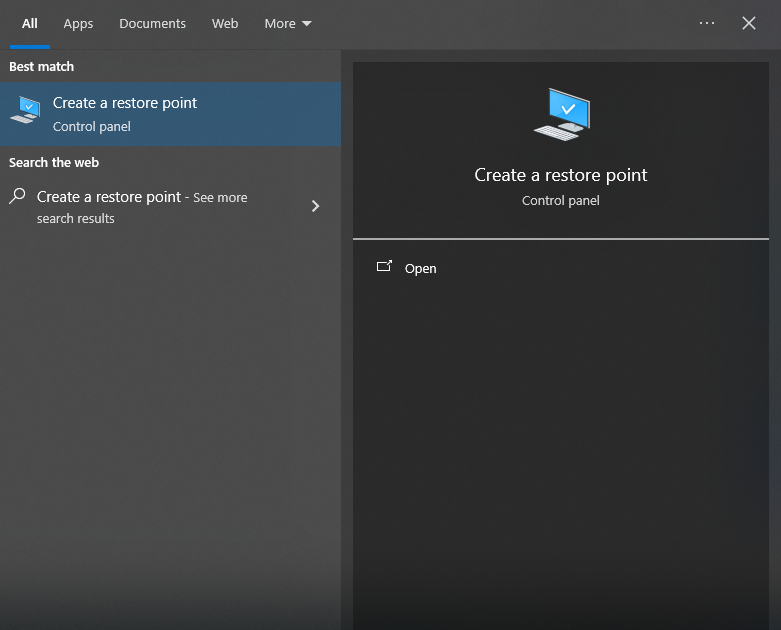
- Choose a date and time before your history was deleted.
- Follow the prompts and allow your computer to restart.
This is a powerful way to how to recover Chrome deleted history, but be aware that it will also uninstall any apps or drivers added after the restore point was created.
Method 4: Recover Chrome Deleted History Using Backup Files
Using Windows “Previous Versions”
If you have “File History” enabled in Windows, you can revert the Chrome data folder to an earlier version.
- Navigate to:
C:\Users\[YourUsername]\AppData\Local\Google\Chrome\User Data\Default
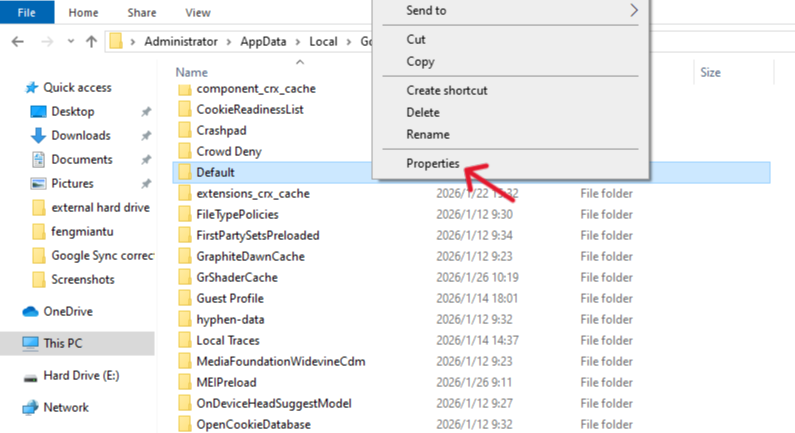
- Right-click the History file (or the whole Default folder).
- Select Properties and click the Previous Versions tab.
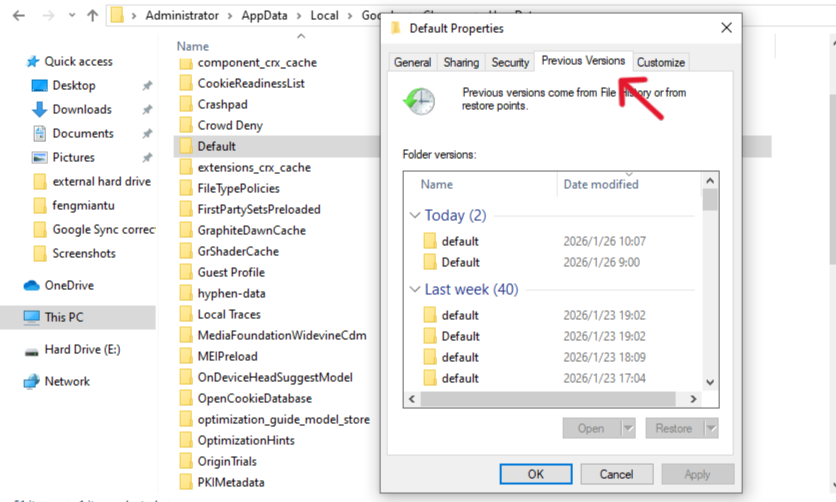
- If a backup exists, select it and click Restore.
Method 5: Using PandaOffice Drecov
When the methods above fail—usually because the History file itself was physically deleted from the hard drive—professional software is required. PandaOffice Drecov is a specialized utility that can scan the deep sectors of your drive to find “marked for deletion” files that the operating system can no longer see.
Important: Do not install the software on the same drive (usually C:) where Chrome is located. Use a USB flash drive or a secondary hard drive partition (D: or E:) to prevent overwriting your lost history data.
Step-by-Step Guide to Recover Chrome Deleted History with PandaOffice Drecov
- Step 1: Immediate Cessation of Drive Use
The moment you realize history is gone, stop downloading files or streaming videos on that computer. New data writing to the disk is the #1 reason why people fail at how to recover Chrome deleted history, as it overwrites the “deleted” space.
- Step 2: Launch and Select the Target Drive
Open PandaOffice Drecov. From the main dashboard, select the Local Disk (C:)—or whichever drive contains your user profile.

- Step 3: Initiate a Deep Scan
Click on the “Scan” button. For the best results in finding fragments of the Chrome database, ensure you select “Deep Scan” if prompted. The software will begin analyzing the file system for SQLite files and Chrome data structures.

- Step 4: Filter and Locate the History File
Once the scan completes, don’t sift through thousands of files.

- Step 5: Preview and Execute Recovery
Select the History file that matches the date before your deletion occurred. Click “Recover” and save the file to an external drive or your desktop.
- Step 6: Replace the Current History File
Close Chrome completely. Take the recovered History file and copy it back into the Chrome “Default” folder, replacing the empty current one. Restart Chrome, and your history will be restored.
Important Software and Path Details
To ensure success when learning how to recover Chrome deleted history, you must use precise paths. Errors in navigation are common.
| Operating System | Exact Path to History Database |
| Windows 10/11 | C:\Users\[User]\AppData\Local\Google\Chrome\User Data\Default\History |
| macOS | ~/Library/Application Support/Google/Chrome/Default/History |
| Linux | ~/.config/google-chrome/Default/History |
Limitations You Should Know
When Recovery Is Not Possible
There are scenarios where even the best tools cannot help you figure out how to recover Chrome deleted history:
- Incognito Mode: Chrome specifically does not write Incognito activity to the disk. There is no file to recover.
- Overwritten Data: If you have downloaded several large games or movies after deleting your history, the physical bits of the old history file are likely gone.
- SSD Trim: On many modern Solid State Drives (SSDs), the “Trim” command may wipe deleted data much faster than traditional Hard Drives (HDDs).
Common Mistakes That Reduce Success
- Continuing to Browse: Every new page you visit creates new history entries, which might overwrite the deleted ones.
- Using “Disk Cleanup” Tools: Running CCleaner or Windows Disk Cleanup after a loss will permanently erase the fragments needed for recovery.
How to Prevent Chrome History Loss in the Future
The best way to manage how to recover Chrome deleted history is to never have to do it again.
- Enable Chrome Sync: Go to Settings > You and Google > Turn on sync. This ensures your data is backed up to Google’s cloud servers in real-time.
- Regular Backups: Use a tool like Windows File History to back up your
AppDatafolder weekly. - Use Bookmarks: For truly vital information, use Ctrl + D to bookmark the page. Bookmarks are stored in a separate file and are easier to manage than raw history.
How to recover bookmarks in chrome FAQs
1. Can I recover Chrome history after clearing all data through the “All Time” setting?
Yes. While the local file is wiped, if you had Sync enabled, the data remains in “Google My Activity.” If not, professional recovery software like PandaOffice Drecov can often find the deleted file fragments on your disk.
2. Does Incognito mode save history?
No. Chrome is designed specifically to avoid saving any history, cookies, or form data during an Incognito session. No local file is ever created.
3. How far back does Google My Activity go?
By default, Google keeps activity indefinitely unless you have configured it to “Auto-delete” after 3, 18, or 36 months.
4. Is data recovery software safe to use?
Yes, provided you use reputable tools like PandaOffice Drecov. Always ensure you install the software on a different drive than the one you are scanning to protect your data.
5. Can Chrome history be recovered on mobile?
Direct file recovery is extremely difficult on mobile (iOS/Android) due to system encryption. Your best bet for mobile is checking your Google Account’s “My Activity” page.
Conclusion
Learning how to recover Chrome deleted history is a vital skill in our data-driven world. Whether you utilize the cloud-based “Google My Activity” log, a quick DNS cache check, or the powerful scanning capabilities of PandaOffice Drecov, your lost data is usually just a few steps away. Remember: the key to recovery is speed. The sooner you stop writing new data and start the recovery process, the higher your chances of success.






