







In the modern digital landscape, images are the backbone of communication. Whether you are scrolling through social media, designing a professional website, or managing sensitive data recovery projects, you have undoubtedly encountered various file extensions. Among the most prominent is the PNG. But what is a png file, and why does it hold such a prestigious position in the world of digital media?
This comprehensive guide explores the intricacies of the PNG format, compares it to other popular standards, and provides expert-level insights into protecting and recovering these valuable assets.
Understanding the PNG Format
Definition of PNG
A PNG file—short for Portable Network Graphics—is one of the most widely used image formats on the internet today. If you’ve ever downloaded a logo with a transparent background or taken a screenshot on your computer, chances are you’ve already worked with a PNG file without even realizing it. At its core, a PNG file is designed to store digital images in a way that preserves every detail, making it perfect for graphics where clarity matters most.
Unlike some other formats, PNG uses a lossless compression method. This means no data is discarded during compression, ensuring the image retains its original quality no matter how many times it is saved or edited. For designers, developers, and data recovery specialists, this is a significant advantage. Every pixel remains intact, much like saving a document without ever losing a single word.
History and Origin of PNG
The PNG format was created as a solution to a specific problem in the mid-1990s. At that time, the GIF format was the standard for web graphics, but it faced licensing issues due to patented compression algorithms. This sparked the development of PNG as a free, open-source standard.
By 1996, the World Wide Web Consortium (W3C) officially recognized PNG. Over the decades, it has gained universal support across all browsers and operating systems. Today, it stands alongside JPEG as a dominant player in digital imaging because it delivers consistent quality and supports advanced features like transparency.
How PNG Files Work
Lossless Compression Explained
To truly understand what is a png file, you must grasp lossless compression. Imagine packing a suitcase efficiently without throwing any clothes away; that is how PNG handles data.
Unlike JPEG, which removes “unnecessary” details to shrink the file size, PNG keeps every bit of information. This results in:
- Crisp edges for text and logos.
- No compression artifacts (the blurry “noise” often seen in low-quality JPEGs).
- Reliable data reconstruction, which is vital during file recovery processes.
Transparency and Alpha Channels
One of the standout features of a PNG file is its ability to support transparency. This is achieved through an alpha channel, which allows each pixel to have varying degrees of opacity. This allows images to blend seamlessly into different backgrounds, a feature that is indispensable for web design and branding.
Key Features of PNG Files
- High Image Quality: Preserves the original visual fidelity.
- Wide Color Support: Supports 24-bit RGB or 32-bit RGBA color spaces, as well as grayscale.
- Editing Without Quality Loss: Since it is lossless, you can save the file repeatedly without the image becoming “fuzzy.”
PNG vs JPG: What’s the Difference?
png vs jpg difference for web
When optimizing a website, choosing the right format is critical for performance. The png vs jpg difference for web usage usually comes down to the content of the image.
- Complexity vs. Simplicity: JPEGs are generally better for complex photographs where subtle color shifts can be compressed without the human eye noticing.
- Transparency: If your graphic needs a transparent background to sit over a colorful website header, PNG is the only choice.
- Loading Speed: Because PNGs hold more data, they are often larger. Web developers often use tools like TinyPNG to compress these files without losing their lossless nature.
Compression Comparison
| Feature | PNG | JPG |
| Compression Type | Lossless | Lossy |
| Transparency | Supported | Not Supported |
| Best For | Logos, Icons, Text | Photographs |
| File Size | Larger | Smaller |
Data Loss Scenarios for PNG Files
Because PNGs are often used for high-stakes branding and professional assets, losing them to accidental deletion or drive failure can be devastating. Whether you are dealing with a corrupted SD card or a formatted drive, understanding what is a png file at a binary level helps in its recovery.
can i restore a permanently deleted png
A common question asked by users is: “can i restore a permanently deleted png?” The answer is almost always yes, provided the data hasn’t been overwritten. When you “permanently” delete a file in Windows (Shift + Delete) or empty the Recycle Bin, the file isn’t immediately erased. Instead, the operating system marks the space it occupied as “available.”
As long as you stop using the drive immediately, specialized recovery software can scan the file system and bring the image back to life.
Advanced Recovery Methods for PNG Files
png recovery from formatted hard drive
A format operation usually wipes the file system table, but the raw data of your PNG files often remains on the disk. Performing a png recovery from formatted hard drive requires a tool capable of “File Signature Polishing” or “Deep Scanning.”
Since a PNG file always begins with a specific hex header (89 50 4E 47 0D 0A 1A 0A), recovery tools look for this signature to identify the file even without its original name or folder structure.
how to recover deleted png files from sd card
SD cards are prone to file system corruption. If your camera or phone suddenly says “Format needed,” do not click yes. To learn how to recover deleted png files from sd card, you should use a card reader and a PC-based recovery tool rather than trying to fix it on the mobile device itself.
Using PandaOffice Drecov for Professional Recovery
For those who need a reliable, professional-grade solution, PandaOffice Drecov data recovery software is a premier choice. It is designed to handle the specific structure of lossless files like PNGs, ensuring that the recovered images are not corrupted or fragmented.
⚠ Warning: Install it on a drive different from the one where your data was lost to prevent overwriting.
Step-by-Step Guide: Recovering PNGs with PandaOffice Drecov
Step 1: Initiate the Scan
Click the “Scan” button. The software will perform a Quick Scan followed by a Deep Scan.

Warning: Do not save the software or any new data to the drive you are trying to recover from, as this can overwrite the deleted PNG files.
Step 2: Filter for PNG Files
Once the scan progresses, use the file type filter on the left sidebar. Navigate to Graphics > PNG. This allows you to ignore other file types and focus specifically on your missing images.
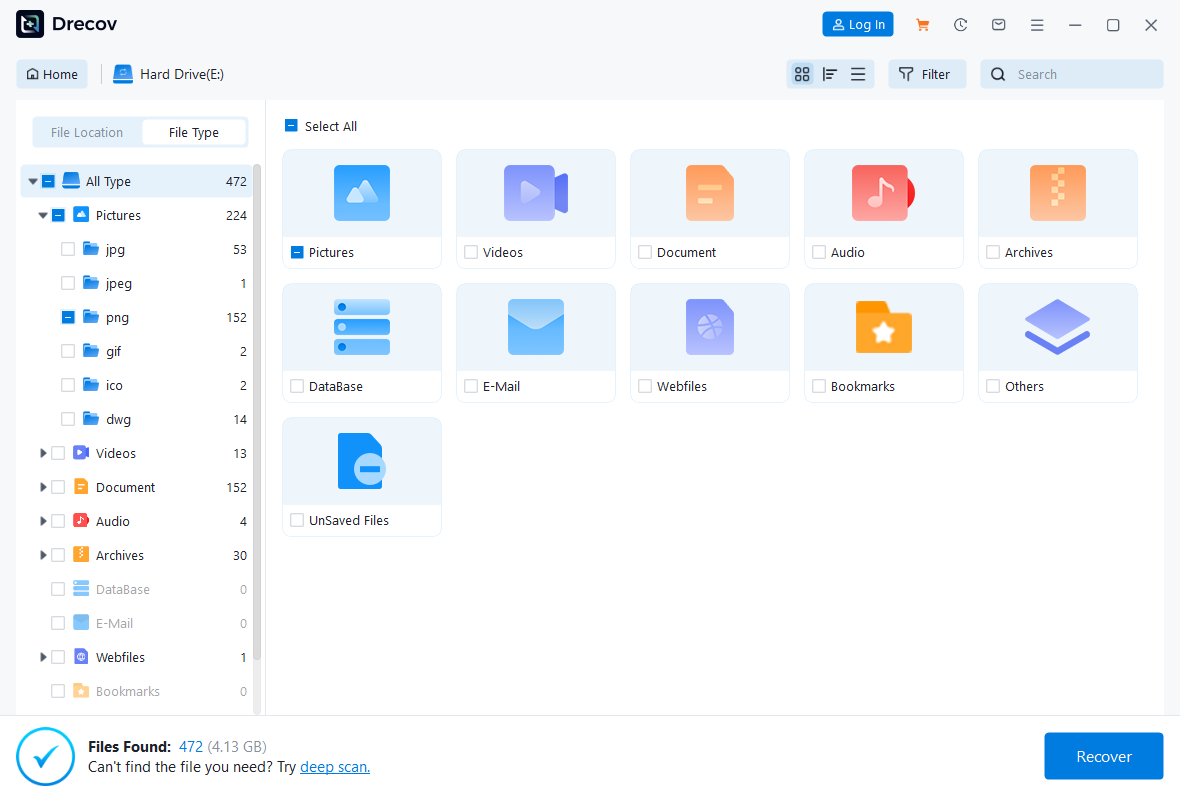
Step 3: Preview and Recover
PandaOffice Drecov allows you to preview the PNG before saving it. This is a crucial step to ensure the file is intact. Select the files you want and click “Recover.” Choose a different drive or a cloud storage location to save the recovered files.
- How to remove OneDrive from File Explorer: Step-by-Step Guide
- Recover deleted files from USB flash drive: A complete guide
When Should You Use PNG Files?
Ideal Scenarios
- Web Logos: When you need a sharp logo that works on any background color.
- Tutorial Screenshots: If the image contains text, PNG ensures the letters stay crisp and readable.
- Source Graphics: When you are still in the process of editing and need to save multiple versions without losing quality.
When to Avoid PNG
- High-Resolution Photography: A 24-megapixel photo saved as a PNG can be 50MB+, whereas a high-quality JPG might be only 5MB.
- Email Attachments: Large PNG files might trigger size limits in email clients.
How to Open, Edit, and Convert PNG Files
Most users don’t need special software to open a PNG file. Windows Photos, macOS Preview, and every modern web browser (Chrome, Firefox, Safari) support them natively.
For editing, professional tools like Adobe Photoshop or free alternatives like GIMP are best. If you find yourself with a PNG that is too large for your needs, you can easily convert it to a JPG using online converters or built-in tools like “Paint” in Windows by selecting File > Save As > JPEG.
Frequently Asked Questions
1. Is a PNG file better than a JPEG?
It is “better” for quality and transparency, but “worse” for file size. Use PNG for graphics and JPEG for photos.
2. Why is my PNG background not transparent?
Ensure the software you used to create the image actually supports alpha channels and that you haven’t “flattened” the image before saving.
3. Can I recover a PNG after my SD card was submerged in water?
This is a physical failure. If the computer can still recognize the card when plugged in, PandaOffice Drecov can likely help. If the card is not detected at all, you may need a physical clean-room recovery service.
Conclusion
In summary, knowing what is a png file is essential for anyone working in the digital space. Its lossless nature and support for transparency make it an unbeatable choice for web design and branding. However, because these files are often high-value assets, maintaining a robust backup strategy is vital.
If disaster strikes, remember that tools like PandaOffice Drecov data recovery software offer a lifeline, allowing you to perform png recovery from formatted hard drive or an SD card with ease. By understanding the format and the tools available, you can ensure your digital visuals remain perfect and protected.






