







If you’re asking yourself, “why can’t I access ChatGPT 5?”, you’re definitely not alone. As AI tools become more popular, occasional access issues can arise due to server load, account restrictions, network problems, or platform limitations. In the rapidly evolving landscape of 2026, where GPT-5.4 and specialized “Thinking” models are the standard, any disruption to your workflow can be frustrating.
In this comprehensive guide, we’ll explore all the possible reasons why you can’t access ChatGPT 5 and provide step-by-step solutions to fix the issue quickly. Whether you’re facing login errors, loading problems, or availability restrictions, this article will help you get back on track. Furthermore, because access issues often lead to data loss or the inability to retrieve important chat histories, we will delve into professional data recovery methods, including using the powerful PandaOffice Drecov data recovery software.
What Is ChatGPT 5?
ChatGPT 5 represents the latest generation of OpenAI’s large language models. By mid-2026, the ecosystem has expanded into several variants, including GPT-5.3 Instant and the flagship GPT-5.4 Thinking model. These versions are designed to assist with complex coding, autonomous agent tasks, and deep research.
However, access to these advanced versions may depend on your subscription plan, region, or platform availability. If your dashboard suddenly reverts to legacy models like GPT-4o, or if the page simply won’t load, you need a systematic approach to resolve the problem.
ChatGPT 5 login loop issue fix
One of the most persistent technical hurdles users face is the dreaded “login loop.” This happens when you enter your credentials, the page authenticates, but then immediately redirects you back to the login screen or a blank page. If you are wondering why can’t I access ChatGPT 5 even after entering the correct password, this loop is likely the culprit.
To resolve the ChatGPT 5 login loop issue fix, follow these technical steps:
- Step 1: Check the Official Status Page. Before changing any settings, verify if OpenAI is experiencing a partial outage. Visit the official OpenAI Status page to see if “ChatGPT” or “API” services are degraded.
- Step 2: Use Incognito Mode. Open a private or incognito window in your browser (Ctrl+Shift+N for Chrome/Edge, Ctrl+Shift+P for Firefox). This bypasses existing extensions and cookies that might be causing the loop.
- Step 3: Verify the Authentication Method. In 2026, OpenAI has strictly separated login methods. If you originally signed up via “Continue with Google,” trying to log in with an email and password manually can trigger a loop. Always use the original OAuth provider.
- Step 4: Hard Refresh the Page. Force the browser to ignore its local cache and fetch the latest version of the site from the server.
- Windows/Linux: Press
Ctrl + F5. - macOS: Press
Cmd + Shift + R.
- Windows/Linux: Press
- Step 5: Disable VPNs and Proxies. Many security-focused VPNs use shared IP addresses that OpenAI’s firewall may flag as “suspicious activity,” preventing the final handshake of the login process.
Recover ChatGPT data from browser cache
Sometimes, the answer to “why can’t I access ChatGPT 5” is that your browser has stored corrupted session data. While clearing this data often fixes the access issue, many users fear losing their unsaved chat drafts or specific settings. If you need to recover ChatGPT data from browser cache or simply want to clean the slate to regain access, follow this procedure.
- Step 1: Access Browser DevTools. While on the ChatGPT page, press
F12orRight-click > Inspect. - Step 2: Locate Local Storage. Navigate to the “Application” tab (in Chrome/Edge) or “Storage” tab (in Firefox). On the left sidebar, expand “Local Storage” and select
https://chatgpt.com. - Step 3: Export or Note Down Data. If you see entries like
@@auth0spajs@@, these are your session tokens. While you cannot “read” a chat here, you can see if your account ID is correctly populated. - Step 4: Clear Site Data. To fix the access problem, click the “Clear site data” button at the top of the Application tab. This is more surgical than clearing your entire browser history, as it only targets OpenAI’s data.
- Step 5: Relogin. Close the tab, reopen it, and log back in. This often clears the “Internal Server Error” messages that plague GPT-5 users.
If you have lost access to your browser bookmarks or saved links to important AI conversations during this process, you can find help in this guide on how to get your Google Chrome bookmarks back.
PandaOffice Drecov data recovery software
In extreme cases, a system crash or a botched browser update might cause you to lose not just your access to ChatGPT, but also your locally saved AI exports, browser profile folders, or important transcripts. When standard troubleshooting fails and your local files disappear, it is time to turn to professional-grade tools like PandaOffice Drecov data recovery software.
PandaOffice Drecov is a premier data recovery solution designed to handle complex data loss scenarios. Whether your browser’s “Default” profile folder was accidentally deleted or your SSD suffered a logic error that wiped your ChatGPT history exports, this tool can help.
Why choose PandaOffice Drecov?
- High Success Rate: Boasts a 99.8% success rate for common file types.
- Deep Scan Technology: Can penetrate the file system to find “invisible” fragments of deleted browser databases (SQLite files).
- Read-Only Mode: Ensures that the recovery process does not overwrite any existing data on your drive.
⚠ Warning: Install it on a drive different from the one where your data was lost to prevent overwriting.
Steps to recover lost data with PandaOffice Drecov:
- Step 1: Select the Target Location. Launch PandaOffice Drecov data recovery software and select the drive where your browser profiles are stored (usually the C: drive).

- Step 2: Run a Deep Scan. Choose the “Deep Scan” mode. This will take longer than a quick scan but is necessary for finding specific browser cache files or deleted
.jsonexports from ChatGPT.

- Step 3: Preview and Filter. Use the filter sidebar to search for specific file extensions like
.html,.json, or.txt. Drecov allows you to preview the contents of a file before committing to the recovery.
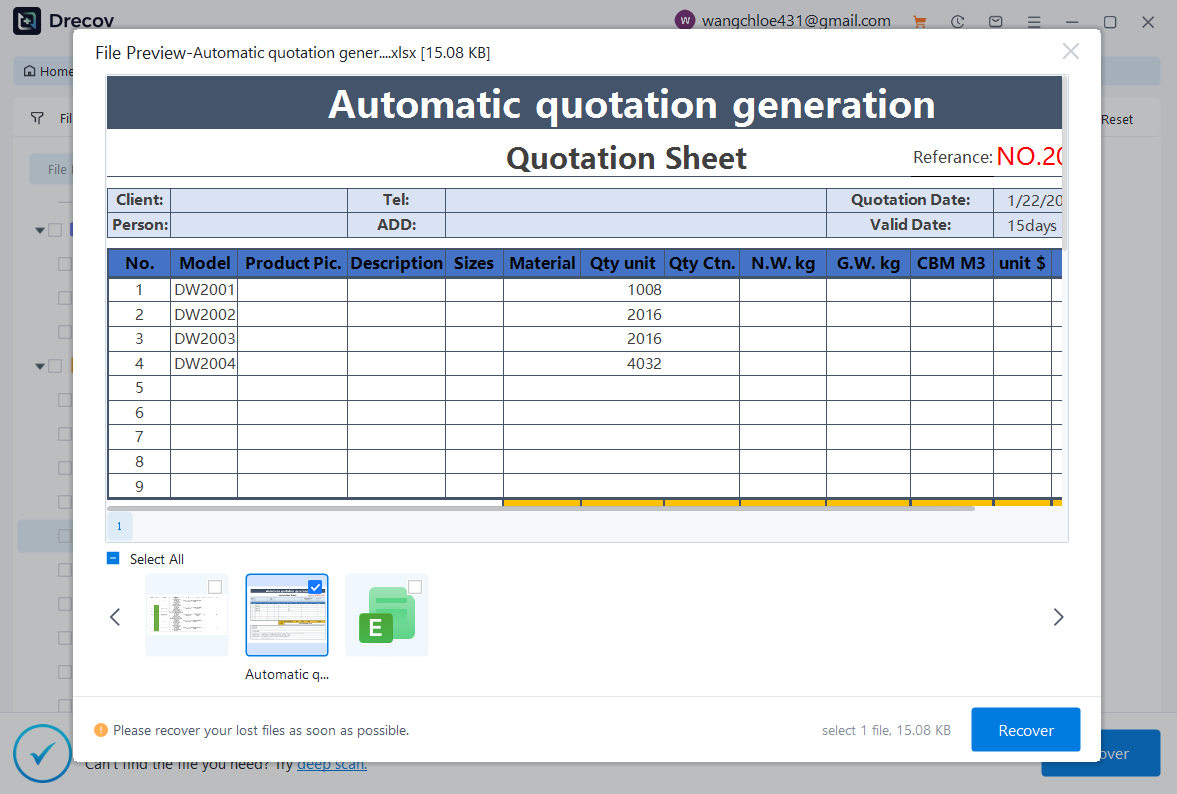
- Step 4: Recover to a Safe Drive. Select the files you need and click “Recover.” Always save the recovered data to an external USB drive or a different partition to ensure data integrity.
For further assistance with browser-specific data locations and management, you may find these resources helpful:
- Learn where are Firefox bookmarks stored on your PC to protect your saved AI resources.
- Check out the how to download video from browser Firefox 2026 guide if you need to save AI-generated video content directly to your drive.
Advanced Reasons Why You Can’t Access ChatGPT 5
Beyond the common technical glitches, several platform-specific factors might be the reason you are asking why can’t I access ChatGPT 5.
1. Subscription Plan Limitations
By 2026, OpenAI has segmented its users into multiple tiers. If you are on the “Free” or “Go” plan, your access to GPT-5.4 is extremely limited.
- Free Plan: Provides access to GPT-5.3 with strict message caps and ads.
- Plus Plan ($20/mo): The standard for most users, offering GPT-5.4 Thinking with high usage limits.
- Pro Plan ($200/mo): Required for the most powerful GPT-5.4 Pro models.If your account says “Model not available,” check your billing status in the “Settings > Subscription” menu.
2. Regional Restrictions and IP Blocking
OpenAI continuously updates its regional availability. If you are traveling or using a network with a strict firewall (like a corporate or school network), access might be blocked.
- Solution: Check if your current IP address is localized to a supported country. Avoid using “Free VPNs” which are almost always blocked by Cloudflare’s security layer.
3. Account Deactivation or Suspension
If you have violated the “Usage Policy”—for example, by attempting to generate restricted content or using unauthorized automated scripts—OpenAI may suspend your account.
- Key Symptom: You see a message stating “Your account has been deactivated.”
- Solution: Check your registered email for a notice from OpenAI. You may need to appeal the decision via their Help Center.
4. Browser Compatibility and Extensions
Older versions of browsers may not support the WebSockets required for the real-time streaming of GPT-5’s “Thinking” process.
- Path for Chrome Updates:
Settings > About Chrome > Check for updates. - Path for Edge Updates:
Settings > About Microsoft Edge.Always ensure you are running a 64-bit version of your browser for the best performance.
Troubleshooting Checklist for Immediate Access
If you still find yourself asking why can’t I access ChatGPT 5, run through this rapid-fire checklist:
- Network Stability: Switch from Wi-Fi to mobile data to rule out router issues.
- Date and Time Settings: Ensure your computer’s clock is synchronized. If your system time is off by even a few minutes, the SSL certificates will fail, blocking access.
- DNS Flush: Sometimes your computer “remembers” an old, broken path to the server.
- Open Command Prompt (Admin) and type:
ipconfig /flushdns.
- Open Command Prompt (Admin) and type:
- Browser Extensions: Specifically, “Ad-Blockers” or “Privacy Badger” can sometimes mistake the ChatGPT login script for a tracker. Disable them temporarily.
- Device Restart: It sounds simple, but a reboot clears the temporary RAM cache that might be holding a corrupted session state.
Conclusion
Understanding why can’t I access ChatGPT 5 requires a mix of technical troubleshooting and an awareness of OpenAI’s current service tiers. Most issues are resolved by simply clearing site-specific cookies or upgrading a lapsed subscription. However, when the problem is deeper—such as lost browser data or deleted local transcripts—professional tools like PandaOffice Drecov data recovery software become indispensable.
By maintaining a clean browser environment, staying informed about your subscription limits, and knowing how to recover your data when things go wrong, you can ensure that your AI-powered workflow remains uninterrupted.






