







USB flash drives are the unsung heroes of our digital lives. We use them to transport sensitive work documents, cherished family photos, and critical system backups. However, because they are so portable, they are frequently subjected to physical stress, improper ejections, and file system errors. If you find yourself staring at an error message, don’t panic. Learning how to fix USB flash drive issues is a multi-step process that ranges from simple software tweaks to advanced data reconstruction.
This comprehensive 2026 guide will walk you through the logic of USB failures and provide actionable steps to repair USB partition table grayed out issues, recover lost files, and restore your drive to peak performance.
Understanding USB Flash Drive Failures
Why USB Drives Fail More Often Than You Think
USB flash drives feel almost indestructible because they have no moving parts. They’re tiny, portable, and incredibly convenient—but here’s the truth: they’re surprisingly fragile. Recent 2025–2026 data shows that about 60% of USB failures are caused by physical damage, while the rest stem from controller issues, malware, and file system corruption. That’s a pretty alarming statistic when you think about how casually we toss them into bags or pockets.
Unlike traditional hard drives, USB flash drives rely on NAND flash memory, which wears out over time. Every time you save, delete, or modify a file, you’re slightly degrading the memory cells. Combine that with frequent plugging and unplugging, and you’ve got a device that’s constantly under stress. It’s like bending a paperclip repeatedly—eventually, it snaps. On top of that, many low-cost USB drives use cheaper components, which significantly reduces their lifespan. Studies even suggest consumer USB drives can have annual failure rates of 5–10%, especially with heavy use. So if your USB suddenly stops working, it’s not bad luck—it’s actually quite common.
Types of USB Flash Drive Problems
USB issues generally fall into three main categories: physical, logical, and electronic failures. Physical damage includes broken connectors or water exposure. Logical issues involve corrupted files or formatting errors. Electronic failures, on the other hand, often relate to controller chips or internal circuitry problems.
Logical problems are the easiest to fix. If your files disappeared or your USB says “corrupted,” there’s a good chance the data is still there—it’s just inaccessible. Physical and electronic issues, however, can be much trickier and sometimes require professional tools. Understanding which category your problem falls into is the first step toward fixing it. Think of it like diagnosing a car issue—you wouldn’t replace the engine if the problem is just a dead battery.
Signs Your USB Flash Drive Is Failing
Common Warning Indicators
USB drives rarely fail without warning. The problem is, most people ignore the early signs. If your USB is taking longer to load files, randomly disconnecting, or showing error messages, it’s already in trouble. These are not minor glitches—they’re early symptoms of failure.
Another red flag is when files suddenly become unreadable or appear corrupted. You might open a document and see gibberish instead of actual content. That’s a sign the file system is breaking down. Sometimes, the USB might even ask you to format it before use—never rush into that without backing up your data first. You might also notice your USB heating up more than usual. Excess heat can damage internal components and accelerate failure. It’s like a laptop overheating—ignore it long enough, and things start going wrong fast.
When Data Loss Is Imminent
If your USB is not recognized at all, shows “No Media,” or disappears intermittently, you’re on the edge of data loss. At this stage, continuing to use the device can make things worse. In fact, experts emphasize that acting quickly significantly increases recovery success rates. The moment you suspect something is wrong, stop using the drive. Every additional action—copying files, deleting data, or even opening folders—can overwrite recoverable data and make recovery impossible.
First Things to Do Before Fixing a USB Drive
Immediate Safety Steps
Before jumping into complex fixes, pause for a second. The worst thing you can do is panic and start clicking random repair options. First, safely remove the USB and reconnect it. Try a different USB port or even another computer to rule out system-related issues. If the drive is still accessible, immediately copy important files to another device. This is your safety net. Even if the USB fails completely later, your data will be safe.
Why You Should Stop Using the Drive
Here’s a simple rule: the more you use a failing USB drive, the worse the damage becomes. When a drive starts failing, its internal memory cells may already be unstable. Writing new data can overwrite existing files, making recovery impossible. Think of it like walking on thin ice. The more you move around, the higher the chance it breaks. The safest move? Stop immediately and proceed carefully.
Basic Fixes for USB Flash Drive Not Working
Try Different Ports and Devices
Sometimes, the problem isn’t your USB at all—it’s your computer. A faulty USB port, outdated drivers, or system glitches can prevent detection. Plug your USB into another port or a different computer to confirm. This simple step solves more issues than you’d expect. It’s like checking if your phone charger works in another socket before assuming it’s broken.
Update or Reinstall Drivers
Outdated or corrupted drivers can also cause USB detection issues. On Windows, follow these steps:
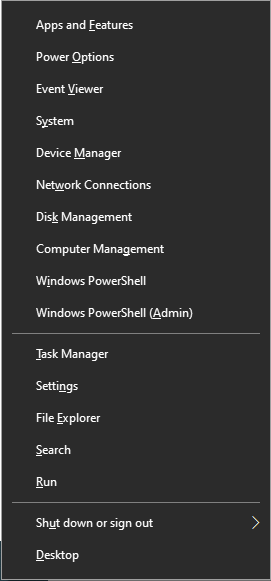
- Step 1: Right-click the Start button and select Device Manager.
- Step 2: Expand the Disk drives section.
- Step 3: Right-click your USB drive and select Uninstall device.
- Step 4: Unplug the USB and restart your computer. When you plug it back in, Windows will automatically reinstall the driver.
Driver issues are often overlooked, but they’re one of the easiest problems to fix.
Fixing USB Not Showing Up in Windows
Using Disk Management
If your USB doesn’t appear in File Explorer but shows up in Disk Management, you’re in luck. This means the drive is detected but not properly configured.
- Step 1: Press Windows Key + X and select Disk Management.
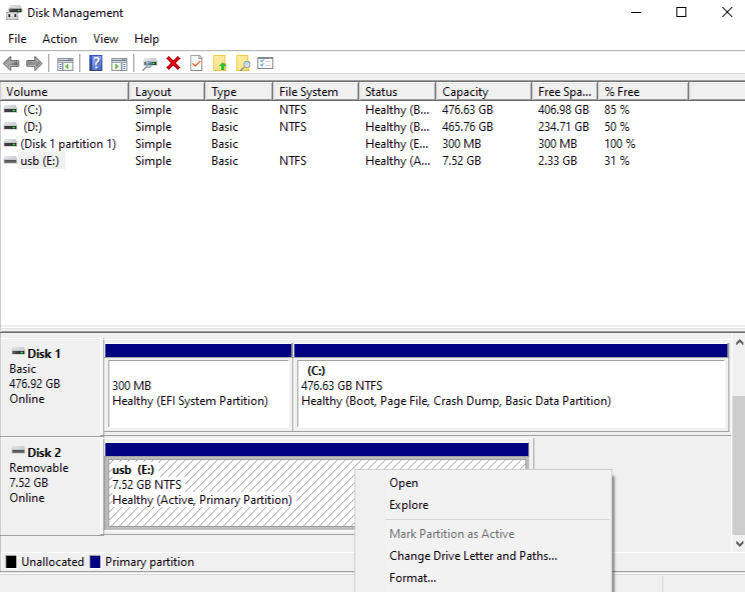
- Step 2: Locate your USB in the list. It usually appears as “Removable.”
- Step 3: If it says “Unallocated,” right-click it and select New Simple Volume to set it up.
Assigning a Drive Letter
Sometimes, Windows simply fails to assign a drive letter. This leads to the drive being “invisible” in your folder system.
- Step 1: In Disk Management, right-click the USB partition.
- Step 2: Select Change Drive Letter and Paths.
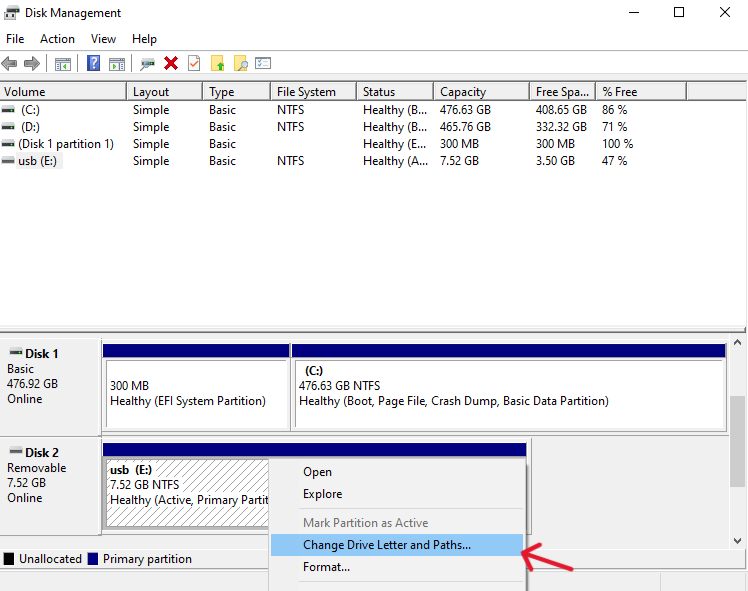
- Step 3: Click Add or Change, pick a letter (like Z:), and click OK.
How to Fix Corrupted USB Flash Drive
Using CHKDSK Command
One of the most effective tools for fixing logical errors is the CHKDSK command. It scans your USB for file system errors and attempts to repair them automatically.
- Step 1: Type
cmdin the Windows search bar, right-click it, and Run as Administrator.

- Step 2: Type the following command:
chkdsk X: /f(Replace X with your actual USB drive letter). - Step 3: Press Enter and wait for the process to complete.
This tool can fix bad sectors and recover readable data. It’s like sending a repair crew into your USB’s internal structure.
Repairing File System Errors
File system corruption often occurs due to improper ejection or sudden power loss. Repair tools can rebuild the file system, making your data accessible again. However, always recover important data before running repairs, as some fixes may overwrite files. If the file system is listed as RAW, the operating system cannot read the structure, and you will likely need software intervention to fix USB flash drive accessibility.
Fix USB “No Media” Error
This error usually indicates a deeper issue, such as controller failure or corrupted firmware. While basic fixes like reconnecting the drive or updating drivers may help, severe cases often require professional recovery tools. In many cases, “No Media” means the system recognizes the USB hardware but cannot access its storage. It’s like seeing a locked door with no key. You can try searching for the specific manufacturer’s “Mass Production Tool” (MPTool) to re-flash the firmware, but be warned: this will wipe all data.
Fix Write-Protected USB Drive
A write-protected USB won’t allow you to modify or delete files. This can happen due to software settings or hardware issues.
- Step 1: Check for a physical “Lock” switch on the side of the USB.
- Step 2: Use Registry Editor (
regedit). Navigate to:HKEY_LOCAL_MACHINE\SYSTEM\CurrentControlSet\Control\StorageDevicePolicies. - Step 3: Change the WriteProtect value to 0.
If the problem persists, the USB may be physically damaged or locked by firmware to prevent further data loss.
Fix unrecognized usb and get data back
When your computer fails to recognize the device, or the file system shows up as RAW, you need a high-level solution to fix unrecognized usb and get data back. This is where specialized data recovery algorithms come into play.
Using PandaOffice Drecov data recovery software
PandaOffice Drecov data recovery software is a professional-grade tool designed for users who need a reliable way to salvage files from unreadable, corrupted, or formatted USB drives. It bypasses the operating system’s file explorer to communicate directly with the NAND flash storage.
⚠ Warning: Install it on a drive different from the one where your data was lost to prevent overwriting.
Follow these steps to recover your data:
- Step 1: Select the USB Drive. Launch the software. On the main interface, you will see a list of drives. Select the unrecognized or corrupted USB drive and click Scan.

- Step 2: Deep Scan. PandaOffice Drecov data recovery software will perform a Quick Scan followed by a Deep Scan. The Deep Scan searches for file signatures (like JPG, DOCX, or MP4) even if the partition table is destroyed.

- Step 3: Preview and Recover. Once the scan is complete, browse the files. You can preview images and documents to ensure they are intact. Select the files you want and click Recover.
Warning: Always save your recovered files to a different location (like your computer’s desktop or a cloud drive). Saving them back to the original USB can cause permanent data overwriting!
Professional Recovery Services
If your USB is physically damaged (cracked, burnt, or submerged in water), software won’t help. Professional services use advanced techniques like chip-off recovery to extract data directly from memory chips. These methods can achieve success rates as high as 90–98% for certain failures but can be quite expensive.
Repair usb partition table grayed out
In Disk Management, you might find that the options to format or delete a partition are unavailable. To repair usb partition table grayed out issues, you often need to use the command-line utility “Diskpart” to force a clean slate.
- Step 1: Open Command Prompt as Administrator.
- Step 2: Type
diskpartand hit Enter. - Step 3: Type
list diskto find your USB drive number (e.g., Disk 2). - Step 4: Type
select disk 2(ensure you select the correct disk!). - Step 5: Type
clean. This command wipes the partition configuration, removing the “grayed out” restriction. - Step 6: You can now create a new partition in Disk Management.
Fix usb drive that won’t format
When Windows says “Windows was unable to complete the format,” it usually means there are bad sectors or the drive is being used by another process. To fix usb drive that won’t format, try the following:
- Step 1: Ensure the write-protection is off.
- Step 2: Use Disk Management to perform a Full Format instead of a “Quick Format.” This checks for bad sectors during the process.
- Step 3: Change the File System. If it won’t format to NTFS, try exFAT or FAT32.
- Step 4: If all else fails, use a third-party low-level format tool provided by the USB manufacturer (e.g., SanDisk or Kingston).
Repairing Physically Damaged USB Drives
Physical damage—like bent connectors or broken circuit boards—is the most common cause of failure. In such cases, DIY fixes are risky and can worsen the damage. If you have soldering skills, you might attempt to bridge a broken connection on the PCB, but for most users, if the USB is visibly damaged, avoid plugging it in repeatedly. Instead, consult a professional recovery service.
Formatting USB Flash Drive Safely
Formatting can fix many issues, but it also erases data. Always recover important files first.
| File System | Best For | Max File Size |
| FAT32 | Older devices, Car stereos | 4 GB |
| exFAT | Modern Windows/Mac compatibility | No practical limit |
| NTFS | Windows-only system drives | No practical limit |
Formatting is like resetting your USB—it clears errors but also wipes everything clean.
USB Repair vs Data Recovery: Key Differences
Repair focuses on fixing the USB so it can be used again. Recovery focuses on retrieving lost data. Sometimes, you need both—but always prioritize recovery first. If you repair a drive (by formatting or running CHKDSK /r), you risk overwriting the very data you are trying to save.
After you have successfully recovered your files, you can learn more about how to repair corrupted USB flash drive without losing data for future reference. If your computer isn’t detecting the drive at all, check our ultimate troubleshooting guide for USB ports. Finally, if you need to use your USB to reinstall Windows 10, ensure it is properly formatted and healthy first.
Preventing USB Flash Drive Damage
USB failures are often preventable. Small habits can make a huge difference in longevity:
- Eject Safely: Always use the “Safely Remove Hardware” icon.
- Cap It: Use a cap or retractable design to keep dust out of the connector.
- Keep it Cool: Avoid leaving USBs in hot cars or near heaters.
- Static Safety: Avoid touching the gold pins to prevent static discharge damage.
Best Practices for Long-Term USB Use
USB drives are great for transferring files, but they’re not ideal for long-term storage. Always maintain backups. Follow the “3-2-1 rule”: three copies of data, two storage types, one offsite.
When to Replace Your USB Drive
If your USB frequently disconnects, shows errors, or has slowed performance, it’s time to replace it. Continuing to use a failing drive is a gamble you’ll eventually lose. Flash memory is cheap today; your data is not. If you have had to fix USB flash drive errors more than twice in a month, retire the device.
Fix USB Flash Drive FAQs
1. Can a corrupted USB flash drive be fixed without losing data?
Yes, if the issue is logical and the data hasn’t been overwritten, you can repair it using tools like CHKDSK or recovery software like PandaOffice Drecov.
2. Why does my USB say “No Media”?
This usually indicates controller failure or severe corruption, making the storage inaccessible to the OS.
3. Is it safe to format a USB to fix errors?
Yes, but only after backing up or recovering your data, as formatting erases everything on the drive.
4. How long do USB flash drives last?
Most last 5–10 years under normal use, but frequent write cycles and poor-quality components can shorten their lifespan significantly.
5. Can physically damaged USB drives be repaired at home?
It’s not recommended unless you are experienced with micro-soldering. Physical repairs require specialized tools to avoid permanent data loss.
Conclusion
Fixing a USB flash drive isn’t always complicated—but it does require the right approach. The key is identifying the problem early, acting carefully, and prioritizing data recovery over repair. Whether you are using the PandaOffice Drecov data recovery software to save lost photos or using Diskpart to repair usb partition table grayed out, patience is your best friend. USB drives may be small, but the data they carry is often priceless. Treat them with care, and they’ll serve you well.





