







If you’ve encountered the frustrating message “unknown error occurred ChatGPT PDF”, you’re not alone. Many users run into this issue when trying to generate, upload, or download PDF files using ChatGPT. Whether you’re working on reports, academic papers, or business documents, this error can interrupt your workflow and cause unnecessary delays.
In this comprehensive guide, you’ll learn what causes the unknown error occurred ChatGPT PDF, how to fix it step by step, and how to prevent it from happening again. This article is designed to be beginner-friendly while offering practical solutions that actually work.
What Does “Unknown Error Occurred ChatGPT PDF” Mean?
The unknown error occurred ChatGPT PDF message is a generic error that appears when something goes wrong during PDF-related operations. Since it doesn’t specify the exact cause, it can be tricky to diagnose. This error usually appears when:
- Uploading a PDF file for analysis.
- Generating a PDF from ChatGPT output.
- Downloading a PDF document from the interface.
- Processing large or complex PDF files that hit token limits.
Because the error is vague, understanding the root causes is essential for fixing it efficiently. Often, the problem lies in the bridge between the AI’s processing capabilities and the local file system’s integrity.
Common Causes of the Error
Before jumping into solutions, let’s explore the most common reasons behind the unknown error occurred ChatGPT PDF issue.
- File Size Limitations: As of 2026, ChatGPT has a hard limit of 512MB per file, but text-heavy PDFs often hit a 2 million token limit before they even reach the size limit.
- Unsupported File Format: Even though PDFs are widely supported, certain encoded or secured PDFs (like password-protected files) may not be compatible.
- Browser Issues: Outdated browsers, corrupted cache, or conflicting extensions like ad blockers can trigger errors during the handshake process.
- Network Instability: A weak or unstable internet connection may interrupt file data packets during the transmission.
- Server-Side Problems: Sometimes the issue is not on your end; OpenAI’s servers might be experiencing high traffic or temporary outages.
- Corrupted PDF File: If the file itself is damaged—perhaps due to a bad save or a crash—ChatGPT may fail to read its metadata or structural tree.
How to Fix “Unknown Error Occurred ChatGPT PDF”
Here are proven methods to resolve the issue, moving from basic checks to technical interventions.
1. Check Your PDF File Size and Token Count
If your file is too large or contains too much text, ChatGPT will throw the unknown error occurred ChatGPT PDF message.
- Step 1: Check the file size on your computer. If it’s over 512MB, it will definitely fail.
- Step 2: Use a PDF compressor tool to reduce the size.
- Step 3: Split the file into smaller sections (e.g., Chapters 1-5, Chapters 6-10) and upload them sequentially.Keeping your file under recommended limits significantly reduces the chance of encountering errors.
2. Clear Browser Cache and Cookies
Browser data can interfere with the WebSocket connections ChatGPT uses for file handling.
- Step 1: Open your browser settings (e.g.,
chrome://settings/for Google Chrome). - Step 2: Navigate to Privacy and Security > Clear browsing data.
- Step 3: Select “Cookies and other site data” and “Cached images and files.”
- Step 4: Restart your browser and log back into ChatGPT.
3. Use the “Print to PDF” Workaround
If a file has strange metadata or hidden layers, re-saving it can fix the unknown error occurred ChatGPT PDF.
- Step 1: Open your problematic PDF in a web browser or a viewer.
- Step 2: Press
Ctrl + P(Windows) orCmd + P(Mac). - Step 3: Choose “Microsoft Print to PDF” or “Save as PDF” as the printer.
- Step 4: Save the new file with a different name and attempt the upload again.
How to Repair Corrupted PDF for ChatGPT
Sometimes the error isn’t about size or browser settings; the file itself is broken. When the internal structure of a PDF is damaged, ChatGPT cannot parse the text, leading to the unknown error occurred ChatGPT PDF.
- Step 1: Identify the Corruption: If you try to open the PDF in a standard reader and get a “format error” or “file is damaged” prompt, the file is corrupted.
- Step 2: Use Online Repair Tools: Websites like iLovePDF or Smallpdf offer “Repair PDF” features that attempt to rebuild the file’s cross-reference table.
- Step 3: Extract Content via OCR: If the repair fails, use an OCR tool (Optical Character Recognition) to turn the “image” of the corrupted PDF back into selectable text, then save it as a fresh PDF.
- Step 4: Check for Security Restrictions: Ensure the file is not encrypted. ChatGPT cannot read files that require a password. Remove protection using a PDF editor before uploading.
Advanced Data Recovery with PandaOffice Drecov
In scenarios where the PDF file was accidentally deleted, lost during a system crash, or corrupted so severely that standard repair tools fail, you need a professional-grade solution. This is where PandaOffice Drecov data recovery software comes into play.
PandaOffice Drecov data recovery software: Your Ultimate Safety Net
PandaOffice Drecov is a robust tool designed for high-stakes recovery environments. It boasts a 99.8% recovery success rate and can handle over 2,000 file types, including complex PDF structures. If you lost the original, uncorrupted version of your document, Drecov can find it in your system’s deeper layers.
⚠ Warning: Install it on a drive different from the one where your data was lost to prevent overwriting.
Step-by-Step Guide to Recovering Your PDF Files:
- Step 1: Select the Location. Launch the software and select the drive or folder where the PDF was originally stored (e.g., your Downloads folder or Desktop).

- Step 2: Deep Scan for Files. Click the “Scan” button. The software will perform a “Deep Scan” to look for fragments of files that haven’t been overwritten yet.
- Warning: Avoid saving new files to the drive you are scanning, as this can overwrite the data you are trying to recover.

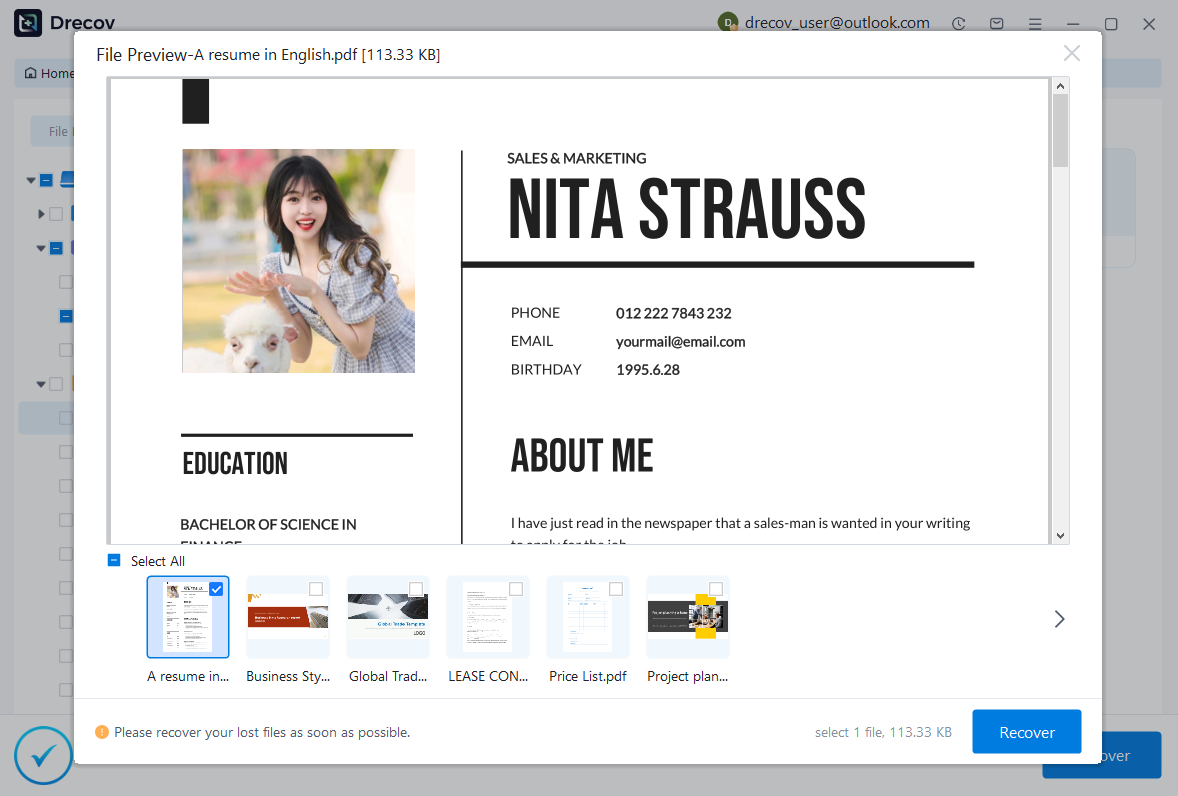
- Step 3: Filter and Preview. Once the scan is complete, use the Filter function to search for
.pdffiles. Drecov allows you to Preview the document content before finalizing the recovery, ensuring you don’t waste time on unusable fragments.
- Step 4: Recover and Save. Select the correct file and click “Recover.” Always save the recovered PDF to a different drive (like a USB stick) to prevent data collision.
After successfully recovering your files, you might also be interested in other technical optimizations for your workspace. For instance, if you are using external displays for your data analysis, you should learn how to install drivers for USB 3.0 to HDMI adapter on Windows 11. Furthermore, if you are comparing different tools, understanding Recuva free version limitations in 2026 can help you decide if a premium solution like Drecov is necessary. Finally, if your source material is video-based, check out this guide on how to download video from Firefox in 2026.
Precise Information for Power Users
If you are a developer or a technical power user, the unknown error occurred ChatGPT PDF might be linked to deeper system settings.
- Registry Paths: On Windows, certain file-handling behaviors are dictated by the registry. For instance, the path
HKEY_CLASSES_ROOT\.pdfdetermines how your system interacts with PDF extensions. Ensure this isn’t pointing to a defunct application. - Software Versions: Ensure you are using the latest version of your browser (e.g., Chrome Version 140+ or Firefox 135+ in 2026) to ensure the latest API protocols for file uploads are supported.
- Hotkeys for Quick Fixes: Use
F12to open the Developer Tools in your browser when the error occurs. Navigate to the Network tab to see the specific error code (like 413 Payload Too Large or 500 Internal Server Error) which provides a clue beyond the generic “unknown error” message.
How to Prevent the Error in the Future
Prevention is always better than troubleshooting. To avoid seeing the unknown error occurred ChatGPT PDF message again, follow these best practices:
- Optimize PDFs: Use the “Optimize for Web” setting in Adobe Acrobat. This flattens layers and reduces file weight.
- Stable Connectivity: Always use a wired connection or a strong 5G/Wi-Fi 7 signal when uploading files over 100MB.
- Incremental Uploads: Instead of one 400MB file, upload four 100MB files. It’s easier for the AI’s context window to “digest” the information.
- File Naming: Avoid using special characters (like
#,@,%, or emoji) in the PDF filename. Stick to alphanumeric characters and underscores. - Update Regularily: Keep your operating system and browser updated to the latest 2026 patches to maintain compatibility with OpenAI’s evolving infrastructure.
Frequently Asked Questions
Why does ChatGPT fail to process my PDF even if it’s small?
It might be due to “Image-only” formatting. If the PDF is just a series of photos of text without an underlying text layer, the AI may struggle unless you are using a model with Vision capabilities.
Can I upload password-protected PDFs?
No. Encryption prevents ChatGPT from “reading” the content, which triggers the unknown error occurred ChatGPT PDF. You must remove the password before uploading.
Does the error count toward my message limit?
Usually, no. If the file fails to upload, it generally doesn’t consume a prompt from your GPT-4o or GPT-5 quota, but repeated failed attempts can sometimes trigger a temporary rate limit.
Conclusion
The unknown error occurred ChatGPT PDF message can be frustrating, but it’s rarely permanent. In most cases, the issue stems from file size limits, formatting problems, browser issues, or connectivity errors. By checking your browser cache, re-saving your files, and using professional tools like PandaOffice Drecov data recovery software when files are damaged, you can overcome these hurdles.
By following the step-by-step solutions in this guide, you can quickly resolve the problem and continue working without interruption. Whether you’re uploading, generating, or downloading PDFs, applying these best practices will ensure a smoother and more reliable experience. If the issue persists, don’t hesitate to try alternative methods or reach out for support. With the right approach, you’ll overcome this error and get back to productivity in no time.






