







In the digital age, our web browser is more than just a gateway to the internet; it is a repository of our digital lives. From essential work resources to personal hobbies, the bookmarks we save represent years of curated information. However, data is inherently fragile. Whether you are migrating to a new computer, performing a fresh OS installation, or simply being cautious, knowing how to export bookmarks from firefox is a foundational skill for any user.
As an SEO expert and data recovery specialist, I have seen countless users lose access to their favorite sites due to hardware failure, accidental deletion, or software glitches. This comprehensive guide will walk you through everything from basic backup procedures to advanced recovery using professional tools like PandaOffice Drecov data recovery software. By the end of this article, you will not only know how to secure your data but also how to resurrect it when all seems lost.
The Importance of Browser Data Management
Before we dive into the technical steps, it is important to understand why browser data management matters. Firefox stores bookmarks in a specific database format called SQLite. While this format is efficient for the browser, it is not easily readable by other applications. Therefore, learning how to export bookmarks from firefox into a universal format like HTML ensures that your data remains portable and protected.
Moreover, browser profiles can become corrupted. If you have ever opened your browser to find a “library empty” error, you know the sinking feeling that accompanies data loss. Having a routine backup strategy is the best defense against such scenarios.
How to Export Firefox Bookmarks to HTML: The Standard Method
The most common way to back up your data is to create an HTML file. This file can be imported into Chrome, Safari, Edge, or another Firefox installation. This method is straightforward and recommended for all users before making any significant changes to their system.
Step 1: Open the Library Window
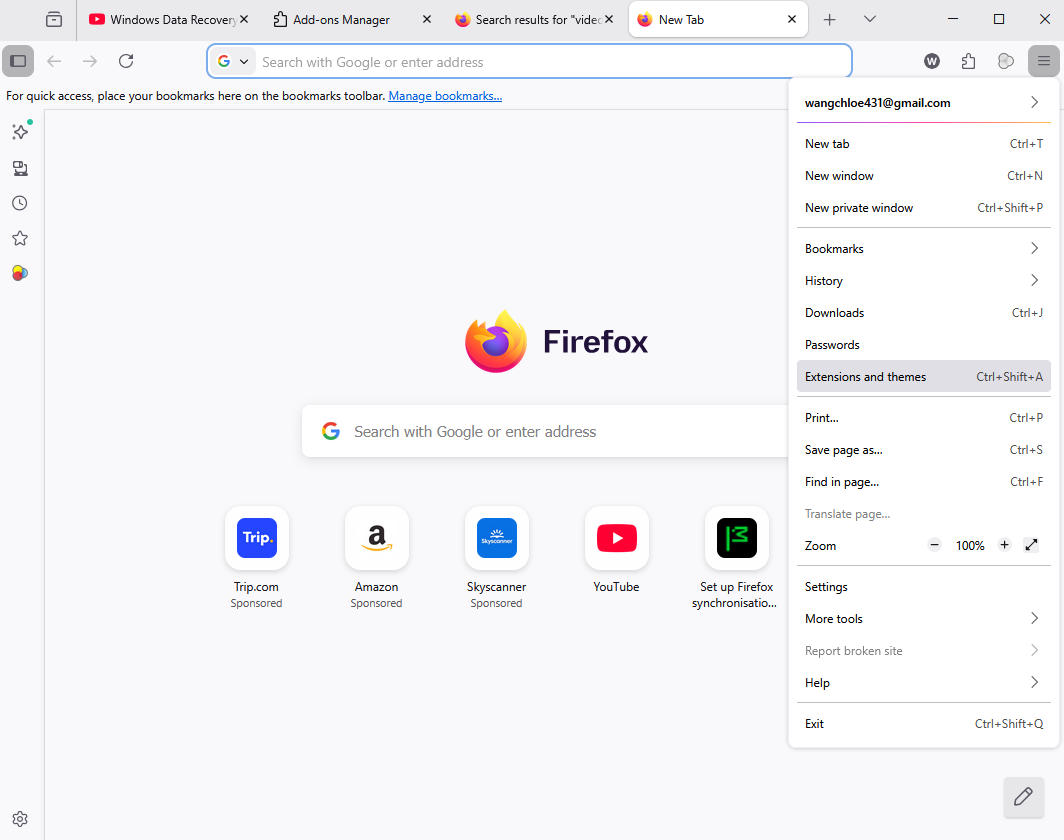
Launch your Firefox browser. You can access the Library by clicking the “Menu” button (three horizontal lines) in the top-right corner, selecting Bookmarks, and then clicking Manage Bookmarks at the bottom. Alternatively, you can use the hotkey Ctrl + Shift + O (Windows) or Cmd + Shift + O (Mac).
Step 2: Access the Import and Backup Menu
At the top of the Library window, you will see a toolbar with an icon labeled Import and Backup (often represented by a star and arrows). Click this button to reveal a dropdown menu of options.
Step 3: Select Export Bookmarks to HTML
From the list, select Export Bookmarks to HTML. This action will trigger a file explorer window to open.
Step 4: Save the Export File
Choose a secure location on your computer, such as your Documents folder or an external USB drive. Ensure the file name ends in .html. Click Save. You have now successfully completed the process of how to export bookmarks from firefox.
Troubleshooting: Firefox Bookmarks Library Empty Fix
Sometimes, you follow the steps above only to find that your firefox bookmarks library empty fix is needed because no data appears. This is a common issue often caused by a locked or corrupted places.sqlite file. If your library appears blank, follow these steps to reset the database.
Step 1: Locate Your Profile Folder
Firefox stores all your data in a hidden folder. To find it, click the menu button, go to Help, and select More Troubleshooting Information. Under the “Application Basics” section, find the Profile Folder row and click Open Folder.
Step 2: Close Firefox Completely
Before making changes, you must exit Firefox. Ensure no processes are running in the background via the Task Manager (Ctrl + Shift + Esc).
Step 3: Rename Corrupted Database Files
In your profile folder, look for a file named places.sqlite. Rename it to places.sqlite.old. Also, delete any files named places.sqlite-shm or places.sqlite-wal if they exist.
Step 4: Restart Firefox
When you reopen the browser, Firefox will automatically rebuild the database. If your bookmarks were saved in an automatic backup, they should reappear. If they don’t, you may need to use the “Restore” feature within the Library window to pull from a previous date.
Recover Deleted Firefox Bookmarks No Backup: Advanced Solutions
What happens if you accidentally deleted a folder and realized too late that you don’t have an HTML export? Performing a recover deleted firefox bookmarks no backup operation requires looking into the browser’s internal automatic backup system.
Firefox typically keeps up to 15 compressed backups in a folder called bookmarkbackups.
- Step 1: Open the Library and Restore. Go to Manage Bookmarks (Ctrl + Shift + O). Click Import and Backup, then hover over Restore.
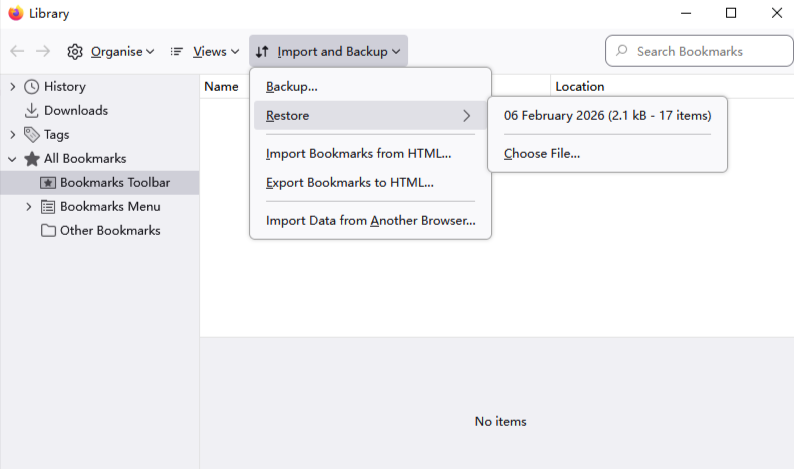
- Step 2: Choose a Dated Backup. Firefox will show a list of dates. Select the most recent date before the deletion occurred.
- Step 3: Confirm the Overwrite. A warning will appear stating that this will replace your current bookmarks. Click OK.
Pro Tip: If no dates appear in the list, you will need to manually search your PC for .jsonlz4 files. These are the compressed files Firefox uses for its internal backups.
Using PandaOffice Drecov Data Recovery Software for Severe Loss
If the internal backups are gone, or if you have recently formatted your hard drive or suffered a system crash, standard browser tools will not suffice. This is where professional-grade tools like PandaOffice Drecov data recovery software become essential.
Drecov is designed to scan the raw sectors of your storage drive to find remnants of deleted files, including the specific SQLite and JSONLZ4 files that Firefox relies on.
⚠ Warning: Install it on a drive different from the one where your data was lost to prevent overwriting.
Step-by-Step Recovery with PandaOffice Drecov
Step 1: Select the Source Drive
Select the partition where Firefox was installed (usually the C: drive). Drecov supports both SSDs and HDDs, using advanced scanning algorithms to locate browser profile fragments.

Step 2: Run a Deep Scan
Click on Deep Scan. While a Quick Scan might find recently deleted files, a Deep Scan is necessary to locate the places.sqlite or bookmarkbackups folder structures that have been marked as free space by the operating system.

Step 3: Filter and Preview Files
Once the scan is complete, use the search bar within Drecov to look for .sqlite or .jsonlz4 extensions. PandaOffice Drecov data recovery software allows you to preview the file metadata to ensure you are recovering the correct version.

Step 4: Recover to a Safe Location
Select the files and click Recover. Always save the recovered data to an external drive or a different partition.
Warning: Never recover files directly back to the source folder until you have verified that the files are intact and functional.
If you found this guide helpful, you may also want to explore our other technical tutorials to further optimize your browsing experience and data security:
- How to Download Video from Browser Firefox 2026 Guide
- Where is the Firefox Bookmarks Location? Find Your Data Instantly
- Where are Firefox Bookmarks Stored on Your PC?
Professional Advice for Data Safety
As a specialist in the field, I recommend a multi-layered approach to data safety. Knowing how to export bookmarks from firefox is just the first step. You should also:
- Synchronize: Use a Firefox Account to sync your data to the cloud. This provides an immediate off-site backup.
- Automate: Use system-wide backup tools like Windows File History or Time Machine on macOS.
- Verify: Once a month, perform a manual export to HTML and store it in a secure cloud drive like Google Drive or Dropbox.
By following these practices, you ensure that even if your hardware fails, your digital footprint remains secure.
Frequently Asked Questions
1. Can I export my Firefox bookmarks to a mobile device directly?
While there is no direct “Export to HTML” button within the Firefox mobile app for Android or iOS, the most efficient way to move your data is through Firefox Sync. By signing into your Firefox account on both your desktop and your mobile device, your bookmarks will synchronize automatically. If you need a physical file, you must first follow the steps for how to export firefox bookmarks to html on your desktop and then send that HTML file to your mobile device via email or cloud storage.
If you find that you cannot click the export options, it usually indicates a permissions issue or that another process is locking the profile database. First, try restarting your computer to clear any hung background processes. If the issue persists, check if your browser is in “Permanent Private Browsing” mode (found in Options > Privacy & Security), as this can sometimes limit database modifications. Disabling this mode often acts as a quick firefox bookmarks library empty fix for interface glitches.
3. Will exporting bookmarks also save my saved passwords and browsing history?
No. When you perform the process of how to export bookmarks from firefox, the resulting HTML file contains only your site titles and URLs. It does not include sensitive data like passwords, autofill information, or your history. To back up your entire profile—including passwords—you should manually copy the entire storage and key4.db files from your Firefox profile folder to a secure location.
4. Is it possible to recover bookmarks if I uninstalled Firefox without a backup?
Yes, but speed is critical. When you uninstall Firefox, the application often leaves the “Profiles” folder behind unless you checked the box to “Remove my Firefox user data.” If that data was deleted, you must immediately use PandaOffice Drecov data recovery software. Because the OS marks that space as “available,” any new file downloads could overwrite your bookmarks. Running a deep scan with Drecov can often find the deleted places.sqlite file even after an uninstallation.
5. Why do my imported bookmarks look disorganized or appear in a “Menu” folder?
When you recover deleted firefox bookmarks no backup files or import an HTML file, Firefox often places them into a specific folder labeled “Imported” or “Bookmark Menu” to prevent overwriting your existing toolbar structure. To fix this, simply open the Library (Ctrl + Shift + O), select the imported items, and drag them manually to the “Bookmarks Toolbar” or “Bookmarks Menu” section to restore your preferred layout.
Conclusion
Securing your browser data doesn’t have to be a daunting task. Whether you are performing a simple how to export bookmarks from firefox routine or navigating the complexities of a recover deleted firefox bookmarks no backup scenario, the tools and methods outlined today provide a clear roadmap. From the built-in Library features to the powerful recovery capabilities of PandaOffice Drecov data recovery software, you are now equipped to handle any data emergency. Stay proactive, back up regularly, and keep your digital library safe.






