







If files disappeared from a folder in Windows 11, first check that you have opened the same folder and account you used before. A changed OneDrive location, search filter, or profile can make intact files look lost. Do not fill the folder with replacement documents yet. If the originals were deleted from a local drive, new writes could reduce the chance of recovering them. Note where the files first reappear as you work through the checks below.
Make Sure This Is the Same Folder
Start with one file you remember well: its name, extension, and the date you last opened it. In File Explorer, click the address bar and read the full path. Two folders named Documents can belong to different Windows accounts, or one can sit inside OneDrive while the other remains under your local user profile. The folder name alone cannot tell you which copy you opened. If the missing items were on another drive, confirm that the drive letter and capacity still look normal before searching further.
Right-click the folder, choose Properties, and note its Location when that tab is available. Compare it with the path shown under Word’s or another application’s Recent list if you opened one of the missing files there. A Recent entry can point to an old path, so use it as a clue rather than proof that the file still exists. If an entire D: drive is absent, stop this folder-level checklist and follow the separate missing-drive diagnosis. The risks and next steps differ when Windows cannot see the volume itself.
Check the account before moving anything
Open Settings > Accounts > Your info and verify the signed-in Windows identity. A work account, temporary profile, or another family member’s account can show a different Desktop and Documents tree. Look under C:\Users in File Explorer for the profile that normally held the files, but do not change permissions or move entire profile folders while you are still identifying the right one. If the disappearance followed an upgrade, Microsoft’s lost-files guidance also recommends checking the account and searching the PC.
Test Whether Explorer Is Hiding the Answer
Click inside the suspect folder and clear any search text in File Explorer. Switch to Details view and sort by Name or Date modified. Then open View > Show > Hidden items. This reveals files marked hidden, but it does not bring back deleted data. If you see the files, copy one to a safe location and open it before changing folder attributes in bulk. A zero-byte placeholder or unfamiliar shortcut is not a substitute for the original document.
Search from This PC using one distinctive filename or a narrow extension such as *.xlsx. A broad search for every document type can bury the useful result. Inspect each hit’s full path, size, and modified date. If Windows Search finds nothing, browse the most likely folders directly; indexing may lag behind a move or sync change. Check Downloads, Desktop, Documents, and the application’s last known save location. This step answers a simple question: did the file move, or did the folder view merely change?
Do not mistake a shortcut for the source
A pinned Quick Access item can open a similarly named folder after you move files or sign into another account. Use the address bar to inspect the destination. If a shortcut points nowhere, look for the original path in the shortcut’s Properties. Do not create a new folder with the same name in the old location; doing so can make later searches more confusing and may write to a drive that holds deleted files.
Separate OneDrive Copies From Local Copies
Many Windows 11 PCs back up Desktop, Documents, or Pictures through OneDrive. Open the OneDrive folder in File Explorer, then sign in to OneDrive on the web using the same account. Search for the filename online and inspect the web Recycle Bin. If the web copy exists but the local folder looks empty, check the sync icon and account before dragging files between locations. A cloud-only placeholder does not necessarily contain a complete offline copy on your PC.
Keep both sides intact while you compare them. Pausing sync can prevent a questionable local change from spreading while you investigate, but do not treat a pause as a backup. Download a good cloud copy to another safe folder and open it. If the file exists under a second account, record which account owns it. Drecov cannot retrieve a file that only ever lived on Microsoft’s servers; the provider’s web controls and version history are the correct route for that case.
If the file has the right name but the wrong contents, the problem may be an older or newer version rather than disappearance. Inspect version history in the service that stores it and save a separate copy before restoring over a current one. That keeps the search task narrow: you are looking for the correct file and its actual location, not repairing every possible sync problem.
Check Deleted Items and Backups Before Scanning
Open the Windows Recycle Bin and search by filename. Its Original Location column can confirm whether the missing item came from the folder you are investigating. Restore a promising file only after checking whether a different file with the same name now occupies that path. When there is a collision, save a copy elsewhere first. The Recycle Bin recovery overview covers the broader deletion route; this article stays focused on identifying what happened to one folder.
If File History or another backup was enabled before the disappearance, navigate to the folder’s parent, open its previous-version or backup interface, and inspect the date range around the loss. Preview or copy an older version to another location instead of immediately replacing the live folder. A useful backup should contain the expected names and openable files, not merely the right timestamp. Shared computers may also have another user’s copy, an email attachment, or a project export. Check those sources before running any disk scan.
A folder that vanishes after a Windows update is not proof that the update deleted its contents. Account changes, redirected folders, and cloud settings can produce the same symptom. Conversely, an empty Recycle Bin does not prove the files were never saved. Use the evidence you collected—last known path, account, file type, and timing—to decide whether local file recovery is the next sensible step.
Recover a Truly Deleted Local Copy
When the path and account are correct, no cloud or backup copy exists, and the file was stored on a stable local Windows volume, Drecov can search for deleted data. It is Windows recovery software for PCs and recognized storage devices, with a read-only recovery mode, Quick Scan, Deep Scan, result filtering, preview, and recovery to another healthy location. Lost Partition Recovery addresses a missing partition, not an ordinary empty folder. Drecov cannot restore unsaved edits, repair failing hardware, or guarantee a file whose storage blocks have been reused.
Stop saving new files to the affected volume. Prepare a separate healthy device for recovered output and, if installation is needed, keep the software off the source partition. A drive that clicks, disconnects repeatedly, or develops serious read errors is not a safe target for repeated scans; seek an image or specialist assessment. For a stable, recognizable volume, the file recovery feature gives context for the scan that follows.
⚠ Warning: Install it on a drive different from the one where your data was lost to prevent overwriting.
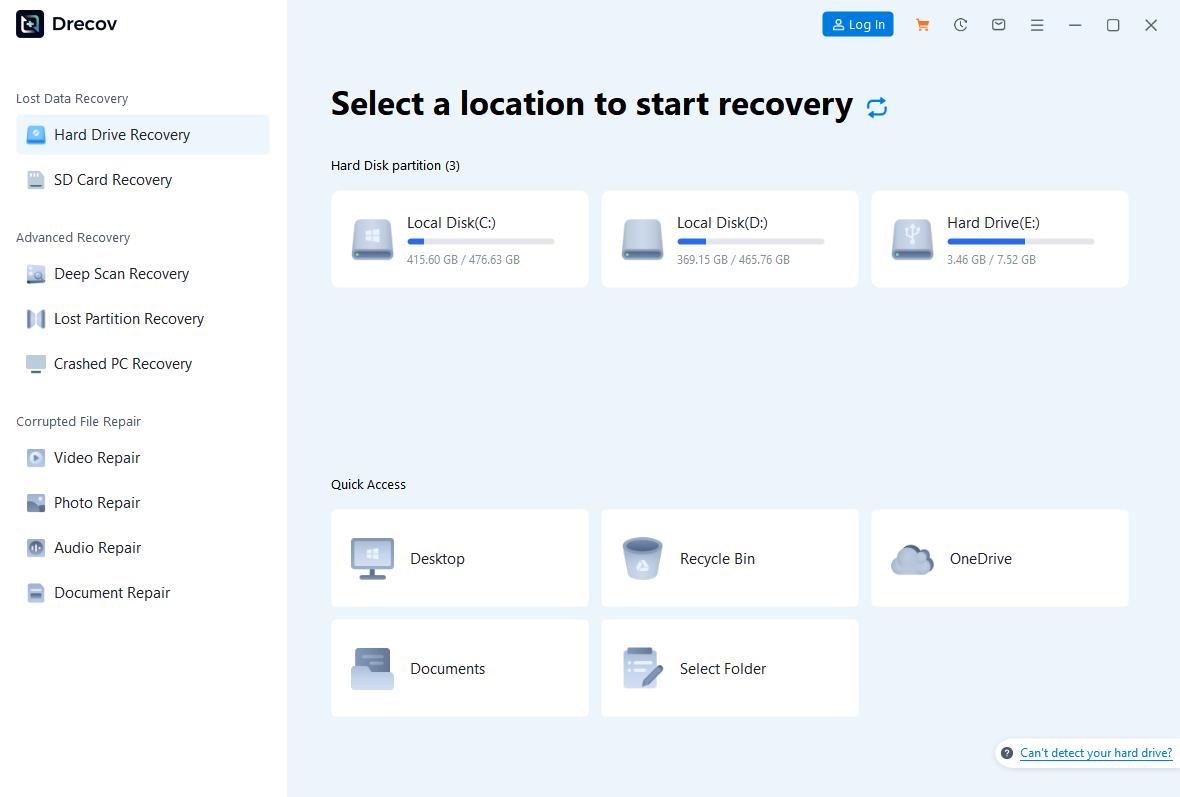
Step 1: Open Drecov and select the original location
Choose the drive that contained the empty-looking folder before the loss, not the drive that will hold the recovered files. Use the recorded path and drive letter to avoid scanning the wrong disk. If the whole partition disappeared, switch to Lost Partition Recovery only after confirming that distinct condition.
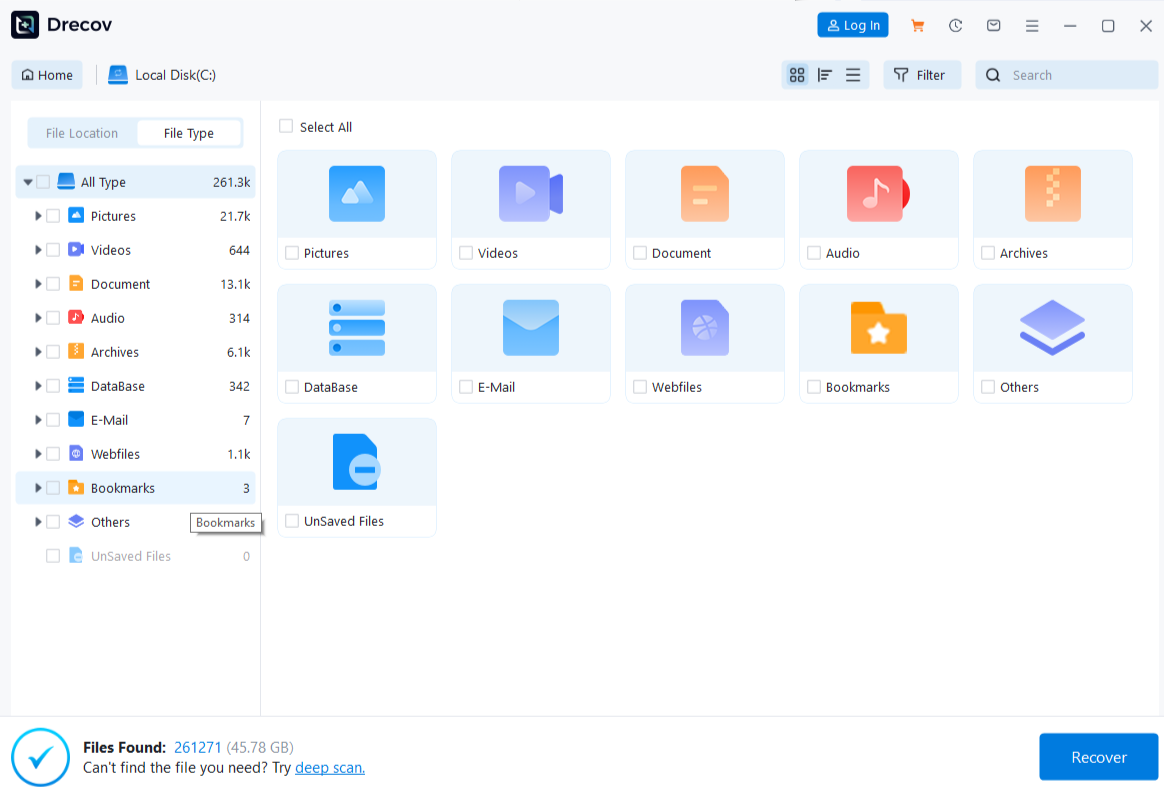
Step 2: Start Quick Scan and check the likely folder
Run Quick Scan first. Browse the former folder path and search for remembered filenames or document types. The first matching name may be an outdated duplicate, so compare size and date before selecting it.
Step 3: Use Deep Scan only while the source remains stable
If Quick Scan misses the files and the device stays reliably connected, run Deep Scan. Stop if fresh I/O errors or disconnections appear. A longer scan cannot make damaged hardware healthy.
Step 4: Filter, preview, and save elsewhere
Narrow the results by path, name, or file type where available. Preview representative candidates, but remember that one readable preview cannot certify every page or linked asset. Recover chosen files to the separate healthy device, never to the original volume. If the expected output folder looks empty, check Drecov Folder or Recovery Folder on the destination.
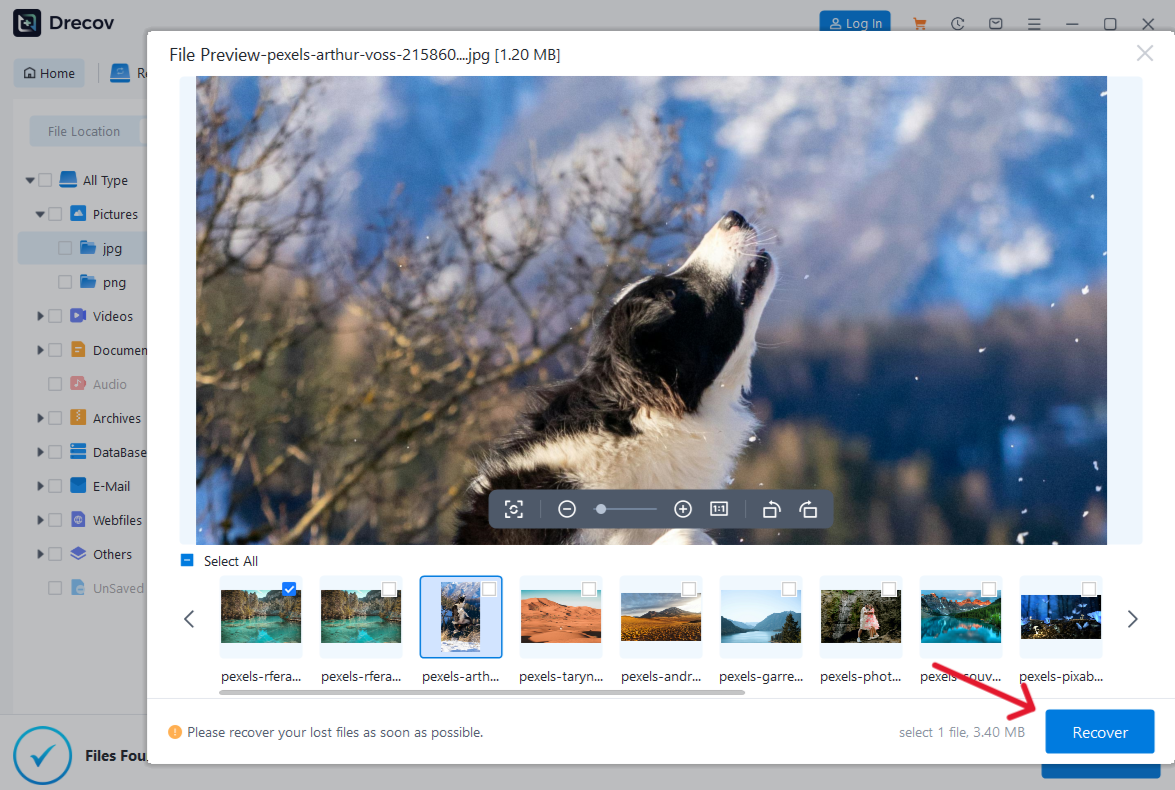
Step 5: Open the recovered files and verify them
Open several important files from the destination and check their real contents, not just their extensions. For spreadsheets, inspect sheets and formulas; for photos, inspect full resolution; for archives, test extraction on a copy. Compare recovered material with backups before cleaning up the original folder or running a file-system repair.
⚠ Warning: Install it on a drive different from the one where your data was lost to prevent overwriting.
FAQs
Why does the folder show a file count but appear empty?
Hidden items, a view filter, a different user profile, or a sync placeholder can explain the mismatch. Read the full path and turn on Hidden items before assuming deletion. If Properties reports a size but no files appear, avoid altering permissions until you know which account and storage location owns the data.
Can I use Windows Search if I do not remember the exact name?
Yes. Search a likely extension or part of a distinctive name from This PC, then inspect each result’s location. File Explorer’s search index may miss a recently moved item, so browse the likely directories as well. Keep a note of promising paths instead of moving every result immediately.
Does an empty OneDrive folder mean the online files are gone?
No. Sign in on the web with the correct account and inspect search results and the web Recycle Bin. A local sync problem can leave the online copy intact. Download and open a good copy before changing the sync setup.
Should I run CHKDSK to make the files reappear?
Not as the first response when important data is missing. CHKDSK changes file-system structures. Protect or recover needed files first, and use repair only after you understand the disk state and have verified a safe copy.
What if the missing files were on an SSD?
Continue checking accounts, cloud copies, and backups first. SSD TRIM and later writes can sharply reduce the chance of recovering deleted local data. Stop using the affected volume and avoid installing a recovery tool there; no scanner can promise that an overwritten or trimmed file remains available.
Conclusion
When Windows 11 files disappear from a folder, trace the actual path and account before treating the event as deletion. A filtered view, OneDrive redirection, or another profile can hide an intact copy. Check Recycle Bin and backups next. If a local file really was deleted from a stable Windows drive, Drecov can scan its original location, let you preview candidates, and save selected files to another healthy device. Verify the contents before you repair the source or replace any surviving copy; the Drecov home page is the starting point for that conditional recovery route.
⚠ Warning: Install it on a drive different from the one where your data was lost to prevent overwriting.