






GIF recovery depends on what you actually lost. If the .gif file vanished, stop using the drive where it was stored and check Recycle Bin, the editing project, exports, messages, and backups before scanning. If the file still exists but shows only one frame, make a copy and test it in another viewer; file recovery cannot manufacture animation frames that were never saved or have been overwritten. A successful result is a GIF that opens, animates through its expected loop, and retains the image you intended—not merely a thumbnail that looks right.
First decide whether the GIF is missing or merely looks broken
Find the last place where you saw the complete animation. Was it in an editor, a browser, an email attachment, a chat, or a folder on a removable card? That location matters. An editor preview may have displayed a project that was never exported as a GIF. A chat app may retain a compressed or resized copy rather than the original. A browser might show a cached image even after the local file was deleted. Recovery starts with identifying the source, not with picking a scanning button.
Open File Explorer and search the likely parent folder for *.gif. Sort by date and compare filenames, sizes, and nearby project files. Search the account’s Downloads and Pictures folders only if the original location is uncertain. If you recently renamed files, turn on View > Show > File name extensions so you can see whether the extension is actually GIF. A filename ending in .gif does not convert unrelated image data into the GIF format.
For a file that exists, create a duplicate on healthy storage before experimenting. Open the duplicate in a current browser and a trusted image viewer. If it animates in one but not the other, the viewer may be the problem. If neither displays the expected motion, return to the source project or an earlier export. Mozilla’s image-format guide explains that GIF can store a series of animation frames; one visible frame cannot tell you whether later frames are present and usable.
Look for a better copy before trying file recovery
A creator often has more than one version without realizing it. Check the editor’s export folder, a project backup, a sent message, an uploaded post, a cloud version, and the recipient’s downloaded attachment. Compare each candidate with the intended animation. A copy on a website may play correctly but be smaller or lower quality than the original export. Keep that distinction visible if the GIF is needed for a design project rather than casual sharing.
On Windows, open the Recycle Bin and search by the former filename or deletion date. If the GIF is there, inspect its original location, then restore it. When you have a current file of the same name, restore to a separate folder to avoid replacing it. If File History was enabled before the loss, open the former folder’s Properties and check Previous Versions. Preview or restore an older version to another location. A backup made after deletion cannot recreate a copy that was never captured.
Cloud services and chats have their own rules. An online file might live in a service trash or version-history view, while a shared GIF could have been removed from a local sync folder but still be available on the web. Confirm the correct account before emptying any trash or changing synchronization settings. Do not download dozens of copies to the affected local drive; save candidates elsewhere so fresh writes do not reuse space that may hold the deleted original.
Preserve the source if the local file really was deleted
Microsoft’s Windows File Recovery documentation explains the central risk: deleting a file can mark its space available for reuse, and new activity can overwrite it. Stop exporting, installing software, or saving temporary media to the source volume. This warning applies especially to an internal system drive that Windows continues to use. SSD TRIM can further reduce the chance of retrieving deleted data; no software can promise a complete result after those blocks have been released or overwritten.
If the original GIF lived on a USB stick or camera card, remove it safely after confirming no transfer is still running. Do not format it to make the icon return. Note whether the device is stable, has the expected capacity, and appears consistently in Windows. Repeated disconnects, severe read errors, or a wrong size point away from routine software scanning. A specialist can assess imaging or hardware recovery when the GIF is irreplaceable. For a stable card, the separate photo recovery options page covers the broader media category; this article stays with the GIF file and its full animation.
A nearly empty file deserves a different expectation. Zero-byte GIFs contain no image payload to decode. A partial download may display a first frame and fail later. Check the remote original or repeat the download to a healthy destination if the source is still available. Renaming a broken export or changing its extension will not restore frames that were never included in the file.
Recover a deleted local GIF with Drecov
PandaOffice Drecov is Windows data-recovery software for a stable local drive, external disk, USB device, or memory card. Its read-only recovery process can look for a deleted GIF or an older export. Quick Scan, Deep Scan, filters, and preview help identify candidates before saving them to another healthy device. Lost Partition Recovery may search for files from a missing partition on a recognized disk. Drecov does not repair missing animation frames, rebuild a damaged project file, fix unstable hardware, or guarantee an overwritten GIF. Use it when a genuine local copy is absent and simpler sources did not supply the needed version.
⚠ Warning: Install it on a drive different from the one where your data was lost to prevent overwriting.
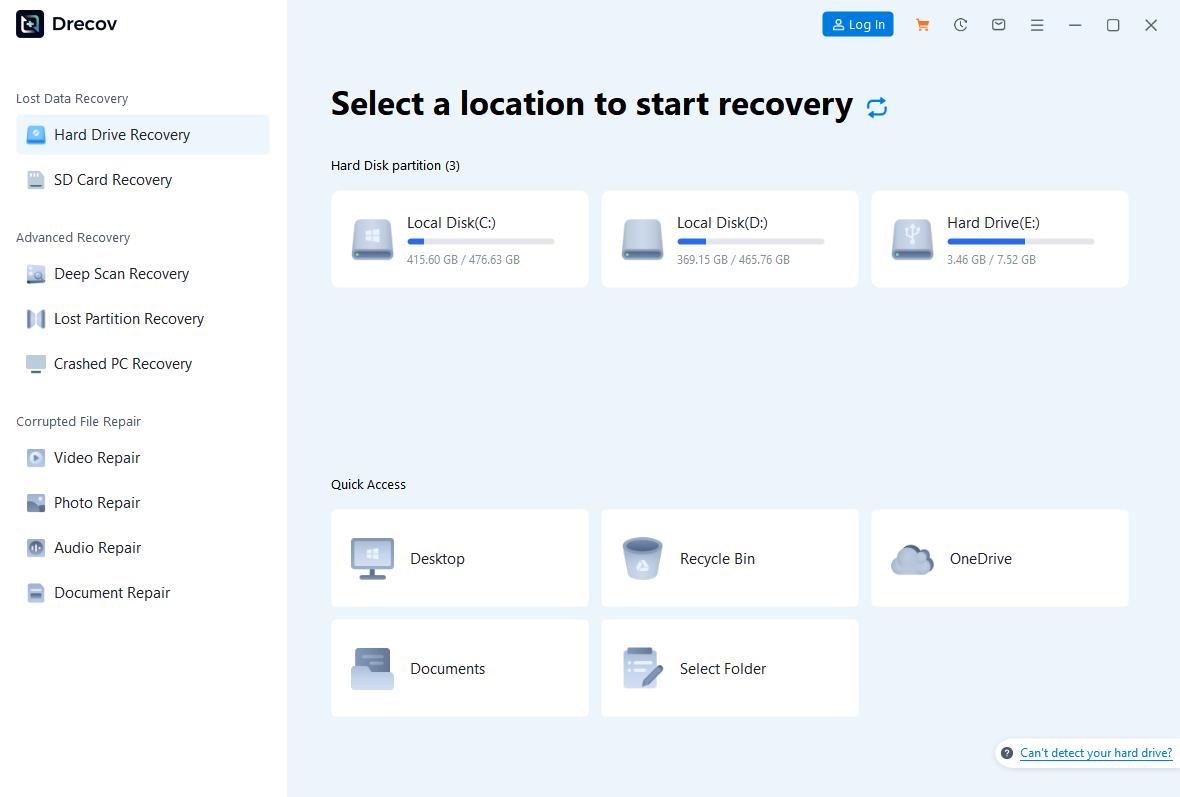
Step 1: Select the place that held the original GIF
Prepare a different healthy physical drive for recovered output. Install Drecov away from the source that lost the file. Open the program and select the original folder’s drive, card, or USB device. If you exported from an editor to the Desktop, the source is usually the Windows volume holding that Desktop—not the application installation folder. If a former partition disappeared while the disk remains stable and correctly detected, consider Lost Partition Recovery rather than creating a new volume.
Step 2: Run Quick Scan and check the former path
Start Quick Scan. Look for the old filename, export folder, and neighboring images. A candidate with the right extension and size deserves inspection, but those details alone do not prove the animation is intact. If the source disconnects or changes capacity, stop scanning. Repeated passes can increase stress without resolving a physical fault.
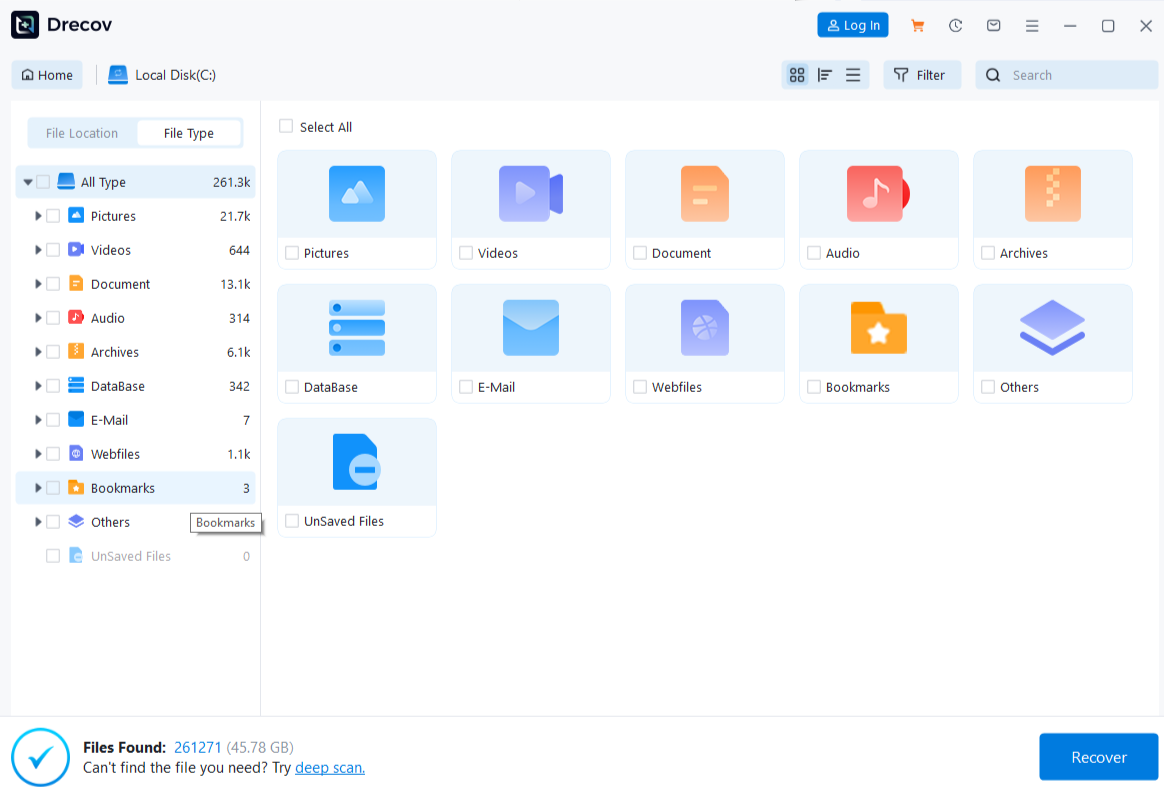
Step 3: Search more broadly only on stable storage
If Quick Scan does not find the desired export and the device remains stable, run Deep Scan. Filter for GIF files or browse by former path, filename, and date. Preview representative candidates where supported. Some previews show only a still image or the first frame, so treat them as an aid to selection rather than a full animation test. Compare dimensions and recognizable visual content with a known copy when one exists.
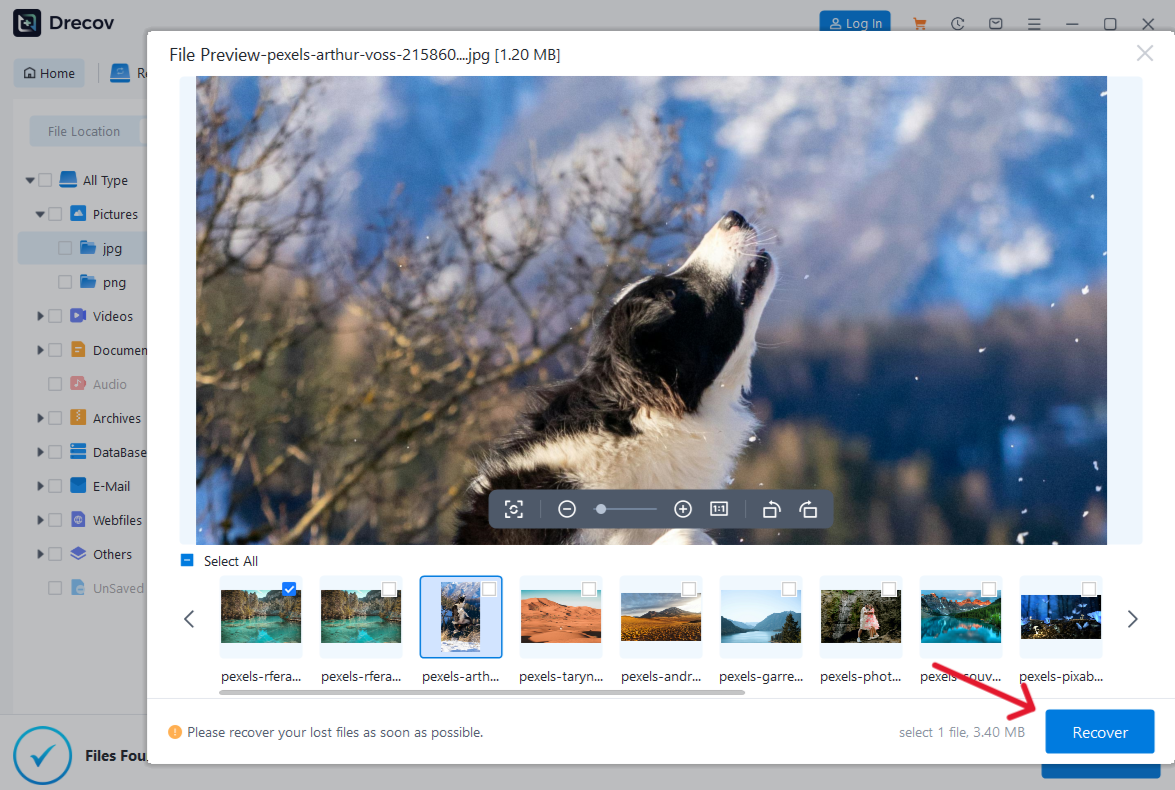
Step 4: Recover elsewhere and watch the full loop
Save the selected GIF files to the prepared healthy destination, never back to the source. If the output is not in the folder you expected, inspect Drecov Folder or Recovery Folder at that destination. Open the recovered file in two viewers and watch it for at least one complete loop. Check whether the ending frames, timing, and transparency match what you remember. Keep a recovered candidate even if it is imperfect until you have compared it with other exports; do not overwrite the only useful copy while testing.
⚠ Warning: Install it on a drive different from the one where your data was lost to prevent overwriting.
When the GIF exists but only the first frame plays
Animation failure is not automatically a deletion problem. Some viewers display a GIF as a still thumbnail even when its frames are intact. Test the copy in a modern browser by opening the local file, then try a second application. If the whole animation plays in one place, save the good file under a new name and troubleshoot the original viewer separately. Do not run disk repair because a single application shows a still image.
If the first frame appears everywhere but later motion is absent, compare file size with an earlier or online copy. Return to the editor and inspect its export settings: was the animation range included, were frames flattened, and did the export finish? The exact controls depend on the editor, so use its own project and help rather than following settings for a different program. Re-export to a healthy drive while preserving the previous output.
When the file fails to open in multiple viewers, protect the original and look for a better source copy. The broader guide to corrupted image files explains how to distinguish viewer, incomplete-copy, and damaged-data cases. Recovery software may locate an earlier intact GIF if one was deleted, but it is not a general image-repair tool. Avoid online repair sites for private or sensitive GIFs unless you accept the upload and retention terms.
Check the result for the job the GIF must do
For a personal reaction image, one complete loop in a browser may be enough. A marketing asset needs a stricter check: verify dimensions, transparency, visual timing, and whether the text or logo remains readable throughout the cycle. An animation that begins correctly but ends with missing frames is not a complete recovery. If the GIF was intended for a website, test the recovered copy in the actual page or a local preview after the file itself passes inspection.
Keep the recovered file separate from any damaged version. Record which candidate came from the Recycle Bin, cloud, source project, or scan, so you do not mistake a smaller chat copy for the master export. Compare hashes only when you have a known reference; two different hashes show the files differ, but not which one is better. A practical visual and playback test is essential for animation.
After confirming a good copy, place it in at least two independent locations. A sync folder by itself may reproduce the next deletion. For work that changes often, retain the editable source project as well as the exported GIF. That gives you a route to rebuild the animation even when a later exported copy is lost.
FAQs
Can I recover a GIF from the Recycle Bin?
Yes, if the local file is still there. Check its original location and restore it to a separate folder if a current file has the same name. Emptying the Recycle Bin changes the task to backup or deleted-file recovery.
Why does a recovered GIF show a picture but no movement?
The viewer may show only a still preview, or the recovered file may lack later frame data. Open it in two applications and watch a full loop. A first-frame thumbnail is not proof of a complete animation.
Will converting a JPG to GIF restore animation?
No. A still JPG has no hidden sequence of GIF frames. You need the original animation, source project, another export, or a surviving copy.
Can Drecov recover a GIF from a cloud account?
Drecov searches Windows-accessible local storage. Use the cloud service’s trash or version history for files that existed only online. A synced local copy may be a separate recovery candidate if its disk is stable.
What if a recovered GIF is partly corrupt?
Keep that candidate, then search other exports and backups. A scan may find another copy, but no tool can guarantee missing or overwritten frames will reappear.
Conclusion
Good GIF recovery begins by separating a deleted file from a viewer or export problem. Search project files, Recycle Bin, cloud history, and sent copies before scanning the original drive. For a stable Windows-accessible source with a missing local GIF, Drecov can locate candidates, preview what is supported, and save them to another healthy device. The final test is not the filename or first frame: open the recovered GIF and watch its full animation before trusting it.
⚠ Warning: Install it on a drive different from the one where your data was lost to prevent overwriting.