






A corrupted file download is often not a file-repair problem. The transfer may have stopped early, the website may have saved an error page under the expected filename, or the app may not support the actual format. Keep the failed copy for comparison, return to the trusted source, and check the new file’s size and any publisher-provided hash before opening it. Do not disable security warnings to force an installer or document to run. Recovery software is relevant only if an earlier local copy has been lost; it cannot invent bytes that never arrived in the download.
Read the failure at the point where it happened
Did the browser show “failed” before the file finished? Did it report a complete download but the opening app says the file is invalid? Or did a previously working file stop opening days later? Those are three different timelines. An incomplete transfer points to the network, source server, session, or destination. A complete but unopenable copy needs a format and integrity check. A file that worked before may have changed on local storage, been synchronized over, or been opened with a different application.
Record the source page, date, expected filename, actual file size, and exact application error. Do not keep overwriting the same download with retries. Save a fresh attempt under a different name and on a healthy destination so you can compare both copies. If the file is confidential, avoid uploading it to random online “repair” services. A repair site cannot recreate data that the server never sent, and the upload may expose private content.
Security warnings deserve their own branch. If the browser or Windows flags the file as potentially unsafe, do not treat that as evidence of ordinary corruption and turn protection off. Verify the publisher’s identity and obtain the file from its official page. A malicious or substituted file can carry a plausible name and size. The right result is a trustworthy copy, not merely a file that an app agrees to open.
Check size and content before blaming the file format
In File Explorer, right-click the file and open Properties. Note its size in bytes, not just the rounded number shown in a folder column. Compare it with the publisher’s stated size or with a known good copy from the same source. A zero-byte file contains no document, image, or archive payload. A much shorter copy often points to a transfer that ended early. Equal sizes do not prove equality, but a large difference gives you a useful first clue.
Look at the extension only as a label. A file named report.pdf may actually contain an HTML sign-in page if the download link expired or your session ended. Open a duplicate in a trusted text or hex viewer if you know how, without editing the original. Readable text that begins with a login or error message suggests the browser saved a web response rather than the intended binary file. Do not rename such a page to another extension and expect a PDF, ZIP, or installer to appear.
For a split archive, check that every required part downloaded. For a document, test another trusted reader only after the file has an expected size. A different reader can reveal an application compatibility issue, but it cannot supply missing data. The dedicated 7-Zip archive check handles missing multipart volumes and archive headers; this page focuses on whether the download itself arrived correctly.
Use a published checksum when one exists
Some publishers provide a SHA-256 or other checksum alongside the file. That value is useful only when it comes from the trusted publisher through a trustworthy channel. On Windows, open PowerShell and run Get-FileHash -Path "C:\path\to\downloaded-file" -Algorithm SHA256, replacing the example path with the actual file. This reads the file and prints a hash; it does not repair or change the file. Microsoft’s Get-FileHash documentation explains its purpose and syntax.
Compare the full hash string with the publisher’s value for that exact release and algorithm. A mismatch shows that the copies differ or that you used the wrong reference. Do not assume the cause is a network error; the source file, mirror, version, or download can differ. A match is strong evidence that the downloaded bytes match the referenced artifact, but it does not prove the file is safe to run or compatible with your application. Follow the publisher’s signature and security guidance for installers.
If no trusted reference hash exists, calculating a hash once gives you a fingerprint of your current copy, not proof that it is complete. You can compare two downloads from the same official source: identical hashes show that those local copies match one another. They may still both be the wrong web response or a consistently broken source file. Combine hash evidence with size, file type, source identity, and application behavior.
Get a clean copy under controlled conditions
Return to the original publisher or sender. Confirm you are signed in to the correct account and that the link still points to the intended file. Use a healthy local destination with enough free space; avoid an intermittently disconnecting USB drive or a synchronized placeholder folder for the test. Start one new download and wait for the browser to show completion. If the source offers a direct official mirror, compare the release name and checksum before using it.
When a download repeatedly fails, check whether the internet connection is stable and whether the problem affects other files from the same site. Try the browser’s resume control if it offers one, but treat the final file as unverified until size and integrity checks pass. A second browser may help distinguish a browser-specific issue from a server or connection problem. Do not repeatedly use unknown third-party download sites simply because they return a file quickly.
If two official-source attempts produce the same bad file on different healthy destinations, ask the publisher or sender to verify the original. If one attempt works while the other does not, preserve the good copy and note the change that mattered. For a workplace download, proxy, antivirus, or content-filter systems may alter or block transfers; provide IT with the URL, time, error, and hash comparison rather than bypassing controls. A local application reinstall will not fix a file that the server supplied incorrectly.
When the download is sound but will not open
A matching publisher hash shifts attention away from transfer corruption. Check the supported application and version, the file extension, and whether the file is an archive that must be extracted first. Some downloads are not meant to open by double-clicking. A disk image, package, or project file may need the publisher’s specific procedure. Read the source documentation rather than guessing based on an icon that Windows assigned by file association.
Try a duplicate in a trusted application that explicitly supports the format. If the file opens there, export or save a new copy without overwriting the original. When it fails only on one computer, check storage free space, permissions, and the application installation. If many unrelated downloads become corrupted only after saving to one drive, suspect the destination or connection. Preserve readable files and check the device’s stability before running file-system repair. The corrupted-directory diagnosis is more relevant when Windows reports broader folder or copy errors.
For a single Word, PDF, image, or archive file, use format-specific recovery advice after confirming the source copy is complete. A content-repair tool may salvage part of a damaged file but cannot promise the original. Keep the first download and work on duplicates. If the sender can produce a clean new export, that is usually better than repairing a fundamentally incomplete copy.
When a prior local version has gone missing
Sometimes the new download is corrupt but an older good local version was deleted to make room. Check Recycle Bin, File History, cloud version history, an old computer, and an email attachment first. Stop writing to the original local volume if that deleted copy matters. A new download saved to the same location may already have reused some space. SSD TRIM can further reduce recovery prospects. A stable storage device is essential; repeated disconnects, severe read errors, or wrong capacity call for imaging or professional assessment rather than more scans.
PandaOffice Drecov can search Windows-accessible storage for the deleted earlier file. Its read-only recovery workflow offers Quick Scan, Deep Scan, filters, preview, and saving to another healthy destination. Lost Partition Recovery may help if a partition holding the older copy disappeared but the physical disk remains stable. Drecov does not repair the newly downloaded file, fill in absent transfer bytes, bypass access controls, or guarantee an overwritten local version. Use it only when there is evidence that a better file actually existed on local storage.
⚠ Warning: Install it on a drive different from the one where your data was lost to prevent overwriting.
Step 1: Select the original location of the good copy
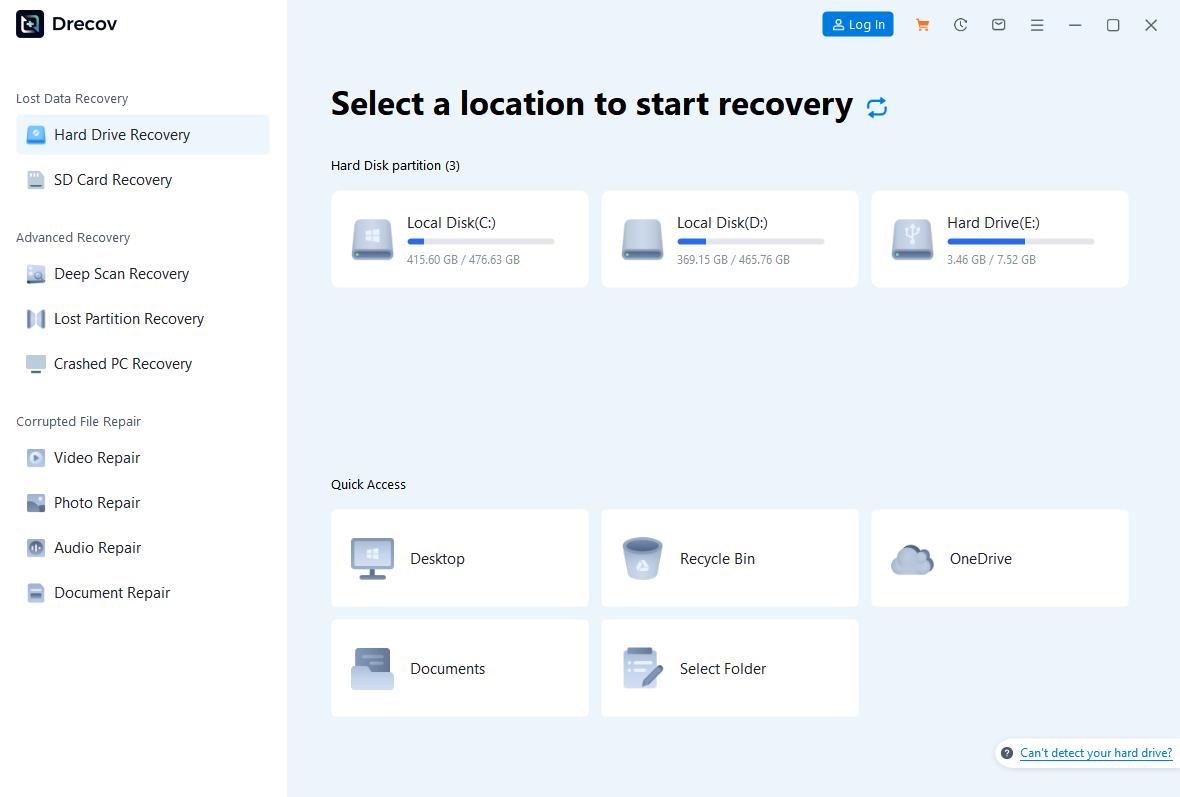
Prepare a different healthy physical drive for output and do not install recovery software on the affected source. Open Drecov and choose the disk or partition that held the old file, not the folder where the failed fresh download now sits if those are different devices. Check model and capacity before scanning.
Step 2: Start Quick Scan, then broaden if stable
Run Quick Scan and look for the old filename and former path. If it is absent and the disk remains reliably readable, use Deep Scan. Stop if the device begins to disconnect or return serious errors; a long scan cannot repair unstable hardware.
Step 3: Filter, preview, and recover elsewhere
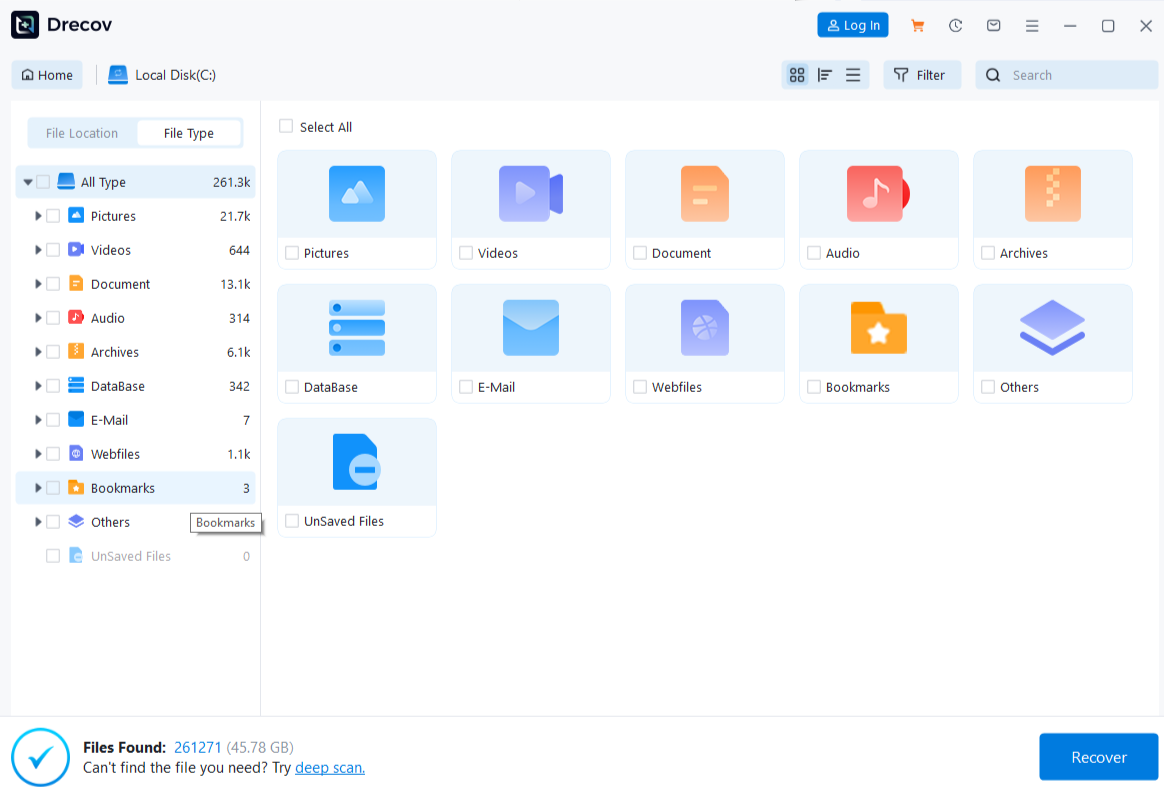
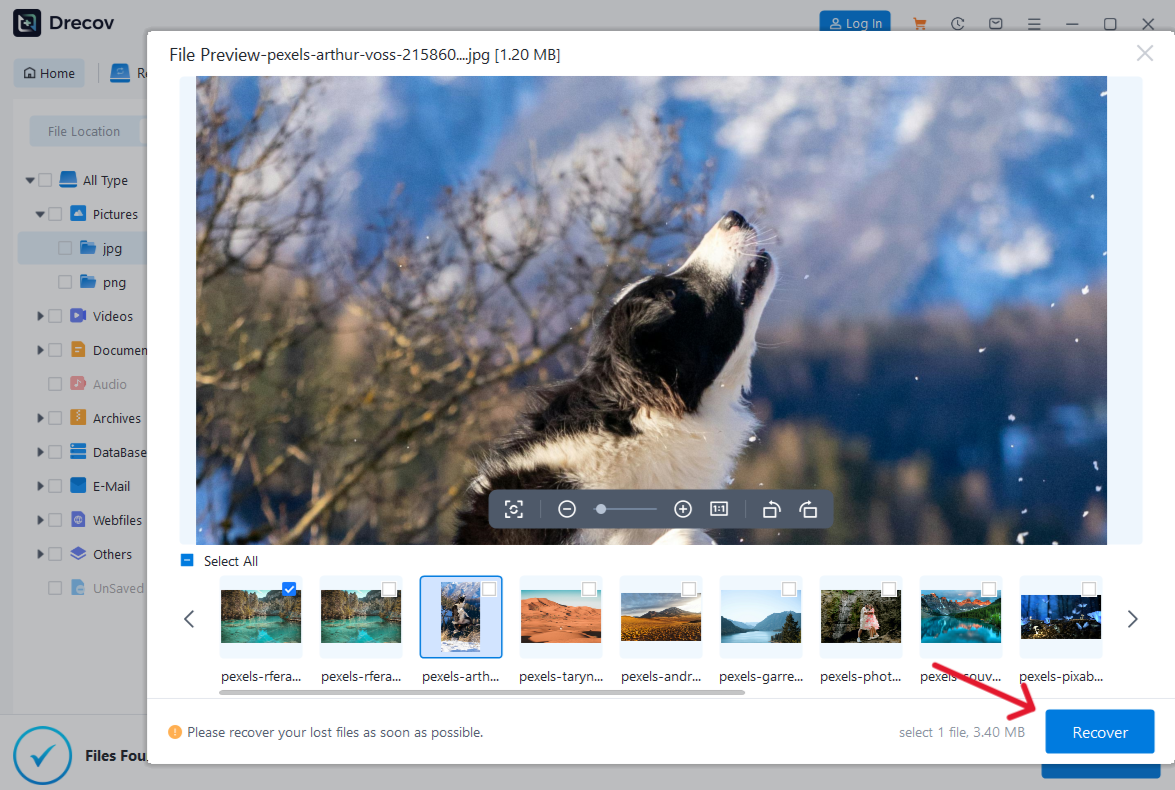
Filter by file type, name, old folder, or date. Preview representative supported candidates, remembering that a preview may not show every page or archive member. Recover selected files to the prepared healthy drive, never to the source. If output is not where expected, inspect Drecov Folder or Recovery Folder on the destination. Open the recovered file and compare its contents with the publisher’s expected version or hash when one exists.
⚠ Warning: Install it on a drive different from the one where your data was lost to prevent overwriting.
FAQs
Can a browser mark a download complete even when the wrong content arrived?
Yes. A login or error page can be saved under the expected filename. Compare size, type, and the source before trying content repair.
Does the same file size prove the download is good?
No. Different bytes can have the same size. Compare a trusted published checksum when available and test the file in its intended application.
Should I turn off antivirus to make the file open?
No. Verify the source and the exact warning first. A security block is not the same as an incomplete transfer, and disabling protection can expose the computer to a malicious file.
Can Drecov fix the corrupt file I just downloaded?
No. It is for recoverable local files that were lost or deleted. Obtain a clean download from the publisher when the transfer itself was incomplete.
What if the publisher has removed the download?
Check authorized backups, version history, and the sender. If a complete earlier local copy was deleted, protect its original drive and consider file recovery; do not trust an unverified third-party mirror.
Conclusion
For a corrupted file download, determine whether the transfer failed, the source supplied the wrong content, or the application cannot read an otherwise complete file. Compare size, type, and a trusted published checksum; then obtain a fresh copy from the official source. If a better old local version was deleted, Drecov can search its stable original storage and save candidates elsewhere. It cannot repair data that never arrived, so verify the recovered or re-downloaded file before relying on it.
⚠ Warning: Install it on a drive different from the one where your data was lost to prevent overwriting.