







Maintaining a secure and fast browsing experience is essential in today’s digital landscape. When you learn how to upgrade Firefox, you aren’t just getting new features; you are patching security vulnerabilities that could compromise your personal information. However, many users fear that a software jump might lead to data loss. This comprehensive guide will walk you through the technical process of updating your browser across various platforms and, more importantly, how to safeguard and recover your browsing data using expert-level techniques and PandaOffice Drecov data recovery software.
Why You Need to Know How to Upgrade Firefox Regularly
Before we dive into the “how,” we must understand the “why.” Mozilla Firefox is an open-source pioneer, but like any complex software, it requires frequent maintenance. When you how to upgrade Firefox properly, you ensure that the browser engine remains compatible with modern web standards like HTML5 and WebGPU.
Furthermore, from a data recovery perspective, running an outdated browser version often leads to profile corruption. If your browser crashes during an automated background task, you might wake up to find your history, saved passwords, and bookmarks gone. By manually controlling the update process, you can verify that your data remains intact at every stage.
How to Update Firefox on Windows 10/11
Updating Firefox on a Windows environment is generally straightforward, as the browser includes a built-in maintenance service. However, Windows 10 and 11 have specific permissions that can sometimes interfere with the write-process of new binaries.
Step 1: Access the About Menu
Open your Firefox browser. Click on the Menu button (the three horizontal lines in the top-right corner). Navigate to Help and then select About Firefox.
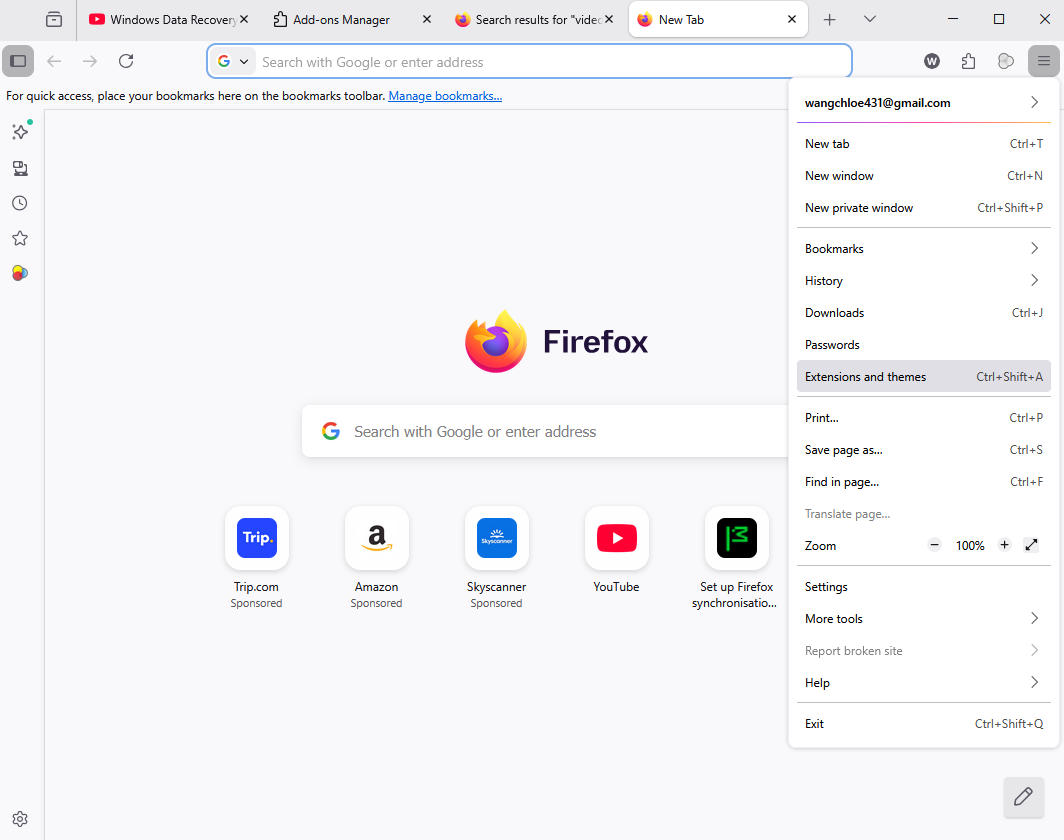
Step 2: Trigger the Automated Check
The “About Mozilla Firefox” window will open. Firefox will immediately begin checking for updates and downloading them automatically. You will see a progress bar indicating the download status.
Step 3: Apply the Update
Once the download is complete, a button labeled Restart to update Firefox will appear. Click this button. Firefox will close, replace the old files with the latest version, and reopen your previous tabs.
Pro Tip: Ensure you save any active work in web forms before clicking restart, as “Session Restore” is reliable but not infallible.
How to Update Firefox on Mac
MacOS handles application updates differently than Windows, often utilizing the “Disk Image” (.dmg) format or the background update service. Knowing how to upgrade Firefox on a Mac requires a slightly different awareness of file permissions.
Step 1: Open the Firefox About Window
Similar to Windows, go to the Firefox menu in the top macOS menu bar and select About Firefox.
Step 2: Verification of Permissions
If you are not an administrator on the Mac, you might be prompted for a password. If the update downloads but fails to install, it is often because the application was not moved to the /Applications folder correctly during the initial installation.
Step 3: Finalize and Relaunch
Click Restart to update Firefox. If you prefer a manual approach, you can always visit the official Mozilla download page to grab the latest .dmg file and drag the new version into your Applications folder, overwriting the old one.
Update Firefox to Latest Version: The Manual Method
Sometimes, the internal updater fails due to network restrictions or corrupted local files. In these instances, the best way to how to upgrade Firefox is the manual “Over-the-Top” installation. This method preserves your user profile while replacing the core software files.
- Step 1: Visit the Mozilla Firefox release notes to identify the current stable build.
- Step 2: Download the full installer (rather than the “stub” installer) for your specific operating system (x64 for Windows 10/11 or ARM/Intel for Mac).
- Step 3: Close Firefox completely. Ensure no background processes are running by checking the Task Manager (
Ctrl + Shift + Esc). - Step 4: Run the installer. It will detect your existing installation path (usually
C:\Program Files\Mozilla Firefox) and upgrade the files without touching yourAppDataprofile folder.
What to Do if Your Firefox Update Failed
It is a frustrating experience when you try to how to upgrade Firefox and receive an error message like “Update Failed” or “Software Update Failed.” This typically happens because of locked files or interference from third-party antivirus software.
Troubleshooting Step 1: Disable Interference
Temporarily disable your antivirus or firewall. Sometimes these programs flag the Firefox update executable as a suspicious process because it attempts to modify files in the System directory.
Troubleshooting Step 2: Delete Update Files
Navigate to the following path on Windows:
C:\Users\[YourUsername]\AppData\Local\Mozilla\updates
Delete the contents of this folder. This clears any partially downloaded or corrupted update packages that are blocking the process.
Troubleshooting Step 3: Check Disk Space
Ensure you have at least 500MB of free space on your primary drive. If the drive is full, the decompression of the update package will fail silently.
How to Recover Firefox History After Update
One of the most common issues users face after learning how to upgrade Firefox is the sudden disappearance of their browsing history or bookmarks. This often happens if the update creates a “New Profile” instead of loading your existing one.
Step 1: Check the Profile Manager
Type about:profiles in your Firefox address bar. Check if there is more than one profile listed. If your history is missing, your “Default” profile might still be there, but not set as the active one. Click Set as default profile on your old folder and restart the browser.
Step 2: Manual Profile Restoration
If the profile is truly gone from the list, navigate to:
%APPDATA%\Mozilla\Firefox\Profiles\
Look for folders ending in .default-release. If these folders are empty or missing, you have experienced a data loss event during the update.
Using PandaOffice Drecov Data Recovery Software for Firefox Recovery
When standard troubleshooting fails, you need a professional-grade tool. PandaOffice Drecov data recovery software is specifically designed to handle the complex file structures of browser databases. Firefox stores history and bookmarks in SQLite files (like places.sqlite). If an update overwrites these files or deletes them, PandaOffice Drecov can scan the raw sectors of your hard drive to retrieve them.
⚠ Warning: Download and install PandaOffice Drecov data recovery software on a drive other than the one where Firefox is installed. This prevents overwriting the very data you are trying to save. Launch the program and select the partition (usually C:) where your browser data was stored.
Step 1: Deep Scan for SQLite Files
Click on Scan. PandaOffice Drecov will perform a high-speed analysis followed by a Deep Scan. To speed up the process, use the filter sidebar to search specifically for .sqlite, .json, or .bak files. These are the formats Firefox uses for history and bookmarks.

Step 2: Preview and Recover
Once the scan is complete, look for a file named places.sqlite or bookmarkbackups. PandaOffice Drecov allows you to preview the file metadata to ensure it’s the right size. Click Recover and save the files to an external USB or a different partition.

Warning: Never recover files directly back to the source location. If you do, you risk corrupting the remaining data fragments that the software is trying to piece together.
Step 3: Importing Back to Firefox
After recovery, copy your rescued places.sqlite file back into your active Firefox profile folder. When you restart the browser, your history and bookmarks should be restored to their previous state.
Related Resources for Data Integrity
If your update issues were caused by hardware failure, you may find these guides helpful:
- Where are Firefox bookmarks stored on your PC
- How to repair corrupted USB flash drive without losing data
- Complete guide to Toshiba hard disk data recovery
- Where is the Firefox bookmarks location
Advanced Data Protection Strategies
Once you have successfully learned how to upgrade Firefox and recovered your data, you should implement a strategy to prevent future loss. Data recovery is a powerful tool, but redundancy is your best friend.
1. Enable Firefox Sync
By creating a Firefox account, your history, passwords, and bookmarks are encrypted and stored on Mozilla’s servers. Even if a local update fails catastrophically, you can simply sign back in to download your data.
2. Manual Profile Backups
Before you ever click “Update,” make a manual copy of your profile. You can find your profile location by going to about:support and clicking Open Folder next to “Profile Folder.” Copy the entire contents to a secure location.
Summary of Key Locations and Shortcuts
| Feature | Windows Path / Shortcut | Mac Path / Shortcut |
| Profile Path | %APPDATA%\Mozilla\Firefox\Profiles\ | ~/Library/Application Support/Firefox/Profiles/ |
| About Firefox | Alt -> Help -> About | Firefox -> About Firefox |
| Refresh Firefox | about:support -> Refresh Firefox | about:support -> Refresh Firefox |
| Task Manager | Ctrl + Shift + Esc | Command + Option + Esc |
FAQ: Common Troubleshooting and Data Scenarios
1. If I upgrade Firefox, will my saved passwords and “Auto-fill” data be deleted?
Generally, no. When you Update Firefox to latest version, the installer is designed to replace only the application binaries (the program files) while leaving the user profile folder untouched. Your passwords are stored in logins.json and key4.db within your profile. However, if the Firefox update failed and caused a file system error, these files could become corrupted. In such cases, using PandaOffice Drecov data recovery software to scan for .db and .json files is the most effective way to retrieve your credentials.
2. I updated Firefox on my Mac, but now it says the app is “Damaged” and can’t be opened. What should I do?
This is a common macOS security feature (Gatekeeper) issue that occurs if the update process didn’t finalize the file signatures correctly.
- Step 1: Go to your Applications folder.
- Step 2: Drag the Firefox icon to the Trash.
- Step 3: Re-download the latest version from the official Mozilla site and drag it back to Applications. Your data (history and bookmarks) will remain safe because macOS stores app data in the
~/Library/Application Support/directory, which is separate from the app itself.
3. Can I downgrade to an older version if the new update is too slow?
While you can technically install an older version, it is highly discouraged for security reasons. Furthermore, Firefox profiles are often “version-locked.” If you move from a newer version back to an older one, the browser may refuse to load your profile, claiming it is “incompatible.” If you must do this, ensure you have used PandaOffice Drecov to back up your places.sqlite and prefs.js files first, as the downgrade process can sometimes wipe local settings.
4. How can I tell if my Firefox update is stuck or just taking a long time?
When you how to update Firefox on Windows 10/11, the process usually takes less than two minutes. If the progress bar has not moved for more than 10 minutes, the “updater.exe” process is likely hung.
- Step 1: Open Task Manager (
Ctrl + Shift + Esc). - Step 2: End any task named “Firefox” or “Mozilla Maintenance Service.”
- Step 3: Restart the browser and try the update again. If it remains stuck, a manual download of the installer is required.
5. I lost my tabs after a restart; does this mean the data recovery software is my only hope?
Not necessarily. Before running a deep scan, try the built-in “Session Restore” feature.
- Step 1: Click the Menu button.
- Step 2: Select History.
- Step 3: Look for Restore Previous Session. If this option is greyed out, it means the session file (
sessionstore.jsonlz4) was corrupted during the update. This is the exact moment you should deploy PandaOffice Drecov data recovery software to look for previous versions of thesessionstorefiles in yourAppDatapath.
Conclusion
Learning how to upgrade Firefox is a fundamental skill for any internet user. While the process is designed to be seamless, the underlying complexity of file systems and registry entries means things can occasionally go wrong. Whether you are performing a routine update on Windows 10/11, navigating the Mac ecosystem, or dealing with an Update Firefox to latest version failure, you now have the tools to handle the situation.
Remember, if the worst happens and your data disappears, PandaOffice Drecov data recovery software provides a reliable safety net to get your digital life back on track. Keep your browser updated, keep your backups current, and browse with confidence.






