







Managing your cloud storage efficiently is essential in today’s digital world, and knowing how to delete file from OneDrive is a key part of that. Whether you’re freeing up space, removing outdated documents, or organizing your files, Microsoft OneDrive makes the process simple—but there are important details you should understand to avoid mistakes.
In this comprehensive guide, you’ll learn exactly how to delete files from OneDrive across all devices, how to permanently remove them, and how to recover deleted files if needed. We will also delve into advanced data recovery techniques using professional tools like PandaOffice Drecov data recovery software should you encounter a worst-case scenario.
What Is OneDrive and Why File Management Matters
Microsoft OneDrive is a cloud-based storage platform that allows users to save, sync, and share files online. It integrates seamlessly with tools like Microsoft Word, Excel, and PowerPoint, making it widely used for both personal and professional purposes. However, as files accumulate, storage can quickly become cluttered. That’s why understanding how to properly manage your data is crucial for:
- Freeing up storage space: Prevent reaching your account limit.
- Protecting sensitive information: Removing data that is no longer needed.
- Keeping files organized: Ensuring a streamlined workflow.
- Improving system performance: Reducing the load on the synchronization engine.
How to Delete Files in OneDrive Web
The web interface is the most direct way to manage your cloud data because it interacts directly with the server without waiting for local client synchronization. If you are wondering how do i delete files from OneDrive when you don’t have your primary computer nearby, the web portal is your best friend.
- Step 1: Open your preferred web browser and navigate to the official OneDrive login page.
- Step 2: Sign in using your Microsoft account credentials.
- Step 3: Once the dashboard loads, navigate through your folders to locate the specific items you wish to remove.
- Step 4: Hover over the file and click the circle that appears to the left of the filename to select it. You can select multiple items to perform a bulk action.
- Step 5: Look at the top navigation bar and click the Delete icon (represented by a trash can).
- Step 6: A confirmation box will appear. Click Delete again to move the files to the cloud Recycle Bin.
Note: Files deleted via the web are immediately removed from all synced devices, including your PC and mobile phone.
How to Delete OneDrive Files via Windows File Explorer
For most Windows 10 and 11 users, the OneDrive desktop app is pre-installed. This allows you to manage cloud files just like local files on your hard drive. Understanding how to delete files in OneDrive through the file system is the fastest method for daily users.
- Step 1: Press the Windows Key + E to open File Explorer.
- Step 2: On the left-hand navigation pane, look for the OneDrive folder (it usually has a blue cloud icon next to it). Click to open it.
- Step 3: Browse through your synchronized folders to find the files you want to remove.
- Step 4: Click the file once to select it. If you want to select a range, hold Shift; for individual multiple selections, hold Ctrl.
- Step 5: Press the Delete key on your keyboard, or right-click and select the trash can icon/Delete option from the context menu.
- Step 6: A notification may appear in your system tray stating that “Files are removed from all your devices.” This confirms the sync engine is processing the deletion.
How Do I Delete Files from OneDrive on Mobile Devices
The mobility of the cloud is its greatest strength. Whether you are using an iPhone or an Android device, the process is streamlined for touch interfaces.
- Step 1: Launch the OneDrive app on your mobile device.
- Step 2: Tap the Files tab at the bottom of the screen to see your directory structure.
- Step 3: Find the file or folder you want to remove. Tap and hold the file name to enter selection mode.
- Step 4: Select any additional files if necessary.
- Step 5: Tap the Delete icon located at the bottom (or top, depending on your OS version) of the screen.
- Step 6: Confirm the deletion by tapping OK or Delete in the pop-up prompt.
How to Delete File from OneDrive Permanently
When you delete a file, it isn’t actually gone from Microsoft’s servers immediately. It sits in a secondary holding area. To ensure data is gone for good—or to free up actual quota space—you must empty the Recycle Bin.
- Step 1: Visit the OneDrive Web Portal.
- Step 2: On the left-hand menu, click on Recycle Bin.
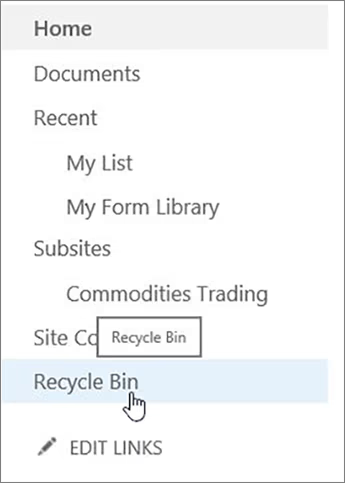
- Step 3: To remove everything, click Empty recycle bin at the top.
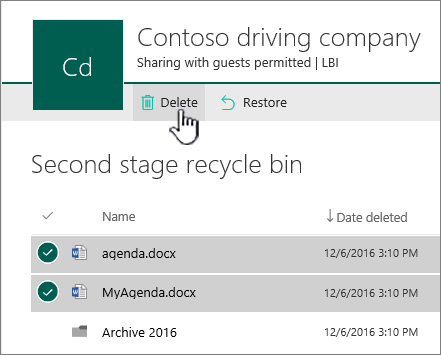
- Step 4: To remove specific items, select them and click Delete at the top of the page.
- Step 5: A final warning will appear: “Are you sure you want to permanently delete these items?” Click Yes.
⚠️ Warning: Permanent deletion is irreversible through standard Microsoft tools. Once you empty the Recycle Bin, the data is purged from the server’s primary storage.
Recovering Accidentally Deleted OneDrive Files
Before we dive into professional recovery software, always check the built-in safety nets provided by Microsoft. If you realized you made a mistake right after learning how to delete files from OneDrive, follow these steps:
Standard Recovery from Recycle Bin
- Open the Recycle Bin in the OneDrive web interface.
- Select the file you accidentally deleted.
- Click Restore. The file will return to its original folder.
Restoring Your Entire OneDrive
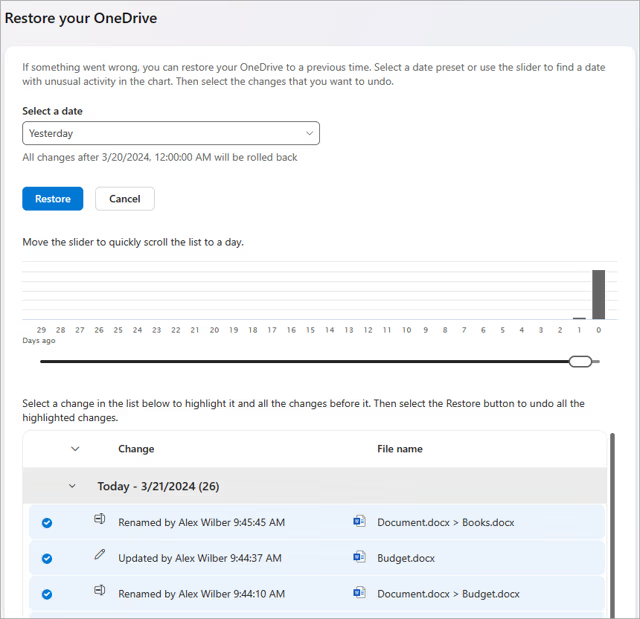
If you have a Microsoft 365 subscription, you can “roll back” your entire OneDrive to a previous state within the last 30 days. This is incredibly helpful if a virus or ransomware deletes your data.
- Go to Settings > Options > Restore your OneDrive.
- Select a date or a custom time point.
- Click Restore.
Advanced Recovery Using PandaOffice Drecov Data Recovery Software
Sometimes, the built-in Recycle Bin fails us. Perhaps the 30-day limit passed, or you permanently deleted a local folder that was supposed to be synced but hadn’t finished uploading. In these critical moments, you need a professional-grade solution like PandaOffice Drecov data recovery software.
This tool is designed to scan the physical sectors of your hard drive to find remnants of files that the operating system no longer recognizes. Even if you have followed every step on how to delete onedrive files, the physical data often remains on your disk until it is overwritten by new information.
⚠ Warning: Install it on a drive different from the one where your data was lost to prevent overwriting.
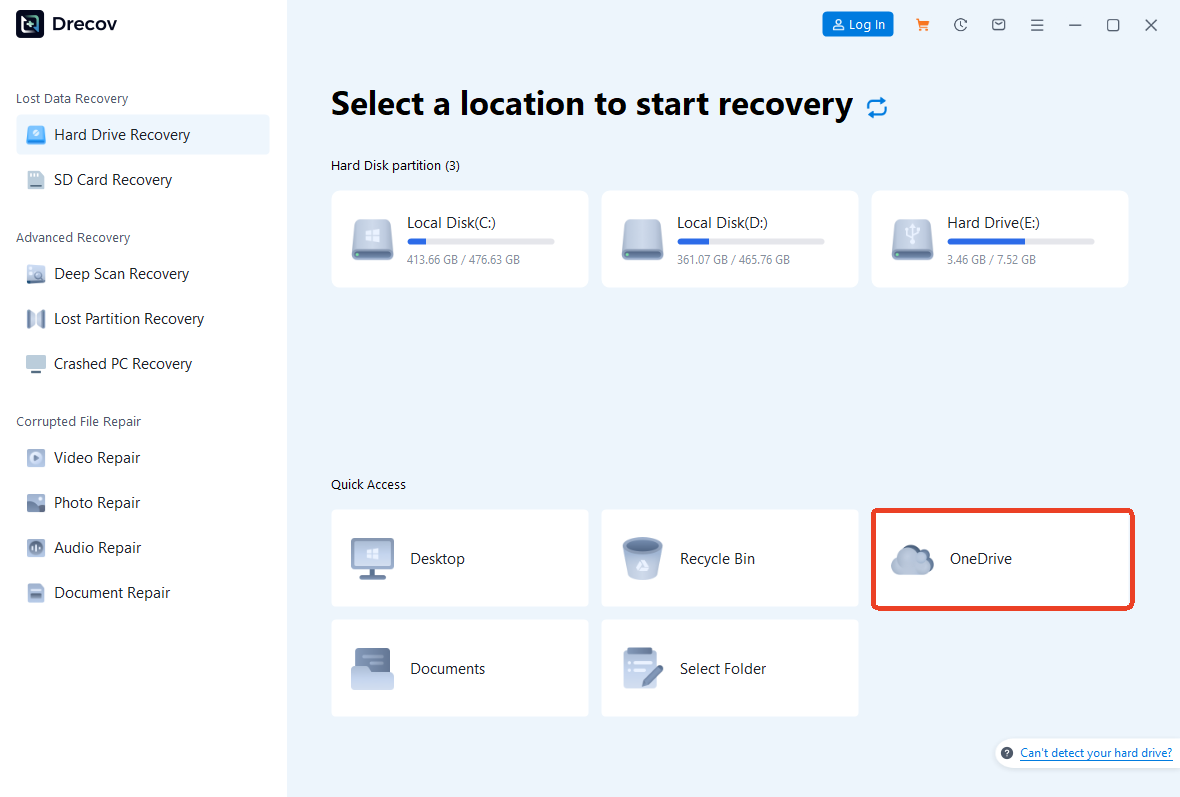
Step 1: Select the Location
Launch the program. On the main interface, you will see a list of drives. Select the drive where your local OneDrive folder was located (usually the C: Drive).
Step 2: Scan for Deleted Data
Click the Scan button. PandaOffice Drecov data recovery software will perform a Quick Scan followed by a Deep Scan. The Deep Scan is essential for finding files that have been purged from the Windows Recycle Bin.

Step 3: Preview and Filter
One of the best features of this tool is the preview function. Browse through the results. You can use the search bar to look for specific file extensions like .docx or .jpg. Double-click a file to see a preview and ensure it isn’t corrupted.

Step 4: Execute the Recovery
Select the files you wish to bring back. Click the Recover button. Crucial Tip: Always save the recovered files to an external hard drive or a different partition to ensure a 100% success rate.
Internal Resources for Data Management
If you found this guide helpful, you might also be interested in our other technical walkthroughs:
- How to recover a deleted draft in Outlook – A must-read for email productivity.
- How to fix LaCie hard drive not showing up on Mac – Essential for hardware troubleshooting.
- Find your Firefox bookmarks location – Never lose your saved web pages again.
Best Practices for Secure File Deletion
To maintain a healthy digital ecosystem, simply knowing how to delete file from OneDrive is not enough. You should adopt habits that protect your privacy and optimize your storage.
- Use Selective Sync: Instead of deleting files to save local space, use the “Files On-Demand” feature. This keeps your files in the cloud but removes the local copy from your hard drive.
- Audit Permissions: Before deleting a shared folder, check who else has access. It is often better to “Stop Sharing” before deleting to avoid confusing your collaborators.
- Check the “Second-Stage” Recycle Bin: For Business and School accounts, OneDrive has a second-stage bin that holds data for an additional 63 days after the first bin is emptied.
- Avoid Registry Hacks: Some tutorials suggest editing the Windows Registry to remove the OneDrive icon. While this hides the folder, it does not delete the files. Always use the official methods described above.
Conclusion
Whether you are trying to figure out how do i delete files from OneDrive to clean up your desktop or looking for how to delete files in OneDrive web to manage your storage on the go, the process is straightforward when you follow the right steps.
Remember that deletion is a two-step process: moving to the trash and then emptying the trash. If you ever find yourself in a situation where you have deleted too much, tools like PandaOffice Drecov data recovery software provide a powerful safety net to restore your digital life. Stay organized, stay backed up, and manage your cloud storage with confidence!






