







The digital age has turned our smartphones into the primary archives of our lives. From the birth of a child to a simple sunset, we document everything. However, with the sheer volume of media we handle, accidental deletion is an all-too-common occurrence. If you’ve ever found yourself staring at an empty gallery in a panic, asking, “how do you recover photos from recently deleted?”—take a deep breath. You are not alone, and more importantly, your photos are likely still recoverable.
In this comprehensive guide, we will explore the mechanics of digital storage, the safety nets built into your devices, and the advanced tools available when standard methods fail. By understanding how your phone manages data, you can transform a potential digital disaster into a minor hiccup.
Understanding Recently Deleted Photos
What Happens When You Delete a Photo
Let’s be honest—almost everyone has deleted a photo by mistake at some point. Maybe it was a memorable vacation shot or an important screenshot you needed later. The panic hits instantly, right? But here’s the thing: when you delete a photo, it’s not immediately erased from your device.
Instead, your phone simply marks that storage space as “available.” Imagine writing something on a whiteboard and then erasing it lightly—you can still see traces underneath. That’s exactly how digital deletion works. The actual data remains intact until new data overwrites it. This is why recovering photos from recently deleted is often possible, especially if you act quickly.
Modern smartphones are designed with this in mind. They don’t just delete files outright because accidental deletion is so common. Instead, they move them into a temporary holding area. This gives you a grace period—a chance to undo your mistake without needing technical tools or expertise. So if you’re wondering whether your deleted photos are gone forever, the answer is usually no… at least not right away. Timing, however, plays a huge role in whether recovery is successful.
Why Phones Keep Deleted Photos Temporarily
You might be wondering—why not just delete photos permanently right away? Why go through the extra step of storing them in a “Recently Deleted” folder?
The answer is simple: user protection. Smartphone manufacturers know that people make mistakes. Whether it’s an accidental tap or a rushed cleanup session, deleted photos are often regretted almost immediately. That’s why systems include a buffer zone where files are kept temporarily before being permanently erased.
Think of the recently deleted photos folder as a safety net. It catches your files before they hit the ground. Most devices store deleted photos here for about 30 days, though some may vary slightly depending on settings and storage conditions. This temporary storage doesn’t just hold your photos—it also tracks how long they’ve been there. Once the countdown reaches zero, the system permanently deletes them to free up space. Until then, recovery is as easy as tapping a button.
Where Recently Deleted Photos Are Stored
Recently Deleted Folder on Smartphones
The Recently Deleted folder is where all the magic happens. It’s built directly into your phone’s photo management system, whether you’re using an iPhone or an Android device. This folder acts like a digital recycling bin, holding onto deleted photos for a limited time.
On most devices, you’ll find it inside your Photos or Gallery app. It may be labeled as “Recently Deleted,” “Trash,” or “Bin,” depending on your device. Once you open it, you’ll see thumbnails of your deleted images along with the number of days remaining before they’re permanently erased.
What’s interesting is that these photos are still fully intact. They retain their original quality, metadata, and even album placement once restored. It’s like they were never deleted in the first place. Many users overlook this folder entirely, assuming their photos are gone for good. That’s a costly mistake. Checking this folder should always be your first step when trying to recover deleted photos.
Retention Period Before Permanent Deletion
Time is the biggest factor when it comes to recovering photos from recently deleted. Most smartphones keep deleted photos for 15 to 30 days before removing them permanently. During this period, recovery is quick and effortless.
Once the retention period expires, the system automatically deletes the files. At this point, recovery becomes much more complicated. The data may still exist on the storage device, but it’s no longer accessible through normal means. To better understand this timeline, consider the following comparison:
| Stage | Status | Recovery Difficulty |
| Recently Deleted | Stored in trash folder | Very Easy |
| After Trash Deletion | Hidden in storage | Moderate |
| Overwritten Data | Permanently lost | Impossible |
This table highlights why acting quickly is crucial. The longer you wait, the fewer options you have. If you are dealing with a computer or external drive, you can learn more about official data management practices to keep your library safe.
How to Recover Photos from Recently Deleted on iPhone
Using the Photos App
If you’re using an iPhone, recovering photos from recently deleted is incredibly straightforward. Apple has designed the process to be simple enough for anyone to use, even if you’re not tech-savvy.
- Step 1: Open the Photos app on your iOS device.
- Step 2: Tap the Albums tab at the bottom of the screen.
- Step 3: Scroll all the way down to the Utilities section and select Recently Deleted.
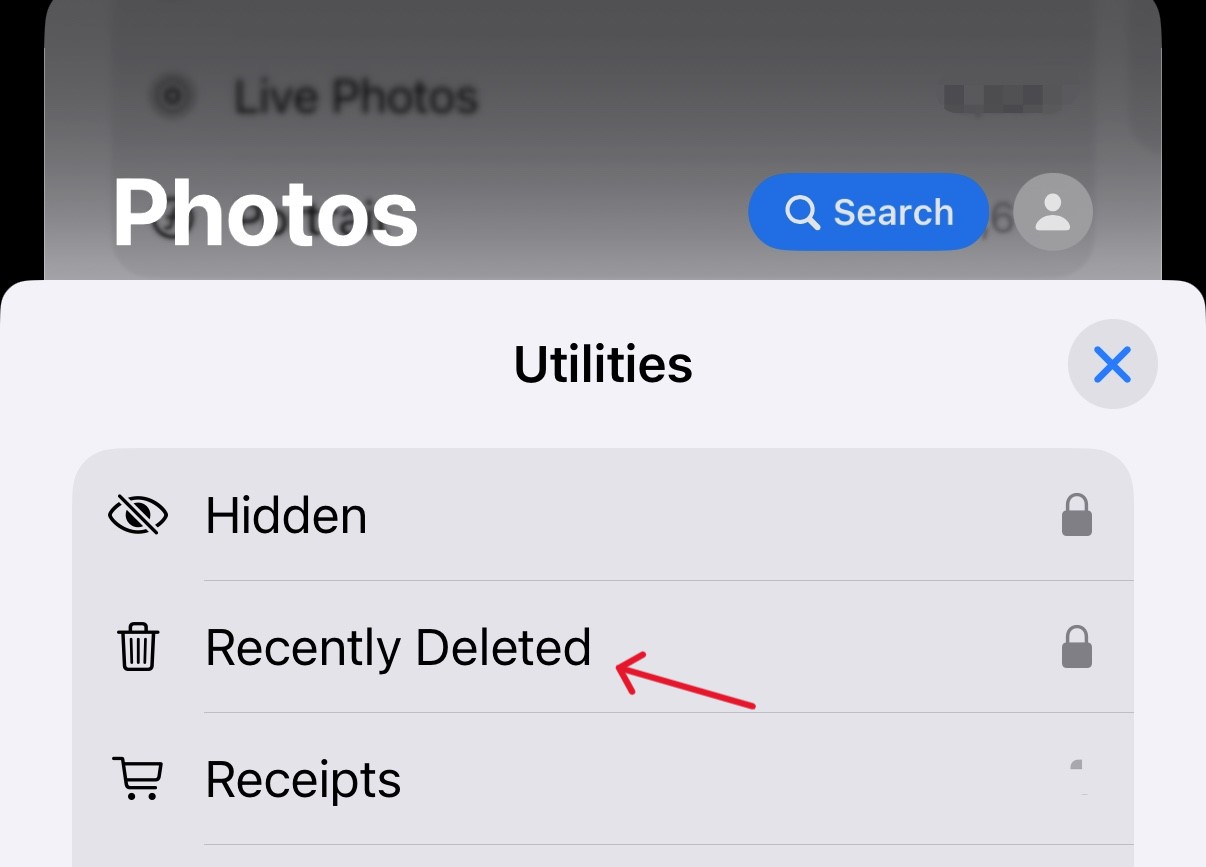
- Step 4: In iOS 16 and later, you will need to use Face ID, Touch ID, or your passcode to unlock this folder.
- Step 5: Tap Select in the top right corner, then choose the photos you wish to restore.
- Step 6: Tap Recover and confirm your choice. The photos will return to your Library immediately.
Recovering via iCloud
What if your photo isn’t in the Recently Deleted folder on your phone? Don’t worry—you still have another option. If you’ve enabled iCloud backups, your photos might still be found in the cloud.
- Step 1: Use a web browser to go to iCloud.com and log in with your Apple ID.
- Step 2: Click on the Photos icon.
- Step 3: Look for the Recently Deleted sidebar on the left.
- Step 4: Select the items you want back and click Recover.
Sometimes, photos remain in iCloud even after being deleted from your phone, especially if syncing hasn’t fully completed. Another option is restoring your device from an earlier iCloud backup. This can bring back deleted photos, but it may also overwrite current data. So it’s important to weigh the pros and cons before proceeding.
How to Recover Photos from Recently Deleted on Android
Using Google Photos Trash
Android users often rely on Google Photos, which includes a robust built-in Trash feature. This is one of the most reliable ways to answer the question: how do you recover photos from recently deleted?
- Step 1: Launch the Google Photos app.
- Step 2: Tap on the Library tab at the bottom right.
- Step 3: Tap the Trash (or Bin) icon at the top.
- Step 4: Long-press the photo or video you want to restore.
- Step 5: Tap Restore at the bottom.
Photos in Google Photos Trash are typically kept for 60 days if they were backed up, or 30 days if they were not. This gives you a generous window to recover your files.
Using Manufacturer Gallery Apps
Some Android devices come with their own gallery apps, such as Samsung Gallery or Xiaomi Gallery. These apps often have their own “Trash” or “Recycle Bin” feature separate from Google Photos.
- Step 1: Open your phone’s native Gallery app.
- Step 2: Tap the menu icon (usually three horizontal lines or dots).
- Step 3: Select Trash or Recycle Bin.
- Step 4: Find your photos and tap Restore.
This means your deleted photos might exist in more than one place. It’s always a good idea to check both your default gallery app and Google Photos when trying to recover images.
Recovering Photos After Recently Deleted Folder Is Empty
Using Cloud Backups
If your Recently Deleted folder is empty, don’t give up just yet. Cloud backups can be a lifesaver. Services like Google Photos, OneDrive, and iCloud often store your photos separately from your device’s internal file system.
If backups were enabled before deletion, you can log into your account and download the photos again. This method doesn’t depend on your device’s storage, which makes it incredibly reliable. It’s like having a second copy of your memories stored somewhere safe. Even if your phone fails, your photos can still be recovered.
Using PandaOffice Drecov Data Recovery Software
When the manual folders are empty and the cloud hasn’t saved you, it is time for a professional approach. PandaOffice Drecov data recovery software is a powerful tool designed to deep-scan storage media to find fragments of files that haven’t been overwritten yet. This software is particularly useful if the photos were stored on an SD card or if you can connect your phone to a PC as a mass storage device.
⚠ Warning: Install it on a drive different from the one where your data was lost to prevent overwriting.
Here is how you can use this professional tool:
- Step 1: Launch the software and select the drive location where your recently deleted photos were originally stored.

- Step 2: Click the Scan button. The software will perform a Quick Scan followed by a Deep Scan to locate every recoverable file.

- Step 3: Browse the results. You can use the “Filter” or “Search” functions to find specific image formats like .jpg or .png.

- Step 4: Preview the photos to ensure they are intact.
- Step 5: Select the images and click Recover.
Important Warning: Always save the recovered photos to a different drive than the one you are recovering from. Saving them back to the same location can overwrite other deleted data that you might still need to rescue!
After you have mastered these steps, you might want to look into more specific scenarios:
- How to recover pictures from SD card: a step-by-step guide for beginners
- Find the best photo data recovery software for your needs
- Common questions: How can I recover deleted photos from SD card?
Factors That Affect Photo Recovery Success
Storage Overwriting
The biggest enemy of data recovery is overwriting. Every time you take a new photo, download an app, or even browse the web, your device creates temporary files. These files use available storage space—including areas where deleted photos may still exist. Once new data occupies that physical space on the memory chip, the old photo is gone forever. This is why you must act immediately.
Time Since Deletion
Time is another critical factor. The longer a file remains deleted, the higher the chance it will be overwritten by system processes or background app updates. While a photo deleted ten minutes ago is almost certainly recoverable, one deleted three months ago is a much bigger challenge.
Common Mistakes to Avoid During Recovery
Continuing to Use the Device
The most common mistake is continuing to use the phone as if nothing happened. People often download “recovery apps” directly onto the phone where the photos were lost. The irony is that the act of downloading the recovery app might be the very thing that overwrites the deleted photo. Always use a computer-based solution like PandaOffice Drecov data recovery software to avoid this risk.
Ignoring Backup Options
Many users forget to check alternative cloud services. Did you ever send that photo in a WhatsApp message or via email? Did you back it up to Dropbox or Amazon Photos? Often, a copy of the “lost” photo exists in an app’s “Sent” folder or a secondary backup service you forgot you enabled.
Best Practices to Protect Your Photos
Enable Automatic Backup
The best way to handle a data loss crisis is to prevent it. Ensure that Google Photos or iCloud Photos is set to “Back up & Sync” over Wi-Fi. This creates a real-time mirror of your gallery in the cloud.
Use Multiple Backup Solutions
Don’t rely on a single backup method. Follow the 3-2-1 backup rule: keep 3 copies of your data, on 2 different media types, with 1 copy stored off-site (in the cloud). Using a combination of cloud storage, external hard drives, and occasional physical prints ensures your memories survive even the worst hardware failures.
How Do You Recover Photos From Recently Deleted FAQs
1. How long do photos stay in Recently Deleted?
Most modern devices, including iPhones and Androids using Google Photos, keep them for 30 to 60 days before permanent deletion.
2. Can I recover photos after deleting them from the trash?
Yes, it is possible, but it requires specialized software like PandaOffice Drecov to scan the raw storage sectors for the data.
3. Do backups save deleted photos?
If a backup was performed after the photo was taken but before it was deleted, then yes, the backup will contain the photo.
4. Is recovery software reliable?
Reputable software is highly reliable if the data hasn’t been overwritten. However, no software can recover data that has been physically replaced by new files.
5. What should I do immediately after deleting photos?
Put your phone on Airplane Mode to stop background data usage and check your Recently Deleted folder or cloud trash first.
Conclusion
Recovering photos from recently deleted isn’t as complicated as it might seem at first glance. Whether you’re using an iPhone or Android device, built-in features like the Recently Deleted folder and cloud backups make the process straightforward for the majority of cases.
The key to success lies in three things: speed, caution, and the right tools. By acting quickly, stopping the use of the device, and utilizing professional solutions like PandaOffice Drecov data recovery software when necessary, those “lost” memories are often just a few clicks away from being restored. Remember, your digital history is precious—protect it with regular backups so you never have to face the panic of a blank gallery again.






