







Uploading PDFs into ChatGPT can be incredibly useful for analyzing documents, extracting data, or summarizing content. But sometimes, users encounter a frustrating issue: chatgpt unknown error when uploading pdf. This vague error message can interrupt your workflow and leave you wondering what went wrong.
In this in-depth guide, we’ll break down the causes behind this error, provide step-by-step fixes, and share best practices to ensure smooth PDF uploads every time. Furthermore, we will delve into advanced data recovery techniques to ensure that your local document management is as seamless as your AI interactions.
What Does “ChatGPT Unknown Error When Uploading PDF” Mean?
The chatgpt unknown error when uploading pdf message typically appears when the system fails to process your file but doesn’t specify the exact reason. Unlike clear error messages (like file too large or unsupported format), this one requires a bit of investigation.
This issue can occur due to:
- File size limitations
- Unsupported or corrupted PDF files
- Browser or cache issues
- Temporary server-side problems
- Network instability
Understanding the root cause is the first step toward fixing it. Often, the “unknown” nature of the error suggests a conflict between the file’s metadata and ChatGPT’s parsing engine.
Common Causes of PDF Upload Errors in ChatGPT
Let’s explore the most frequent reasons behind the chatgpt unknown error when uploading pdf.
1. File Size Exceeds Limit
One of the most common triggers is uploading a PDF that exceeds the allowed file size. Even though limits may vary depending on your plan (Plus, Team, or Enterprise), large PDFs with high-resolution images or complex formatting often fail to upload because the system times out.
2. Corrupted or Damaged PDF
If your PDF file is corrupted, incomplete, or improperly generated, ChatGPT may fail to read it—resulting in a chatgpt unknown error when uploading pdf. Corruption can happen during a download, a system crash, or an improper save from a word processor.
3. Unsupported PDF Format
Not all PDFs are created equally. Some may contain:
- Scanned images without OCR (Optical Character Recognition)
- Embedded scripts or active content
- Unusual encoding formats or non-standard fonts
4. Browser Issues
Your browser may be the culprit. Problems such as an outdated version, conflicting extensions, or a corrupted cache can disrupt file uploads, leading to the chatgpt unknown error when uploading pdf.
Technical Solutions: Mastering PDF Management and Recovery
When standard troubleshooting fails, you need to look closer at the file integrity itself. Below are advanced methods to handle specific PDF-related hurdles.
How to fix PDF with owner password for ChatGPT
Many users realize too late that their document is encrypted. ChatGPT cannot “read” a file that is locked with an owner password (also known as a permissions password). This restriction often triggers the chatgpt unknown error when uploading pdf.
- Step 1: Open the PDF file in a standard viewer like Adobe Acrobat or a browser like Google Chrome. If it asks for a “User Password” just to open, you must have that password.
- Step 2: If the file opens but you cannot upload it, check the security settings. In Chrome, click the Print icon.
- Step 3: Select “Save as PDF” as the destination. This process often creates a “flat” version of the PDF without the metadata restrictions.
- Step 4: Save the new file with a simple name and attempt to upload it to ChatGPT again.
How to repair corrupted PDF for ChatGPT upload
If the file structure is broken, you’ll consistently see the chatgpt unknown error when uploading pdf. Repairing the file structure is essential for AI readability.
- Step 1: Navigate to an online repair service such as iLovePDF or use desktop software like Adobe Acrobat Pro.
- Step 2: Upload the damaged document to the repair tool. The tool will analyze the cross-reference table and the trailer of the PDF to fix internal links.
- Step 3: Download the repaired version. Before uploading to ChatGPT, open it locally to ensure all pages are visible.
- Step 4: Rename the file to avoid any special characters (like #, %, or &) and try the upload again.
Restore PDF from temporary files after crash
Sometimes, the chatgpt unknown error when uploading pdf happens because the file you are trying to upload was partially saved during a software crash. If you lost the “clean” version of your document, you can often find it in temporary directories.
- Step 1: Press Windows + R on your keyboard to open the Run dialog box.
- Step 2: Type
%temp%and press Enter. This opens the local temporary folder. - Step 3: Look for files with the
.tmpextension or folders named after the application you used to create the PDF (e.g., Word or Acrobat). - Step 4: Sort by “Date Modified” to find the most recent files. Copy these to your desktop and change the extension to
.pdfto see if they are recoverable.
Using PandaOffice Drecov Data Recovery Software for Lost PDFs
If your document has disappeared entirely or was corrupted beyond manual repair during a system failure, professional tools are required. PandaOffice Drecov data recovery software is a powerful solution designed to retrieve lost or damaged documents with high precision.
⚠ Warning: Install it on a drive different from the one where your data was lost to prevent overwriting.
If you are facing a chatgpt unknown error when uploading pdf because the file itself is a “ghost” or a fragmented recovery, follow these steps to get a clean copy:
Step 1: Select the Location for Scanning
Once the interface opens, select the specific drive or folder (e.g., Downloads or Desktop) where the PDF was last seen.

Warning: Do not perform heavy read/write operations on your computer while the scan is running, as this can permanently destroy the data fragments you are trying to save.
Step 2: Run the Deep Scan
Click “Start” to begin the scanning process. PandaOffice Drecov will perform a quick scan followed by a deep scan to locate PDF headers. This is crucial for fixing the chatgpt unknown error when uploading pdf because it ensures you are recovering the full file, not just a corrupted shortcut.

Step 3: Filter and Preview Results
Use the file type filter on the left sidebar to select “Documents” and then “PDF.” PandaOffice Drecov allows you to preview the file content before recovery. If the preview looks clear, the file is healthy.
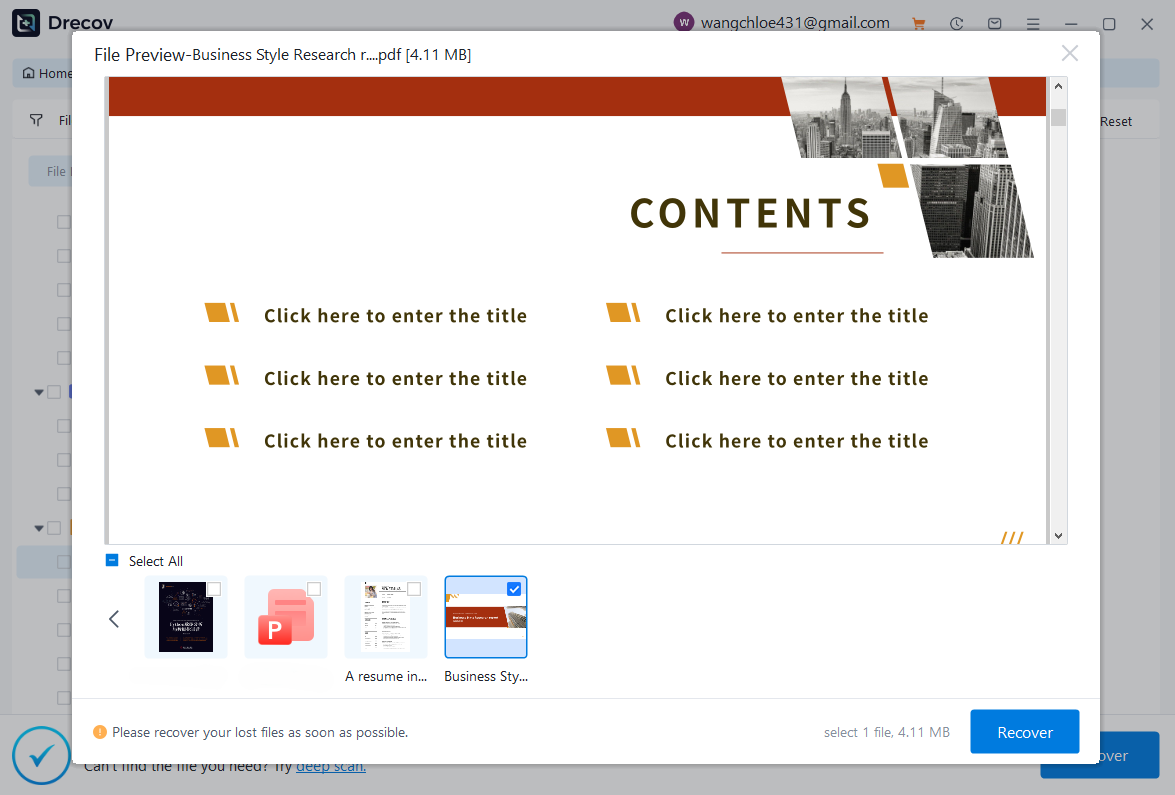
Step 4: Recover and Save
Select the desired PDFs and click “Recover.” Choose a secure location—ideally an external USB drive—to save the files. Once recovered, these clean versions should bypass the chatgpt unknown error when uploading pdf issue easily.
Internal Resources for System Maintenance
To ensure your environment stays optimized for file handling and AI tasks, you might find these guides helpful:
- How to restore your computer to an earlier date on Windows – Useful if a recent system update caused browser or upload instabilities.
- How to get your Google Chrome bookmarks back – Essential if you lost your saved AI prompts and ChatGPT links during a browser reset.
- How to remove OneDrive from File Explorer – Helps prevent sync conflicts that often lead to the chatgpt unknown error when uploading pdf when files are “stuck” in the cloud.
Step-by-Step Fixes for ChatGPT PDF Upload Errors
Beyond file recovery, here is how to troubleshoot the ChatGPT interface itself.
Fix 1: Check File Size and Reduce It
If your PDF is too large, the server will drop the connection.
- Compress the file using online tools.
- Remove unnecessary images or high-resolution graphics.
- Split the PDF into smaller parts (e.g., 10 pages at a time).
Fix 2: Clear Browser Cache and Cookies
Browser glitches are a primary cause of the chatgpt unknown error when uploading pdf.
- Open Chrome settings by clicking the three dots in the top right.
- Navigate to Privacy and security > Clear browsing data.
- Select “Cookies and other site data” and “Cached images and files.”
- Restart your browser and log back into ChatGPT.
Fix 3: Disable Browser Extensions
Some ad-blockers or security extensions view the upload script as a “tracker.”
- Go to
chrome://extensions/. - Toggle off all extensions.
- Refresh ChatGPT and try the upload again.
Best Practices for Uploading PDFs to ChatGPT
To avoid encountering the chatgpt unknown error when uploading pdf in the future, follow these expert tips:
- Keep Files Lightweight: Smaller files (under 10MB) upload faster and are processed more reliably by OpenAI’s servers.
- Use Standard Formatting: Avoid complex layouts, layers, or 3D objects within the PDF. Use “Print to PDF” to flatten the document.
- Optimize Before Uploading: Ensure the text is selectable. If you can’t highlight text in your PDF, ChatGPT likely can’t read it either.
- Check Internet Stability: Use a wired connection if possible, as even a 1-second drop in Wi-Fi can trigger an “unknown error” during the handshake phase.
- Watch for Server Status: Check the OpenAI Status page to see if there are ongoing incidents with the “File Uploads” component.
Conclusion
Encountering a chatgpt unknown error when uploading pdf can be a major roadblock, but it is rarely a permanent one. By following the systematic troubleshooting steps outlined above—from checking for owner passwords to using PandaOffice Drecov data recovery software for corrupted files—you can resolve the issue with professional efficiency.
Always remember that the quality of the input determines the quality of the AI’s output. By ensuring your PDFs are clean, unencrypted, and properly formatted, you maximize the power of ChatGPT for your data analysis and research needs. Keep your system maintained, your files backed up, and your browser optimized to turn these technical errors into a thing of the past.






