







If you’ve ever noticed your USB devices disconnecting, lagging, or temporarily stopping, there’s a good chance a feature called USB selective suspend is involved. This feature is built into modern versions of Windows and is designed to reduce power consumption by putting unused USB devices into a low-power state. While that sounds like a great idea—especially for laptops trying to conserve battery—it can sometimes cause unexpected problems with connected hardware, leading to data corruption or hardware instability.
USB devices have become essential parts of everyday computing. Think about it: keyboards, mice, flash drives, webcams, controllers, printers, and external hard drives all rely on USB connections. With so many devices attached to a single computer, power management becomes important. That’s exactly why Windows includes the USB selective suspend feature.
When enabled, this setting allows the system to suspend individual USB ports when they’re not actively in use, instead of shutting down the entire USB hub. The goal is simple: reduce energy usage without affecting other connected devices. According to official Microsoft documentation, the feature allows the USB hub driver to suspend a single port while leaving the rest of the hub functioning normally.
For portable computers, this can significantly extend battery life. But there’s a trade-off. Some devices don’t wake up correctly after being suspended, leading to common issues like USB devices not responding, disconnecting randomly, or needing to be unplugged and reconnected. Understanding how USB selective suspend works—and when to disable it—can save you hours of frustration and potential data loss.
Understanding the USB Selective Suspend Feature
What USB Selective Suspend Actually Does
At its core, USB selective suspend is a power-saving feature that allows Windows to temporarily disable idle USB devices. Instead of keeping every USB port fully powered all the time, the operating system can pause devices that aren’t currently being used.
Imagine a house where every light stays on all day—even in empty rooms. That would waste a lot of electricity. USB selective suspend works like a smart lighting system that automatically turns off lights in unused rooms while keeping active rooms fully illuminated. In technical terms, when a USB device becomes inactive, its driver can notify Windows that the device is idle. The operating system then places the device into a low-power state, sometimes referred to as a “suspend state.”
The device remains connected but consumes far less power. When activity resumes—such as moving a mouse or accessing an external drive—the system wakes the device back up. The clever part of this system is that only the idle device is suspended, not the entire USB controller. That means other connected devices continue functioning normally.
Why Windows Uses USB Power Management
Modern computers are built with advanced power management systems designed to extend battery life and improve energy efficiency. USB selective suspend is part of that ecosystem. Consider a typical laptop setup. You might have a mouse, webcam, keyboard, and external drive all connected at once. If each device continuously drew full power—even when inactive—the system would waste significant energy.
By allowing individual devices to enter a low-power state, Windows can dramatically reduce unnecessary power consumption. This helps portable devices remain operational longer between charges. Furthermore, when idle USB devices are suspended, it can allow the system to enter deeper processor power states ($C$-states) that further reduce energy usage. This is why USB selective suspend is enabled by default in Windows.
However, the technology isn’t perfect. Some USB devices were not designed to handle frequent power state changes. When those devices are suspended and resumed repeatedly, they may behave unpredictably. That’s when users start experiencing issues like delayed responses, disconnect sounds, or devices disappearing from Device Manager.
How USB Selective Suspend Works
The USB Idle State Explained
Every USB device connected to a computer constantly communicates with the operating system through drivers. When there is no activity—for example, when a USB drive is plugged in but not being accessed—the system recognizes that the device is idle. At that point, Windows may send a request to transition the device into a lower power state.
This transition is similar to putting a smartphone screen to sleep after a few seconds of inactivity. The device isn’t turned off entirely; it simply consumes less power while waiting for activity. During usb selective suspend, the USB device enters a state where power consumption drops but the connection remains active. If a new input or data request arrives, the system wakes the device almost instantly.
How Devices Enter Low-Power Mode
When a USB device becomes idle, the driver notifies the operating system that the device is ready for suspension. Windows then evaluates whether it is safe to reduce power to that port. If the system determines the device isn’t currently needed, it sends instructions to the USB hub controller to place that device into a low-power state.
Some devices wake instantly when activity resumes, while others require a brief reinitialization process. This is why users sometimes experience a slight delay when waking external hard drives or USB audio devices. The system must power the device back up before it can respond. Certain devices, particularly older hardware, may struggle to reinitialize properly. When that happens, the device may stop responding until it is manually unplugged and reconnected, which can interrupt data transfers and cause corruption.
Advantages of USB Selective Suspend
Battery Savings on Laptops
The biggest advantage of USB selective suspend is battery conservation. Portable devices rely heavily on efficient power management, and even small improvements can extend battery life. Imagine a laptop with five USB devices connected—each drawing a small amount of power even when inactive. By suspending those devices when idle, the system eliminates unnecessary energy consumption.
Improved Power Efficiency
Selective suspend also helps reduce the overall power load on the system. This can lower heat generation and improve hardware longevity. Lower power consumption means components run cooler, and cooler hardware typically lasts longer. For large organizations operating thousands of computers, power-saving features like usb selective suspend can significantly reduce energy costs.
Problems Caused by USB Selective Suspend
USB Devices Randomly Disconnecting
Despite its benefits, suspension selective usb protocols can cause problems with certain hardware. One of the most common issues is USB devices randomly disconnecting and reconnecting. This usually happens when the device fails to wake correctly from the suspended state. Users might hear the familiar Windows sound indicating a device disconnecting, followed by the reconnect sound moments later. These interruptions can be particularly frustrating when using devices like gaming controllers or USB microphones.
External Devices Not Responding
Another issue occurs when suspended devices fail to wake entirely. External hard drives, printers, or webcams may remain unresponsive until they are unplugged and reconnected. In some cases, multiple devices connected through the same USB hub may become unstable when usb selective suspend triggers simultaneously.
USB Ports Stopping Temporarily
Selective suspend can also cause temporary port inactivity. If the operating system mistakenly suspends a device that is still needed, users may experience input delays or brief interruptions. For example, a mouse may freeze for a moment before resuming normal operation. If this happens during a file write operation to a flash drive, it can result in a “RAW” file system, necessitating professional data recovery.
When You Should Disable USB Selective Suspend
Gaming Devices and Controllers
Gamers often disable usb selective suspend because it can interfere with high-performance peripherals. Devices like gaming mice, keyboards, racing wheels, and controllers require constant responsiveness. Any delay caused by power management can affect gameplay or cause input lag during critical moments.
External Hard Drives and USB Hubs
External storage devices are another category where selective suspend can cause trouble. Hard drives and SSDs connected through USB hubs may disconnect or fail to wake correctly after suspension. For systems relying on external storage—such as backup drives or media libraries—keeping the USB ports active ensures stable connections and prevents data corruption.
How to Disable USB Selective Suspend in Windows
If you are facing hardware stability issues, follow these methods to adjust your settings.
Method 1: Using the USB Selective Suspend Setting in Power Options
This is the most common way to manage power behavior globally.
- Step 1: Press the Windows Key, type “Control Panel,” and hit Enter.
- Step 2: Navigate to Hardware and Sound > Power Options.
- Step 3: Click on Change plan settings next to your currently active power plan.
- Step 4: Select Change advanced power settings.
- Step 5: In the pop-up window, scroll down and expand USB settings.
- Step 6: Expand USB selective suspend setting.

- Step 7: Change the setting to Disabled for both “On battery” and “Plugged in.”
- Step 8: Click Apply and then OK.
Method 2: Configuring Suspension Selective USB in Device Manager
If only one specific device is causing trouble, you can disable power management for that specific port.
- Step 1: Right-click the Start button and select Device Manager.
- Step 2: Expand the Universal Serial Bus controllers section.
- Step 3: Right-click on USB Root Hub (you may see several; repeat for each if necessary).
- Step 4: Select Properties and go to the Power Management tab.
- Step 5: Uncheck the box that says Allow the computer to turn off this device to save power.
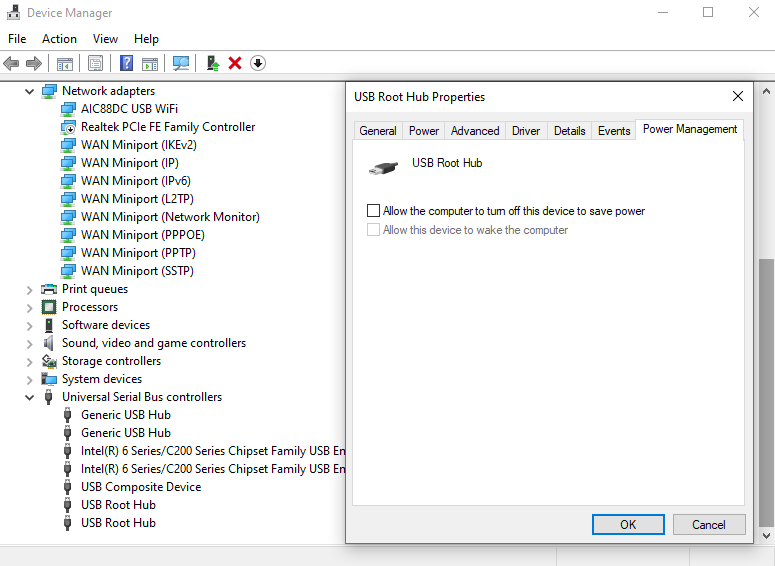
- Step 6: Click OK and restart your computer.
Method 3: Using Command Prompt
For advanced users or IT admins, you can use the powercfg command.
- Step 1: Run Command Prompt as an Administrator.
- Step 2: To disable it for the current power scheme, type:
powercfg /SETACVALUEINDEX SCHEME_CURRENT 2a032105-0604-42b7-817c-67d14631c151 48983d59-5560-47d4-8d2d-23ff61d747ad 0 - Step 3: Press Enter and restart.
Data Recovery: Retrieving Lost Files from USB Issues
When USB selective suspend causes a drive to disconnect during a write cycle, files can become corrupted or the entire partition may become inaccessible. In such cases, you need a professional tool like PandaOffice Drecov.
Introduction to PandaOffice Drecov
PandaOffice Drecov is a powerful, user-friendly data recovery solution designed to handle logical errors on USB drives, SD cards, and hard drives. Whether your drive was “suspended” mid-transfer or you accidentally formatted it after a connection error, Drecov can scan the sectors and reconstruct your lost data.
⚠ Warning: Install it on a drive different from the one where your data was lost to prevent overwriting.
Step-by-Step Recovery with PandaOffice Drecov
- Step 1: Connect your device. Plug the problematic USB drive into a functional port. Ensure you have disabled usb selective suspend first to prevent the drive from disconnecting during the scan.
- Step 2: Launch PandaOffice Drecov. Open the software and select the drive letter corresponding to your USB device from the main interface.

- Step 3: Initiate the Scan. Click the Scan button. Drecov will perform a “Quick Scan” followed by a “Deep Scan” to find fragmented files and lost partitions.
- Warning: Do not save any new files to the USB drive while the scan is running, as this may overwrite the data you are trying to recover.

- Step 4: Preview and Filter. Once the scan is complete, browse through the folders. Drecov allows you to preview images and documents to ensure they are intact before recovery.

- Step 5: Recover. Select the files you need and click Recover. Choose a destination folder on your computer’s internal hard drive (never save back to the same USB drive during recovery).
After successfully retrieving your files, you may want to check out these resources for further USB maintenance:
- How to reformat a USB drive and recover data
- How to install drivers for USB 3.0 to HDMI adapter Windows 11
- Reinstall Windows 10 from USB to fix errors
Should You Keep USB Selective Suspend Enabled?
Best Settings for Laptops
For most laptop users, leaving USB selective suspend enabled is the logical choice. It significantly preserves battery health. However, if you use an external mouse that feels “laggy” after sitting still, or a backup drive that fails to complete its task, you should disable it specifically for those devices.
Best Settings for Desktop PCs
On a desktop PC, the power savings are negligible (usually just a few watts). Given that desktop users often have many peripherals connected, the stability gained by disabling usb selective suspend setting options usually outweighs the energy cost. It prevents the annoying “device disconnected” chime and ensures your external storage is always ready.
USB auto-disconnect feature FAQs
1. What is USB selective suspend in Windows?
It is a power management feature that suspends power to individual USB ports when the connected device is idle, saving energy without affecting other ports.
2. Is it safe to disable USB selective suspend?
Absolutely. It won’t harm your hardware. The only downside is a very slight increase in power consumption, which might reduce battery life on laptops by a few minutes.
3. Why does my USB device keep disconnecting?
This is often due to the suspension selective usb feature. If the device or its driver doesn’t support the low-power state correctly, it may drop the connection entirely when trying to “sleep.”
4. Should gamers disable USB selective suspend?
Yes, most enthusiasts recommend disabling it to ensure peripherals like high-polling-rate mice and VR headsets remain active and responsive at all times.
5. Does USB selective suspend affect charging devices?
Yes. If you are charging a phone via your laptop’s USB port, the port might stop providing power if the system thinks the “device” is idle, stopping the charge.
Conclusion
USB selective suspend is a sophisticated power-management tool that bridges the gap between performance and energy efficiency. By understanding how the usb selective suspend setting interacts with your hardware, you can troubleshoot connectivity issues, prevent data loss, and optimize your system for your specific needs.
Whether you are a laptop user looking for every extra minute of battery life or a desktop user seeking maximum peripheral stability, knowing how to toggle this feature is a vital skill. And if things go wrong, remember that tools like PandaOffice Drecov are available to help you recover from any data mishaps caused by unexpected disconnections.






