







If you have ever encountered the frustrating issue where your files are stuck on “sync pending” at 0KB, you are certainly not alone. Many users of Microsoft OneDrive experience this specific problem, especially when dealing with large files, unstable connections, or subtle system glitches. The good news is that this issue is usually fixable with the right approach and a bit of patience.
In this comprehensive guide, we will explore how to fix onedrive sync pending stuck on 0KB, understand the root causes behind the stall, and apply proven solutions to restore smooth syncing. Whether you are a casual user or a professional relying on cloud storage for critical data, mastering these recovery and repair techniques is essential.
What Does “Sync Pending 0KB” Mean in OneDrive?
When OneDrive shows “sync pending” with a status of 0KB, it signifies that the file has been successfully queued for upload or download, but the data transfer mechanism hasn’t actually engaged. Essentially, the sync process is stuck in a “handshake” phase before it even begins moving bits and bytes.
Common Symptoms to Watch For:
- Files display the blue circular arrows icon but never show progress.
- The upload or download speed remains static at 0KB/s in the OneDrive dashboard.
- The sync status does not change even after several hours of the computer being active.
- OneDrive appears to be “idle” or “searching for changes” indefinitely despite pending items.
Why OneDrive Sync Gets Stuck at 0KB
Understanding the cause helps you fix onedrive sync pending stuck on 0KB much faster. Here are the most common reasons why your cloud storage might be acting up:
- Poor Internet Connection: A weak or unstable connection often prevents the initial sync request from reaching Microsoft’s servers.
- Paused Sync Settings: Sometimes, Windows or the user pauses syncing to save battery or bandwidth, and it fails to resume automatically.
- File Restrictions: Unsupported file names, specific characters, or excessively long file paths can block the entire queue.
- Storage Limit Reached: If your OneDrive storage is full, the upload process will stall at the very start.
- Software Glitches: Temporary bugs in the OneDrive client or outdated versions of the app can interrupt the sync engine.
- Conflicting Files: Multiple versions of the same file being edited simultaneously can cause the engine to freeze while trying to decide which version is the “master.”
How to Fix OneDrive Sync Pending Stuck on 0KB
Below are step-by-step solutions to resolve the issue effectively. We have arranged these from the simplest “quick fixes” to more advanced system configurations.
Method 1: Pause and Resume Sync
This simple trick often fixes minor sync glitches by forcing the OneDrive service to re-establish its connection.
- Step 1: Click the OneDrive cloud icon in the system tray (bottom-right corner of your taskbar).
- Step 2: Click on the Settings (gear icon) and select Pause syncing.
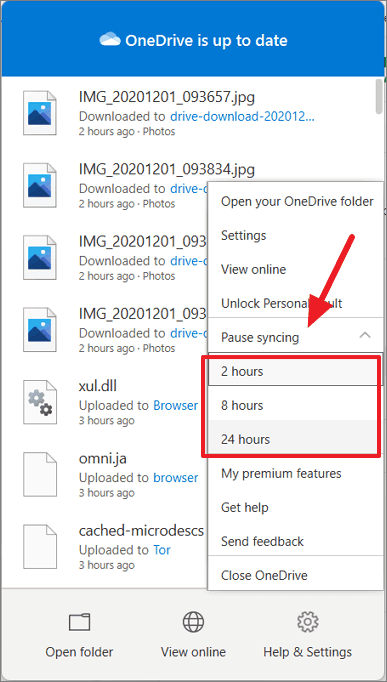
- Step 3: Choose a duration (e.g., 2 hours) and wait for about 30 seconds.
- Step 4: Click the cloud icon again and select Resume syncing.
Method 2: Restart OneDrive and Reset the App
Restarting resets the core sync engine. If a simple restart doesn’t work, a reset is the next logical step to fix onedrive sync pending stuck on 0KB.
- Step 1: Press Windows + R on your keyboard to open the Run dialog.
- Step 2: Enter the following command exactly:
%localappdata%\Microsoft\OneDrive\onedrive.exe /reset - Step 3: Press Enter. You might see a command prompt window flash briefly.
- Step 4: If OneDrive doesn’t restart automatically after a minute, open the Start menu, search for “OneDrive,” and relaunch it manually.
Method 3: Check Internet and Network Stability
A stable connection is the backbone of cloud storage. Ensure your network isn’t the bottleneck.
- Step 1: Switch to a stronger Wi-Fi network or, ideally, use an Ethernet cable.
- Step 2: Restart your router to clear any DNS cache issues.
- Step 3: Disable any active VPN or Proxy settings temporarily, as these can interfere with Microsoft’s authentication servers.
Method 4: Fix File Names and Path Lengths
OneDrive has specific limitations regarding naming conventions.
- Step 1: Check for special characters like
* : < > ? / \ |in your file names and remove them. - Step 2: Ensure the file path (the folder structure) isn’t too long. Windows typically has a 260-character limit.
- Step 3: Move the “stuck” file to a higher-level folder (e.g., directly into the OneDrive root) to see if it begins syncing.
Recover 0kb Files OneDrive Sync Error and Data Loss Prevention
In some cases, a sync error doesn’t just stop progress; it can lead to “ghost files” where the file appears in your folder but contains no data (0KB size). If you find that your original data has disappeared during a failed sync, you need to act quickly to recover 0kb files onedrive sync error scenarios.
When a file is overwritten by a 0KB version due to a sync conflict, your first step should be checking the OneDrive Version History online. However, if the file was never uploaded and the local copy is corrupted, you will need a professional recovery tool.
Step-by-Step Data Recovery with PandaOffice Drecov
If traditional methods fail to fix onedrive sync pending stuck on 0KB and your files seem lost, PandaOffice Drecov data recovery software is the most reliable solution for Windows and Mac users. This tool can scan your local drive for the “lost” versions of files that were deleted or corrupted during a sync crash.
⚠ Warning: Install it on a drive different from the one where your data was lost to prevent overwriting.
How to use PandaOffice Drecov data recovery software:
- Step 1: Select the Location: Launch the software and select the specific drive or folder where your OneDrive files were stored (usually
C:\Users\[Username]\OneDrive).
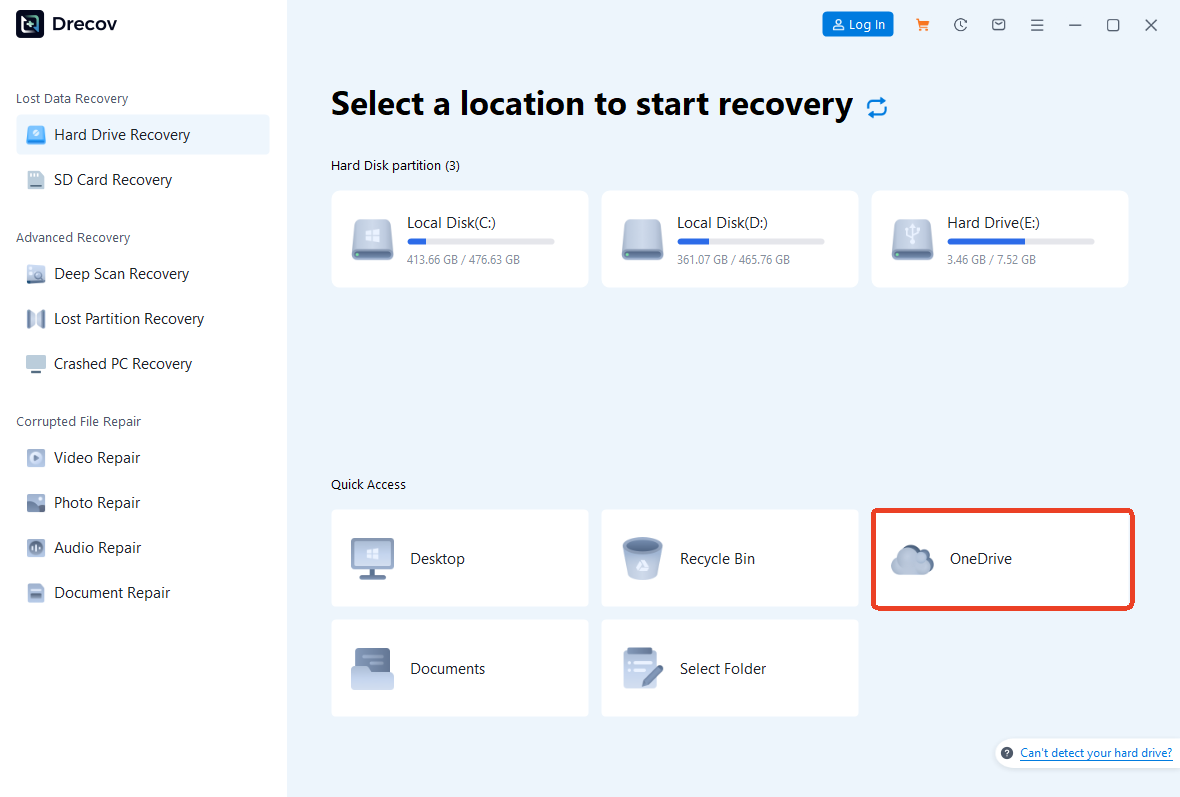
- Step 2: Deep Scan: Click the Scan button. The software will perform a deep analysis to find fragments of files that may have been “zeroed out” by the sync error.

- Step 3: Filter and Preview: Use the filter tool to search for specific file extensions (like .docx or .jpg). PandaOffice Drecov allows you to preview files before recovering them to ensure they aren’t empty.

- Step 4: Recover: Select the files you wish to restore and click Recover.
Warning: Always save the recovered files to an external drive or a different partition to ensure data integrity.
Once you have successfully navigated the sync hurdles, you may find that you want more control over how OneDrive interacts with your system. Use these resources to further customize your experience:
- How to stop OneDrive sync complete guide – Learn how to manage your bandwidth and pause sync permanently.
- How to disable OneDrive stop the sync in 3 easy steps – A quick guide for users who prefer local storage over cloud.
- How to remove OneDrive from Windows 11 2026 updated – If you’ve decided to move to another platform, here is how to cleanly uninstall the service.
For more information on cloud storage and technical troubleshooting, you can visit the Official Microsoft OneDrive Support Page for real-time service status updates.
Advanced System Fixes for Persistent Sync Issues
If the standard methods didn’t fix onedrive sync pending stuck on 0KB, we need to look deeper into the Windows system configuration.
Method 5: Unlink and Relink Your Account
This is often referred to as the “soft reinstall.” It refreshes your credentials and re-indexes the entire OneDrive library without deleting your physical files.
- Step 1: Click the OneDrive icon > Settings > Account tab.
- Step 2: Click Unlink this PC. Confirm your choice.
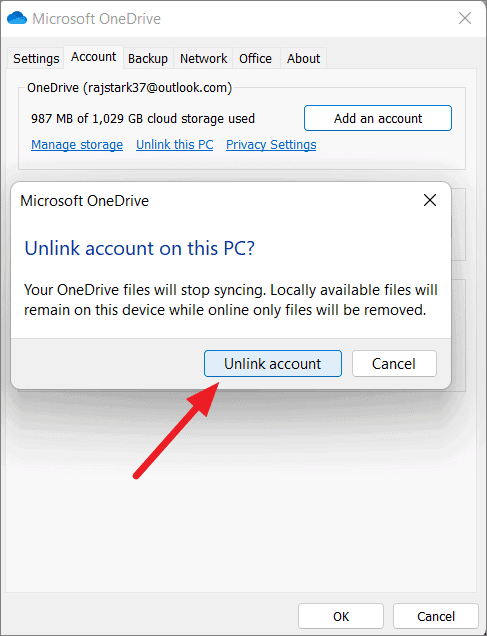
- Step 3: Restart your computer.
- Step 4: Open OneDrive again and sign in with your Microsoft credentials. Follow the setup wizard to point the app to your existing OneDrive folder.
Method 6: Check Windows Registry for Sync Conflicts
Caution: Only follow these steps if you are comfortable with system settings.
- Step 1: Press Windows + R, type
regedit, and hit Enter. - Step 2: Navigate to:
HKEY_CURRENT_USER\Software\Microsoft\OneDrive - Step 3: Ensure the “UserFolder” path matches your actual OneDrive directory. If there are duplicate entries, it can cause the 0KB pending error.
Fix OneDrive Sync Pending on Mac and Mobile
While many issues occur on Windows, macOS and mobile users aren’t immune.
For Mac Users:
- Quit OneDrive: Click the cloud icon in the top menu bar and select “Quit OneDrive.”
- Reset via Terminal: Open Terminal and type:
defaults write com.microsoft.OneDrive-mac TeamId 0followed by a restart of the app. - Check Disk Permissions: Ensure OneDrive has “Full Disk Access” in System Preferences > Security & Privacy.
For Android and iOS:
- Clear Cache: Go to App Settings > OneDrive > Storage > Clear Cache.
- Force Refresh: Open the app and “pull down” on the file list to trigger a manual refresh.
- Update the App: Ensure you are running the latest version from the App Store or Google Play.
Best Practices to Avoid “Sync Pending” Issues in the Future
Preventing a problem is always better than trying to fix onedrive sync pending stuck on 0KB after the fact. Follow these industry-standard tips:
- Keep File Names Simple: Avoid long strings and non-alphanumeric characters.
- Monitor Storage Levels: Set a notification for when your OneDrive reaches 90% capacity.
- Use Stable Internet for Large Uploads: If you are uploading a 10GB video, wait until you have a wired connection.
- Regular Updates: Always allow Windows and the OneDrive app to update. These updates often contain patches for sync engine bugs.
- Avoid Selective Sync Overload: If you have thousands of tiny files (like code libraries), consider zipping them before syncing to reduce the “handshake” overhead.
Frequently Asked Questions
Q: Will resetting OneDrive delete my files?
A: No. Resetting the app only clears the internal settings and cache. Your physical files on the hard drive and in the cloud remain untouched.
Q: Why does my OneDrive stay at 0KB even on high-speed internet?
A: This usually indicates a “file lock” or a software conflict. Another program (like an antivirus or an open Word doc) might be preventing OneDrive from accessing the file to start the upload.
Q: Can PandaOffice Drecov recover files that were never synced?
A: Yes! PandaOffice Drecov data recovery software focuses on the local storage. If the file existed on your hard drive at any point, the software can often find it even if it never made it to the cloud.
Q: Is there a file size limit for OneDrive?
A: For individual Microsoft accounts, the limit is 250GB per file. If your file exceeds this, it will permanently stay on “sync pending.”
Conclusion
Encountering the fix onedrive sync pending stuck on 0KB error can be a major roadblock in your workflow, but as we’ve explored, it is rarely a permanent problem. By systematically checking your connection, resetting the application, and ensuring your file names meet Microsoft’s standards, you can resolve most issues in minutes.
In those rare instances where data appears corrupted or lost due to these sync conflicts, tools like PandaOffice Drecov provide a vital safety net. Stay proactive, keep your software updated, and always maintain a secondary backup of your most critical files. With these strategies in hand, you can enjoy the benefits of cloud synchronization without the stress of technical stalls.






