







If you have ever plugged USB in car and now doesn’t work on PC, you are likely feeling a mix of frustration and anxiety, especially if that drive contains your favorite road trip playlists or important documents. This is a surprisingly common phenomenon in the digital age. Car infotainment systems are effectively specialized computers, and sometimes the way they “talk” to your storage devices doesn’t align with how Windows or macOS handles them.
Whether your USB flash drive is not recognized after using in car or it appears as “Unallocated Space” in your disk settings, the situation is rarely hopeless. In this exhaustive guide, we will explore why this happens, how to troubleshoot the hardware, and most importantly, how to recover files from USB that won’t open on PC using professional methods.
Why Does My USB Stop Working After Using It in a Car?
Before we dive into the technical fixes, it is essential to understand the “why.” When you have plugged USB in car and now doesn’t work on PC, the culprit is usually one of a few digital mishaps. Car head units often write small metadata files to the drive to index music. If the car’s OS uses a different version of the FAT32 or exFAT file system, it can “corrupt” the partition table in the eyes of your PC.
Furthermore, cars don’t always have a “Safely Remove Hardware” button. Pulling the drive out while the car is still reading it can cause a “dirty bit” to be set on the drive, leading to the dreaded USB flash drive not recognized after using in car error message.
Initial Troubleshooting: The Quick Fixes
Before moving to advanced data recovery, you should always start with the simplest solutions. Sometimes, the issue isn’t the drive’s software, but a simple connection glitch.
Method 1: Power Cycling and Port Checking
- Step 1: Unplug the USB from your PC and restart your computer. This clears the USB cache.
- Step 2: Plug the USB into a port directly on the motherboard (for desktops) rather than a front-panel hub.
- Step 3: Check if the USB light (if it has one) is blinking. If there is no light, the drive may have suffered a hardware failure due to a power surge in the car.
Method 2: Use Windows Disk Management
If the drive doesn’t show up in “This PC,” it might still be visible in the system’s backend.
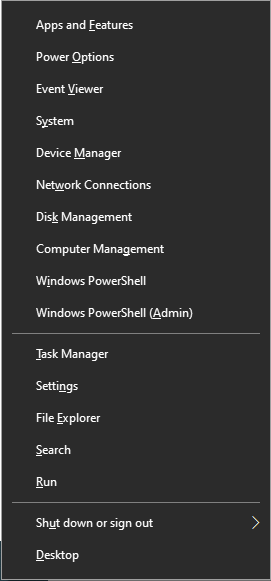
- Step 1: Right-click the Start button and select Disk Management.
- Step 2: Look for a disk labeled “Removable” with a black bar (Unallocated) or a drive with no letter assigned.
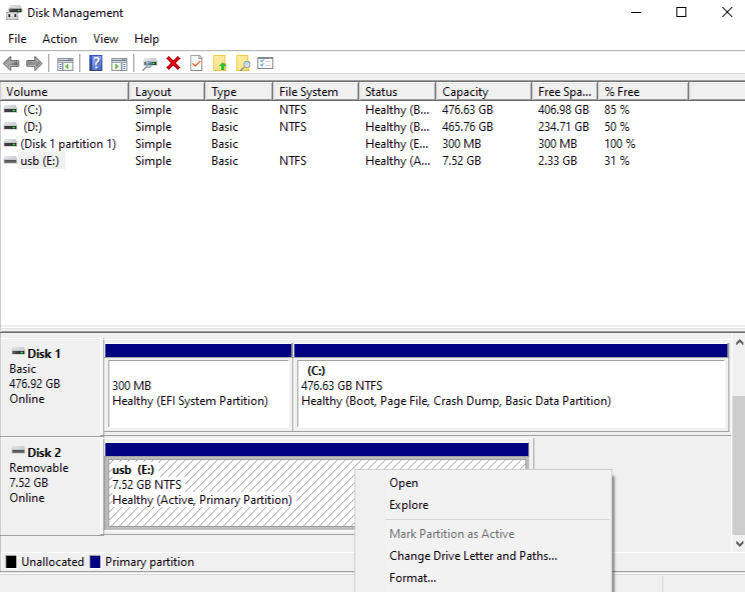
- Step 3: If it has no letter, right-click the partition and select Change Drive Letter and Paths to give it a name (like E: or F:).
How to Recover Music/Videos from Corrupted Car USB
When the basic fixes fail, your priority should shift from “fixing the drive” to “saving the data.” When you find that you have plugged USB in car and now doesn’t work on PC, the file system might be marked as RAW. A RAW file system means Windows can see the drive, but it no longer understands how the data is organized.
To how to recover music/videos from corrupted car USB, you need a tool that can bypass the file system and read the raw sectors of the flash memory. This is where professional recovery software becomes mandatory.
Step-by-Step Data Recovery with PandaOffice Drecov
PandaOffice Drecov is a premier data recovery solution designed specifically for scenarios where hardware-software handshakes have failed. It is highly effective for those who need to recover files from USB that won’t open on PC because it uses deep-scan technology to reconstruct lost file headers.
⚠ Warning: Install it on a drive different from the one where your data was lost to prevent overwriting.
Step 1: Connect the USB and Select Location
Launch PandaOffice Drecov. On the main interface, you will see a list of available drives. Identify your car USB drive (usually listed under “External Devices”).
Warning: If your drive does not appear in the list at all, your USB may have a physical controller failure. If it appears with the correct size (e.g., 16GB or 32GB), you are ready to proceed.

Step 2: Initiate the Deep Scan
Click the Scan button. PandaOffice Drecov will first perform a “Quick Scan” to find deleted files, followed automatically by a “Deep Scan.” The Deep Scan is crucial for a USB flash drive not recognized after using in car because it looks for the underlying data signatures of MP3s, MP4s, and JPGs.

Step 3: Preview and Filter Files
One of the best features of PandaOffice Drecov is the preview function. You can filter the results by file type (e.g., “Audio” or “Video”).
- Key Operation Point: Use the search bar to look for specific song titles or folder names that were on your car USB.

Step 4: Recover and Save
Select the files you wish to keep and click Recover. Choose a destination folder on your PC’s internal hard drive. Once the recovery is complete, you can safely proceed to format the USB drive to make it usable again.
For more specialized recovery needs, you might also find these guides helpful:
- How to recover data from a corrupted CD or DVD
- Restoring lost Google Chrome bookmarks
- Cleaning up your File Explorer by removing OneDrive
Advanced System Repairs for USB Recognition
Once your data is safe, you can try to repair the drive’s logic so it works in both your car and your PC again. If you have plugged USB in car and now doesn’t work on PC, the issue often lies in the driver stack or the partition table.
Method 3: Updating Universal Serial Bus Controllers
Sometimes Windows remembers the “corrupted” state of the USB and refuses to try reading it again.
- Step 1: Press Windows Key + X and select Device Manager.
- Step 2: Expand the Universal Serial Bus controllers section.
- Step 3: Find the “USB Mass Storage Device” (it may have a yellow exclamation mark). Right-click it and select Uninstall device.
- Step 4: Unplug the USB, wait 10 seconds, and plug it back in. Windows will forcefully reinstall a fresh driver.
Method 4: Using the CHKDSK Command
If your drive has a letter but won’t open, the file system index might be broken.
- Step 1: Type
cmdin the Windows search bar, right-click Command Prompt, and Run as Administrator.

- Step 2: Type the following command:$$chkdsk \text{ X:} /f$$(Replace X with the actual letter of your USB drive.)
- Step 3: Press Enter. Windows will attempt to fix the “dirty bits” and directory links.
The Nuclear Option: Formatting for Car Compatibility
If you have tried to recover files from USB that won’t open on PC and the drive is still acting up, it is time to format it. However, the way you format it matters for car compatibility.
Most cars require the FAT32 file system. However, Windows will not allow you to format drives larger than 32GB into FAT32 using the standard right-click menu. For larger drives (64GB, 128GB+), you should use exFAT or a third-party formatting tool.
Steps to Format for Maximum Compatibility:
- Step 1: Open Disk Management.
- Step 2: Right-click the “Unallocated” or “RAW” space on your USB.
- Step 3: Select New Simple Volume.
- Step 4: Choose FAT32 (if the drive is small) or exFAT (for modern cars and large drives).
- Step 5: Set the Allocation Unit Size to “Default” and perform a Quick Format.
Preventing Future USB Failures in Your Vehicle
To ensure you never have to deal with the headache of a plugged USB in car and now doesn’t work on PC again, follow these industry-standard best practices:
- Avoid High Heat: Cars can become incredibly hot. High temperatures can degrade the flash memory chips inside cheap USB drives, leading to “bit rot” or total controller failure.
- Turn Off the Car First: Before pulling the USB out, turn off the infotainment system or the car’s ignition. This ensures the car has stopped “writing” to the drive.
- Use High-Endurance Drives: If you frequently update your car’s music or navigation maps, invest in a “High Endurance” or “Industrial” USB drive. These are designed to handle the frequent read/write cycles and temperature fluctuations common in automotive environments.
- Check for Firmware Updates: Sometimes the problem isn’t the USB, but the car. Check your manufacturer’s website (e.g., Ford SYNC, Toyota Entune) for software updates that improve USB compatibility.
Summary of Solutions
| Difficulty | Method | Best For |
| Easy | Change USB Ports | Physical connection issues |
| Easy | Assign Drive Letter | Hidden but healthy drives |
| Easy | PandaOffice Drecov | Recovering files from USB that won’t open on PC |
| Medium | CHKDSK Command | Fixing logical file system errors |
| Hard | DiskPart Clean | Fixing severe partition corruption |
Conclusion
When you have plugged USB in car and now doesn’t work on PC, it feels like a digital dead end. However, by systematically checking your hardware, using powerful tools like PandaOffice Drecov, and understanding how to recover music/videos from corrupted car USB, you can regain access to your files.
The digital world is full of minor incompatibilities, but with the right knowledge, your data is never truly lost. Remember to always keep a backup on your primary computer so that the next time your car’s infotainment system decides to be finicky, you can simply format the drive and move on without a second thought.





