







In today’s cloud-driven world, seamless file synchronization is essential for productivity. However, there are times when files stop syncing, leaving users frustrated and unsure of what to do next. If you’re facing this issue, learning how to force OneDrive to sync can save you time and prevent data inconsistencies. Whether you are a professional managing sensitive documents or a student saving your latest thesis, a stall in the cloud can feel like a complete halt in progress.
This in-depth guide will walk you through proven methods to force sync in OneDrive, explain why syncing issues occur, and provide expert tips to keep everything running smoothly. Beyond just basic fixes, we will explore the deeper mechanics of file systems and how to recover data if a sync error leads to accidental deletion or corruption.
What Is OneDrive Sync and Why It Matters
Microsoft OneDrive is a powerful cloud storage platform that automatically syncs your files across devices. This means any change you make on one device is reflected everywhere else. The architecture relies on a “polling” system where the client monitors local file changes and pushes them to the Microsoft servers, which then distribute the updates to other linked devices.
Why Sync Is Important:
- Keeps files updated in real time across PC, Mac, and mobile.
- Enables collaboration across devices and with other users via shared links.
- Prevents data loss by maintaining a versioned history of your work in the cloud.
- Ensures accessibility anywhere, even if your physical hardware fails.
When syncing fails, it can disrupt workflows and cause version conflicts, making it crucial to understand how to force OneDrive to sync effectively.
Common Reasons Why OneDrive Stops Syncing
Before forcing a sync, it’s helpful to understand the root causes. In the world of data recovery and cloud management, we often find that the simplest issues cause the biggest headaches.
- Poor or unstable internet connection: This is the primary culprit. If the handshake between your PC and the Microsoft server is interrupted, the sync queue pauses.
- Paused syncing settings: Windows sometimes automatically pauses sync to save battery or data on metered connections.
- File size or file type restrictions: Extremely large files or those containing illegal characters (like
*,?, or:) will be rejected by the server. - Storage space limitations: If your OneDrive or local disk is full, the sync process will simply stop without warning.
- Software bugs or outdated versions: Running an old version of the OneDrive client can lead to compatibility issues with the OS.
- Conflicts between multiple devices: If two people edit the same file simultaneously, OneDrive might “freeze” the sync on that file to prevent data overwriting.
Identifying the issue can help you choose the most effective solution from the technical steps listed below.
How to Force OneDrive to Sync
Below are the most effective methods to manually trigger and force OneDrive to sync. We have arranged these from the simplest interface-based fixes to more advanced system-level interventions.
Method 1: Pause and Resume Sync
This is the simplest and quickest fix. It essentially “pokes” the OneDrive service to check for updates that it might have missed during a brief network flicker.
- Step 1: Click the OneDrive cloud icon in the system tray (bottom right corner of your Windows taskbar).
- Step 2: Select the gear icon (Settings) and click Pause syncing.
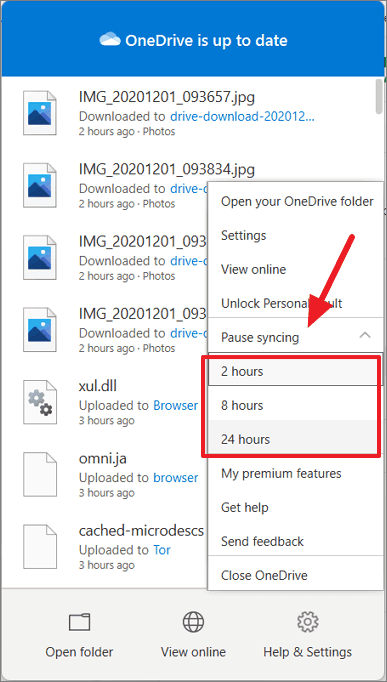
- Step 3: Choose a time duration, such as 2 hours.
- Step 4: Wait about ten seconds, then click Resume syncing in the same menu.
👉 This refreshes the connection and often resolves minor sync delays by forcing the client to re-index the local folder.
Method 2: Restart the OneDrive Application
Sometimes the background process onedrive.exe hangs. Restarting it is a reliable way how to force OneDrive to sync when the UI is unresponsive.
- Step 1: Right-click the OneDrive icon and select Close OneDrive.
- Step 2: Press Windows + S on your keyboard and type “OneDrive”.
- Step 3: Click the app to relaunch it.
- Step 4: For a deeper reset, press Windows + R, type
%localappdata%\Microsoft\OneDrive\onedrive.exe /reset, and hit Enter.
👉 This resets the sync engine and forces a full resync of all metadata without deleting your actual files.
Method 3: Manually Trigger Sync by Editing Files
If OneDrive seems “lazy,” you can manually trigger a change notification in the Windows File System.
- Step 1: Navigate to your local OneDrive folder.
- Step 2: Open any small text file or document.
- Step 3: Make a tiny change, like adding a space or a period at the end of a sentence.
- Step 4: Press Ctrl + S to save.
👉 This action forces the “File Observer” in Windows to notify OneDrive that a change has occurred, effectively jumping the file to the front of the sync queue.
Advanced Technical Strategies: How to Synchronize OneDrive
If the basic steps didn’t work, we need to look at deeper configuration settings. Understanding how to synchronize OneDrive through the system settings ensures a long-term fix rather than a temporary patch.
Checking Account Links and Permissions
Sometimes the “handshake” between your Microsoft account and the local machine becomes “stale.”
- Step 1: Open OneDrive Settings and go to the Account tab.
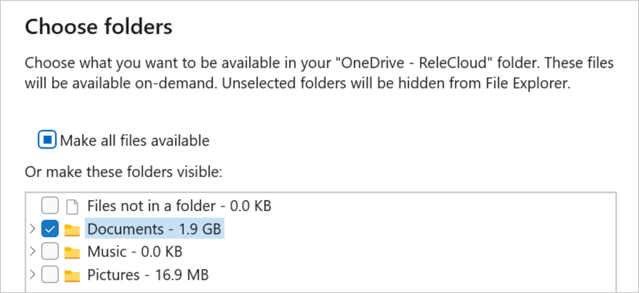
- Step 2: Ensure that the correct folders are selected under Choose folders. If a folder is unchecked, it will never sync to that specific PC.
- Step 3: If you are using a work or school account, ensure your organization hasn’t revoked your device’s sync permissions through Azure Active Directory.
Modifying Registry Settings for Sync Reliability
For IT professionals, forcing a sync might require checking the registry.
- Path:
HKEY_CURRENT_USER\Software\Microsoft\OneDrive - Ensure the
UserFolderpath matches your actual local path.
Warning: Modifying the registry is risky; always back up your data first.
Dealing with Data Loss During Sync: PandaOffice Drecov Data Recovery Software
One of the most heart-wrenching situations in data management is when you try to force a sync and discover that a “sync conflict” has resulted in your file being deleted or overwritten with an older version. This is where professional-grade recovery tools become essential. To ensure your files are never truly lost, we recommend using PandaOffice Drecov data recovery software.
⚠ Warning: Install it on a drive different from the one where your data was lost to prevent overwriting.
If you find that your files disappeared after a forced sync, follow these steps to retrieve them:
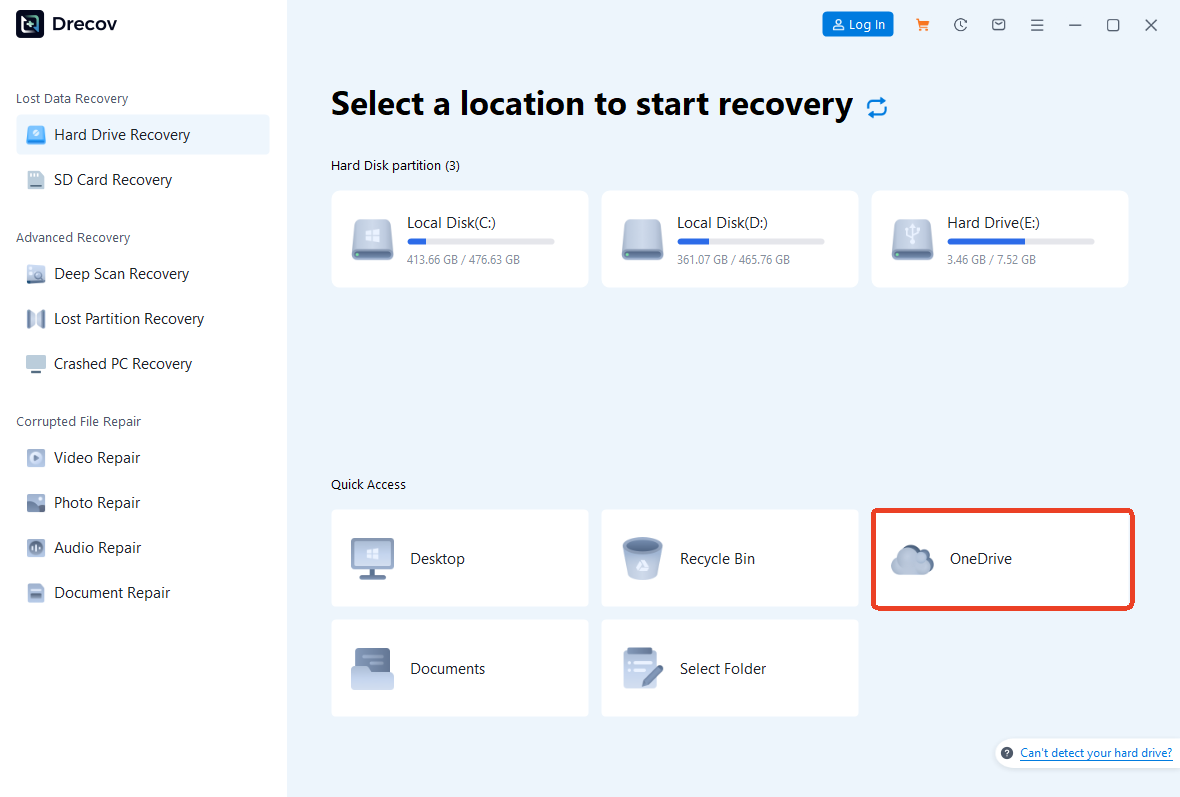
Step 1: Select the OneDrive Location
Launch the software. You will see a list of drives and specific locations. Select your OneDrive folder path (usually C:\Users\[Username]\OneDrive) and click the Scan button.
Step 2: Deep Scan for Disappeared Files
The software will perform a Quick Scan followed by a Deep Scan. The Deep Scan is particularly effective for cloud-synced folders because it looks for the underlying file signatures that might have been marked as “deleted” during a failed sync operation.

Step 3: Preview and Recover
Once the scan is complete, browse through the results. PandaOffice Drecov allows you to preview documents and images before recovery. Select the files you need and click Recover.

Warning Prompt: Always save recovered files to an external drive or a different partition to ensure the integrity of the data.
Related Resources and Guides
If you have decided that OneDrive is more trouble than it’s worth, or if you need to perform a clean reinstallation to fix your sync issues, check out these helpful guides:
- Need a fresh start? Learn how to uninstall OneDrive on Windows or Mac to clear out old registry errors.
- Too many notifications? Here is a guide on how to disable OneDrive and stop the sync without losing your local files.
- Clutter-free workspace: Follow this step-by-step guide to remove OneDrive from File Explorer while keeping the service running in the background.
Comprehensive Checklist: How to OneDrive Sync Properly
To master how to OneDrive sync, you should run through this checklist if you notice the status icon spinning indefinitely or showing a red “X”.
Step 1: Check Internet and Proxy Settings
OneDrive does not play well with certain proxy servers or strict corporate firewalls. Ensure that *.live.com and *.onedrive.com are whitelisted in your security software.
Step 2: Verify File Names and Paths
Windows has a character limit for file paths (260 characters). If your folder structure is too deep, OneDrive will fail to sync.
- Tip: Shorten folder names or move the files closer to the root directory to fix this.
Step 3: Manage Storage Quotas
Visit OneDrive.com and check the bottom left corner for your storage quota. If you are at 99%, the sync engine will often throttle or stop to prevent a partial upload.
How to Force OneDrive to Sync on Mac and Mobile
While most guides focus on Windows, many users operate in a cross-platform environment.
Forcing Sync on macOS
- Click the OneDrive icon in the top Menu Bar.
- Click Quit OneDrive.
- Use Spotlight (Cmd + Space) to find OneDrive and relaunch it.
- If it still fails, go to
~/Library/Containersand move the OneDrive folders to the trash to reset the app’s local cache.
Forcing Sync on Android/iOS
- Open the OneDrive app.
- Swipe down on the file list to Force Refresh.
- Check “Settings” to ensure “Upload only on Wi-Fi” isn’t preventing the sync while you are on cellular data.
Best Practices to Prevent Sync Issues in the Future
Prevention is always better than recovery. To avoid having to manually force a sync every week, follow these industry-standard practices:
- Maintain a Stable Connection: If you are uploading large video files, use a wired Ethernet connection rather than Wi-Fi.
- Avoid Special Characters: Do not use
~,",#,%,&,*,:,<,>,?,/,\,{|}in file names. - Update Regularly: Ensure both your Windows OS and the OneDrive app are updated. Microsoft frequently releases patches that solve “stuck sync” bugs.
- Monitor the Cloud Icon: Train yourself to glance at the system tray. A blue cloud is good; a cloud with a circular arrow means it’s working; a cloud with a red “X” or yellow warning sign needs immediate attention.
Frequently Asked Questions
How do I know if OneDrive is syncing?
Look at the cloud icon in your taskbar. If you see circular arrows moving over the cloud, it is currently syncing. Hovering your mouse over the icon will provide a percentage or a “Files remaining” count.
Can I force sync a specific folder?
While you cannot target a single folder via a “Sync Now” button, you can move that folder out of OneDrive and then back in. This triggers an immediate re-scan and upload of that specific data.
Why is OneDrive stuck on “Processing Changes”?
This usually happens when OneDrive is trying to reconcile thousands of small files (like a web development project’s node_modules folder). Give it time, or use the reset command mentioned in Method 2.
Is it safe to reset OneDrive?
Yes. Resetting the app via the /reset command does not delete your local files or your cloud data. It simply clears the internal database that tracks which files have already been uploaded, forcing the app to perform a “sanity check” on all your data.
Conclusion
Mastering how to force OneDrive to sync is a vital skill in the digital age. By understanding the balance between your local hardware and the cloud infrastructure, you can ensure that your data is always current and protected. From simple UI restarts to using powerful tools like PandaOffice Drecov data recovery software for accidental deletions, you now have a full toolkit to handle any cloud storage emergency.
Stay proactive by checking your sync status regularly, keeping your file names clean, and ensuring your internet connection is robust. With these strategies, you can enjoy a seamless, high-performance OneDrive experience across all your devices.






