







Managing your digital footprint often feels like a balancing act between privacy and convenience. One moment, you are trying to figure out how to enable cookies in Firefox to access your favorite banking portal, and the next, you are staring at a blank screen after a system failure, wondering if your saved passwords and session data are gone forever.
In this comprehensive guide, we will dive deep into the technical heart of Mozilla Firefox. We will explore everything from basic settings to advanced data salvage techniques using PandaOffice Drecov data recovery software. Whether you are a casual surfer or a power user, mastering these steps ensures your browsing experience remains seamless and your data stays protected.
Understanding the Role of Cookies and Site Data
Before we jump into the “how-to,” we must understand the “why.” Cookies are small files stored on your computer by websites you visit. They hold snippets of data—like your login status, site preferences, or the contents of your shopping cart. If you find that websites are constantly logging you out or failing to remember your settings, it is likely because your browser is blocking these essential files.
How to Enable Cookies in Firefox: A Step-by-Step Tutorial
For most users, learning how to enable cookies in Firefox is the first step toward a functional internet experience. Mozilla provides several layers of protection, so you can choose to be as open or as private as you like.
- Step 1: Open your Firefox browser and click on the Application Menu (the three horizontal lines) in the upper-right corner.
- Step 2: Select Settings from the drop-down menu.
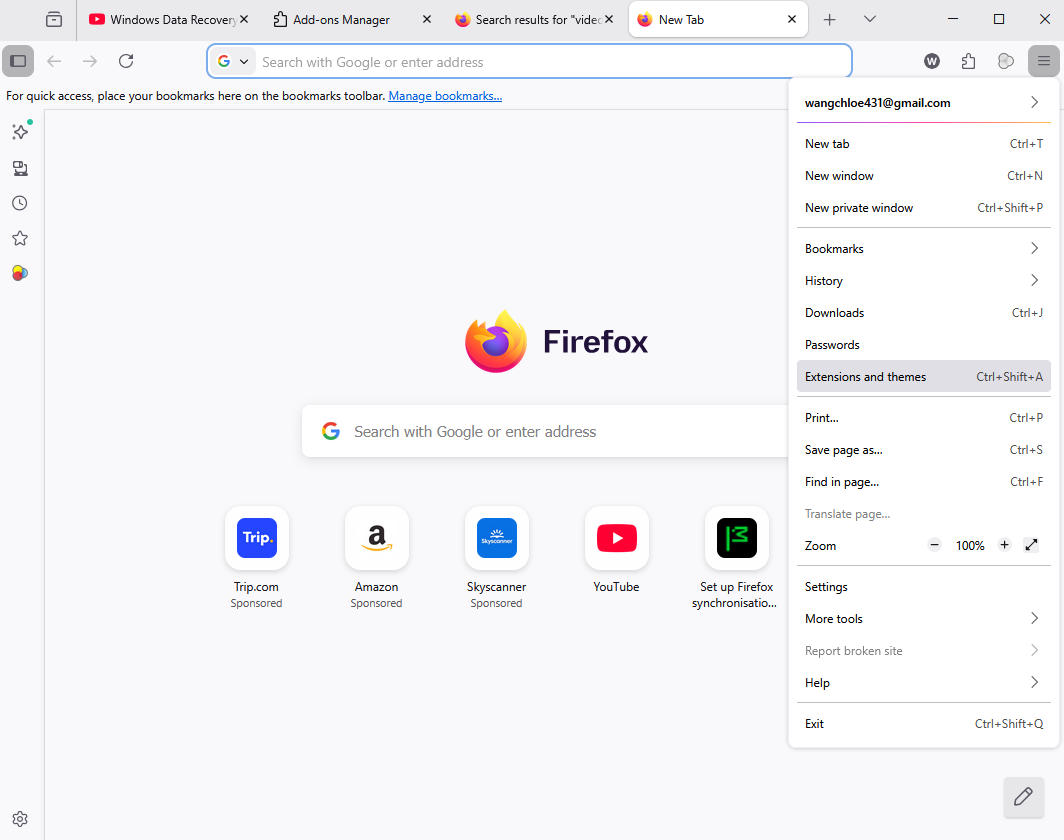
- Step 3: On the left-hand sidebar, click on Privacy & Security.
- Step 4: Scroll down to the Browser Privacy section. Here, you will see the “Enhanced Tracking Protection” settings.
- Step 5: If you have “Strict” selected, Firefox may block some cookies that websites need to function. To ensure maximum compatibility, select Standard. This is the default setting that balances privacy and site functionality.
- Step 6: If you want to manage cookies more granularly, scroll down to the Cookies and Site Data section. Ensure that the box “Delete cookies and site data when Firefox is closed” is unchecked if you want to stay logged into sites between sessions.
By following these steps, you have successfully mastered how to enable cookies in Firefox. However, simply enabling them isn’t enough for long-term data safety. You also need to know how to preserve this data against accidental loss.
Why Browser Data Recovery Matters
You might think that cookies and history are trivial, but they represent your “digital identity.” Losing them means losing hours of saved preferences, auto-fill forms, and session tokens. Sometimes, a simple browser update or a sudden power outage can corrupt your profile. This is where professional-grade tools and proactive habits become vital.
How to Back Up Firefox Cookies and Site Data
Prevention is always better than a cure. Knowing how to back up Firefox cookies and site data allows you to move your digital life from one machine to another or restore it after a minor glitch. Firefox stores all this information in a specific folder called the “Profile Folder.”
- Step 1: Locate your Profile. Open Firefox and type
about:supportin the address bar, then press Enter. - Step 2: Access the Folder. Under the “Application Basics” section, find the Profile Folder entry and click Open Folder. This will open Windows Explorer directly to your data source.
- Step 3: Identify the Key Files. Look for
cookies.sqlite(which stores your cookies) and thestoragefolder (which holds site data). - Step 4: Copy and Save. Close Firefox completely. Copy these files to an external drive or a secure cloud storage service like Google Drive or Dropbox.
- Step 5: Verify the Backup. Ensure the file sizes match the original to confirm a successful copy.
Regularly performing this backup is the best way to ensure you never have to ask how to enable cookies in Firefox again because your settings will always be ready to be re-imported.
Dealing with the Unexpected: Advanced Recovery Scenarios
Sometimes, manual backups aren’t enough. A hardware failure, a malware attack, or an accidental partition format can wipe out your entire Firefox profile. When the standard “Copy-Paste” method fails because the files themselves are missing from the hard drive, you need to call in the heavy hitters.
PandaOffice Drecov Data Recovery Software: Your Digital Lifeline
When files are deleted, they aren’t immediately erased from the disk. Instead, the operating system marks the space they occupy as “available.” PandaOffice Drecov data recovery software specializes in scanning these invisible sectors to reconstruct your lost Firefox databases.
⚠ Warning: Never install the software on the same drive where the data loss occurred. If you lost your Firefox data on your C: drive, install the recovery tool on a D: drive or a USB flash drive to avoid overwriting the deleted files.
Step 1: Select the Target Location
Launch the program. You will see a list of available drives. Select the partition where your Firefox profile was stored (usually the C: drive) and click Scan.

Step 2: Deep Scan for SQLite Files
PandaOffice Drecov data recovery software will perform a quick scan followed by a deep scan. Since Firefox stores cookies in .sqlite format, use the file type filter to search specifically for cookies.sqlite, places.sqlite (bookmarks), and key4.db (passwords).

Step 3: Preview and Validate
One of the best features of PandaOffice Drecov is the preview function. Before committing to a recovery, you can check the file’s health. If the status is “Excellent,” the file is fully recoverable.

Step 4: Recover to a Safe Zone
Select the files you need and click Recover. Choose a destination folder on an external drive. Once the recovery is complete, you can manually move these files back into your Firefox profile folder.
After you have successfully navigated the complexities of how to enable cookies in Firefox and secured your data with PandaOffice Drecov, you might want to dive deeper into specific Firefox data locations. Check out these helpful guides to further your expertise:
- Find your Firefox bookmarks location instantly
- Discover where Firefox bookmarks are stored on your PC
- 2026 Guide: How to download video from Firefox browser
Restoring Access After a Catastrophe
System crashes are the leading cause of “profile corruption.” When Windows hits a Blue Screen of Death (BSOD) while Firefox is writing to your disk, the files can become unreadable.
Restore Firefox Profile After System Crash
If your computer has just rebooted from a crash and Firefox looks brand new (with no history or cookies), don’t panic. Your data might still be there, but Firefox has created a “default” empty profile because the old one appeared locked or broken. Here is how to restore Firefox profile after system crash:
- Step 1: Check for old profile folders. Navigate to
%APPDATA%\Mozilla\Firefox\Profiles\. You might see multiple folders with names likexxxxxxxx.default-release. - Step 2: Use the Profile Manager. Press
Windows Key + R, typefirefox.exe -P, and hit Enter. This opens the Firefox Profile Manager. - Step 3: Test existing profiles. Try launching Firefox with each listed profile to see if your data reappears.
- Step 4: Manual File Replacement. If the profiles are corrupted, use PandaOffice Drecov data recovery software to find previous versions of the
prefs.jsandlogins.jsonfiles. - Step 5: Re-importing Data. Copy your recovered files into the currently active profile folder while Firefox is closed. Overwrite the existing files when prompted.
By following these steps, you can restore Firefox profile after system crash and return to your work exactly where you left off.
Optimizing Firefox for Privacy and Longevity
Now that you know how to enable cookies in Firefox and how to recover them if things go south, let’s talk about maintenance. A bloated browser is a slow browser.
Managing Cookie Exceptions
You don’t have to enable cookies for everyone. Firefox allows you to set “Exceptions.”
- Go to Settings > Privacy & Security.
- Find Cookies and Site Data.
- Click Manage Exceptions.
- Type the URL of a site you trust (e.g.,
https://www.mozilla.org) and click Allow. This ensures that even if you have strict settings, your essential sites will always work.
The Importance of Sync
While we’ve discussed how to back up Firefox cookies and site data manually, using Firefox Sync provides an automated cloud layer. It won’t back up every single cookie (for security reasons), but it will save your bookmarks, tabs, and passwords.
Technical Deep Dive: Where Does Firefox Hide Your Data?
To truly master data recovery, you need to know the directory structure of your OS. Firefox doesn’t store data in the “Program Files” folder. Instead, it uses the “AppData” path, which is hidden by default in Windows.
The Path to Success:
C:\Users\[YourUsername]\AppData\Roaming\Mozilla\Firefox\Profiles\
Inside this folder, you will find:
- places.sqlite: The holy grail of your history and bookmarks.
- cookies.sqlite: Every cookie you’ve accepted since you learned how to enable cookies in Firefox.
- sessionstore.jsonlz4: Your currently open tabs.
- extension-data: Settings for your add-ons.
If you ever find this folder empty, immediately stop using the computer and run PandaOffice Drecov data recovery software. The more you use the PC, the higher the chance that new data will overwrite your lost browser profile.
Frequently Asked Questions
If you have followed the steps on how to enable cookies in Firefox but the settings keep reverting, check if you have an “Optimizer” or “Cleaner” software running (like CCleaner). These programs often delete browser data automatically in the background.
Technically, no. Firefox is designed specifically not to write private browsing data to the hard drive. However, in some rare cases of RAM imaging, fragments can be found, but for the average user, private data is gone once the window closes. This is why it’s important to use standard windows for sites you visit frequently.
Is PandaOffice Drecov safe for my SSD?
Yes. PandaOffice Drecov data recovery software uses non-destructive read-only technology. It scans the drive without writing new data to it, making it safe for both traditional Hard Drives (HDD) and modern Solid State Drives (SSD).
Conclusion
Mastering your web browser involves more than just knowing how to enable cookies in Firefox. It requires a holistic approach to data management—from setting the right privacy levels to implementing a robust backup strategy. By using tools like PandaOffice Drecov data recovery software, you add a safety net to your digital life, ensuring that a simple system crash or an accidental deletion doesn’t result in the permanent loss of your valuable information.
Remember:
- Enable cookies for the sites you trust to ensure a smooth experience.
- Regularly learn how to back up Firefox cookies and site data to avoid emergencies.
- If disaster strikes, use a professional tool to restore Firefox profile after system crash.
The web is a vast place, and your browser is your vessel. Keep it maintained, keep it backed up, and you’ll never have to worry about losing your way.






