







Accidentally deleting an important Excel file can feel like a disaster—especially when it contains critical financial data, reports, or hours of hard work. The good news is that in most cases, deleted Excel files can be recovered using built-in system features or reliable recovery methods.
In this comprehensive guide, you’ll learn exactly how do i recover an excel file i deleted, whether it was removed recently or permanently erased. Follow these proven solutions step by step to maximize your chances of getting your file back.
Why Excel Files Get Deleted or Lost
Before we dive into the recovery solutions, it is vital to understand how data loss occurs. Understanding the “why” can help you choose the most effective recovery method for your specific situation. Common causes include:
- Accidental deletion: Pressing the “Delete” key or “Shift + Delete” by mistake.
- Emptying the Recycle Bin: Removing files permanently from the system storage.
- System crashes: Sudden power outages or BSOD (Blue Screen of Death) events while working.
- Software errors: Glitches in Microsoft Excel that prevent proper saving.
- Malware attacks: Viruses that target spreadsheet formats like .xlsx or .xls.
- Drive formatting: Accidentally wiping a partition or an external USB drive.
No matter the cause, acting quickly is key to successful recovery. Every second you use your computer after a deletion increases the risk of the system overwriting the old data with new information.
Method 1: Restore from Recycle Bin
The first and most obvious place to check is the Recycle Bin. When you delete a file in Windows, the system does not immediately erase the data from the hard drive; instead, it moves it to a temporary holding area.
- Step 1: Open the Recycle Bin by double-clicking the icon on your desktop.
- Step 2: Use the search bar in the top right corner to locate your deleted Excel file by name.
- Step 3: Right-click the file once you find it.
- Step 4: Click Restore.
The file will immediately return to its original folder. If you cannot find the file here, you may have used “Shift + Delete,” which bypasses the bin entirely.
Method 2: Use Undo Delete Shortcut
If you realized your mistake the moment it happened, Windows offers a “time machine” of sorts for your last few actions.
- Step 1: Press Ctrl + Z on your keyboard immediately after deletion.
- Step 2: Alternatively, right-click any empty space in the folder where the file was and select Undo Delete.
Pro Tip: This method only works if you haven’t performed other significant file operations (like moving or renaming other files) or restarted your computer since the deletion.
Method 3: Recover Previous Version of Excel File After Save
Many users find themselves in a situation where they didn’t delete the file, but they accidentally saved over a complex spreadsheet with incorrect data. Learning how to recover previous version of excel file after save is a lifesaver for data integrity.
- Step 1: Open the existing Excel file that was overwritten.
- Step 2: Click on the File tab in the top-left corner.
- Step 3: Select Info from the sidebar.
- Step 4: Under Manage Workbook, you will see a list of files labeled “When I closed without saving.”
- Step 5: Click on the version you wish to restore. Excel will open it in a new window with a prompt to Restore.
- Step 6: Click the Restore button at the top to overwrite the current version with the previous one.
Method 4: Restore from Excel AutoRecover
If your file was open and Excel crashed, or if you closed the program without hitting save, the AutoRecover feature is your best friend.
- Step 1: Open a blank Excel workbook.
- Step 2: Click File > Info.
- Step 3: Select Manage Workbook and then click Recover Unsaved Workbooks.
- Step 4: Browse the folder that opens; it usually contains files in the
.unsavedformat. - Step 5: Open the file and Save As to a secure location immediately.
Method 5: Does System Restore Recover Deleted Excel Files?
A common question among Windows users is: does system restore recover deleted excel files? The answer is nuanced. System Restore is designed to protect your system files, registry, and installed programs. It is not a file backup tool.
However, if you have System Protection turned on for your data drive, System Restore points can sometimes be used to access “Shadow Copies” of folders.
How to check for Shadow Copies:
- Step 1: Navigate to the folder where the Excel file used to be.
- Step 2: Right-click the folder and select Properties.
- Step 3: Click the Previous Versions tab.
- Step 4: If there are restore points available, select a date prior to the deletion.
- Step 5: Click Open to verify the file is inside, then click Restore.
Warning: While System Restore is great for fixing Windows errors, do not rely on it as your primary file recovery method. Always maintain separate backups.
Method 6: Professional Recovery with PandaOffice Drecov Data Recovery Software
When the Recycle Bin is empty and there are no “Previous Versions” available, you need a professional-grade solution. This is where PandaOffice Drecov data recovery software comes into play. This tool is specifically designed to scavenge the deep sectors of your hard drive to find file fragments that the operating system no longer sees.
PandaOffice Drecov is highly effective for recovering .xlsx, .xls, and .csv files that have been wiped from the file allocation table.
⚠ Warning: Install it on a drive different from the one where your data was lost to prevent overwriting.
Steps to use PandaOffice Drecov:
- Step 1: Select the Location. Launch the program. You will see a list of drives. Select the specific partition (e.g., C: or D:) where your Excel file was stored.

- Step 2: Deep Scan. Click the Scan button. PandaOffice Drecov will perform a Quick Scan followed by a Deep Scan. The Deep Scan is essential for finding “permanently deleted” items.

- Step 3: Filter for Excel Files. Use the file type filter on the left sidebar. Select Documents and then filter by the extension .xlsx.
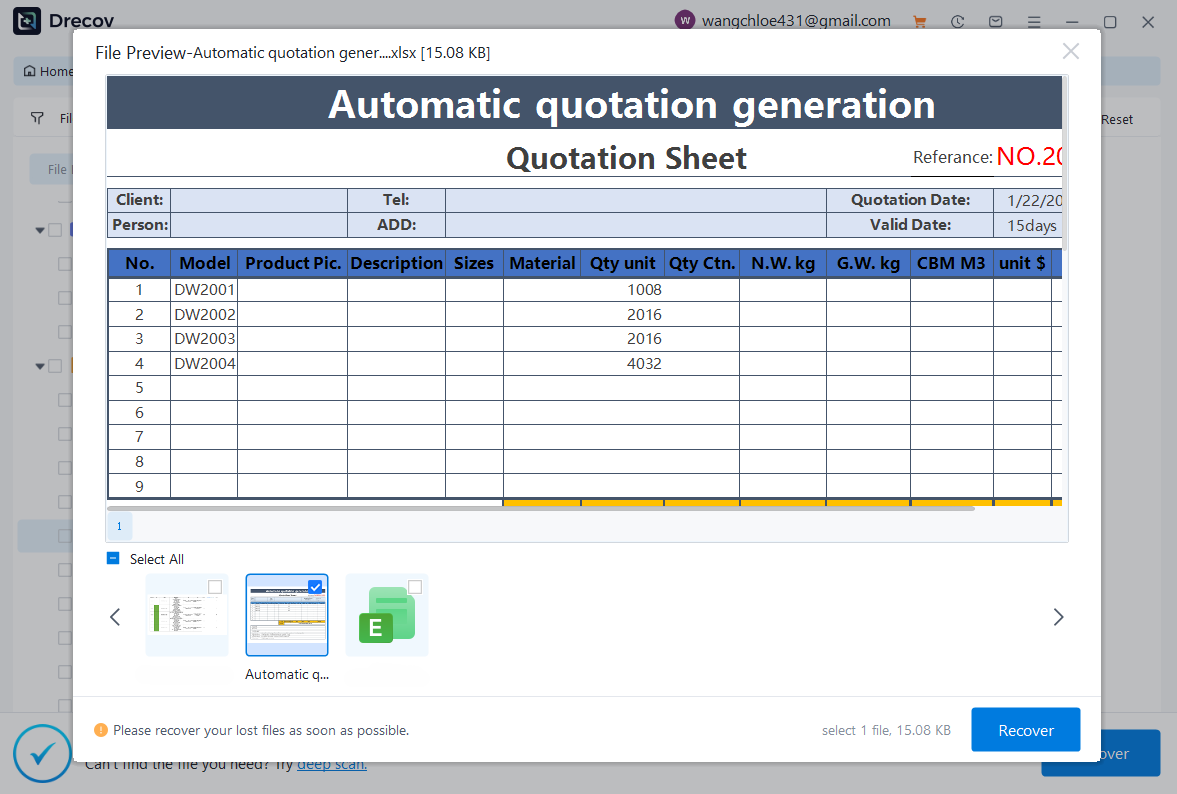
- Step 4: Preview and Recover. One of the best features of PandaOffice Drecov is the preview function. Double-click the file to ensure the data is intact.
- Step 5: Save to a New Drive. Select the files you want and click Recover. Choose a destination on an external drive or a different partition to finalize the process.
After you have successfully mastered the steps to recover your spreadsheets, you might find these additional resources helpful for other digital recovery scenarios:
- Top 5 Best Recycle Bin Recovery Software in 2026 – Learn more about tools that specialize in emptied bin scenarios.
- Finding Deleted Apps on Mobile Devices – A guide for those who lose more than just Excel files.
- Fixing Microsoft Word Not Responding – Prevent data loss by learning how to handle software freezes.
Method 7: How to Recover Permanently Deleted Excel Files in Windows 10/11
If you are using the latest versions of Microsoft’s operating system, there are specific built-in utilities designed for modern file systems (NTFS). Here is how to recover permanently deleted excel files in windows 10/11 using the official “Windows File Recovery” tool.
- Step 1: Download Windows File Recovery from the Microsoft Store.
- Step 2: Open the Command Prompt as an Administrator.
- Step 3: Use the following command syntax:
winfr source-drive: destination-drive: /regular /n *.xlsxExample:winfr C: E: /regular /n \Users\YourName\Documents\*.xlsx - Step 4: Press Y to start the scan.
- Step 5: Once finished, check the destination drive for a folder named “Recovery_[date]”.
This command-line tool is powerful but requires precise path names. If you find the command line intimidating, returning to the graphical interface of PandaOffice Drecov is recommended for a smoother experience.
Method 8: Check OneDrive and Cloud Storage
If your “Documents” folder is synced with OneDrive, your deleted Excel file might still be sitting in the cloud.
- Step 1: Go to OneDrive.com and log in.
- Step 2: Click on the Recycle Bin in the left-hand navigation pane.
- Step 3: Find your Excel file and click Restore.
- Step 4: Check the Version History online if you need an older copy of the file.
Cloud storage is often the most reliable way to handle the “how do i recover an excel file i deleted” dilemma because it maintains its own independent bin that isn’t cleared when you empty your local PC’s bin.
Method 9: Search for Temporary Files
Windows creates temporary versions of files while you are working on them. These are often hidden in the “Temp” folder.
- Step 1: Press Windows + R to open the Run dialog.
- Step 2: Type
%temp%and hit Enter. - Step 3: In the Search bar of the Temp folder, type
*.tmp. - Step 4: Look for files that share the same date and approximate size as your lost Excel file.
- Step 5: Copy these files to your desktop and change the file extension from
.tmpto.xlsx.
Tips to Increase Recovery Success
When you are trying to solve the problem of how do i recover an excel file i deleted, your behavior immediately following the loss determines the success rate.
- Stop Writing Data: Don’t download new movies, install software, or save other files to the drive.
- Avoid Defragmentation: Never run a disk defrag tool after losing data; it will physically move data blocks and destroy your deleted file.
- Check Hidden Files: Sometimes files aren’t deleted; they are just hidden by the system or a virus. Go to File Explorer > View > Check “Hidden items.”
- Use Professional Tools Early: If the Recycle Bin fails, don’t try 10 different “free” tools that might write data to your disk. Go straight to a trusted tool like PandaOffice Drecov.
How to Prevent Excel File Loss in the Future
While knowing how to recover files is vital, preventing the loss is far more efficient.
- Enable AutoSave: If you have an Office 365 subscription, keep the AutoSave toggle in the top-left corner switched “On.”
- Configure File History: Go to Settings > Update & Security > Backup and add a drive for File History. This creates hourly backups of your documents.
- Use the 3-2-1 Backup Rule: Keep 3 copies of your data, on 2 different media types, with 1 copy off-site (cloud).
- Install UPS: If you live in an area with frequent power outages, an Uninterruptible Power Supply (UPS) gives you time to save your work.
For more information on data protection, visit the official Microsoft Support page for Excel or explore the advanced scanning features available in the PandaOffice Drecov official portal.
Frequently Asked Questions
Can I recover an Excel file after emptying the Recycle Bin?
Yes, but you will need a specialized tool like PandaOffice Drecov or a backup (like OneDrive or File History). Once the bin is emptied, the OS marks the space as “available,” but the data remains until overwritten.
Does Windows File Recovery work on SSDs?
Recovery on SSDs is more difficult due to the TRIM command, which clears unused data blocks quickly. However, it is still possible if you act immediately after the deletion occurs.
How long can I wait to recover a file?
There is no set time limit, but there is a “usage limit.” The more you use the computer, the faster the file will be overwritten. Recovery should be attempted within minutes or hours for the best results.
Are third-party recovery tools safe?
Reputable tools like PandaOffice Drecov are safe and do not contain malware. Always ensure you are downloading from the official developer website to avoid “repackaged” software that might contain adware.
Conclusion
If you’re currently stressing over how do i recover an excel file i deleted, take a deep breath. From simple shortcuts like Ctrl + Z and checking the Recycle Bin, to advanced methods like using PandaOffice Drecov data recovery software or Windows 10/11 Shadow Copies, your data is likely still out there.
The transition from a “lost” file to a “recovered” one is simply a matter of following the right technical steps and having the right tools at your disposal. By implementing better backup habits today, such as enabling OneDrive sync and File History, you can ensure that this is the last time a deleted spreadsheet causes you any stress.






