







Imagine you have spent the entire afternoon meticulously inputting complex formulas, pivot tables, and financial projections into a spreadsheet. Suddenly, the power flickers, Excel crashes, or you accidentally click “Don’t Save.” The immediate feeling of dread is universal. However, in 2026, data is rarely truly “gone.” Whether your document vanished due to a system crash, accidental deletion, or disk formatting, successful excel file recovery is highly probable if you follow the right protocols.
In this comprehensive guide, we will explore the technical landscape of excel file recovery. We will move from basic built-in features to advanced professional software like PandaOffice Drecov, ensuring that even if you are not a computer expert, you can restore your work with confidence.
The Science Behind Spreadsheet Retrieval
Before we dive into the “how-to,” we must understand the “why.” How can a computer perform an excel file recovery on something that was never saved or was explicitly deleted?
Modern operating systems and applications like Microsoft Excel create temporary “ghost” versions of your work. When you delete a file, the system simply marks the space as “available” rather than physically scrubbing the data. As long as you do not write new data over that specific physical location on your hard drive, a professional excel file recovery is almost always possible. This fundamental principle is the bedrock of data restoration.
Level 1: Utilizing Built-in Microsoft Office Safety Nets
Microsoft knows that users make mistakes. Therefore, they have integrated several layers of protection directly into the software. This is always the first place to start your excel file recovery journey.
Restoring Unsaved Workbooks via AutoRecover
If your computer crashed or Excel closed unexpectedly, the AutoRecover feature is your best friend. Excel saves a temporary copy of your file every few minutes (default is 10 minutes).
- Step 1: Open a fresh Excel application.
- Step 2: Look for the Document Recovery pane on the left side of the window. If it appears, click on the file name to open it.
- Step 3: If the pane does not appear, click on the File tab in the top left corner.
- Step 4: Navigate to Info > Manage Workbook > Recover Unsaved Workbooks.
- Step 5: A folder window will open (usually located at
C:\Users\[Username]\AppData\Local\Microsoft\Office\UnsavedFiles). Select the.xlsbfile that matches your missing data and click Open. - Step 6: Immediately save the file to a safe location.
Checking the Excel Temporary Folder Path
Sometimes Excel saves “temp” files that don’t trigger the automatic recovery window. You can manually hunt for these to perform an excel file recovery.
- Step 1: Press Win + R to open the Run dialog.
- Step 2: Type
%temp%and press Enter. - Step 3: Look for files starting with a tilde
~or ending in.tmp. - Step 4: Sort by “Date Modified” to find files from the time of your crash.
- Step 5: Copy the file to your desktop and change the extension to
.xlsx. Try opening it with Excel.
Level 2: Operating System Restoration Techniques
If the file was saved but then deleted or lost, we must look at the Windows operating system itself. Windows 10 and 11 offer robust tools for excel file recovery that many users overlook.
The Recycle Bin: The Obvious First Stop
It sounds simple, but many people forget to check the bin before panicking.
- Step 1: Double-click the Recycle Bin on your desktop.

- Step 2: Type
.xlsxor the filename in the search bar. - Step 3: Right-click the file and select Restore. The file will return to its original folder.
Using “Previous Versions”
If you have a Restore Point or File History enabled, Windows keeps “snapshots” of your folders. This is an elite method for excel file recovery if you accidentally saved over an existing file.
- Step 1: Navigate to the folder where the Excel file was stored.
- Step 2: Right-click the folder and select Properties.
- Step 3: Click the Previous Versions tab.
- Step 4: Select a version of the folder from a time before the file was lost.
- Step 5: Click Open to verify the contents, then click Restore.
Level 3: Professional Restoration with PandaOffice Drecov
When built-in tools fail—perhaps because you emptied the Recycle Bin or the drive was formatted—you need a high-tier excel file recovery tool. PandaOffice Drecov is a state-of-the-art data recovery product designed for these high-stakes situations.
PandaOffice Drecov stands out because it doesn’t just look for “deleted” markers; it scans the raw sectors of your storage device to reconstruct the file’s structure. It supports hundreds of formats, including .xlsx, .xls, .csv, and .xlsm. It is particularly effective for recovering data from formatted disks, lost partitions, or corrupted SD cards.
⚠ Warning: Never install the software on the same drive partition where the Excel file was lost. If your file was on the C: drive, install the tool on a D: drive or a USB stick. This prevents “overwriting” the very data you are trying to save.
Step-by-Step Excel File Recovery with Drecov
Step 1: Select the Scan Source
Launch the software. You will see a list of available drives. Select the partition where your spreadsheet was originally stored. If you aren’t sure, you can select “Desktop” or “Recycle Bin” specifically.

Step 2: Deep Scanning for Spreadsheets
Click the Scan button. Drecov will first perform a Quick Scan for recently deleted files, then automatically transition into a Deep Scan. This process looks for the “file signature” of Excel documents.

Step 3: Filter and Preview Results
Once the scan is complete, use the sidebar to filter by “Documents” and then “XLSX”.
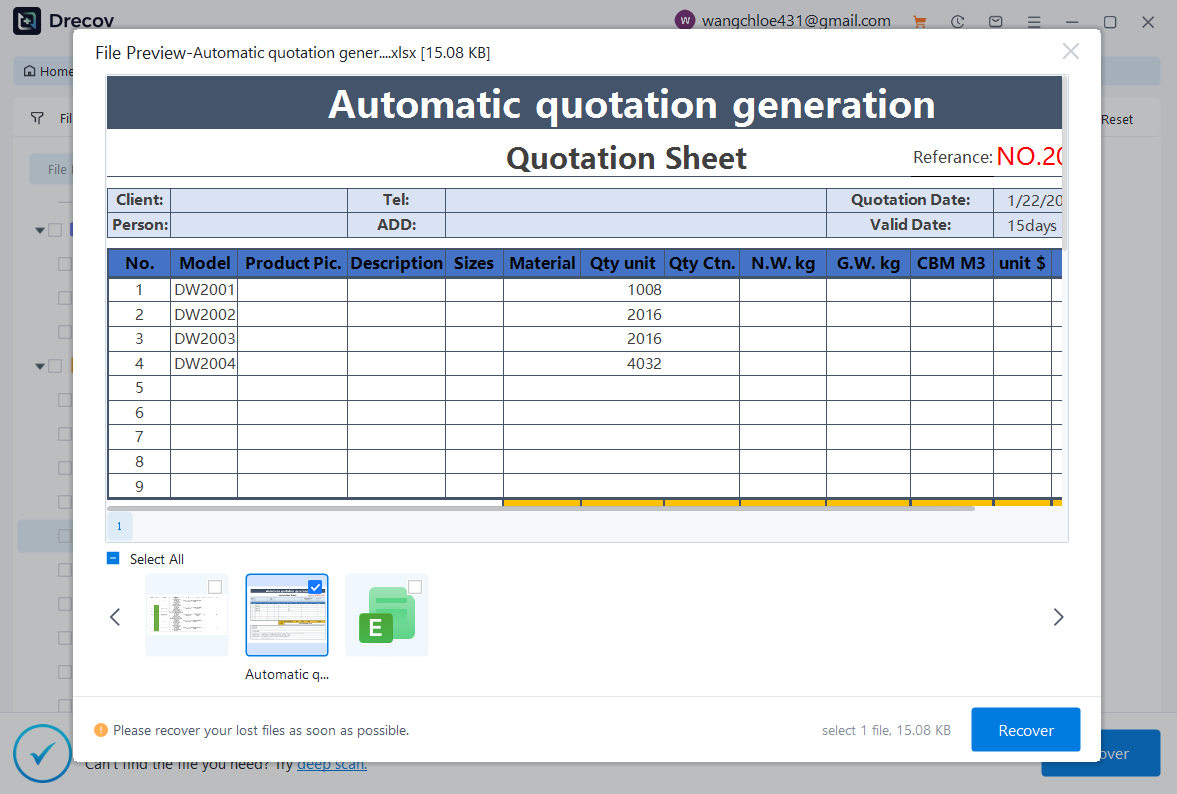
Key Operation Point: Use the Preview function. Double-click the found Excel file. If you can see the data inside the preview window, the excel file recovery is guaranteed to be successful.
Step 4: Recover to a Safe Location
Select the files you want back and click the Recover button.
Warning Prompt: Always save the recovered files to a different drive (like an external HDD or cloud storage). Saving them back to the original drive could lead to data corruption.
For further reading and specialized scenarios, check out our related guides:
- Learn the specifics of how to recover overwritten excel files in windows 11/10/ 8/7 to undo unwanted changes.
- If you forgot to hit the save button entirely, follow our how to recover an unsaved excel file complete guide.
- For a broader look at different formats, read how to recover an excel file complete guide to excel recovery files.
Level 4: Advanced Command Line and Registry Fixes
For technical users, Windows offers the Command Prompt (CMD) and Registry Editor. While these aren’t “recovery tools” in the traditional sense, they can resolve system-level issues preventing excel file recovery.
Using the ATTRIB Command to Unhide Files
Sometimes a virus or system error doesn’t delete your file but changes its attributes to “System” and “Hidden,” making it invisible to File Explorer.
- Step 1: Type
cmdin the Windows search bar and Run as Administrator.
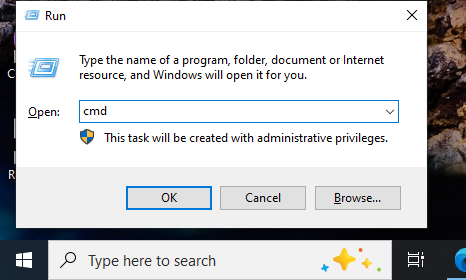
- Step 2: Type the drive letter followed by a colon (e.g.,
E:) and press Enter. - Step 3: Type
attrib -h -r -s /s /d *.*and press Enter. - Step 4: Check your drive for a new folder containing your “missing” Excel documents.
Fixing Excel File Associations in the Registry
If your file exists but says “The file is corrupt and cannot be opened,” the problem might be the Registry association rather than the data itself.
- Step 1: Press Win + R, type
regedit, and press Enter. - Step 2: Navigate to
HKEY_CLASSES_ROOT\.xlsx. - Step 3: Ensure the “(Default)” value is set to
Excel.Sheet.12. If it is different, right-click and modify it.
In 2026, most businesses use cloud-integrated Office 365. This provides an incredibly powerful “Version History” feature that acts as a continuous excel file recovery log.
- Step 1: Log in to your OneDrive account via a web browser.
- Step 2: Find the file or the folder where it used to be.
- Step 3: Right-click the file (or the empty space) and select Version History.
- Step 4: A list of every save made in the last 30+ days will appear. You can view or restore any version with one click.
For more information on managing your digital files, you can visit the Official Microsoft Excel Support or consult the Microsoft Community Forums.
Core Precautions for Successful Recovery
Data recovery is a delicate process. One wrong move can turn a recoverable file into permanent electronic waste.
- Immediate Cessation: The moment you realize an Excel file is missing, stop using the computer. Even browsing the web creates temporary files that could overwrite your lost spreadsheet.
- Avoid “Repair” Tools on the Original: If Excel offers to “Repair the corrupted file,” always make a copy of the corrupted file first. Sometimes the repair process can fail and delete the remaining data.
- Check for Hidden Files: Always ensure your File Explorer is set to “Show hidden files, folders, and drives” in the Folder Options menu.
- Hardware Health: If your hard drive is making clicking or grinding noises, software-based excel file recovery will not work and may destroy the drive. In this case, consult a professional hardware recovery lab.
Strategic Guide to Preventing Data Loss
While knowing how to perform an excel file recovery is vital, preventing the need for it is even better. We recommend the 3-2-1 Backup Strategy.
- 3 Copies of your data (Original + 2 Backups).
- 2 Different media types (e.g., Internal SSD and External Drive).
- 1 Copy off-site (Cloud storage).
Additionally, ensure your Excel AutoRecover settings are optimized. Go to File > Options > Save and set “Save AutoRecover information every” to 1 minute.
Final Thoughts on Excel Restoration
Whether you are dealing with a simple accidental deletion or a complex drive failure, the tools available in 2026 make excel file recovery more accessible than ever. Start with the simplest built-in tools, and if those fail, move to professional solutions like PandaOffice Drecov. By staying calm and following the structured steps in this guide, you can rescue your data and get back to work.
Mastering these techniques ensures that your hard work remains safe, no matter what digital mishaps occur. Happy recovering!






