







Obsidian notes are ordinary files inside a vault, but the application also keeps some device-local recovery information outside that vault. A missing note can therefore have several explanations: the wrong vault opened, a file moved, a synchronized deletion spread, or an earlier snapshot remains on the device where you edited it. Start by preserving the surviving vault and identifying the affected computer. Then recover text and attachments as separate components.
Quick answer: check the original device and vault
Open the correct existing vault and search for recognizable text, not only the filename. If the note is genuinely missing or overwritten, inspect the File recovery core plugin on the device that held the useful editing state. Its snapshots are local and do not automatically travel with the vault. Existing independent Markdown copies or previously configured version history offer other routes. Attachments require separate recovery because note snapshots do not restore every file type.
Obsidian’s local File recovery feature provides a free native route where supported. A paid synchronization service is not required for those existing local snapshots. However, snapshot availability depends on settings, retention, file type, and vault location. Enabling recovery now cannot recreate earlier text. Also, restoring a note’s words does not automatically restore embedded images, linked PDFs, or the network of relationships that made the note useful.
Diagnose the apparent loss
Wrong vault, moved note, or deleted content?
Inspect the vault path and compare several familiar notes. Two vaults can share a name while containing different versions of a project. Search for a distinctive phrase from the missing note and inspect likely folders. A renamed file or changed link may make content appear absent from one view even while the Markdown remains on disk. Record the actual file path and the last known editing device before attempting a restore.
Also check whether the problem affects the note’s source or only its rendered view. A plugin, filter, or broken embed can change appearance without deleting the text. Open a preserved copy in an ordinary text editor when appropriate and inspect the Markdown. This separates content loss from a display issue. Do not rebuild the vault or clear application data merely because one preview panel no longer shows the expected material.
Preserve synchronization evidence
If you suspect an unwanted synchronized change, preserve the surviving state on relevant devices before reconnecting or reorganizing them. A second device may hold a useful independent copy, but it may also already reflect the same deletion. Inspect rather than assume. Keep each device’s candidate in a separate recovery folder with its origin recorded. This makes comparison possible without immediately allowing one state to replace another.
Avoid treating synchronization as a complete backup. Its purpose can include distributing deletions and unwanted edits as well as useful changes. Therefore, establish a verified recovered baseline before resuming normal synchronization. Also check the specific provider’s existing version facilities where they were already configured. Do not describe a new subscription or newly enabled feature as a way to generate history that never existed before the incident.
Free route 1: inspect local File recovery snapshots
- Open Settings on the device where the useful note state existed.
- Select the File recovery core plugin and open its snapshot viewer.
- Search for the relevant note and compare available snapshots.
- Copy useful content into a separate note or restore only after preserving the current state.
The plugin stores complete snapshots of supported notes rather than only a list of changes. However, the history is device-specific and has a retention policy. Inspect the actual entries and settings. A snapshot can preserve an earlier useful draft while lacking the final paragraph. Therefore, compare the missing section directly and retain complementary candidates. A familiar title in the viewer does not independently establish that it contains the required revision.
Use copy-first recovery when versions differ
If the current note contains useful new content, copy the snapshot into a separately named candidate instead of immediately replacing the current file. Compare headings, front matter, links, and the final edited section. Then build a new accepted note from verified material. This prevents recovery of an older paragraph from discarding later research or task updates elsewhere in the same note.
Keep the snapshot source and approximate editing point in your notes. Also inspect the original device even if you now use another computer with the same vault. A synchronized vault does not imply synchronized File recovery snapshots. If the desired device-local history is absent, acknowledge that limit and move to an independent copy rather than repeatedly refreshing the same empty viewer.
Free route 2: reopen an existing vault at the correct location
- Identify the known vault folder and preserve a complete readable copy.
- Use Obsidian’s vault management interface to open the existing folder.
- Compare familiar notes, folder structure, and the affected note’s source.
- Preserve useful candidates before renaming or moving the vault again.
A vault move can affect both links and access to existing recovery snapshots. Snapshot records can depend on the note’s absolute path, so inspect current official guidance before relocating folders as a recovery experiment. Do not create a new empty vault with the same name and assume that history will attach automatically. First record the original and current paths and preserve the available content.
Compare source files and application views
Inspect the actual Markdown files in the candidate folder. A vault can contain the needed note even if a workspace tab points elsewhere. Search recognizable text and compare the full filename, including its extension. Also inspect whether the note became an empty or truncated file. Those symptoms differ from a broken navigation link and require different recovery evidence.
If another vault candidate contains an older useful copy, keep it separate. Do not merge entire folders blindly, because filename collisions can overwrite newer notes or attachments. Compare the affected notes individually and record any reconstructed link relationships. A clean file list is not the only goal; the recovered knowledge base should preserve the relationships and context that users actually rely on.
Free route 3: preserve a surviving device copy
- Identify a legitimate device that may still contain the useful note state.
- Preserve a local copy before allowing uncertain synchronization changes to propagate.
- Inspect the actual Markdown and relevant attachments on that device.
- Copy verified material into a separate recovery workspace for comparison.
This route uses a copy that already exists, not a promise that every disconnected device retains an older version. Check its contents and date carefully. A device last used months ago may preserve the note but omit later changes. Also distinguish files downloaded locally from placeholders or unavailable remote content. Only actual readable data provides an independent recovery source.
Keep the recovered copy outside the contested workflow
Use a separate recovery folder while comparing device states. If you immediately place the only useful copy back into a synchronized location, another change may replace it before review finishes. Preserve an independent baseline first. Then reconcile the note through the normal workflow with a clear understanding of which state should become current. Keep the original candidates until that decision is verified on the relevant devices.
Also inspect note identity. A copied file with the same title may belong to an earlier project or contain different front matter. Compare distinctive passages, tags, and links. This prevents a plausible older note from replacing the current research context. If you combine versions, document the sections you reconstructed rather than describing the entire result as an untouched historical snapshot.
Free route 4: inspect existing Markdown version history
- Locate a previously configured Git repository or independent versioned vault copy.
- Preserve the current vault before extracting an older file.
- Compare the relevant historical Markdown and associated assets.
- Recover useful content into a new candidate without resetting unrelated current work.
Markdown’s ordinary text format makes existing version control a useful recovery source. However, it only protects content that reached a recorded revision. Attachments or excluded folders may not have been included. Therefore, inspect actual coverage before assuming the entire vault survives. Also avoid a destructive repository reset merely to retrieve one note. Read-only history inspection or a separate workspace provides a safer comparison route.
Recover text and relationships together
Check internal links, embedded references, headings used as link targets, and front matter. A note can restore its prose while leaving important links broken because related files moved or disappeared. Compare the relevant neighboring notes and asset paths. Also inspect aliases and identifiers used by your workflow. The accepted result should support the actual navigation and research tasks rather than merely display the correct word count.
If the surviving historical version lacks recent links, use the current note and available project records to reconstruct them deliberately. Keep that reconstruction visible in the recovery note. Furthermore, verify the source view after any automated link update. A rendered page can conceal an unintended path or target that later breaks when another user opens the vault from a different location.
Free route 5: recover attachments independently
- Inspect the missing embed’s actual source path in the Markdown.
- Search existing attachment folders and legitimate project archives for the original.
- Copy a verified asset into the accepted vault structure and reconnect the reference.
- Open the asset and inspect its content, resolution, or document completeness.
The File recovery plugin’s supported note snapshots do not provide a universal backup of images, audio, and PDFs. A Markdown line can survive while its referenced file is gone. Therefore, recover that file from an independent source or a supported storage assessment. Do not replace a missing research PDF with a similarly named document without checking its identity and revision.
Distinguish an attachment from its preview
A thumbnail or cached preview may preserve a visual clue while lacking the original quality or complete content. Inspect the actual file. For a diagram, check detail and labels; for a PDF, check page count and readable pages. Also preserve the original filename where it supports references. A recovered note that displays one small preview is not necessarily a complete restoration of its supporting research material.
If you must use a substitute, label it and retain the expected original path in your recovery notes. This makes later replacement possible. Also check whether other notes refer to the same asset. Restoring one embed can leave several broken references elsewhere if the accepted file uses a different path. Review the relevant relationships rather than assuming a single successful display resolves the whole attachment problem.
Example: recover a research note after a sync mistake
Suppose a note loses two sections after an unwanted synchronization change. The current version still contains new task updates, while the original laptop’s File recovery snapshots preserve the missing research. First preserve both states. Copy the snapshot to a separate candidate, compare the sections, and merge only verified material. Restoring the whole old note would unnecessarily remove the newer task updates.
Next, inspect embedded PDFs and internal heading links. One restored paragraph may refer to an attachment that the snapshot does not contain. Locate that asset in the existing research archive and verify its identity before reconnecting it. Finally, establish an independent copy of the accepted note and assets, then resume the intended synchronization workflow. This restores usable context without confusing note history with attachment backup.
Validate the recovered vault content
Check the note’s beginning, ending, headings, front matter, links, embeds, and important passages. Open source and rendered views where useful. Then close and reopen the accepted note from its intended vault. Inspect representative backlinks or navigation paths used by the project. A file that opens in a text editor can still lack the relationships that make it useful inside the knowledge base.
Keep the current candidate, recovered snapshots, device copies, and accepted version until review finishes. Document missing assets or reconstructed links. Afterwards, back up the vault independently and verify that its supporting files are included. Local snapshots, synchronization, and version control provide different protection. Understanding those differences gives a future incident several real recovery routes rather than one optimistic assumption about the sync icon.
Compare note candidates by content and relationships
Build a small note checklist
Identify the note’s intended title, opening topic, final edited section, important tags, and a few essential links. Apply the same checklist to every candidate. A file can share the right name while containing an older project or an incomplete draft. Also inspect front matter directly. Structured fields can affect queries and organization even when the rendered prose appears correct.
Keep a record of each candidate’s device, vault path, and content milestone. This is particularly useful after a vault move, because several copies can look almost identical. Preserve the initial source before merging. A clear comparison helps you choose a useful base and prevents another user from replacing the accepted note with an obsolete candidate merely because its timestamp appears later.
Reconcile current tasks with older research
Suppose the current note contains new task statuses while a local snapshot preserves missing background research. Compare those sections separately. Copy verified research into a new working candidate rather than rolling back the entire note. Then inspect task syntax, dates, and internal references. Restoring old task values along with the research can create practical confusion even when the prose recovery succeeds.
Document the merged sections and keep both originals until review finishes. This makes the result traceable without requiring a long troubleshooting diary. Also review the final note in the workflows that consume it, such as a task view or query. A source file can look correct while a restored field causes the application to categorize it differently from the intended current state.
Inspect the vault beyond one file
Internal headings and link targets
Links can target a note, a heading, or another specific element according to the workflow. A recovered paragraph may restore the words while changing a heading that other notes reference. Inspect important incoming and outgoing links. Also compare capitalization and path changes where they matter to portability. A note that opens successfully is not automatically a complete restoration of its navigation context.
If you rebuild a heading or move the note, verify the affected references deliberately. Do not run a broad rename operation on the only recovery source. Preserve the baseline first and inspect the resulting Markdown. This prevents a successful text salvage from creating a second problem in which related notes still point to an obsolete or ambiguous target.
Canvas and non-note material
Different file types can have different recovery coverage. Inspect the supported scope of the File recovery plugin rather than assuming every vault asset receives snapshots. A canvas can preserve relationships that an exported screenshot does not fully describe. Also inventory any associated images or documents. Recovering a supported note type does not automatically restore the external material that gives it meaning.
Keep each recovered asset’s actual format and source recorded. A rendered image of a canvas may support reading or reconstruction while lacking editable structure. Label that limitation. If you rebuild relationships manually, preserve the source evidence and document the changes. This gives collaborators a useful partial result without implying that the original editable graph survived unchanged.
Attachment folders and repeated names
Several attachment directories can contain common filenames such as diagram.png or notes.pdf. Compare actual content before reconnecting an embed. A file that removes the broken-image indicator can still belong to another project. Inspect image dimensions, document pages, and any visible identifiers. Also preserve folder boundaries while recovering files so the original relationship remains easier to reconstruct.
If a recovered note points to an asset outside the accepted vault structure, decide deliberately how that dependency should work. Copying everything into one folder can create collisions. Instead, establish a clear destination and update only verified references. Then reopen the note from that location. This portability test catches embeds that worked only because a temporary recovery directory remained available on one computer.
Handle device-local snapshots after a vault move
Record old and current paths
Snapshot access can depend on where the note lived when the snapshot was created. Before moving folders as a test, record both paths and preserve their readable contents. Consult the current supported vault-management guidance. Do not move the only surviving vault repeatedly until a snapshot appears. A controlled copy and a documented path history provide much better evidence than a chain of uncertain relocations.
Also inspect the original device where the useful text existed. Another computer with an identical vault name does not automatically hold the same local snapshot store. If that device is unavailable, state the limit and focus on actual independent file copies or version history. This avoids wasting effort treating synchronized note content and device-specific recovery records as interchangeable sources.
Preserve recovered content before resuming sync
Once you find useful text, save an independent copy outside the disputed synchronization flow. Then compare the current and recovered states before deciding which becomes authoritative. Keep the provider’s normal conflict and version guidance in view. A successful local restore does not establish that every connected device will retain that state after synchronization resumes.
Test representative content on the intended devices after reconciliation. Also preserve the independent recovery copy until the result remains stable through the normal workflow. If another change reappears, you still have a verified baseline. This separates finding useful text from distributing the accepted version, giving both parts of the recovery a clear validation step.
Make the recovery useful for ongoing research
Identify what remains missing
Create a concise gap list: absent paragraphs, unavailable PDFs, broken links, or uncertain task values. A partial note can be useful immediately while those items remain under investigation. Do not hide the gaps by replacing a missing document with an unrelated similar file. Preserve the intended path and citation information so a later asset search has a concrete target.
If you reconstruct material from memory, mark it for review. Memory can help create a replacement but does not establish the original wording or research conclusion. Keep any relevant source documents and approved exports alongside the candidate. This lets the project owner distinguish recovered evidence from new writing and focus review effort on the sections that need it most.
Test an independent vault restore
After acceptance, create a separate backup containing the actual note files and required attachments. Test a small restore in another location without relying on the live vault. Open a representative note, follow an internal link, and inspect an embedded document. This checks practical usability rather than merely confirming that a backup archive has a reassuring size.
Document the authoritative vault path and accepted revision. Retain the original candidates according to the research project’s needs. Local snapshots, existing version control, and independent file copies protect different failure modes. A tested combination gives the next incident several concrete recovery sources instead of forcing you to infer the entire knowledge base from a surviving graph view or sync status.
When PandaOffice Drecov may help
A storage scan may help when Markdown notes or attachments are genuinely absent from supported local media. PandaOffice Drecov does not reconstruct Obsidian’s device-local snapshot database automatically or restore a remote service’s history. Check current file support and inspect actual candidate content. A recognizable filename is only a clue, and a recovered note still needs link and attachment validation before it becomes the accepted vault source.
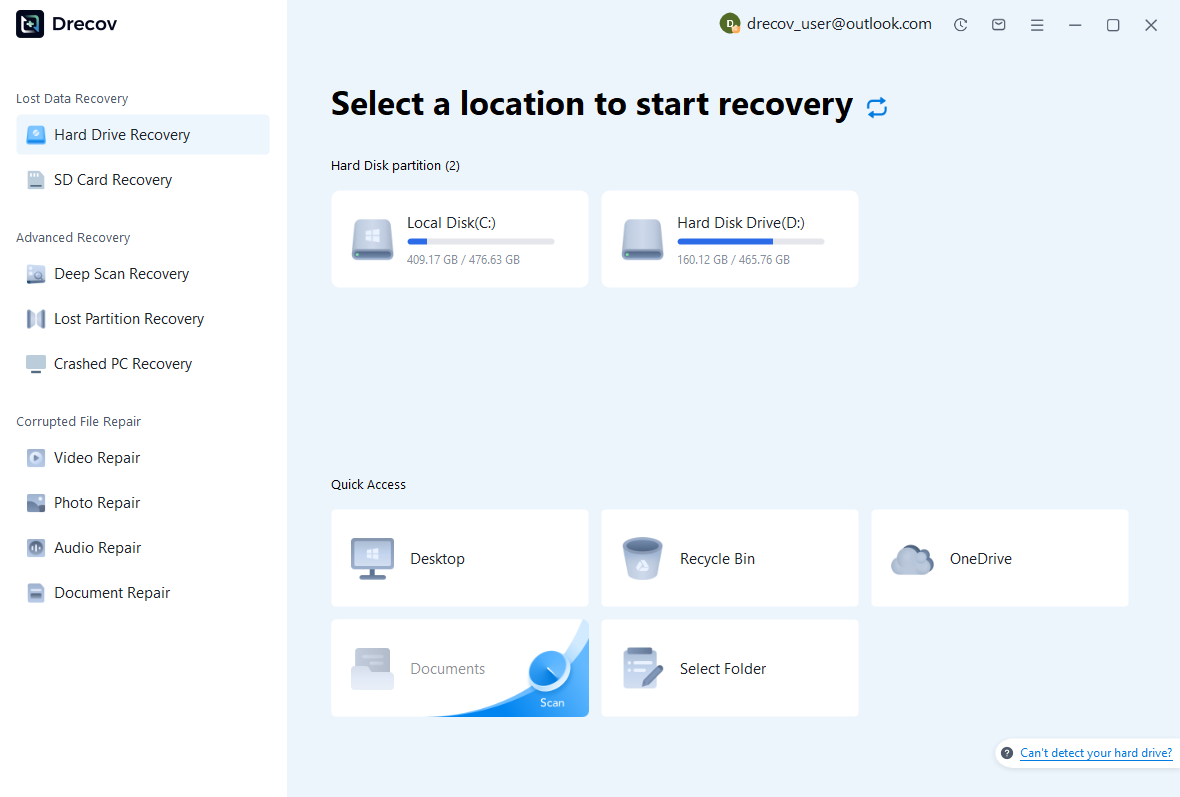
Step 1: identify the actual file source
Select the supported disk that held the missing vault or attachment. The application installation folder may be unrelated, and a different device may hold the relevant snapshot history. Avoid writing new vault copies or installing recovery software on affected storage. If reads become unstable, stop repeated scans and assess the device condition before attempting more software recovery.
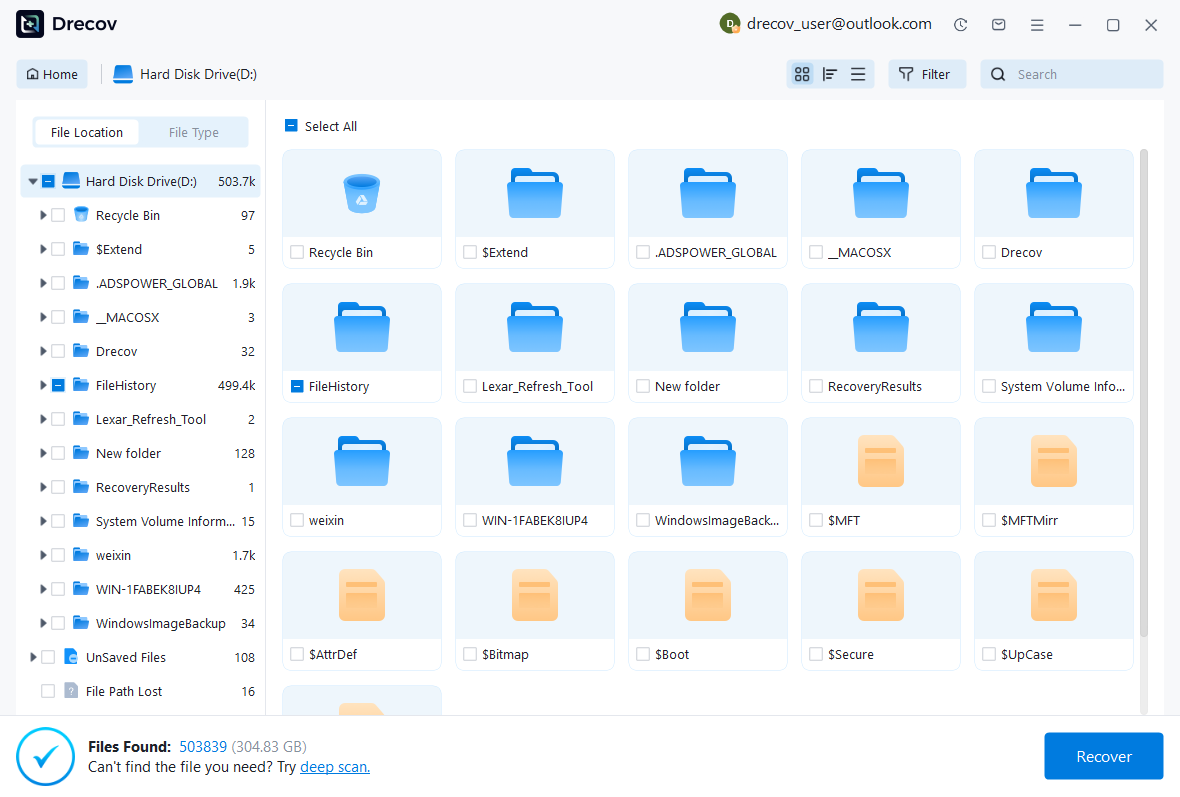
Step 2: compare text and asset candidates
Use available path, name, date, and format filters. Text previews can help identify distinctive passages, while asset previews can help distinguish related documents. Preserve several plausible revisions if necessary. Also retain folder context where possible. A note and its attachments may need matching paths, so an unstructured pile of recovered files can require additional work before the vault becomes coherent.
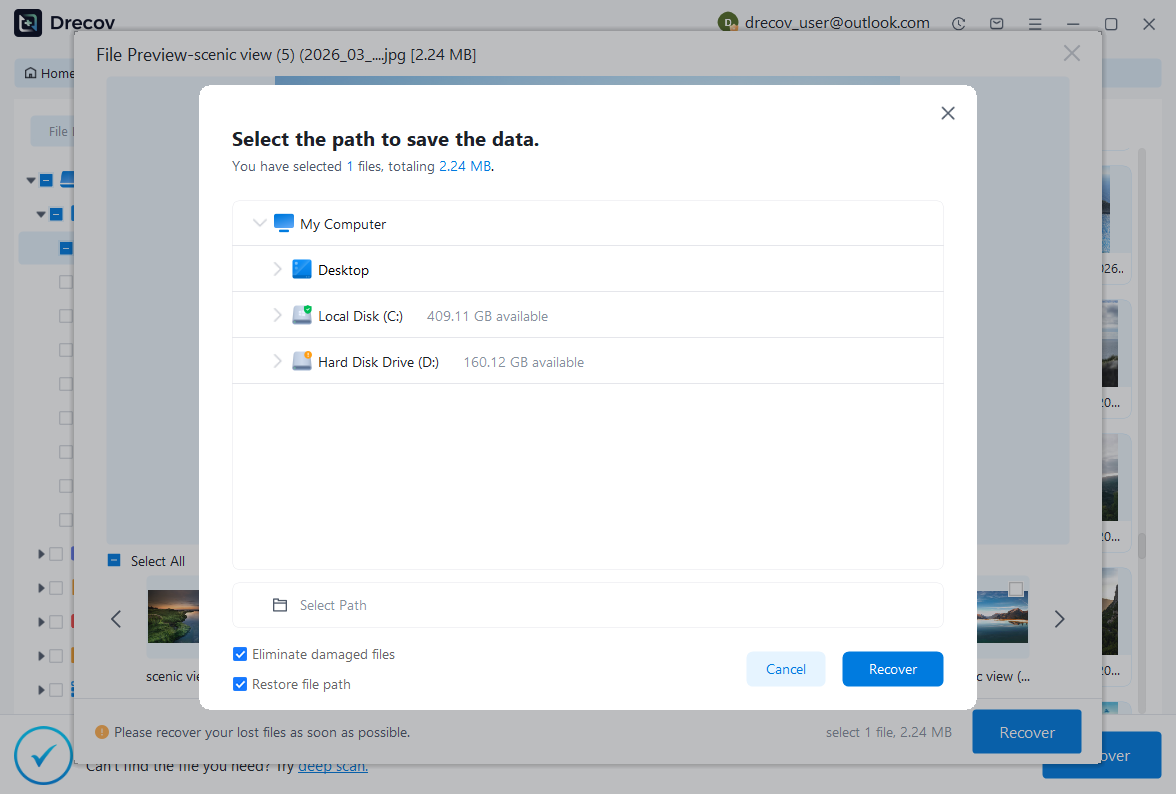
Step 3: recover elsewhere and reconnect deliberately
Save candidates to a different healthy physical disk. Review licensing and preview limitations before purchasing. Then inspect copies in a separate recovery vault or text workspace. Restore the accepted note and verified assets through a deliberate comparison process. The recovery tool supplies potential files; source and relationship checks establish whether they restore the intended knowledge rather than only a familiar title.
Related recovery resources
Explore the relevant recovery options: Hard drive recovery, External hard drive recovery.
For another recovery case and its practical checks, read the related recovery guide.
Check the vendor guidance for the installed version: official recovery documentation 1, official recovery documentation 2.





